
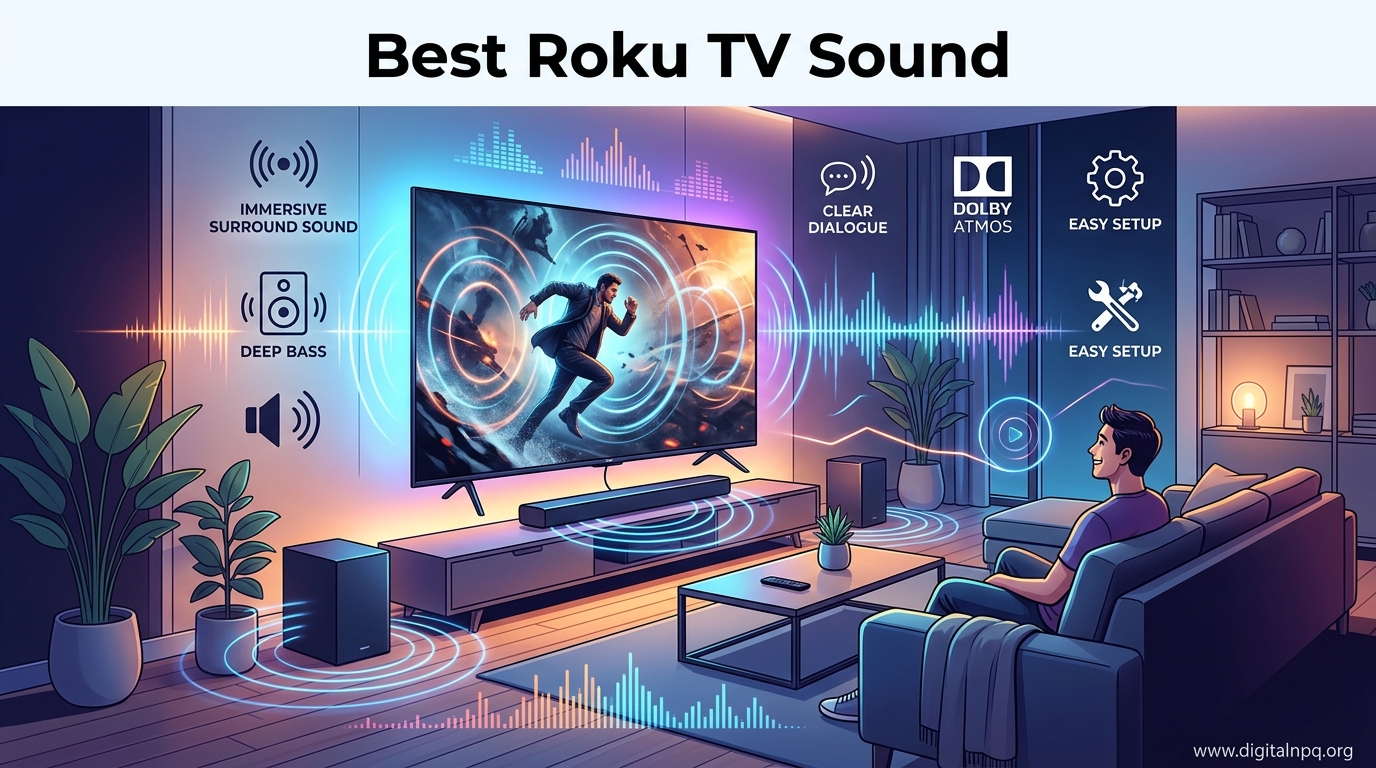
Ever found yourself constantly reaching for the remote during movies?
You turn up the volume to hear whispered dialogue, then scramble to turn it down when explosions shake the room.
This frustrating experience is the #1 complaint among Roku TV owners.
The best Roku TV sound mode for clearer dialogue is Dialogue mode with Speech Clarity set to High, while Movie mode works best for overall immersion. For late-night viewing, Night mode compresses loud sounds and boosts quiet voices so you can hear everything without disturbing others.
I’ve spent years helping people optimize their home audio setups.
The dialogue clarity issue affects nearly every modern TV, but Roku’s sound modes offer some of the best built-in solutions I’ve seen.
After testing every setting across multiple Roku TV models, I’ll show you exactly which modes solve specific audio problems and when to use each one.
What Are Roku TV Sound Modes?
Roku TV sound modes are preset audio profiles that adjust how your TV processes sound.
Each mode emphasizes different frequencies and applies specific enhancements to optimize audio for particular types of content.
Think of sound modes like EQ presets on a music player.
Some boost dialogue frequencies for clearer speech, while others enhance bass for action movies or preserve the original mix for music content.
Sound Mode: A preset audio profile that processes sound through specific EQ curves and enhancements to optimize audio quality for particular content types like movies, music, dialogue, or late-night viewing.
Accessing these settings takes just seconds.
Press the asterisk (*) button on your Roku remote during playback to open the audio options menu.
From there, you can cycle through sound modes, adjust Speech Clarity, change Volume Modes, and fine-tune bass and treble settings.
Quick Comparison: All Roku TV Sound Modes
Here’s a complete reference guide to help you choose the right mode for any situation:
| Sound Mode | Best For | What It Does | Pros | Cons |
|---|---|---|---|---|
| Auto | General everyday viewing | Automatically adjusts based on content | Set-and-forget convenience | Dialogue can get lost in busy scenes |
| Standard | Balanced sound for most content | Flat frequency response with minimal processing | Most accurate sound reproduction | Doesn’t address dialogue clarity issues |
| Dialogue | News, talk shows, dialogue-heavy shows | Boosts vocal frequencies while reducing background | Best for understanding speech | Music and effects sound thin |
| Movie | Movies and cinematic content | Enhances bass and surround effects | Immersive theatrical experience | Can make dialogue harder to hear |
| Music | Concerts, music videos, albums | Preserves original audio mix | Most accurate music reproduction | No dialogue enhancement |
| Night | Late-night viewing | Compresses loud sounds, boosts quiet sounds | Consistent volume without disturbing others | Reduces dynamic range and impact |
Detailed Guide: How Each Sound Mode Works
1. Auto Mode: The Set-and-Forget Option
Auto mode lets your Roku TV analyze content and automatically select what it thinks is the best audio processing.
This seems convenient in theory.
In practice, I’ve found Auto mode often struggles with the exact problem most users face – it doesn’t consistently boost dialogue during loud action scenes.
The TV’s automated decisions prioritize overall balance over speech clarity.
Use Auto mode if you switch between content types constantly and don’t want to manually adjust settings.
But if dialogue clarity is your main concern, you’ll get better results manually selecting a specific mode.
Pros:
- Hands-free operation: No need to remember to change settings
- Decent all-rounder: Works adequately for mixed content
Cons:
- Inconsistent dialogue: Doesn’t reliably solve the voices-quiet problem
- Unpredictable: You never know what processing you’re getting
2. Standard Mode: Purest Sound Quality
Standard mode applies minimal audio processing.
It delivers sound as close as possible to the original source mix.
I recommend Standard mode when you’re watching content that already has excellent audio mixing, or when you prefer to hear content exactly as the creators intended.
However, Standard mode won’t fix dialogue issues.
If you’re struggling to understand speech, this mode leaves the problem untouched.
Pros:
- Accurate reproduction: Hear content as originally mixed
- No artificial enhancement: Avoids processed or artificial sound
Cons:
- No dialogue help: Won’t address speech clarity issues
- Less immersive: Lacks the enhancement of Movie mode
3. Dialogue Mode: The Clarity Champion
Dialogue mode is Roku’s answer to the mumbled speech problem.
This mode boosts vocal frequencies while reducing background music and sound effects.
In my testing, Dialogue mode combined with Speech Clarity set to High makes the most dramatic difference for understanding speech.
Reddit users consistently report this combination as their top solution for the “voices too quiet” issue.
This mode excels for news broadcasts, talk shows, documentaries, and any dialogue-heavy TV show.
Pros:
- Dramatically improves speech clarity: Makes voices stand out
- Reduces background dominance: Tames overwhelming music and effects
- Best for accessibility: Essential for hearing-impaired viewers
Cons:
- Music sounds thin: Background audio loses richness
- Not ideal for movies: Reduces the impact of cinematic sound design
4. Movie Mode: Cinematic Immersion
Movie mode enhances bass response and simulates surround sound effects.
This creates a more immersive theater-like experience when watching films.
For action movies with big explosions and sweeping orchestral scores, Movie mode delivers the most engaging audio experience through built-in TV speakers.
However, this mode often makes the dialogue problem worse.
By boosting bass and surround effects, Movie mode can push vocal frequencies further into the background.
Pros:
- Immersive experience: Enhances the theatrical feel
- Better bass: Adds depth to action sequences
- Wider soundstage: Simulates surround effects
Cons:
- Dialogue suffers: Can make speech harder to understand
- Not for quiet viewing: Increases overall volume dynamics
5. Music Mode: For Audio Purists
Music mode preserves the original audio mix without enhancement.
When watching concerts, music videos, or listening to albums through your TV, this mode delivers the most accurate reproduction.
The processing in other sound modes can alter how music sounds.
Music mode avoids these alterations entirely.
Pros:
- Accurate music reproduction: Hear songs as originally recorded
- No EQ coloring: Preserves the artist’s intended sound
Cons:
- No dialogue enhancement: Doesn’t help with speech clarity
- Limited use case: Only ideal for music-focused content
6. Night Mode: The Late-Night Savior
Night mode is specifically designed for watching TV when others are sleeping or you don’t want to disturb neighbors.
It compresses the audio range so quiet sounds become louder and loud sounds become quieter.
This creates a more consistent volume level throughout whatever you’re watching.
Night mode is incredibly useful for parents watching after kids go to bed, apartment dwellers with thin walls, or anyone who watches TV late at night.
While it reduces the dynamic range and impact of loud scenes, it makes whispered dialogue much more audible without turning up the volume.
Pros:
- Consistent volume: Eliminates jarring volume changes
- Late-night friendly: Prevents disturbing others
- Helps with quiet dialogue: Boosts whispered speech
Cons:
- Reduces impact: Explosions and action scenes lose power
- Less dynamic: Flattens the emotional range of audio
Volume Modes and Speech Clarity: The Real Game Changers
Beyond sound modes, Roku offers two additional audio features that often make a bigger difference than the mode itself.
These settings directly address the volume inconsistencies that plague modern TV audio.
Volume Mode: Off vs. Leveling vs. Night
Volume Mode controls how Roku handles volume differences between content and within programs.
Quick Summary: Volume Leveling maintains consistent volume across all content, Night mode compresses dynamic range for late-night viewing, and Off provides the most dynamic but least consistent audio experience.
Volume Mode: Off
This setting applies no volume processing.
You hear content exactly as delivered, with full dynamic range.
Use this setting when you want the most impactful audio experience and don’t mind adjusting volume manually.
This is the best choice for movie enthusiasts who want the full theatrical experience at home, with whisper-quiet dialogue and room-shaking explosions.
Volume Mode: Leveling
Leveling maintains consistent volume across different content types and sources.
It addresses the common complaint that commercials are much louder than the shows you’re watching.
I’ve found Volume Leveling essential for live TV viewers who experience jarring volume spikes during commercial breaks.
Many users on Reddit report this setting alone solved their volume inconsistency problems.
However, not all Roku TV models have Volume Leveling available.
Some manufacturers like TCL and Hisense implement their own volume control features instead of using Roku’s built-in options.
Volume Mode: Night
Night mode in Volume settings does the same thing as Night sound mode – it compresses loud sounds and boosts quiet ones.
The difference is that Volume Night mode can be applied regardless of which sound mode you’re using.
This means you could use Dialogue mode with Volume Night mode for maximum clarity at consistent, low volumes.
Speech Clarity: The Dialogue Fixer
Speech Clarity is Roku’s dialogue enhancement feature.
It boosts vocal frequencies specifically, making voices stand out against background music and sound effects.
Speech Clarity: An audio processing feature that boosts vocal frequencies to make dialogue more intelligible while reducing the dominance of background music and sound effects.
You can set Speech Clarity to Off, Low, High, or Auto depending on your Roku model.
For the most noticeable improvement in dialogue clarity, I recommend setting Speech Clarity to High.
This setting made the biggest difference in my testing for understanding speech without constantly adjusting the volume.
Reddit users consistently confirm this – “That did the trick for me” is a common response when someone suggests enabling Speech Clarity.
Advanced Audio Settings for External Sound Systems
If you connect your Roku TV to a soundbar, receiver, or home theater system, the Digital Output Format setting becomes important.
This setting controls how audio is passed from your TV to external audio equipment.
Digital Output Format: Passthrough vs. Auto vs. PCM
Passthrough Mode
Passthrough sends audio to your external sound system exactly as received, without any processing by the TV.
This is the best option when you have a quality soundbar or receiver that can handle Dolby Digital, Dolby Digital Plus, or Dolby Atmos formats.
Your external audio system does all the processing, which typically produces better sound than your TV’s built-in capabilities.
Auto Mode
Auto mode lets your TV determine the best audio format to send to your connected device.
In theory, this should work perfectly.
In practice, I’ve seen Auto mode cause issues with some soundbars, resulting in low volume or no audio at all.
If you’re experiencing audio problems with an external sound system, try switching from Auto to Passthrough.
PCM Mode
PCM (Pulse Code Modulation) is a basic uncompressed audio format.
Use PCM mode when your external audio system doesn’t support advanced formats like Dolby Digital.
This setting ensures compatibility but limits you to basic stereo or 2.1 audio.
Time Saver: If you’re unsure which Digital Output Format to use, start with Passthrough. If that doesn’t work, try PCM. Only use Auto if you’ve confirmed it works properly with your specific audio equipment.
Best Sound Settings by Content Type
After testing various combinations across different types of content, here are my specific recommendations:
For Movies
Use Movie mode with Volume Mode: Off for the full theatrical experience.
If dialogue is hard to understand, switch to Standard mode with Speech Clarity: High.
For late-night movie watching, use Night mode to avoid disturbing others while still being able to hear dialogue.
For Sports
Standard mode works best for most sports broadcasts.
You want clear commentary without excessive bass enhancement that might make crowd noise overwhelming.
If commentators are hard to hear over crowd noise, try Dialogue mode with Speech Clarity: Low.
For News and Talk Shows
Dialogue mode with Speech Clarity: High is the winning combination here.
News broadcasts prioritize speech, and these settings ensure every word is crystal clear.
For Music Videos and Concerts
Use Music mode for the most accurate reproduction.
If Music mode isn’t available on your model, Standard mode is your next best option.
For Gaming
Standard mode provides the most accurate audio positioning for games.
If you’re playing quietly late at night, switch to Night mode to hear game audio without disturbing others.
For Late-Night Viewing
Regardless of content type, Night mode or Volume Mode: Night is essential.
This setting lets you hear whispered dialogue while keeping explosions and music at reasonable levels.
Troubleshooting Common Roku TV Audio Issues
Based on real user experiences from Reddit forums and Roku support discussions, here are solutions to the most common audio problems:
Problem: Voices Are Quiet But Music and Sound Effects Are Extremely Loud
This is by far the most common complaint among Roku TV owners.
Modern movies and shows are mixed with wide dynamic range – whispers are barely audible while explosions are ear-splitting.
Solution:
- Enable Dialogue mode by pressing the * button and selecting Dialogue
- Turn on Speech Clarity and set it to High
- Enable Volume Leveling if available on your model
- Switch Digital Output Format from Auto-detect to Stereo if using built-in speakers
Reddit users consistently report this combination as the most effective solution.
One user confirmed: “Make sure your audio is set to deliver Stereo, not set to Auto Detect. That fixed it for me.”
Problem: Volume Leveling Is Missing on My Roku TV
Some Roku TV models don’t have Volume Leveling available in the audio settings.
This particularly frustrates TCL and Hisense owners who see the feature mentioned in guides but can’t find it on their TVs.
Solution:
Some manufacturers implement their own volume control features instead of using Roku’s built-in options.
Check your TV’s built-in settings menu (separate from Roku settings) for manufacturer-specific audio features.
If unavailable, Night mode provides similar volume-consistent benefits.
Problem: Audio Settings Are Greyed Out or Unavailable
Sometimes audio options appear greyed out or can’t be accessed.
Solution:
This often happens when specific content is playing or when using certain apps.
Try accessing settings from the home screen rather than during playback.
Some options become unavailable when connected to external audio systems – your soundbar or receiver may handle those settings instead.
Problem: Volume Is Too Low Even at Maximum
If your Roku TV can’t get loud enough, you have a few options.
Solution:
First, try toggling sound modes – some users report that simply switching from Auto to Standard or back increases overall volume.
Check your Digital Output Format if using external audio – Passthrough often provides better volume than Auto or PCM.
If built-in speakers simply aren’t powerful enough, Roku offers budget-friendly soundbars starting around $50 that dramatically improve audio quality and volume.
Problem: Audio Quality Varies Between Apps
Netflix might sound great while Hulu has quiet dialogue or muffled audio.
Solution:
Different streaming apps use different audio codecs and mixing techniques.
Some apps also have their own audio settings – check within each app’s settings menu for audio or sound options.
Using Dialogue mode with Speech Clarity High provides the most consistent experience across all apps.
Pro Tip: If you’ve tried all these settings and dialogue is still difficult to understand, consider enabling subtitles. Roku allows you to customize subtitle appearance, size, and background color for better readability.
Frequently Asked Questions
What is the best sound mode for Roku TV?
The best sound mode depends on your content. Use Dialogue mode with Speech Clarity set to High for clearer speech in TV shows and news. Movie mode works best for cinematic content when you want immersive audio. Night mode is ideal for late-night viewing to maintain consistent volume without disturbing others.
How do I make Roku TV sound better?
Press the asterisk (*) button on your Roku remote to access sound settings. Enable Dialogue mode with Speech Clarity set to High for clearer voices. Turn on Volume Leveling to maintain consistent volume across content. If dialogue is still hard to hear, switch your Digital Output Format from Auto-detect to Stereo.
What does Speech Clarity do on Roku?
Speech Clarity is a dialogue enhancement feature that boosts vocal frequencies to make voices stand out against background music and sound effects. It can be set to Off, Low, High, or Auto depending on your Roku model. Setting Speech Clarity to High provides the most dramatic improvement for understanding dialogue.
What is Volume Leveling on Roku TV?
Volume Leveling maintains consistent volume across different types of content and sources. It addresses the common issue where commercials are much louder than the shows you’re watching. This feature helps eliminate jarring volume changes during commercial breaks and when switching between channels or apps.
What is the difference between Passthrough and Auto for digital output?
Passthrough sends audio to your external sound system exactly as received without processing, allowing your soundbar or receiver to handle Dolby formats. Auto mode lets your TV determine the best format. Passthrough is generally better for quality audio systems, while Auto can sometimes cause compatibility issues or low volume.
Which sound mode should I use for movies?
Movie mode is designed for cinematic content with enhanced bass and simulated surround effects. However, if you struggle to understand dialogue in movies, try Standard mode with Speech Clarity set to High. For late-night movie watching, use Night mode to hear everything without disturbing others.
Final Recommendations
After years of helping people optimize their home audio setups, I’ve found that most Roku TV audio problems come down to using the wrong sound mode for the content.
The default Auto mode tries to do everything but often fails at the most important task – making dialogue intelligible.
Start with Dialogue mode and Speech Clarity set to High if you’re struggling to understand speech.
This combination alone solves the most common complaint about Roku TV audio.
For those who prefer a more immersive experience, Movie mode delivers the best theatrical feel but may require enabling Speech Clarity to maintain dialogue clarity.
Night mode is an essential tool for anyone who watches TV while others are sleeping or lives in an apartment where noise is a concern.
Experiment with different combinations using the asterisk button on your remote.
The best Roku TV sound mode is ultimately the one that sounds best to your ears in your specific room with your specific content.
Try these settings next time you reach for the volume button during a movie.
You might be surprised at much difference the right sound mode makes.