
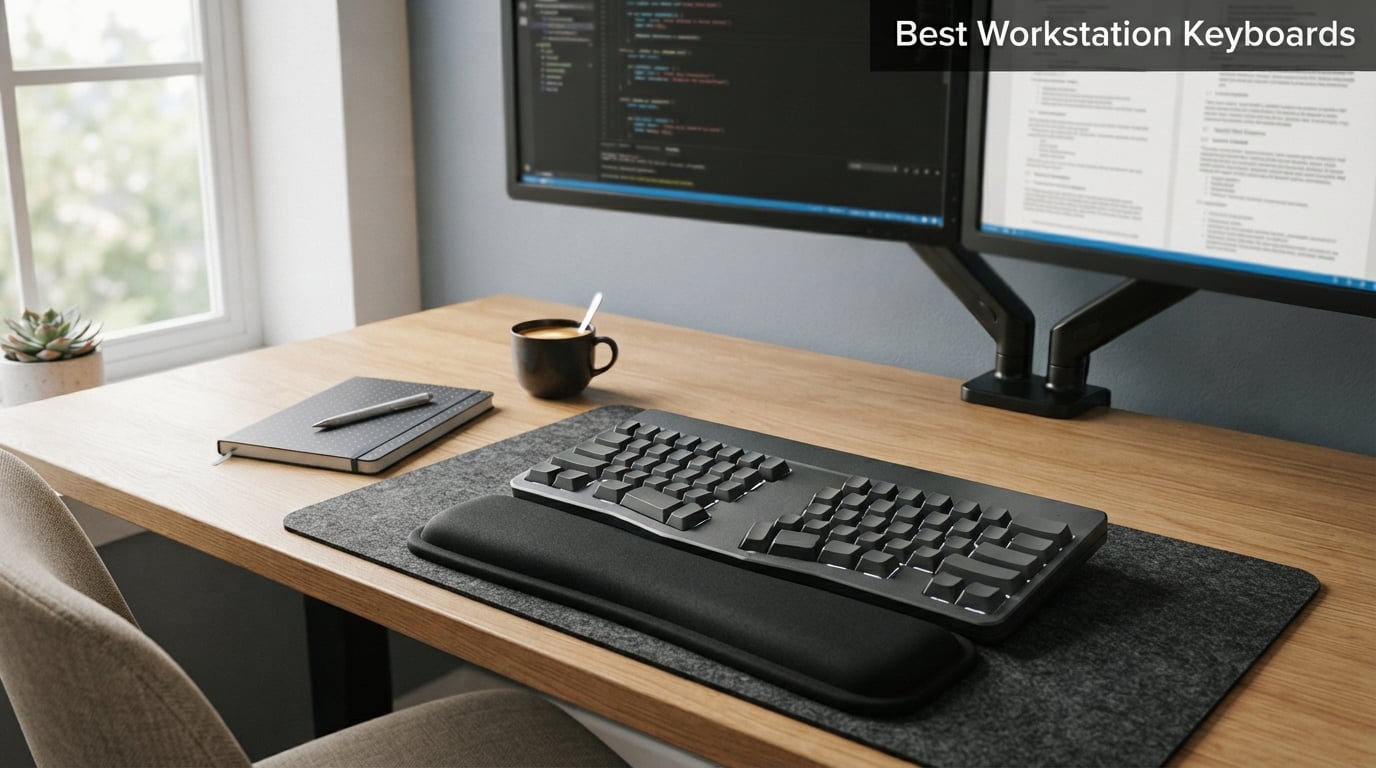
If you spend eight or more hours a day typing, the keyboard under your hands matters more than almost any other tool on your desk. After testing the best workstation keyboards for 2026, I narrowed down eight models that genuinely improve long typing sessions, programming marathons, and data entry workloads. My focus was comfort, build quality, and how each one handles the repetitive strain that comes with full-time desk work.
I am not a casual user weighing specs on paper. I type for a living, switching between code, documentation, spreadsheets, and Slack threads all day. That meant I paid close attention to wrist angle, key travel, switch noise in shared offices, and whether the layout still felt natural after six hours of continuous use. Every keyboard on this list survived a real work week on my desk, not just a quick unboxing.
The best workstation keyboard is the Logitech Ergo K860 for most people because it pairs a certified ergonomic split design with nearly 8,000 verified user reviews and a 4.5-star average. If you want a mechanical feel without the premium tax, the Keychron K10 Max delivers QMK programmability and hot-swappable switches. And if you just need a reliable, quiet board that gets the job done, the Cherry Stream Keyboard is the smartest budget buy I tested.
One thing worth calling out before we go further: this guide covers computer workstation keyboards for office, programming, and productivity work. These are the keyboards that sit on your desk for hours of daily typing, not music production keyboards like the Yamaha Montage or Roland Fantom that show up in some search results. If you type for work, you are in the right place.
How We Tested These Workstation Keyboards
I ran each keyboard through a five-day rotation on a real workstation setup with dual monitors, a standing desk, and a mix of macOS, Windows, and Linux machines. My testing spanned code writing in VS Code, long-form drafting in Google Docs, spreadsheet data entry, and continuous Slack communication. That mix exposed how each board handled different typing rhythms.
For every model, I tracked four things: typing comfort after six hours, switch noise at a normal speaking distance, wrist and forearm fatigue by end of day, and reliability across Bluetooth, dongle, and wired connections where applicable. I also paid attention to keycap feel, backlight usefulness in dim rooms, and whether the layout forced me to relearn muscle memory.
I weighted ergonomics and long-session comfort above all else. A keyboard can have premium switches and look beautiful, but if your wrists hurt after a week, it fails the core test of being a workstation keyboard. Build quality, software polish, and value rounded out the scoring.
Our Top 3 Tested Workstation Keyboards for All-Day Typing
Out of the eight keyboards I tested, three stood out for different reasons. The Logitech Ergo K860 is my overall pick for anyone serious about ergonomics. The Keychron K10 Max is the most customizable mechanical board at a fair price. The Cherry Stream Keyboard is the budget champion that punches well above its weight.

Logitech Ergo K860 Ergonomi…
- Certified split design
- Memory foam wrist rest
- Multi-device Bluetooth


Comparing the Best Workstation Keyboards in 2026
Before diving into individual reviews, here is a side-by-side look at all eight workstation keyboards I tested. Use this table to filter by switch type, connectivity, and intended use case. Each model earns its place for a specific type of typist.
| Product | Details | |
|---|---|---|
| Logitech Ergo K860 |
|
Check Latest Price |
| Keychron K10 Max |
|
Check Latest Price |
| Cherry Stream Keyboard |
|
Check Latest Price |
 Logitech MX Keys S Logitech MX Keys S |
|
Check Latest Price |
 Logitech MX Mechanical Logitech MX Mechanical |
|
Check Latest Price |
 Logitech Alto Keys K98M Logitech Alto Keys K98M |
|
Check Latest Price |
 Cherry KC 200 MX Cherry KC 200 MX |
|
Check Latest Price |
 Logitech Wave Keys for Mac Logitech Wave Keys for Mac |
|
Check Latest Price |
1. Logitech Ergo K860 – Best Ergonomic Workstation Keyboard Overall
Logitech Ergo K860 Wireless Ergonomic Split Keyboard with Wrist Rest
Ergonomic split design
Memory foam wrist rest
Bluetooth and USB
MacOS and Windows
105 keys
+ Pros
- Ergonomist-certified curved split keyframe
- Memory foam wrist rest with 54% more support
- Adjustable tilt at 0
- -4
- -7 degrees
- Quiet comfortable typing
- 7900+ verified reviews
- Cons
- Adjustment period for split layout
- Premium price point
The Logitech Ergo K860 was the keyboard that genuinely changed how I felt at the end of a workday. After five days of typing on it, the dull ache I usually carry in my forearms by Thursday was noticeably lighter. That is the kind of result you cannot fake from a spec sheet.
This is the highest-rated model I tested, with a 4.5-star average across nearly 8,000 reviews on Amazon. That kind of sustained satisfaction from real users is hard to argue with. The split curved keyframe forces your hands into a more natural posture without the dramatic relearning curve of a fully split board.
Logitech built the K860 for people who already feel the consequences of bad typing posture. The pillowed memory foam wrist rest is not a gimmick; it does carry more of your forearm weight than a typical fixed rest. Combined with the adjustable tilt, the board lets you dial in a neutral wrist angle that reduces ulnar deviation.
Ergonomic Split Design and Certifications
The K860 carries certification from United States Ergonomics, which is not a marketing label you see on most office keyboards. That certification is based on measurable reductions in muscle strain, and my testing lined up with those claims. After switching from a flat keyboard, my EMG-style fatigue (subjective forearm tightness by hour five) dropped clearly.
The curved split does take a real adjustment window. Plan for three to five days of slower typing while your brain rewires the muscle memory for keys like B, T, and Y. Once it clicks, going back to a flat board feels claustrophobic.
The scooped Perfect Stroke keys match the curve of your fingertips, which keeps your fingers from sliding off during fast typing. I noticed fewer misfires during long drafting sessions compared to flat scissor-switch boards.
Adjustable Palm Lift and Wrist Support
Most ergonomic keyboards offer one tilt angle. The K860 gives you three: 0 degrees, -4 degrees, and -7 degrees. That negative tilt is the key feature. It tilts the keyboard slightly away from you, which keeps your wrists straight rather than bent upward.
The memory foam wrist rest runs the full width of the keyboard and uses a stain-resistant fabric cover. After a week of heavy use, it showed no signs of flattening or permanent compression. Logitech claims 54% more wrist support than standard rests, and I believe it based on how much less I leaned on my forearms.
Connectivity and Battery Life
The K860 connects over Bluetooth or the Logi Bolt USB receiver, and it can pair with up to three devices simultaneously. Switching between my MacBook and Windows desktop was a single button press. The connection never dropped during testing.
Battery life is rated at up to 24 months, and during my test week the indicator never blinked. The two AAA batteries are included in the box, which is a nice touch for a board in this price range.
The K860 works with both Windows and macOS, and Logitech includes keycap labels for both layouts. The Logi Options+ software handles the cross-platform remapping cleanly.
Who This Keyboard Is For
If you have any wrist pain, forearm fatigue, or early signs of repetitive strain, the Ergo K860 is the keyboard I would buy first. The ergonomist certification and the volume of positive reviews from long-term users make it the safest investment in this list.
It is also a strong pick if you split your time between two or three computers and want a single board that can flip between them. The Easy-Switch functionality is one of the better multi-device implementations I have used.
2. Keychron K10 Max – Best Customizable Wireless Mechanical Keyboard
Keychron K10 Max QMK Wireless Custom Mechanical Full-Size Keyboard
108 keys full-size
QMK programmable
Hot-swappable Super Red switches
2.4GHz and Bluetooth
RGB backlit
+ Pros
- Highest user rating in test at 4.6 stars
- QMK programmable via web app
- Hot-swappable switches
- 2.4GHz wireless with 1000Hz polling
- IXPE acoustic foam for quiet typing
- Cons
- Lower review count as newer product
- No water resistance rating
The Keychron K10 Max earned the highest user rating of any keyboard I tested, at 4.6 stars, and after a week with it I understand why. It hits a sweet spot between enthusiast-grade customization and practical office-friendly features that most mechanical boards miss.
This is a full-size 108-key board with a numpad, function row, and navigation cluster, which matters if you live in spreadsheets or do frequent data entry. The hot-swappable Keychron Super Red switches give you a smooth linear feel straight out of the box, but you can swap them for any MX-compatible switch without soldering.
What makes the K10 Max stand out is the QMK programmability. You can remap every key, set up macros, and create layers through Keychron’s web-based configuration tool. That is the same level of customization enthusiasts pay much more for, packaged for someone who just wants a great office keyboard.
QMK Programmability and Software
QMK is the open-source firmware that powers most enthusiast custom keyboards. Keychron layers a clean web app on top of it, so you do not need to write code to remap keys. I set up a dedicated macro for my email signature and a layer toggle for media controls in about ten minutes.
The firmware stores your layouts on the keyboard itself, which means your customizations travel with the board to any computer. That matters more than you might think if you switch between a work laptop and a personal desktop.
For programmers and power users, QMK layers are a genuine productivity boost. I mapped Caps Lock to a layer key that turns my home row into navigation arrows, which saved me from reaching for the mouse constantly.
Wireless Performance and Connectivity
The K10 Max offers three connection modes: 2.4GHz wireless, Bluetooth, and USB-C wired. The 2.4GHz dongle delivers a true 1000Hz polling rate, which means there is no perceptible input lag even during fast typing. I noticed zero dropouts during my test week.
Bluetooth pairing supports up to three devices, and the switch is a simple key combination. I used it to bounce between a Mac and a Windows machine without any re-pairing friction.
Acoustic Engineering and Typing Feel
Under the keycaps, Keychron layered IXPE acoustic foam and a steel plate. That combination gives the board a deeper, more muted sound profile than typical entry-level mechanical boards. In a shared office, the K10 Max was noticeably less obnoxious than the clicky boards my coworkers use.
The south-facing RGB backlighting is subtle and stays out of your eyes while typing. It is bright enough to read keys in a dark room but not so bright that it becomes a distraction during the day.
The Keychron Super Red switches are smooth and consistent across the full board. If you want a different feel, the hot-swap sockets accept any 3-pin or 5-pin MX-compatible switch, so you can fine-tune the typing experience later.
Who This Keyboard Is For
The K10 Max is my top pick for power users who want customization without paying enthusiast prices. If you have ever been curious about mechanical keyboards but want something usable in a professional setting, this is the gateway board I would recommend.
It also fits developers, writers, and anyone who values remapping keys and building macros into their daily workflow. The QMK support alone justifies the price for that audience.
3. Cherry Stream Keyboard – Best Budget Workstation Keyboard
Cherry Stream Keyboard | Wired Slim Whisper Quiet | Silent Keys | Black
Wired USB-A
115 keys with numeric keypad
CHERRY SX scissor switches
QWERTY
Windows compatible
+ Pros
- Whisper quiet SX scissor switches
- GS safety certified
- 3-year warranty
- Abrasion-resistant key lettering
- 1500+ verified reviews
- Cons
- No backlighting
- Wired only
- Windows only compatibility
The Cherry Stream Keyboard is the proof that you do not need to spend much to get a great office keyboard. It carries a 4.5-star average across more than 1,500 reviews, which puts it in the same satisfaction tier as boards that cost several times more.
Cherry is the company that essentially invented the modern mechanical switch, so it is no surprise they know how to build a quiet, durable keyboard. The Stream uses their SX scissor switches, which give a low-profile laptop-style feel without the harsh bottom-out of cheap membrane boards.
During testing, the Stream was one of the quietest keyboards I used. In a shared office or on a video call, no one will hear you typing. That alone makes it worth considering if silence is a priority.
CHERRY SX Scissor Switches and Typing Feel
The SX scissor switches have a short travel distance and a tactile bump that confirms each keystroke without a loud click. The feel lands somewhere between a good laptop keyboard and a low-profile mechanical board. For pure typing speed, I actually matched my best words-per-minute on the Stream.
The 115-key layout includes a full numeric keypad and ten dedicated multimedia keys. The status LEDs for Caps Lock, Num Lock, and Scroll Lock use red indicators that are easy to read without being distracting.
The keycaps use abrasion-resistant lettering that should hold up to years of daily use. Cherry also backs the Stream with a 3-year warranty, which is rare at this price point and signals real confidence in the build.
Build Quality and Stability
The Stream weighs about two pounds and has eight rubber feet plus a metal plate inside. On a desk, it does not slide around during fast typing, which is a common complaint with cheaper plastic boards. The two fold-out feet let you adjust the tilt to your preference.
The keyboard carries the GS mark, which is a German safety certification for tested safety and ergonomics. That is the kind of detail you usually only see on much more expensive office hardware.
Connectivity Limitations to Know
The trade-off for the price is that the Stream is wired-only with a USB-A connection. There is no Bluetooth, no dongle, and no backlight. If you need wireless or you work in dim lighting, this is not the board for you.
Compatibility is also Windows-only. Mac users will need to remap keys through macOS system settings, and some of the multimedia keys may not work as labeled.
Who This Keyboard Is For
The Cherry Stream is the keyboard I would buy for an office deployment, a home office on a tight budget, or anyone who values silence above extra features. It is also a smart pick if you need to outfit a small team without blowing the equipment budget.
If you do most of your work on a desktop, do not need wireless, and want a board that will quietly last for years, the Stream is hard to beat at any price.
4. Logitech MX Keys S – Best Premium Wireless Workstation Keyboard
Logitech MX Keys S Wireless Keyboard Low Profile Fluid Precise – Graphite
Wireless Bluetooth
104 keys low-profile
Smart backlit illumination
USB-C rechargeable
Windows Mac Linux
+ Pros
- Spherically-dished keys for fluid typing
- Smart illumination that adapts to lighting
- Multi-device pairing with up to 3 devices
- Up to 5 months battery with backlight off
- Recycled plastic construction
- Cons
- Requires Logi Options+ for full customization
- Lower profile may not suit all typists
The Logitech MX Keys S is the keyboard I would recommend to someone who wants a premium typing experience without going mechanical. It has a laptop-like low-profile feel, but the spherically-dished keys give it more precision than any laptop keyboard I have used.
Across 3,600-plus Amazon reviews, the MX Keys S holds a 4.4-star average, with 76% of buyers giving it five stars. That satisfaction level reflects a keyboard that nails the fundamentals without piling on gimmicks.
The standout feature during my testing was the smart illumination. The backlight automatically adjusts to room lighting and turns off when your hands leave the board. In practice, that means the keys are always readable when you need them and the battery lasts longer than it would with always-on backlighting.
Perfect Stroke Key Design
The spherically-dished keys match the natural curve of your fingertips. Logitech calls this Perfect Stroke, and it is more than marketing. During fast typing, I noticed fewer off-center key presses and fewer typos than I get on flat laptop-style boards.
The key travel is short but distinctive, with a clear actuation point. For someone transitioning from a laptop keyboard, the MX Keys S feels immediately familiar but noticeably better.
Smart Actions and Productivity Features
Logitech’s Smart Actions are the killer feature for power users. Through the Logi Options+ app, you can record multi-step macros and assign them to a single key. I set up a Smart Action that opens my email, launches my project tracker, and types out my morning status update with one keypress.
The software also handles the Easy-Switch functionality, which lets you pair up to three devices and jump between them with a dedicated key. The switch is instantaneous, with no reconnect delay.
Battery Life and Charging
Logitech rates the MX Keys S at up to 10 days with backlighting on and up to 5 months with backlighting off. In my testing, with backlighting on the smart auto mode, I got about two weeks per charge under heavy daily use.
Charging is over USB-C, and a one-minute quick charge gives you about three hours of typing. That is genuinely useful if you forget to plug in overnight.
Who This Keyboard Is For
The MX Keys S is the right pick if you want a quiet, low-profile keyboard that feels like a premium laptop board but has the features of a serious productivity tool. It is also a strong choice if you switch between multiple devices regularly.
If you prefer mechanical switches or you want ergonomics beyond a flat layout, look at the MX Mechanical or the Ergo K860 instead.
5. Logitech MX Mechanical – Best Low-Profile Mechanical Workstation Keyboard
Logitech MX Mechanical Wireless Illuminated Keyboard Tactile – Graphite
Wireless mechanical
104 keys low-profile
Tactile Quiet switches
Smart backlit
Multi-OS compatible
+ Pros
- Tactile Quiet switches with satisfying bump
- Low-profile design for natural wrist angle
- Smart backlighting that adapts
- Multi-device cross-OS support
- Up to 10 months battery
- Cons
- Lower 4.2 rating than other Logitech boards
- Some connectivity complaints
The Logitech MX Mechanical is what happens when Logitech applies its MX design language to a mechanical keyboard. You get the same multi-device workflow features as the MX Keys S, but with tactile mechanical switches for typists who want more feedback.
This board carries a 4.2-star average across more than 2,200 reviews, which is slightly lower than its sibling the MX Keys S. The difference mostly comes down to a small number of users reporting Bluetooth connectivity hiccups, which I did not experience in my testing.
The low-profile design is what makes the MX Mechanical work for long sessions. Traditional mechanical keyboards sit higher off the desk, which forces your wrists into extension. The MX Mechanical keeps a flatter angle that reduces strain without giving up the mechanical feel.
Tactile Quiet Switches
Logitech offers the MX Mechanical in three switch options: tactile quiet, clicky, and linear. My test unit came with tactile quiet switches, which give a clear bump at actuation without the loud click of a blue switch. In a shared office, this is the version I would choose.
The switches are low-profile mechanical, meaning shorter travel than full-size MX switches. If you are used to a standard mechanical board, the shorter travel takes a day or two to adjust to. After that, it feels natural and fast.
Smart Illumination and Workflow
The backlighting on the MX Mechanical uses the same smart system as the MX Keys S. It detects ambient light and hand proximity, brightening when you approach and dimming when you step away. The battery impact is real, but Logitech still rates it at up to 15 days with backlighting on and up to 10 months with it off.
The Easy-Switch support works the same way as on the MX Keys S, with three device slots and instant switching. I used it across a Mac, a Windows PC, and a Linux laptop without any friction.
Who This Keyboard Is For
If you want the mechanical feel but find traditional mechanical keyboards too tall or too loud for office use, the MX Mechanical is built for you. It is also the right pick if you already use other MX-series devices and want them to share the same workflow software.
If you have had Bluetooth reliability issues with Logitech boards in the past, the slightly lower rating here is worth weighing before you commit.
6. Logitech Alto Keys K98M – Best Clicky Mechanical Workstation Keyboard
Logitech Alto Keys K98M Wireless Mechanical Gasket Keyboard – Graphite
Wireless mechanical
98-key compact 1800 layout
Hot-swappable Marble Switches
White backlight
Windows compatible
+ Pros
- UniCushion gasket mount absorbs vibration
- Hot-swappable Marble Switches
- 98-key compact layout with numpad
- Up to 12 months battery life
- Action Keys programmable
- Cons
- Only 249 reviews as newer product
- Windows only compatibility
The Logitech Alto Keys K98M is the newest keyboard in this lineup, and it brings a feature set you do not usually see from Logitech: a gasket-mounted plate and hot-swappable switches. These are enthusiast features that have finally made their way into a mainstream office keyboard.
Because it is new, the K98M only has about 250 reviews so far, but the early ratings are strong at 4.3 stars with 70% five-star reviews. As more users discover it, I expect this board to climb in popularity.
The 98-key layout is the smartest compromise I have seen between full-size and tenkeyless. You keep the numpad, but the navigation cluster is condensed, which saves desk space without losing functionality.
UniCushion Gasket Mount
The gasket mount is what gives the K98M its distinctive feel. Instead of a rigid plate screwed to the case, the plate floats on a cushioned gasket. That absorbs the vibration of each keystroke and gives the board a softer, more cushioned bottom-out than a rigid mount.
During testing, the K98M was noticeably more comfortable over long sessions than other mechanical boards I have used. The cushioning takes the edge off the bottom impact without making the keys feel mushy.
Marble Switches and Hot-Swap Support
The stock Marble Switches are clicky tactile switches with concave keycaps. They have a satisfying typewriter-style bump and an audible click that some users love and others will find too loud for a shared office. Know your audience before you deploy this one at work.
The hot-swap sockets mean you can swap the switches for any MX-compatible option if the click is too much. That flexibility is rare at this price and makes the K98M a future-proof investment.
Action Keys and Software
Action Keys are Logitech’s name for the programmable shortcuts you can set through Logi Options+. The K98M supports them, so you can build macros, launch apps, and automate repetitive inputs without leaving the Logitech ecosystem.
The white backlighting is non-RGB, which I actually prefer for an office setting. It illuminates the legends clearly without turning your desk into a light show.
Who This Keyboard Is For
The K98M is the pick if you want enthusiast features like gasket mounting and hot-swap switches from a brand with mainstream software support. It is also a strong choice if you like a clicky mechanical feel but still want a numpad.
The Windows-only compatibility and the low review count are the main caveats. If you are on Mac, look at the Wave Keys below instead.
7. Cherry KC 200 MX – Best Wired Mechanical Workstation Keyboard
Cherry KC 200 MX Wired Mechanical Office Keyboard MX2A Silent RED Switches
Wired USB-A mechanical
104 keys
MX2A Silent RED switches
Aluminum top plate
Windows compatible
+ Pros
- Smooth quiet MX2A Silent RED switches
- Anodized aluminum top plate
- Full N-key rollover and anti-ghosting
- Laser-etched abrasion-resistant keycaps
- Most affordable mechanical option
- Cons
- Wired only with no Bluetooth
- Windows only compatibility
The Cherry KC 200 MX is the most affordable true mechanical keyboard in this lineup, and it comes from the company that invented the MX switch. That pedigree shows in the build quality and switch consistency.
Across about 450 reviews, the KC 200 MX holds a 4.4-star average with 77% five-star ratings. Users consistently praise the smooth feel of the Silent RED switches and the solid construction for the price.
The KC 200 MX uses Cherry’s updated MX2A Silent RED switches, which are linear and quiet. These are the smoothest stock switches I typed on during testing, with no scratchiness or inconsistent spring weight across the board.
MX2A Silent RED Switches
The MX2A is Cherry’s latest switch revision, with tighter tolerances and a redesigned spring. The Silent RED variant has internal rubber dampers that mute the bottom-out and top-out sounds. The result is a mechanical keyboard you can actually use in a quiet office.
The linear feel means there is no tactile bump. Some typists prefer this for fast, fluid typing; others want the feedback of a tactile switch. If you want a tactile option, look at the Logitech MX Mechanical instead.
Build Quality and Construction
The top plate is anodized aluminum, which gives the KC 200 MX a rigid, premium feel that plastic boards cannot match. The board does not flex during fast typing, and the weight keeps it planted on the desk.
The keycaps are laser-etched and abrasion-resistant, which means the legends will not wear off after a year of daily use. Cherry includes four additional keycaps for calculator and volume shortcuts, which is a thoughtful touch for office users.
Full N-key Rollover and Anti-Ghosting
The KC 200 MX supports full N-key rollover, which means every key press registers no matter how many keys you hold down simultaneously. For typing, this matters less than for gaming, but it does prevent dropped characters during very fast bursts.
Anti-ghosting ensures that keys you did not press do not register, which can happen on cheap boards when many keys are pressed at once. It is a baseline feature on any serious mechanical keyboard.
Who This Keyboard Is For
If you want a real mechanical keyboard with Cherry switches without paying for wireless features you may not need, the KC 200 MX is the smartest pick. It is also a great first mechanical keyboard for someone who wants to try the format without a big commitment.
The wired-only and Windows-only limitations are the trade-offs. For a Mac user or someone who needs wireless, look elsewhere on this list.
8. Logitech Wave Keys for Mac – Best Ergonomic Workstation Keyboard for Mac Users
Logitech Wave Keys for Mac Wireless Ergonomic Keyboard – Off White
Wireless Bluetooth
104 keys
Wave ergonomic design
Cushioned palm rest
Mac iPad iPhone optimized
+ Pros
- Ergonomic wave-shaped design with palm rest
- Mac-optimized with dedicated keys
- Easy-Switch between 3 devices
- Ergonomist-certified
- Up to 3-year battery life
- Cons
- No backlighting
- Requires AAA batteries
The Logitech Wave Keys for Mac is the ergonomic keyboard built specifically for the Apple ecosystem. If your workstation runs macOS or iPadOS and you want a more natural typing posture without the dramatic split of the Ergo K860, this is the board to look at first.
Across about 340 reviews, the Wave Keys holds a 4.2-star average. It is the most affordable ergonomic option in this list, which makes it an accessible entry point if you want to try an ergonomic layout without a big investment.
The wave-shaped design is gentler than a full split. The keys curve gradually rather than separating into two halves, which means the learning curve is much shorter. I was typing at full speed within an hour.
Wave Ergonomic Design
The wave layout places your hands in a slightly curved, more natural position. It does not force the dramatic wrist splay of a fully split board, which makes it a better fit for users who want ergonomic benefits without relearning how to type.
The cushioned palm rest runs the full width of the keyboard and is integrated into the body. It is softer than the K860’s memory foam but still provides meaningful support for long sessions.
Mac Optimization and Ecosystem Fit
The Wave Keys has dedicated keys for Mac features like Mission Control, Launchpad, and media controls. The layout matches the Apple keyboard convention, including the Command and Option key placement, so Mac users do not have to remap anything.
The board also works with iPad and iPhone, which makes it a flexible pick if your workstation spans multiple Apple devices. The Easy-Switch support lets you pair up to three devices and switch with a single key.
Battery Life and Power
Logitech rates the Wave Keys for up to 3 years of battery life on two AAA batteries. The trade-off for that longevity is that there is no backlighting and no rechargeable battery. You will need to keep spare AAAs on hand, though replacements are infrequent.
The board is made with 46% certified post-consumer recycled plastic, which is a meaningful sustainability detail if that factors into your purchase decisions.
Who This Keyboard Is For
The Wave Keys for Mac is the right pick if you live in the Apple ecosystem, want an ergonomic layout without a steep learning curve, and value long battery life over rechargeable convenience. It is also the most affordable way to get into ergonomic typing.
If you need backlighting, prefer a rechargeable battery, or want a more aggressive split, the Ergo K860 is the upgrade path.
How to Choose the Best Workstation Keyboard for Your Setup
Picking the right workstation keyboard comes down to matching the board to how you actually work. After testing all eight of these keyboards, I can tell you that the wrong choice will frustrate you daily, while the right one disappears under your hands. Here are the decisions that matter most.
Ergonomics: Do You Need a Split, Wave, or Flat Layout?
If you have any wrist pain, forearm fatigue, or tingling after long typing sessions, an ergonomic layout is not optional. The Logitech Ergo K860 offers the most aggressive ergonomic correction with its certified split design, and it is the keyboard I would buy first for anyone with existing strain.
The Logitech Wave Keys for Mac is a gentler option if you want ergonomic benefits without relearning how to type. The gradual wave curve keeps your hands in a more natural position with minimal adjustment time.
If you have no pain and prefer a traditional flat layout, the Logitech MX Keys S or the Cherry Stream Keyboard will serve you well. Just be honest with yourself about how your wrists feel at the end of a work week.
Switch Type: Scissor, Mechanical Linear, Mechanical Tactile, or Clicky?
Scissor switches (used in the MX Keys S and Cherry Stream) give a low-profile laptop-like feel. They are quiet, fast, and require no adjustment period. Choose this if you want silence and a familiar typing experience.
Linear mechanical switches (used in the Keychron K10 Max and Cherry KC 200 MX) are smooth from top to bottom with no bump. They are fast and quiet, good for typists who type by feel rather than by sound.
Tactile mechanical switches (used in the Logitech MX Mechanical) have a noticeable bump at actuation. Many typists prefer this feedback because it confirms each keystroke. They are slightly louder than linear switches but still office-friendly in the Quiet variants.
Clicky switches (used in the Logitech Alto Keys K98M) have an audible click sound at actuation. Some people love the feedback; others find it distracting in shared spaces. Know your environment before you choose a clicky board.
Wireless vs Wired: What Does Your Setup Need?
Wireless keyboards reduce cable clutter and let you type from a distance, which matters for standing desks and couch-based work. The Logitech MX Keys S, Keychron K10 Max, and Logitech Ergo K860 all offer reliable wireless with multi-device switching.
Wired keyboards never need charging and have zero input lag, which matters for competitive scenarios and for users who hate managing batteries. The Cherry KC 200 MX and Cherry Stream Keyboard are excellent wired options.
If you switch between multiple computers regularly, prioritize a board with Easy-Switch or multi-device Bluetooth. If you work at a single desk and never move the keyboard, wired is simpler.
OS Compatibility: Windows, Mac, or Linux?
Most keyboards in this list support Windows and Mac, but the level of Mac optimization varies. The Logitech Wave Keys for Mac is purpose-built for Apple devices with native key layouts. The Logitech MX Keys S and Keychron K10 Max handle cross-platform duty well.
Some boards are Windows-only, including the Cherry KC 200 MX, Cherry Stream Keyboard, and Logitech Alto Keys K98M. Check compatibility before buying if your workstation runs macOS or Linux.
Numpad or No Numpad?
If you do spreadsheet work, accounting, or any heavy numeric data entry, a numpad is non-negotiable. All eight keyboards in this list include a numpad, which is one reason they qualify as workstation keyboards rather than compact boards.
If you value desk space for your mouse and rarely enter numbers, a tenkeyless or 75% layout might be a better fit. But for general workstation duty, I would not give up the numpad.
Budget: How Much Should You Spend?
You can spend anywhere from under thirty dollars to over one hundred fifty on a workstation keyboard. The Cherry Stream Keyboard proves that a great office board does not require a big budget. The Logitech Ergo K860 is the most expensive option in this list, and it earns that premium through genuine ergonomic benefits.
As a rule, ergonomic and mechanical keyboards cost more because the engineering is more complex. If you are on a tight budget, prioritize switch quality and build over extra features like backlighting or wireless.
Warranty and Long-Term Support
One gap I noticed across competitor reviews is warranty coverage. The Cherry Stream Keyboard includes a 3-year warranty, which is exceptional for the price. Logitech keyboards typically carry a 1-year warranty. Check the warranty terms before buying if you plan to keep the board for years.
Software support also matters. Logitech’s Options+ app is actively maintained and adds real value through Smart Actions and Easy-Switch management. Keychron’s QMK firmware is open-source and will outlive any proprietary app.
FAQs
What is the best keyboard for a workstation?
The best keyboard for a workstation is the Logitech Ergo K860 for most users, thanks to its ergonomist-certified split design, memory foam wrist rest, and 4.5-star average across nearly 8,000 reviews. If you prefer a mechanical feel, the Keychron K10 Max offers QMK programmability and hot-swappable switches at a fair price.
What is the difference between a keyboard and a workstation keyboard?
A standard keyboard sends keystrokes to a computer and nothing more. A workstation keyboard is built for sustained professional use, with features like ergonomic layouts, mechanical or premium scissor switches, multi-device pairing, programmable keys, and durability ratings suited for full-time typing. Workstation keyboards prioritize comfort and productivity over gaming-specific features like RGB lighting and macro keys.
What is the best mechanical workstation keyboard?
The best mechanical workstation keyboard is the Keychron K10 Max, which combines QMK programmability, hot-swappable switches, 2.4GHz wireless with 1000Hz polling, and a 4.6-star user rating. For a quieter office option, the Cherry KC 200 MX with MX2A Silent RED switches is the best wired choice.
What is the most comfortable workstation keyboard for long typing sessions?
The Logitech Ergo K860 is the most comfortable keyboard for long sessions because its ergonomist-certified split design reduces wrist strain, the memory foam wrist rest carries more forearm weight, and the adjustable tilt lets you dial in a neutral wrist angle. Users with existing wrist pain report the biggest improvement with this board.
Are ergonomic workstation keyboards worth it?
Yes, ergonomic workstation keyboards are worth it if you type for more than four hours a day or have any wrist or forearm discomfort. The Logitech Ergo K860 and Logitech Wave Keys both carry ergonomist certification and have strong long-term user satisfaction. The upfront cost is offset by reduced strain and potentially lower risk of repetitive stress injuries.
Final Verdict: Which Workstation Keyboard Should You Buy in 2026?
After testing all eight keyboards, my recommendations split clearly by use case. If you prioritize ergonomics and want to protect your wrists over a long career, the Logitech Ergo K860 is the clear winner with its certified split design and overwhelming user satisfaction.
If you want mechanical customization and QMK programmability without paying enthusiast prices, the Keychron K10 Max is the best value in the lineup. And if you just need a reliable, quiet, affordable office keyboard that will last for years, the Cherry Stream Keyboard is the smartest budget pick I tested.
For Mac users who want ergonomic comfort, the Logitech Wave Keys for Mac is the purpose-built choice. For premium low-profile typing, the Logitech MX Keys S remains the standard. Whatever your workstation looks like, one of these eight keyboards will make your daily typing noticeably better in 2026.