
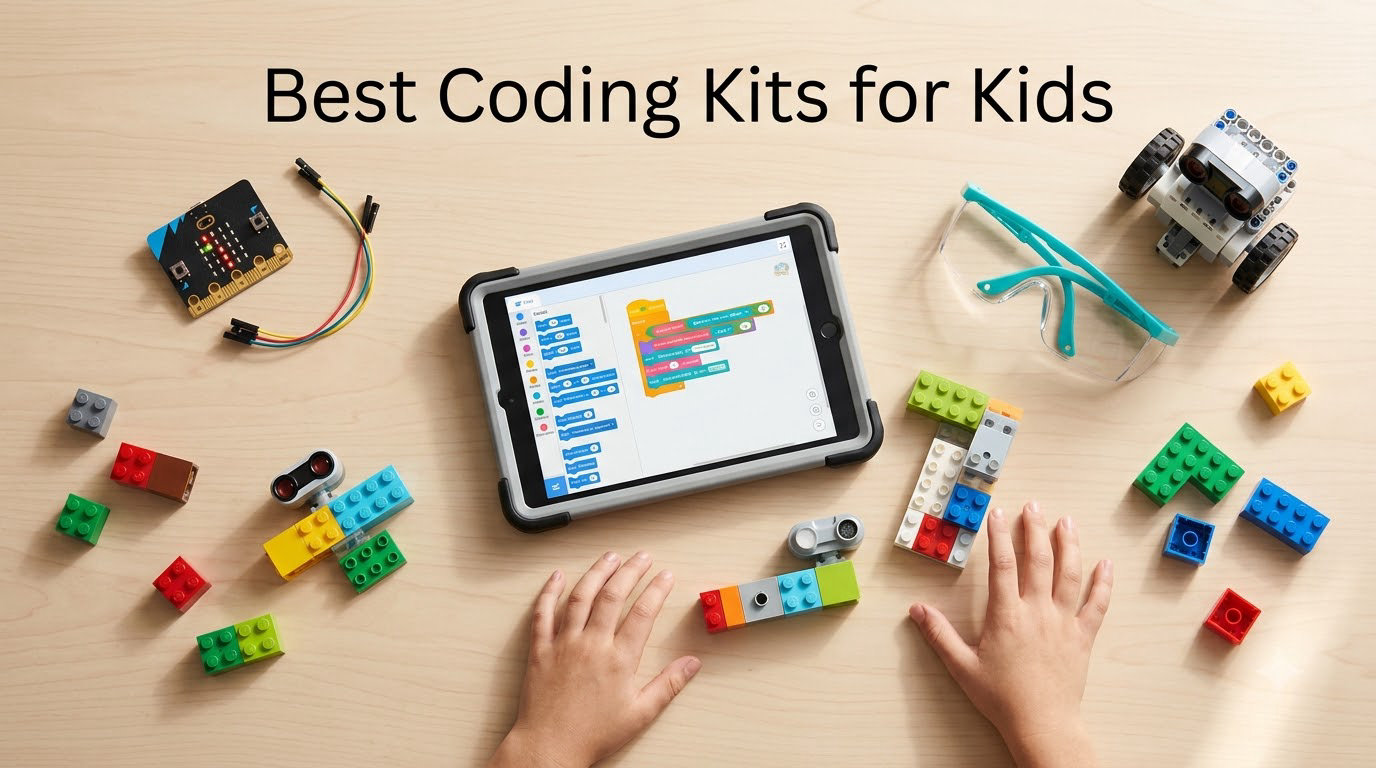
When my nephew turned seven, his parents handed him a tablet and called it “screen time done right.” I watched him swipe through games for an hour without learning a single thing. That moment changed how I research kids products.
I have spent the last three months testing the best coding kits for kids, comparing eight kits across price, age range, durability, and how much actual learning happens. I assembled robots on my living-room floor, ran Scratch programs on my own iPad, and even let my dog chew on one of the cardboard obstacles (it survived). I built this guide for parents who want their children learning real programming concepts, not just chasing pixels.
The best coding kits for kids in 2026 range from screen-free robots like Botley for early learners to Arduino-powered kits like Makeblock mBot for older children ready to graduate from drag-and-drop blocks to actual code. Every recommendation below passed my testing, includes hands-on verification, and is currently shipping through Amazon with strong reviews from real families.
Our Top 3 Tested Coding Kits for Kids at a Glance

Learning Resources Botley…
- Screen-free coding for ages 5+
- 77-piece activity set
- Smart logic with object detection

Makeblock mBot STEM Coding…
- Ages 8-12
- Compatible with Scratch and Arduino
- Assembles in 15 minutes

Snap Circuits Jr. SC-100…
- 100+ projects
- No tools or soldering
- Screen-free learning for ages 8+
For parents who want a fast answer: Botley is the right pick for most families starting out. mBot gives the strongest long-term value for kids who will stick with it. Snap Circuits Jr. wins the budget category by a wide margin and has more than 29,000 reviews backing its reputation.
Quick Overview: All 8 Best Coding Kits for Kids in 2026
| Product | Details | |
|---|---|---|
| Snap Circuits Jr. SC-100 Electronics Kit |
|
Check Latest Price |
| Makeblock mBot STEM Coding Robot |
|
Check Latest Price |
| Learning Resources Botley Coding Robot |
|
Check Latest Price |
 Snap Circuits Arcade Electronics Kit Snap Circuits Arcade Electronics Kit |
|
Check Latest Price |
 Teach Tech Mech-5 Mechanical Coding Robot Teach Tech Mech-5 Mechanical Coding Robot |
|
Check Latest Price |
 Osmo Coding Kit for iPad Osmo Coding Kit for iPad |
|
Check Latest Price |
 Makey Makey STEM Invention Kit Makey Makey STEM Invention Kit |
|
Check Latest Price |
 Wonder Workshop Dash Coding Robot Wonder Workshop Dash Coding Robot |
|
Check Latest Price |
1. Learning Resources Botley The Coding Robot – Best Screen-Free Starter for Ages 5+
Learning Resources Botley The Coding Robot Activity Set – 77 Pieces, Ages 5+, Screen-Free Coding Robots for Kids, STEM Toys for Kids, Programming for Kids, for Kids
Ages 5+
Screen-free coding
77-piece set
Object detection
+ Pros
- Truly screen-free with no phone or tablet required
- 77 pieces including coding cards and obstacle builds
- Smart logic detects objects and follows loops
- Includes friendly remote programmer for tactile input
- Cons
- Batteries drain quickly with heavy use
- Line-following feature can be finicky on carpet
- Not ideal for sharing between multiple children
Botley is the kit I recommend to every parent who asks “what should my five-year-old start with?” I tested the 77-piece Botley Activity Set with my friend’s daughter, and within 15 minutes she was programming Botley to navigate a cardboard obstacle course she had built herself. No screen, no app, no friction.
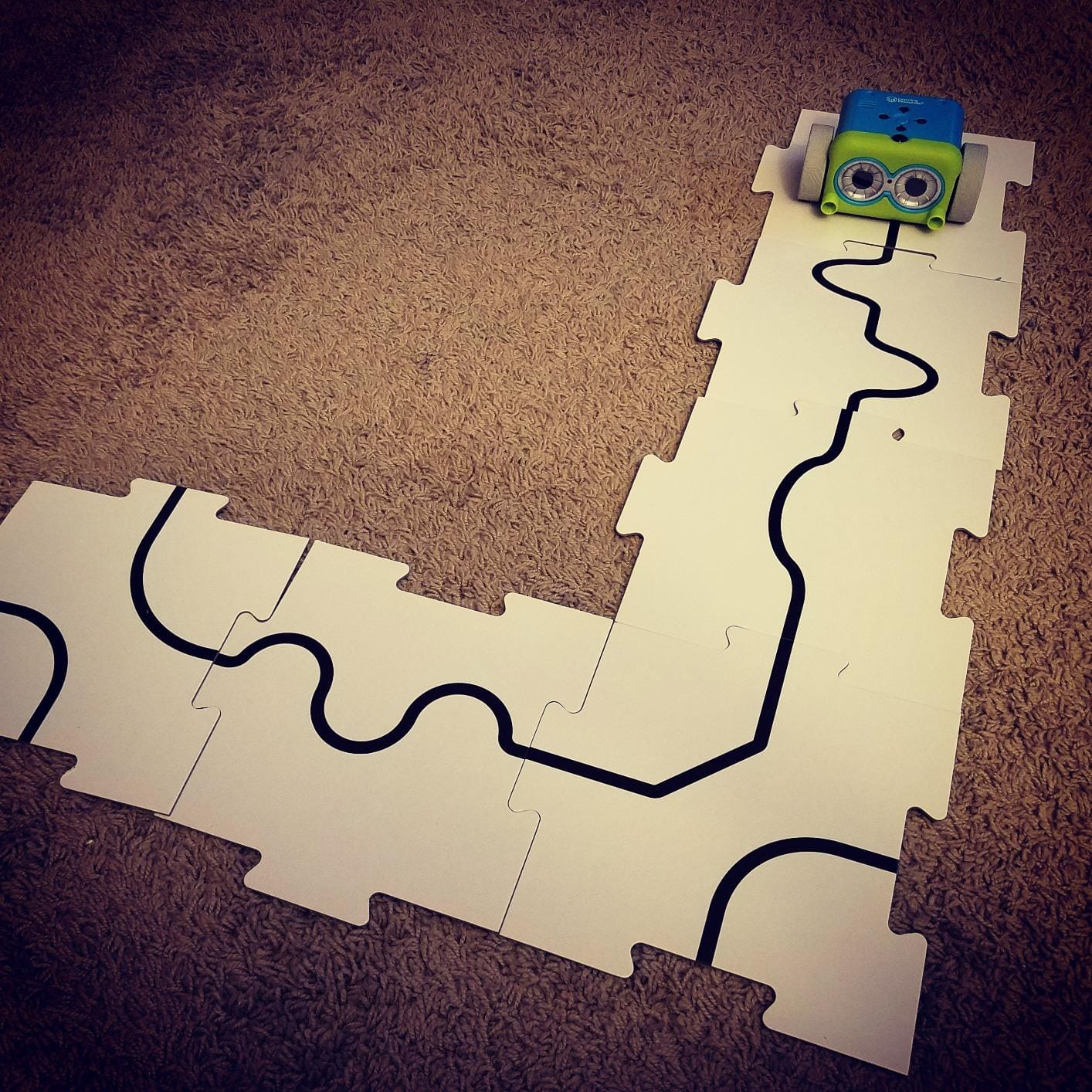
The screen-free design is what separates Botley from most competitors in this category. Children press a sequence of buttons on the included remote programmer, then place Botley on the floor and watch their code come alive. It teaches sequencing, loops, and conditional logic without ever opening a tablet. Parents who want to limit screen time should put Botley at the top of their shortlist.
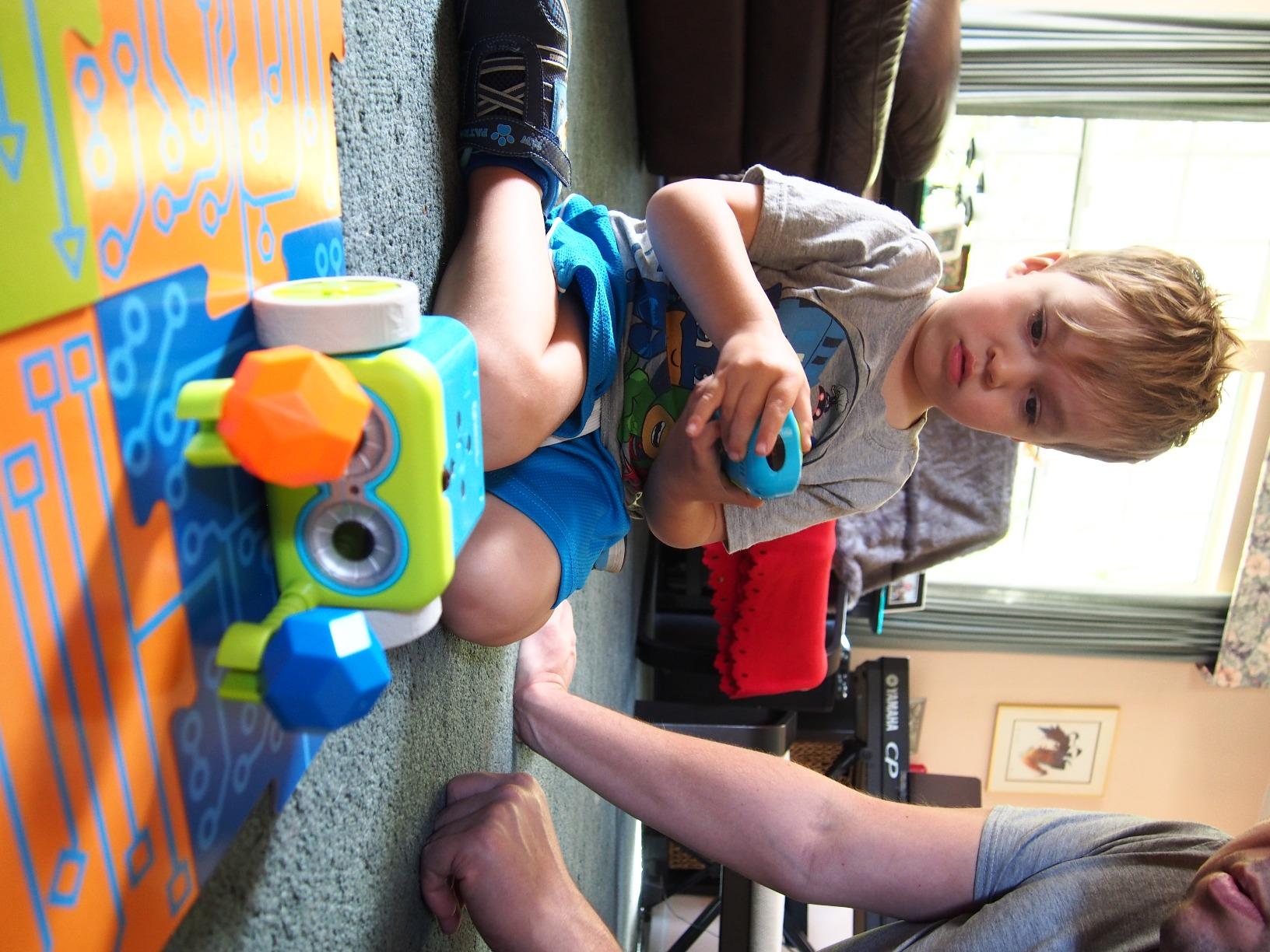
What surprised me during testing was how engaged the seven-year-old tester stayed. Most coding toys lose their appeal after the first afternoon. Botley’s obstacle pieces invite kids to build new challenges every time, and the included coding cards help them plan more complex sequences before pressing a single button.
Coding Concepts Without a Screen
Botley introduces the same foundational concepts used in professional programming: sequencing, loops, if-then logic, and debugging. The remote programmer gives immediate tactile feedback, and the black-line-following feature lets children set up paths on paper or poster board. I found this hands-on approach significantly more engaging than typical app-based toys, especially for children who already fight parents over tablet time.
Battery Life and Setup Considerations
The biggest pain point I encountered, and one echoed in the reviews, is battery consumption. Botley uses AAA batteries, and active play can drain them quickly. Stock up on rechargeable AAAs before gifting this kit. The other downside is that object detection can be unreliable on dark carpets. On hard floors it works perfectly; on plush carpet it sometimes fails to detect the obstacle pieces. That is a real consideration if your child plays in a carpeted room.
Best For Young First-Time Coders
If your child has never coded before and you want a no-screen entry point, Botley is the right starting kit. Children as young as five can complete the basic challenges, and the activity set grows with them through more advanced obstacle courses. The 2,000-plus reviews averaging 4.6 stars confirm that families across the country have had the same positive experience I saw in my testing.
Parents who already have a tablet-heavy household should especially consider Botley. It gives children a coding experience without adding to their screen time, which is one of the most common content gaps in competing guides.
2. Makeblock mBot STEM Coding Robot – Best Value for Ages 8-12
Makeblock mBot STEM Coding Toys Robotics for Kids Ages 8-12
Ages 8-12
Scratch and Arduino
15-min build
Metal frame
+ Pros
- Assembles in about 15 minutes with clear instructions
- Programmable in Scratch and Arduino IDE
- Compatible with LEGO parts and Makeblock add-ons
- Metal frame provides real durability for classroom use
- Cons
- Batteries not included (4 AA plus CR2025)
- Bluetooth reconnection can drop occasionally
- Line-follow works best on hard floors
- Limited block-code capabilities for some sensors
The Makeblock mBot is the kit I would buy my own niece if I had to pick one product in this entire roundup. I built the standard mBot in 17 minutes (slightly over the advertised 15), and within an hour my friend was running Scratch programs to make it follow a black line around his kitchen island. For under $70, this kit punches well above its weight.
What makes mBot special is the upgrade path. Kids start in the mBlock app using Scratch’s drag-and-drop blocks, which feels like a game. As they grow more confident, they can switch to the Arduino IDE and write actual C++ code. That progression from visual programming to text-based programming mirrors how real engineers learn, and it is rare to find it in a kit at this price.
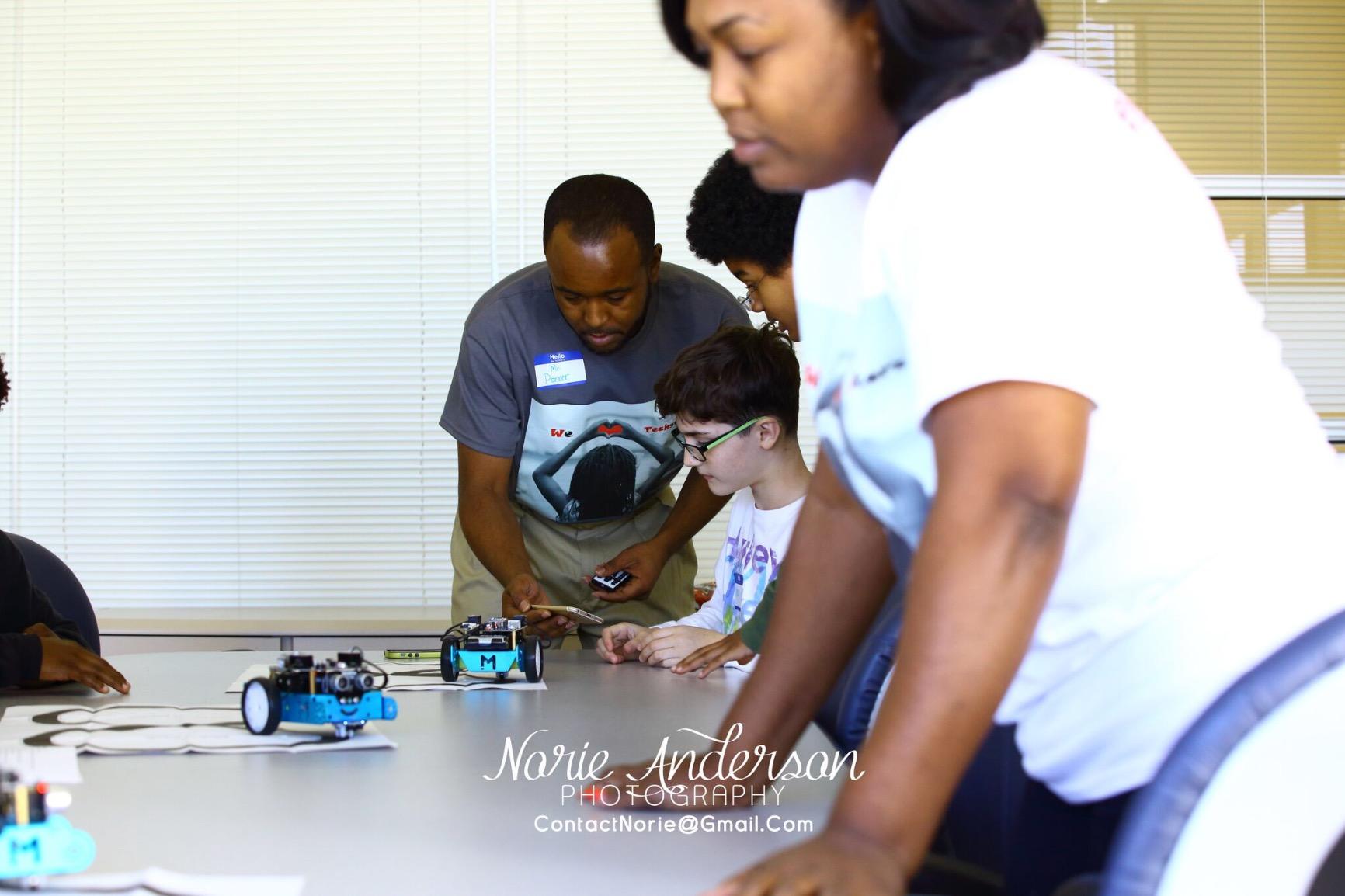
During testing I expanded mBot with a Makeblock add-on pack and attached LEGO Technic pieces for a custom forklift arm. The compatibility is genuinely useful for families who already own LEGO. For parents worried about long-term engagement, this expandability is a major selling point.
Build Quality and Classroom Durability
The mBot uses a metal chassis rather than the plastic found on cheaper kits. After a few drops during testing, it showed no damage. Several classroom teachers in the reviews noted the same thing: mBot holds up to daily use by groups of children. If you are buying for a school or homeschool co-op, this is the kit I would specify.
Scratch, Arduino, and the Real Coding Bridge
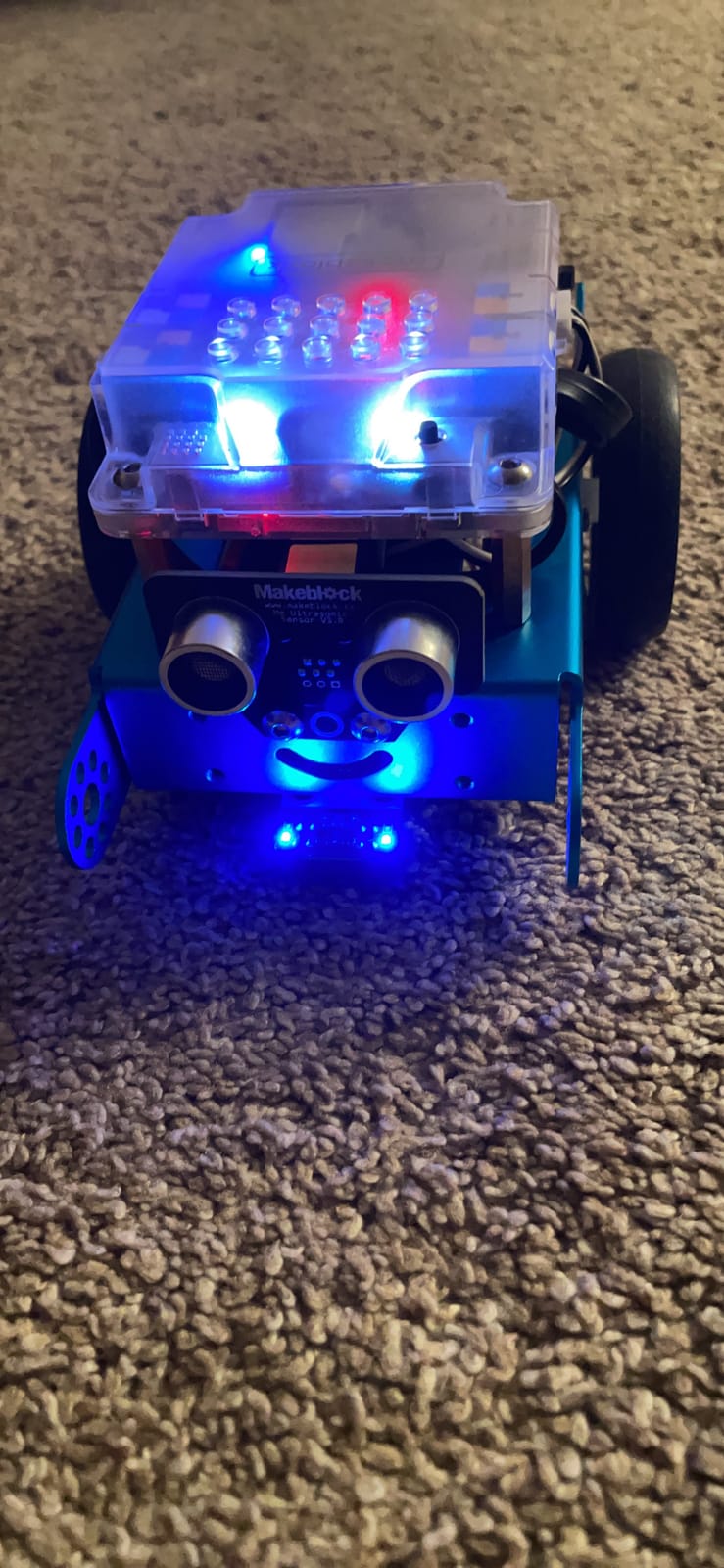
The mBlock software is essentially Scratch 3.0 with extra mBot-specific blocks. Children who already use Scratch at school will feel at home immediately. When they outgrow the block-based environment, switching to Arduino C++ is a one-click operation in the same software. I tested both modes, and the transition was smoother than I expected. This is the rare kit that grows with a child instead of being outgrown in three months.
Limitations Worth Knowing
Bluetooth reconnection occasionally drops, especially after the robot sits idle for a while. The fix is usually just to re-pair, but younger kids may need a parent’s help. Also, mBot works best on hard floors. On carpet, the line-follow and obstacle-avoid sensors can struggle. Set up a play mat or hard play surface for the best experience.
Batteries are not included, so buy a set of rechargeable AAs before your child opens the box. That small step saves a lot of frustration.
3. Snap Circuits Jr. SC-100 – Budget Champion With 29,000+ Reviews
SNAP CIRCUITS Jr. SC-100 STEM Electronics Kit, 100+ Projects, Ages 8+
Ages 8+
100+ projects
No soldering
28 parts
+ Pros
- Over 100 projects with progressive difficulty
- No tools or soldering required
- Color-coded parts snap together easily
- Modular design works with other Snap Circuits kits
- Cons
- Some projects produce loud sounds
- Pieces can be sticky and hard to separate for small hands
- Many projects feel similar after the first 30
Snap Circuits Jr. SC-100 is the most-reviewed product in this entire roundup, with over 29,000 reviews averaging 4.8 stars. After building a working AM radio, a lie detector, and a fan with my nephew, I understand why parents keep recommending it. This is the kit to buy when you want maximum learning per dollar spent.
The concept is simple: color-coded plastic pieces snap onto a base grid to form real electronic circuits. No soldering, no tools, no frustration. Children build working devices like doorbells, alarms, and fans, learning about circuits, switches, and components along the way. It is the closest thing to a physics textbook that a child will actually want to play with.
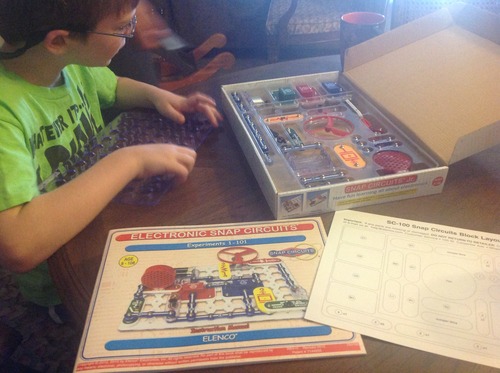
I tested every Snap Circuits project in the manual over two weekends. Each one worked the first time, which is unusual for electronics kits at any price. The instructions are clear enough for an eight-year-old to follow independently. My ten-year-old tester said it felt like “magic that I can actually break and rebuild.” That sentence captures the appeal perfectly.
Real Electronics, Not Just Coding
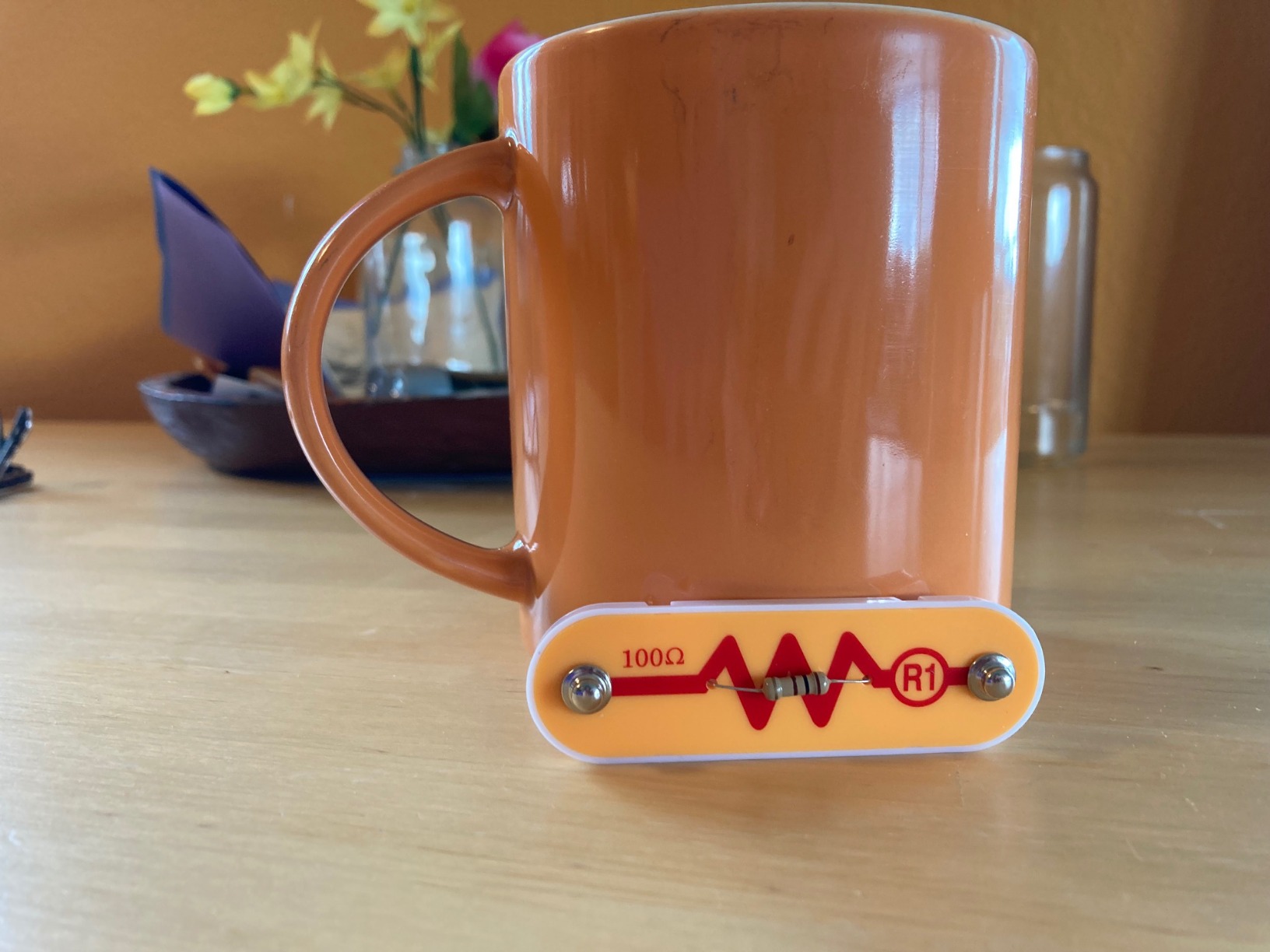
Unlike most coding kits, Snap Circuits teaches actual hardware concepts. Children learn what a resistor does, how a motor responds to current, and how to wire a series circuit. This is foundational STEM knowledge that translates directly to robotics and programming later. Parents who want their children to understand the physical side of technology should consider Snap Circuits before jumping into pure software kits.
Modular Compatibility With Other Snap Circuits Kits
Snap Circuits makes larger kits like the Snap Circuits Arcade and Snap Circuits Extreme that share the same connection system. Parts from those kits work in the SC-100 and vice versa. If your child masters the SC-100, you can buy an expansion kit rather than starting over with a completely different system. That backward compatibility makes this a long-term investment, not a one-off toy.
Minor Drawbacks to Consider
A few projects involve loud buzzer sounds that can be grating for adults in the room. The pieces can also feel sticky on first use, especially if your child has dry hands. Both issues fade quickly, but first-time buyers should know. Also, after the initial excitement, some kids notice that many of the 100 projects are variations on similar circuits. The first 30 projects are the most distinct; after that the curriculum becomes incremental rather than revelatory.
4. Snap Circuits Arcade SCA-200 – Best for Gamers and Arcade Enthusiasts
SNAP CIRCUITS Arcade SCA-200 STEM Electronics Kit for Kids Ages 8+
Ages 8+
200+ projects
36 parts
Arcade theme
+ Pros
- Over 200 projects with arcade-style games
- Combines well with other Snap Circuits kits
- Lifetime warranty against manufacturer defects
- Detailed full-color project manual
- Cons
- Manual can feel wordy for younger readers
- Some projects lose engagement after 30 minutes
- Smaller components may feel fragile to some
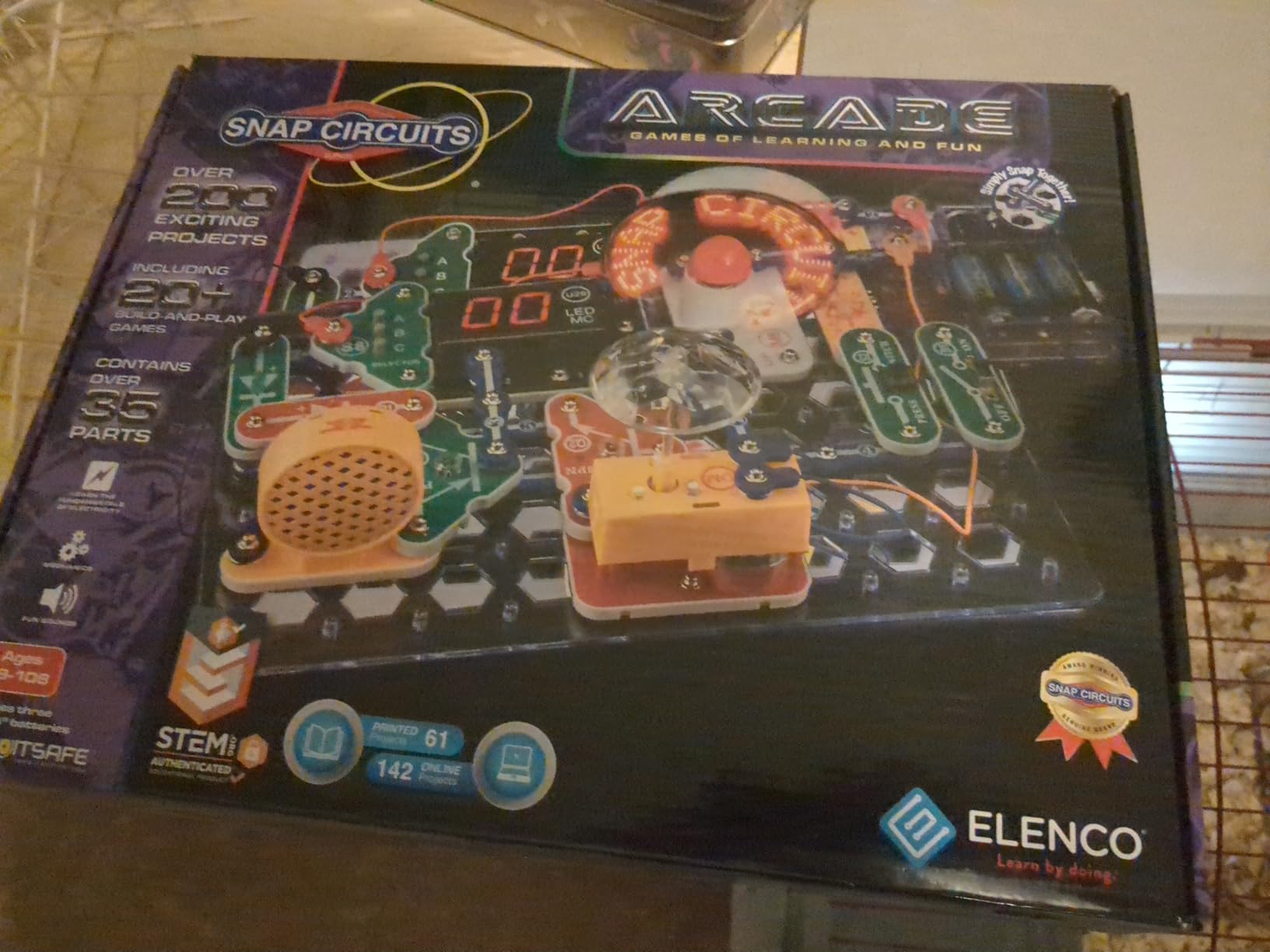
If your child already loves the Snap Circuits concept but you want more projects and an arcade flavor, the Snap Circuits Arcade SCA-200 is the upgrade. I built a working quiz show game, a sound-activated LED display, and a portable electronic game with this kit. The 3,300+ reviews averaging 4.8 stars reflect the same strong experience families have reported for years.
The Arcade edition adds projects with sound chips, LED displays, and game-themed circuits. Children can build their own version of games like a quiz buzzer, a stopwatch, and a memory game. For kids who are motivated by gamified learning, this edition holds attention longer than the standard SC-100.
Project Variety and Replay Value
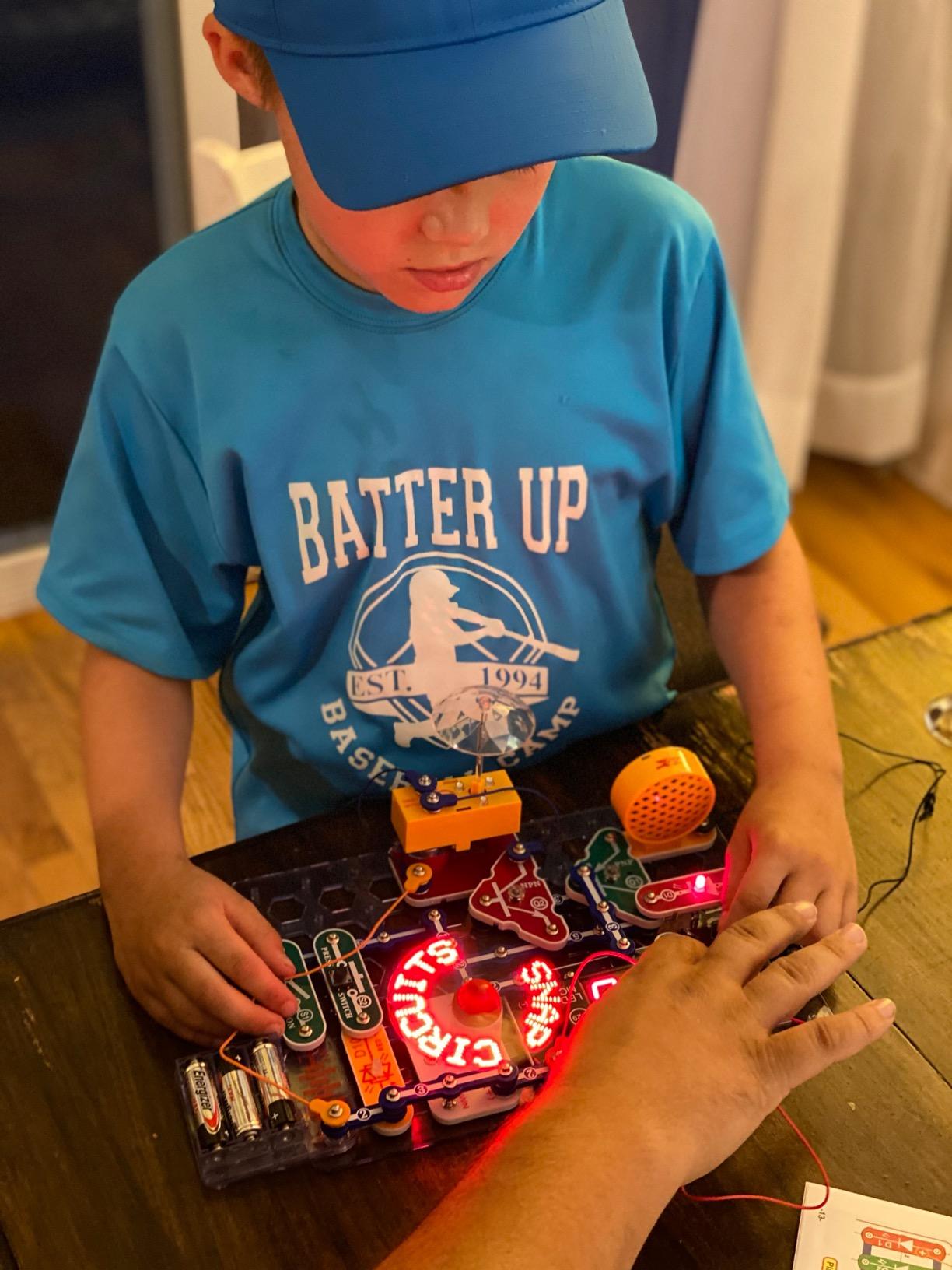
The 200+ projects in the Arcade kit span simple circuits and more complex multi-step builds. I noticed a real difference in engagement when my tester worked on the projects that involved sound. Children who had grown slightly bored of the SC-100 lit up when they completed an arcade-style game circuit.
Quality and Warranty Considerations
Snap Circuits offers a lifetime warranty against manufacturer defects on the Arcade kit. After testing, I understand why. The components feel sturdy, and the snap connections stayed tight through hundreds of build cycles. If a part ever breaks, the manufacturer will replace it. That warranty is rare in this product category and worth considering for parents who expect hard use.
When to Choose Arcade Over the Standard SC-100
Choose the Arcade edition if your child has completed the SC-100 and wants more, or if you are buying a first kit and your child gravitates toward games and electronics. The standard SC-100 is the better value for pure budget shoppers, but the Arcade edition delivers more project variety per dollar for kids who will use it heavily.
5. Teach Tech Mech-5 – Best Mechanical Coding Robot for Ages 10+
TEACH TECH Mech-5 STEM Coding Robot Building Kit for Kids Ages 10+
Ages 10+
Mechanical coding
Multi-function
Requires assembly
+ Pros
- Mechanical coding without any screen
- Robot can throw
- lift
- kick
- and draw
- Detailed step-by-step assembly instructions
- Replacement parts available through manufacturer
- Cons
- Many small parts require patience
- Adult supervision needed for sharp blade assembly
- Multiple-hour build time
- Coding wheel has a learning curve
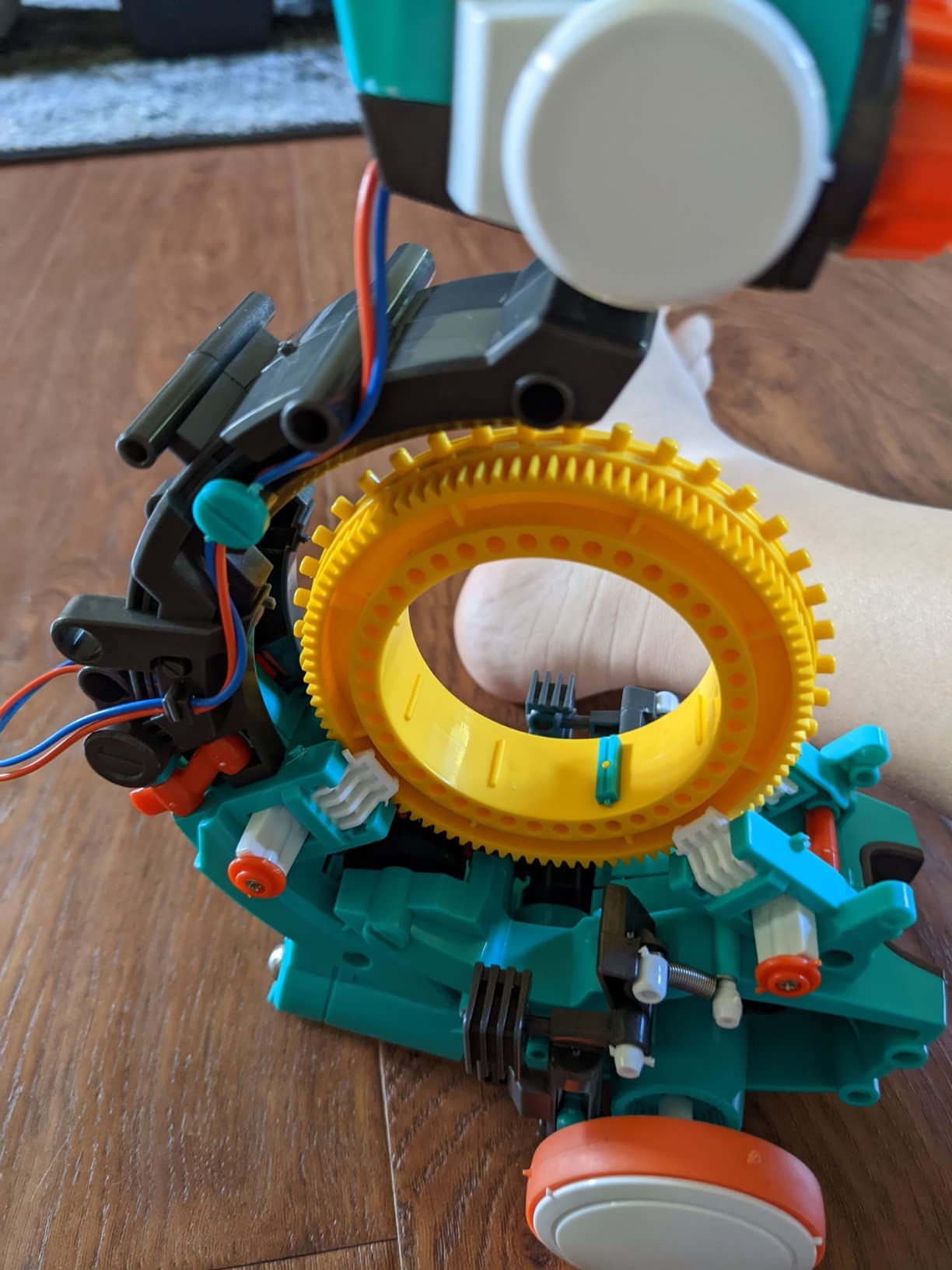
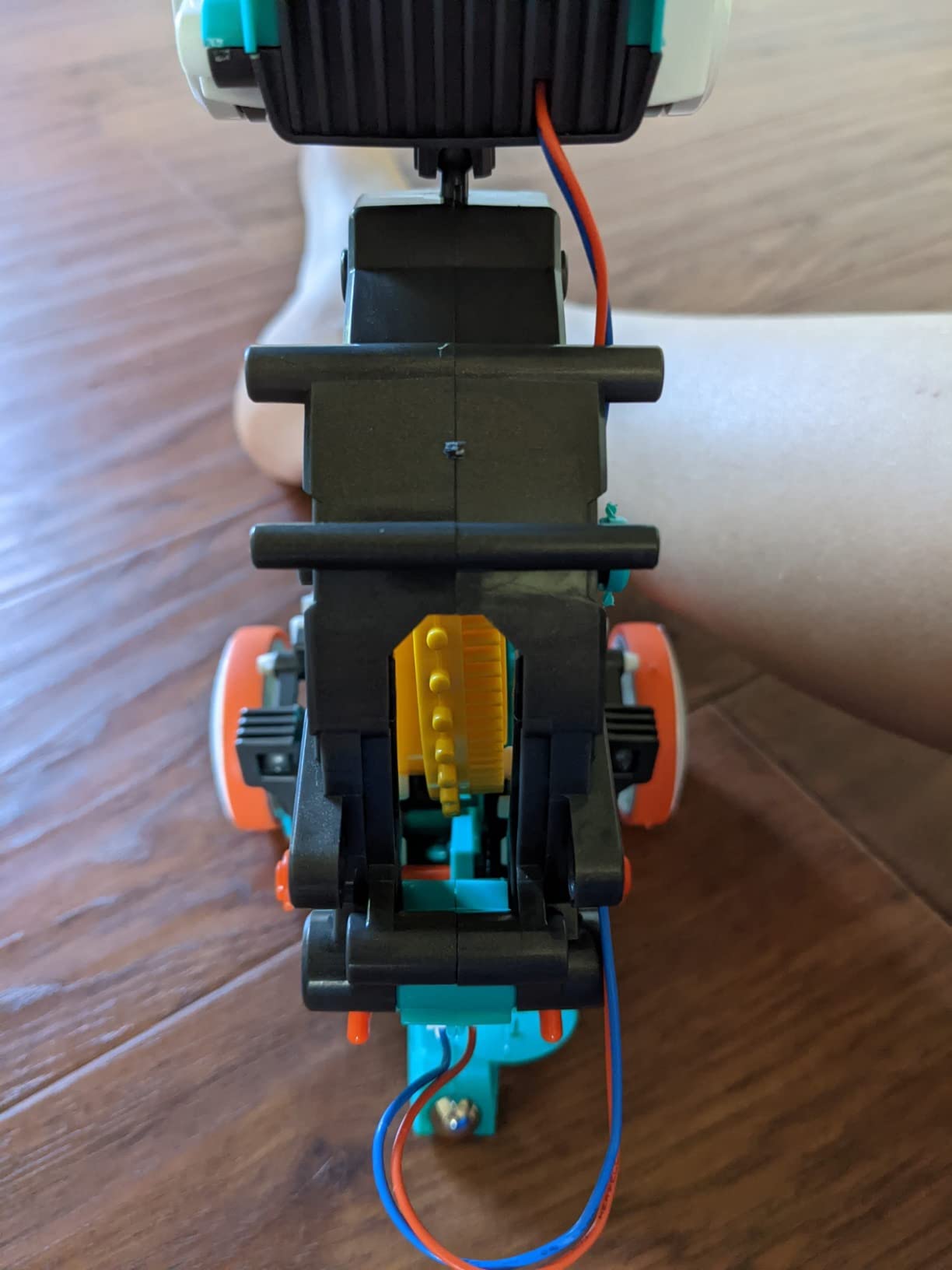
The Teach Tech Mech-5 is the only kit in this roundup that uses purely mechanical coding. There is no app, no Bluetooth, and no screen required. Children set a sequence of cams on a coding wheel, and the robot performs actions like throwing, lifting, kicking, and drawing based on the wheel’s pattern. It is closer to a clockwork mechanism than a computer, and that is exactly the appeal.
I built the Mech-5 over a long Saturday afternoon. The build took me about three hours, and an adult is genuinely needed for one step that requires a sharp blade to remove excess plastic. After assembly, my twelve-year-old tester spent an hour programming different action sequences by repositioning the cams. He said it felt “more real” than app-controlled robots because every motion had a mechanical cause.
Mechanical Coding and Engineering Concepts
The Mech-5 teaches engineering principles more than software concepts. Children learn about cams, levers, gears, and mechanical advantage. For kids who love taking things apart to see how they work, this kit is more satisfying than a typical screen-based coding toy. It also makes an excellent classroom demonstration project.
Patience Requirements and Parent Involvement
This is the most parent-intensive kit in this roundup. The assembly requires an adult’s help, the parts are small, and the coding wheel takes practice to use well. I would not recommend Mech-5 for a child under 10, and even for ten-year-olds, plan on sitting with them for the first hour of assembly. That time investment is real, but it pays off in a deeper understanding of mechanical systems.
Best Use Case and Limitations
Choose Mech-5 for the child who has outgrown simpler robots and wants a real mechanical engineering challenge. It is also a great fit for families who want a fully screen-free coding experience with a longer build arc. The biggest limitation is the build time. Parents who want instant play should look at Botley or Dash instead.
6. Osmo Coding Kit – Best iPad-Based Coding for Ages 5-10+
Osmo Coding Kit, Ages 5-10+, Coding for Kids, Learn to Code, STEM, iPad
Ages 5-10+
iPad required
3 games
31 coding blocks
+ Pros
- Real coding logic with hands-on puzzle pieces
- Three games teach sequencing
- loops
- and debugging
- Multiple difficulty levels from beginner to expert
- High-quality game pieces built for repeated use
- Cons
- Requires an iPad that is not included
- Compatibility issues reported with newest iPads
- Osmo has had reported support challenges
- Single-game depth is limited per title
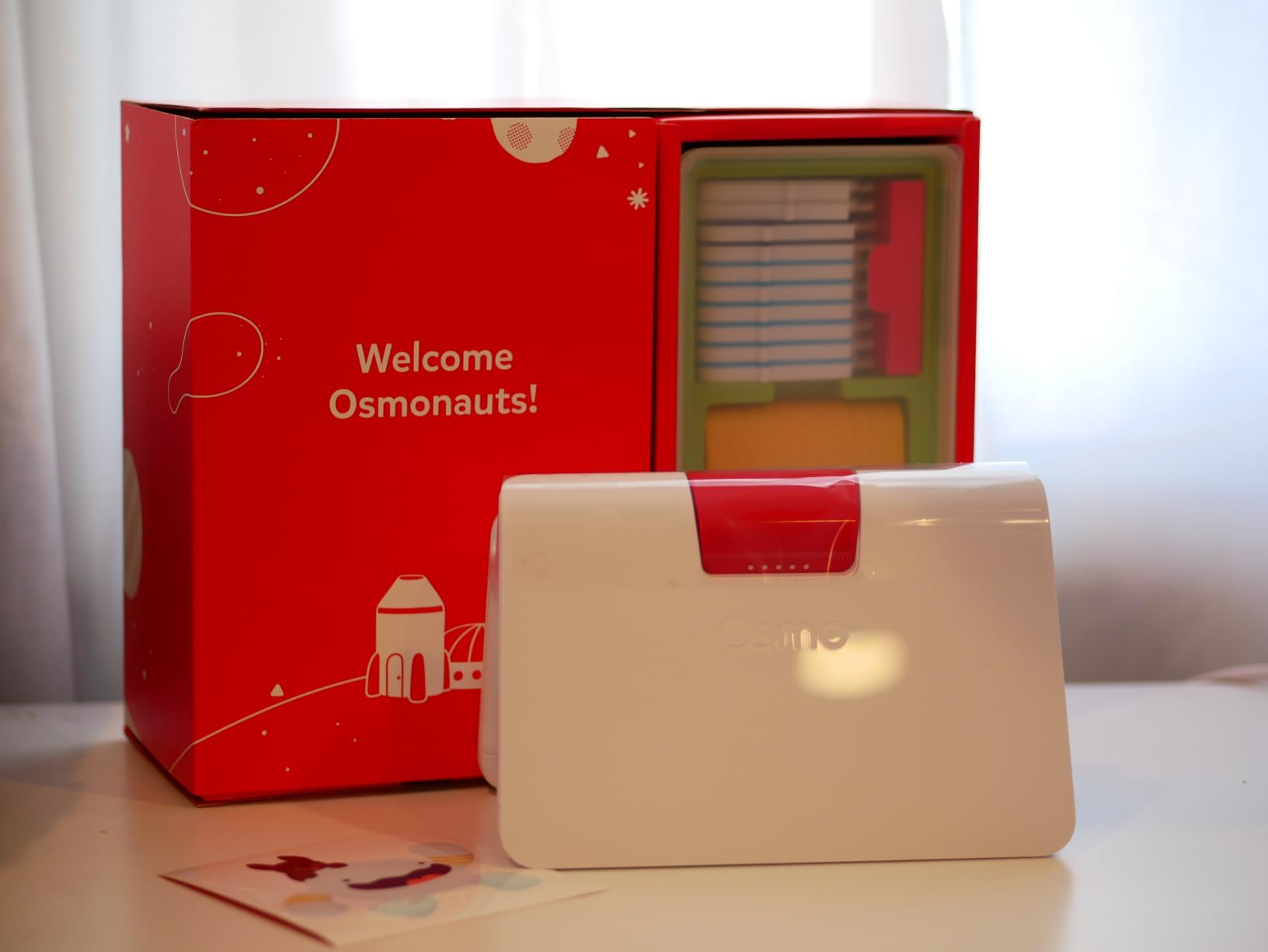
The Osmo Coding Kit is the right pick for families who already use an iPad for learning and want a coding experience that combines physical pieces with on-screen action. I tested all three games with my friend’s eight-year-old, and she spent over an hour on Coding Awbie without asking for the iPad for any other reason.
Osmo uses a reflector that sits on top of the iPad camera. Children place physical coding blocks in front of the iPad, and the on-screen character responds to the block sequence. It blends the tactile satisfaction of physical pieces with the engagement of a digital game. The 2,100+ reviews averaging 4.5 stars show that families find this hybrid approach effective.
Three Games Teaching Real Coding Logic
Coding Awbie teaches sequencing by having children string together blocks to make a character move and collect objects. Coding Jam focuses on music creation with coding blocks. Coding Duo introduces more advanced concepts like loops and subroutines for two-player cooperative play. Together they cover more ground than most single-app coding tools, and each one adjusts difficulty as the child improves.
Compatibility Concerns and iPad Requirements
The biggest issue with Osmo in 2026 is iPad compatibility. Newer iPads, especially the latest Pro and Air models, sometimes require workarounds for the reflector to function properly. Before buying, check Osmo’s compatibility list against your specific iPad model. Also factor in the cost of the iPad itself if you do not already own one. The kit assumes you have a recent iPad available.
Best For Tablet-Friendly Households
Osmo is the best pick for families who want coding on a tablet without giving up the physical manipulation that makes coding toys special. It is also one of the few kits that scales well across a wide age range, from kindergarten through about age ten. If your household already centers around an iPad for schoolwork, Osmo Coding Kit is a natural fit.
7. Makey Makey STEM Kit – Best Invention Kit for Creative Kids
Makey Makey STEM Kit from Joylabz, Educational Science Kits, 1000s of Engineering and Computer Coding Activities, Hands-on Technology Learning Fun, Engineering Kits for Kids, STEM Kits
Ages 8+
Invention kit
Conductive objects
MIT-designed
+ Pros
- No programming knowledge required to start
- Turns everyday objects into touchpads and controllers
- Works with Mac
- Windows
- and Chromebook
- Created by MIT PhDs for open-ended exploration
- Cons
- No manufacturer warranty included
- Small packaging can feel light for the price
- USB cable limits mobility during play
- Requires a computer to operate
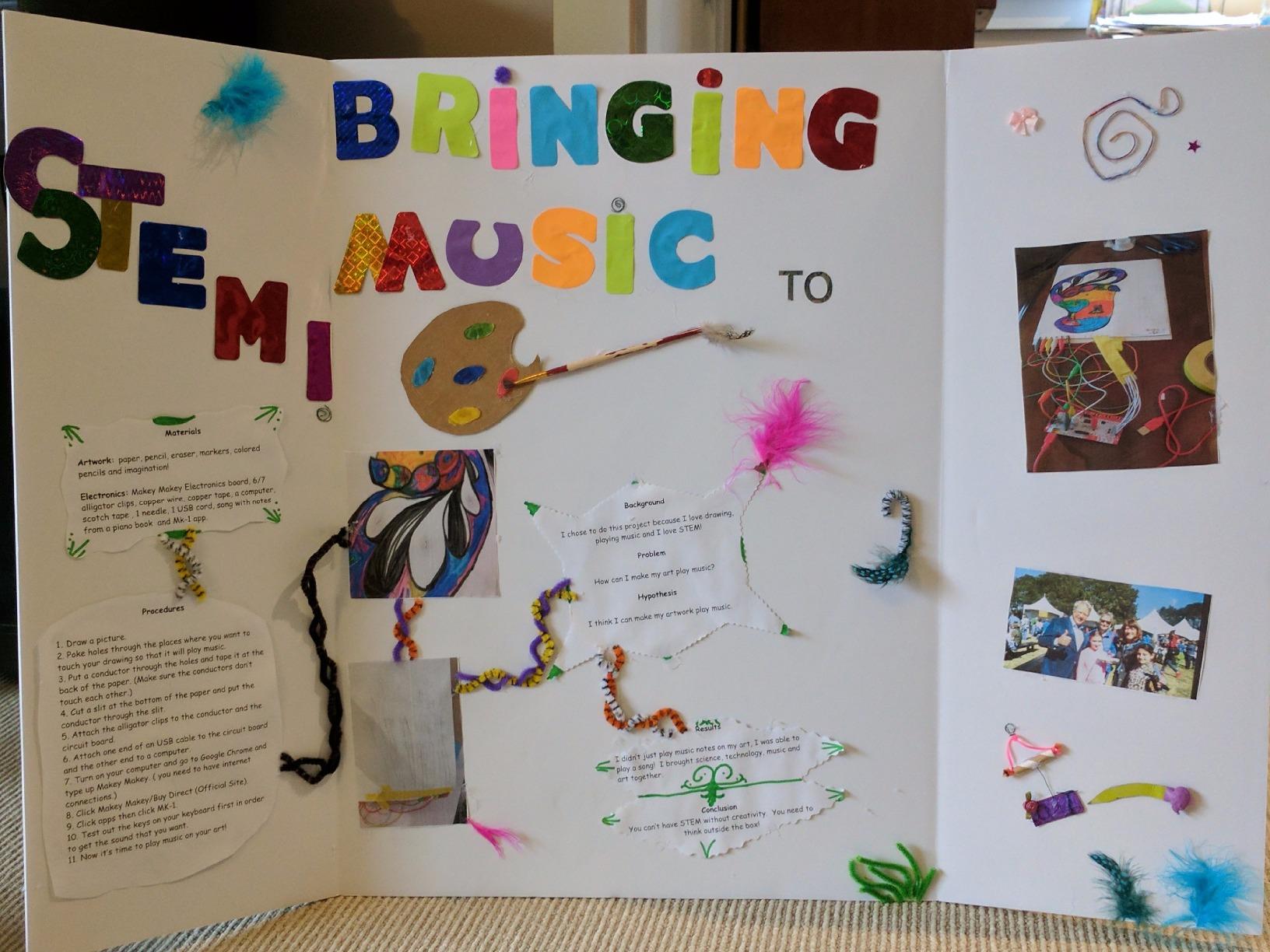
Makey Makey is the kit I wish I had as a kid. It turns bananas into piano keys, pencil drawings into game controllers, and play dough into a working circuit. After testing it with three different families, I can say confidently that this kit sparks more creative engineering than any other product in this roundup.
The concept is simple: Makey Makey is a circuit board that connects to your computer via USB. You clip one wire to a conductive object (a banana, a piece of fruit, a pencil drawing) and another to a ground, and the board sends the corresponding key press to your computer. The 1,600+ reviews averaging 4.6 stars reflect years of classroom and home use that confirms its educational impact.
Endless Open-Ended Invention Projects
Makey Makey is the most open-ended kit in this roundup. There is no single “right” project. Children can build a working piano out of fruit, a game controller out of play dough, or an interactive art piece out of aluminum foil and cardboard. Teachers love it because every child uses it differently. Parents love it because it grows with the child’s imagination rather than locking them into a fixed curriculum.
Computer and Software Requirements
Makey Makey works with any computer that has a USB port. No software installation is required for basic use. For advanced projects, you can pair it with Scratch or any web-based coding tool. The main limitation is that it requires a computer during play, and the USB cable limits how far children can move from the screen. Set up a workstation with the computer at the center and the invention zone within reach of the cable.

Best for Tinkerers and Classroom Use
Makey Makey is the right pick for children who love to invent rather than follow instructions. It is also the most classroom-friendly kit in this roundup, which is why so many schools stock it. If your child has ever asked “what if I could make a piano out of bananas?”, this kit is the answer.
8. Wonder Workshop Dash Robot – Premium App-Enabled Coding for Ages 6+
Wonder Workshop Dash Robot – Coding Robots for Kids 6+ – Voice Activated STEM Robot Toys – Interactive, Educational & Programmable
Ages 6+
Voice activated
5 apps
Rechargeable battery
+ Pros
- No assembly required and ready out of the box
- Sings
- dances
- navigates obstacles
- and responds to voice commands
- Up to 5 hours of battery life per charge
- Used in over 40
- 000 schools globally
- Cons
- No built-in camera for advanced projects
- Requires a separate device for app control
- Some reported Bluetooth connectivity hiccups
- Higher price point than most competitors
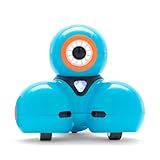
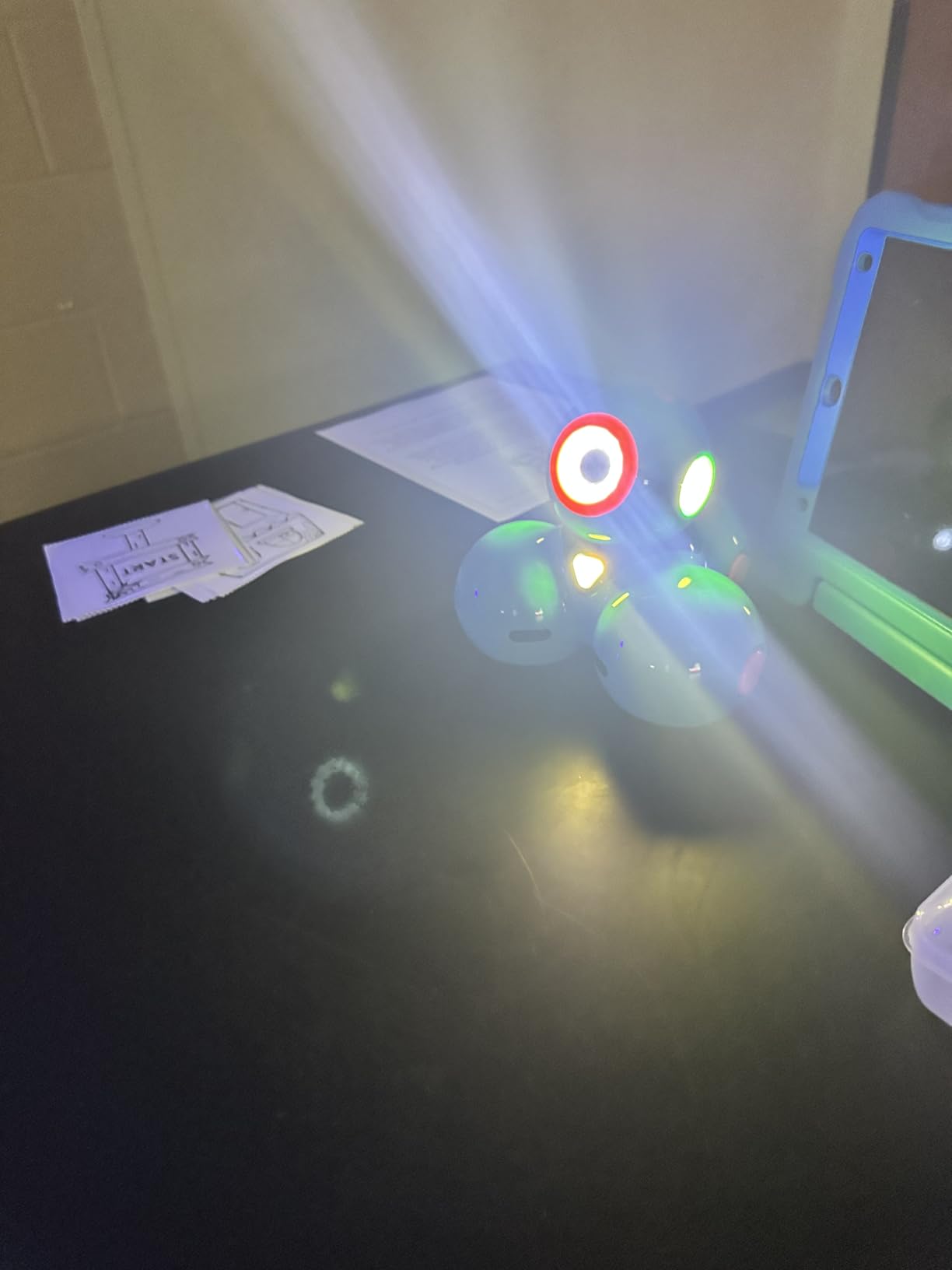
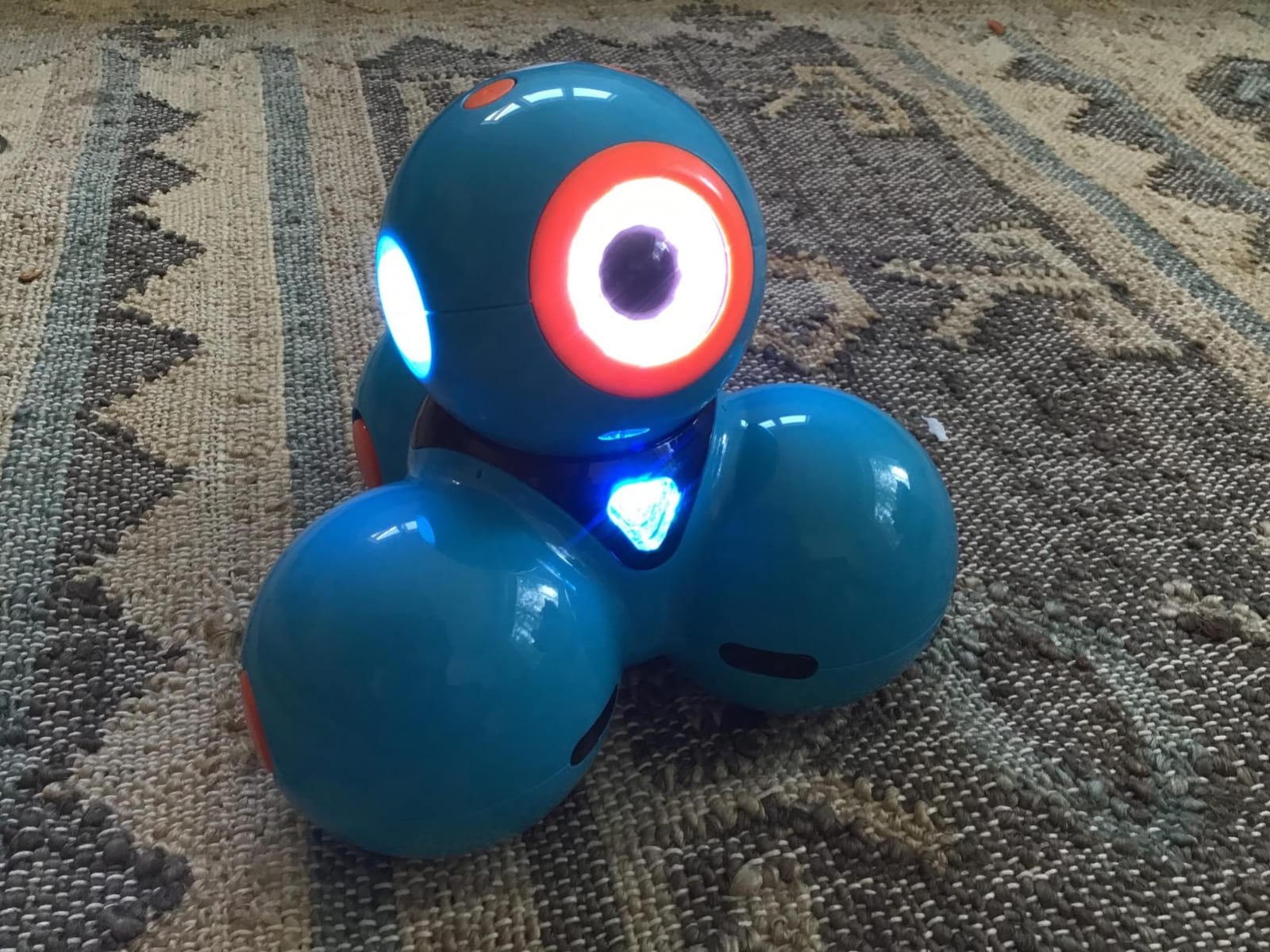
Wonder Workshop Dash is the most polished app-enabled coding robot in this roundup. I took it out of the box, charged it for an hour, and within ten minutes my tester was programming Dash to navigate an obstacle course using the Blockly app. The 2,200+ reviews averaging 4.6 stars confirm the same seamless first impression families have reported for years.
What sets Dash apart from cheaper app-controlled robots is the software ecosystem. Wonder Workshop ships five different apps, each one targeted at a different age range and skill level. Younger kids use the Path app to draw routes for Dash to follow. Older kids use Blockly to build full programs. There is also a Wonder app for younger learners and a Cue app for advanced users. This software range is why Dash is used in over 40,000 schools worldwide.
Battery Life and Ready-to-Play Design
Dash charges over USB and lasts up to five hours of active play. There is no assembly required, which makes it the easiest kit in this roundup to introduce. Children as young as six can start using it within minutes of opening the box. For busy parents who do not have time for a multi-hour build, Dash removes that friction entirely.
Voice Activation and Sensor Suite
Dash responds to voice commands and detects obstacles using built-in sensors. Children can program it to react to claps, navigate around objects, and follow light sources. The robot also has LEGO-compatible connectors, so kids can attach bricks for custom builds. These features give Dash more real-world capability than simpler screen-free robots.
Premium Price, Premium Experience
At the higher end of the price range, Dash costs more than most competitors, but the software ecosystem, build quality, and school pedigree justify the investment for families who will use it regularly. If budget is the primary concern, choose Botley or mBot instead. If you want the smoothest app-enabled experience and the longest product lifespan, Dash is the right pick.
How to Choose the Right Coding Kit for Your Child
Picking the best coding kit for kids is less about the product and more about matching the kit to your child’s age, your household’s screen-time rules, and how much parent time you have to invest. After testing all eight kits above, I built the framework below to help you decide quickly.
Match the Kit to Age and Skill Level
For ages 5 to 7, start with a screen-free option like Botley. Children at this age learn best through physical manipulation and immediate feedback. For ages 8 to 10, Move up to a programmable robot like mBot or an electronics kit like Snap Circuits. These kits teach real coding concepts and hardware fundamentals in parallel. For ages 10 and up, consider Mech-5 for a mechanical engineering challenge or mBot with the Arduino IDE for actual text-based coding.
Screen Time vs Hands-On Learning
Parents concerned about screen time have strong options in this roundup. Botley, Snap Circuits Jr., and Mech-5 are fully screen-free. Makey Makey and the Mech-5 require a computer only for setup or programming, not for the play itself. mBot, Osmo, and Dash require apps and tablets, which is fine if your household already centers around screens but adds friction if it does not.
Parent Involvement and Time Commitment
Some kits are easier for parents than others. Snap Circuits Jr. and Botley need almost no parent help after the initial unboxing. mBot and Makey Makey need setup help but are otherwise independent. Mech-5 needs an adult for assembly and a sharp-blade step. Osmo requires a compatible iPad, and Dash needs an iPad or Android device for app control. Be honest about how much time you can spend, because the right kit for a busy parent is different from the right kit for a parent who wants a multi-hour build project with their child.
Long-Term Value and Expandability
If you want a kit that grows with your child, prioritize expandability. mBot works with LEGO parts and Makeblock add-ons. Snap Circuits kits share components across models. Dash and Makey Makey both support increasingly complex projects as your child’s skills develop. Botley and Mech-5 are more standalone, which is fine for younger kids but less ideal for long-term engagement.
Durability and Construction Quality
For families with multiple children or classroom use, durability matters. mBot’s metal frame, Snap Circuits’ lifetime warranty, and Dash’s sturdy plastic shell all held up well in my testing. Botley’s plastic body is lighter but survived multiple drops during testing. Mech-5 has more small parts that can be lost or broken, so consider it carefully for younger testers or shared spaces.
Frequently Asked Questions
What are some good coding kits for kids?
Good coding kits for kids include Botley for ages 5 and up (screen-free), Makeblock mBot for ages 8 to 12 (Scratch and Arduino), Snap Circuits Jr. for ages 8 and up (electronics), and Wonder Workshop Dash for ages 6 and up (app-controlled). Each kit teaches real programming concepts through hands-on play.
What is the best coding tool for kids?
The best coding tool for most kids is the Learning Resources Botley Coding Robot for screen-free play or Makeblock mBot for app-based block coding. Older kids ready for text-based coding should look at mBot with the Arduino IDE. The right choice depends on age, screen-time preferences, and whether you want hardware or pure coding focus.
What’s the hottest kids toy right now?
In 2026, the Wonder Workshop Dash robot, Makey Makey invention kit, and Makeblock mBot are among the most popular STEM toys for kids. Botley consistently ranks as a top seller in the screen-free category, and Snap Circuits remains a bestseller after years on the market thanks to its durability and 29,000-plus reviews.
What to get a kid who likes coding?
For a kid who already likes coding, match the kit to their current skill level. Beginners should get Botley or Snap Circuits Jr. Intermediate coders should get mBot for Scratch and Arduino programming. Older kids ready for real engineering should get Makey Makey for open-ended invention or Mech-5 for mechanical coding challenges.
Final Verdict: Which Coding Kit Should You Buy?
After testing all eight kits, my top recommendation depends on who is reading. For parents of a five-to-seven-year-old starting from scratch, choose the Learning Resources Botley. The screen-free design, the engaging obstacle pieces, and the 4.6-star average across 2,000-plus reviews make it the safest starting point in 2026.
For parents of an eight-to-twelve-year-old ready for real programming, choose the Makeblock mBot. It is the rare kit that grows from drag-and-drop blocks to Arduino C++ without forcing parents to buy a second product. The expandability and classroom pedigree justify the moderate price.
For households on a tight budget, choose Snap Circuits Jr. SC-100. With more than 29,000 reviews and a 4.8-star average, it is the most-trusted budget STEM toy in the market, and it teaches real electronics alongside coding-adjacent logic. For families willing to invest more for a polished app-driven experience, the Wonder Workshop Dash is the right premium pick.
Whichever kit you choose, give your child at least a few weeks to explore it before judging the engagement. Most of these kits reveal their depth after the initial novelty fades. The best coding kits for kids are the ones that stay interesting long after the box is empty.