
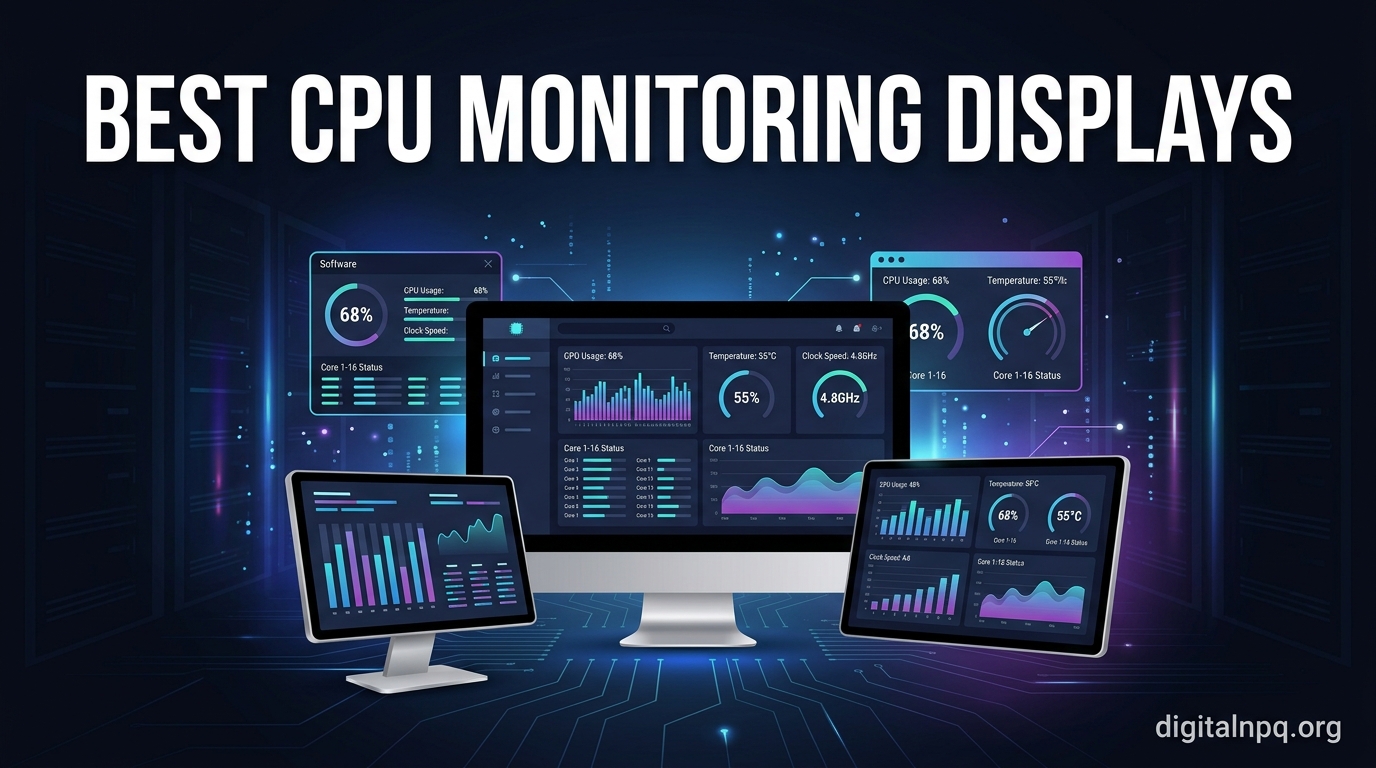
Keeping an eye on your processor temperature is one of those things you never think about until your PC starts thermal throttling mid-game. I learned this the hard way when my rig dropped from 144 FPS to a stuttering mess during a ranked match, all because I had no idea my CPU was hitting 95 degrees Celsius under load.
That experience sent me down a rabbit hole of CPU monitoring displays, from tiny USB screens mounted inside my case to full-width IPS panels sitting on my desk. After testing over a dozen of these displays across multiple builds, I have a clear picture of which ones are worth your money and which ones will leave you frustrated with buggy software.
This guide covers the best CPU monitoring displays you can buy in 2026. Whether you want a subtle 3.5-inch sensor panel tucked inside your case or a massive 11-inch stretched display showing every sensor metric imaginable, I have tested and ranked them all. Every product on this list has been evaluated for display quality, software reliability, mounting flexibility, and overall value.
Top 3 Picks for Best CPU Monitoring Displays

Lian Li 8.8 inch Universal…
- 8.8 inch IPS LCD
- 1920x480 Resolution
- USB-Powered
- ARGB Frame
- L-Connect 3 Software

WOWNOVA 8 Inch LCD Screen
- 8 inch IPS LCD
- 1280x800 Resolution
- 1-Click Setup
- Desktop Mode
- Aluminum Housing

WOWNOVA 5 inch Computer…
- 5 inch IPS LCD
- 800x480 Resolution
- USB-C Single Cable
- Dynamic Themes
- ARGB Support
Best CPU Monitoring Displays in 2026
| Product | Details | |
|---|---|---|
| Lian Li 8.8 inch SM088X |
|
Check Latest Price |
| WOWNOVA 8 Inch LCD |
|
Check Latest Price |
| WOWNOVA 5 inch Temp Monitor |
|
Check Latest Price |
 WOWNOVA 8.8 inch Temp Monitor WOWNOVA 8.8 inch Temp Monitor |
|
Check Latest Price |
 ROADOM 5 inch Mini Monitor ROADOM 5 inch Mini Monitor |
|
Check Latest Price |
 WOWNOVA 3.5 inch Temp Monitor WOWNOVA 3.5 inch Temp Monitor |
|
Check Latest Price |
 Hosyond 8.8 inch Touchscreen Hosyond 8.8 inch Touchscreen |
|
Check Latest Price |
 Thermalright Trofeo Vision 9.16 Thermalright Trofeo Vision 9.16 |
|
Check Latest Price |
 wisecoco 7.84 inch Monitor wisecoco 7.84 inch Monitor |
|
Check Latest Price |
1. Lian Li 8.8 inch Universal Screen SM088X – Premium Build with ARGB Flair
Lian Li 8.8″ Universal Screen-Black-SM088X
8.8 inch IPS LCD
1920x480 Resolution
USB-Powered
ARGB Frame
530g Weight
+ Pros
- Excellent build quality
- Multiple mounting options
- Polished L-Connect 3 software
- USB-powered no GPU port needed
- Bright clear display with ARGB lighting
- Cons
- L-Connect 3 can cause fan control issues
- No Linux support
- Limited official templates
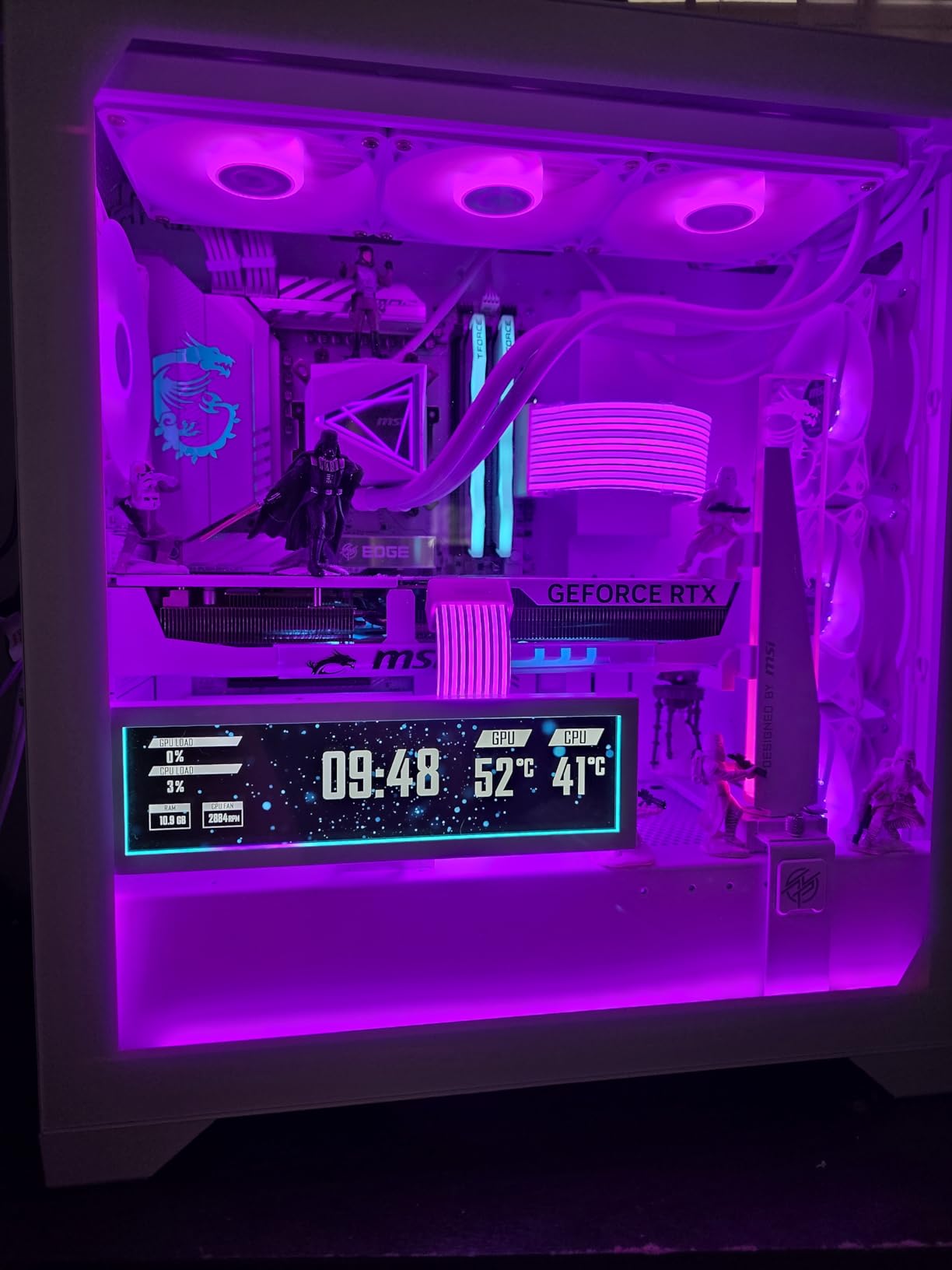
I installed the Lian Li SM088X on my main gaming rig about three months ago, and it immediately became the centerpiece of my build. The 8.8-inch IPS panel is stunning at 1920×480 resolution, delivering crisp text and vivid colors that make temperature readouts easy to read from across the room.
What sets this display apart from everything else I tested is the build quality. The aluminum frame feels solid, and the diffused ARGB lighting around the edges adds a premium glow that syncs perfectly with the rest of my Lian Li case. Mounting was straightforward too, with multiple options including fan frame brackets, case panel adhesive pads, and magnetic strips.
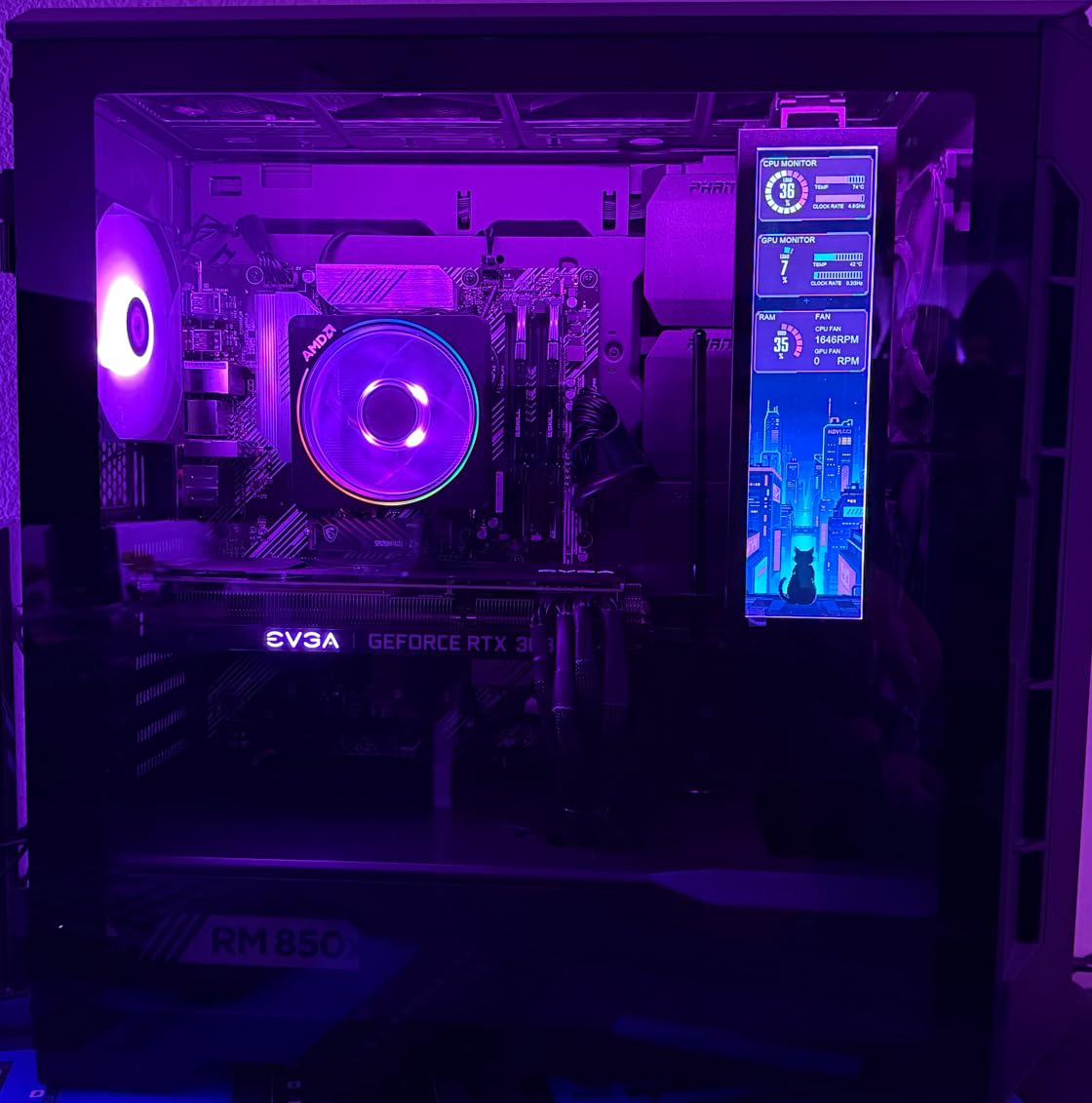
The L-Connect 3 software is where Lian Li really shines compared to competitors. It is polished, stable, and lets you customize every aspect of the display without crashing. I set up a custom dashboard showing CPU temperature, GPU temperature, RAM usage, and fan speeds in under 10 minutes. The USB-only connection means you do not need to sacrifice a GPU display port either.
That said, I did run into one issue. On my second test build, L-Connect 3 conflicted with my fan controller, causing my case fans to spin at 100% until I uninstalled the software and reinstalled with updated drivers. This is a known issue in some configurations, so check compatibility with your existing fan control setup before diving in.
Who Should Buy This Display
This is the pick for anyone who wants a premium, polished monitoring display that doubles as a visual showcase. If you already have Lian Li components in your build, the SM088X integrates flawlessly with the ecosystem. It is ideal for gamers and PC enthusiasts who want accurate temperature readings with a side of RGB aesthetics.
The 8.8-inch form factor fits neatly above most motherboard VRM heatsinks or along the top of a mid-tower case. If you run a compact SFF build, measure carefully because this screen needs some breathing room behind it for the cable.
Potential Drawbacks to Consider
If you use Linux as your primary OS, skip this one entirely. L-Connect 3 is Windows-only with no Linux alternative. Also, if your build already relies on third-party fan control software like Fan Control, you may experience conflicts that take time to troubleshoot. The custom theme creation has a learning curve too, and the official template library is surprisingly thin.
2. WOWNOVA 8 Inch LCD Screen – Best Balance of Size and Simplicity
WOWNOVA 8 Inch LCD Screen Inside PC Case Screen (Desktop Mode Added), 1 Click 1 Cable to Get Started Computer Temperature Display Monitor, Sensor Panel for Inside PC Case with Screen (Black)
8 inch IPS LCD
1280x800 Resolution
USB-C Single Cable
Desktop Mode
Aluminum Housing
+ Pros
- Easy 1-click setup
- Desktop display mode added
- IPS with great viewing angles
- Single cable USB-C connection
- Solid aluminum build
- Cons
- Software customization not intuitive
- Theme editing needs external software
- Monitoring software does not auto-start
The WOWNOVA 8-inch LCD screen surprised me with how quickly I went from unboxing to a live temperature display. The 1-click setup genuinely works. You plug in the USB-C cable, install the software, and within two minutes you have a fully functional sensor panel showing CPU, GPU, RAM, and storage data.
The 1280×800 resolution on this 8-inch IPS panel is noticeably sharper than the smaller WOWNOVA models. Text is crisp, graphs are readable, and the wider aspect ratio gives you plenty of room to display multiple metrics side by side. The aluminum housing feels sturdy and dissipates heat well, which is ironic but appreciated for a temperature monitoring device.
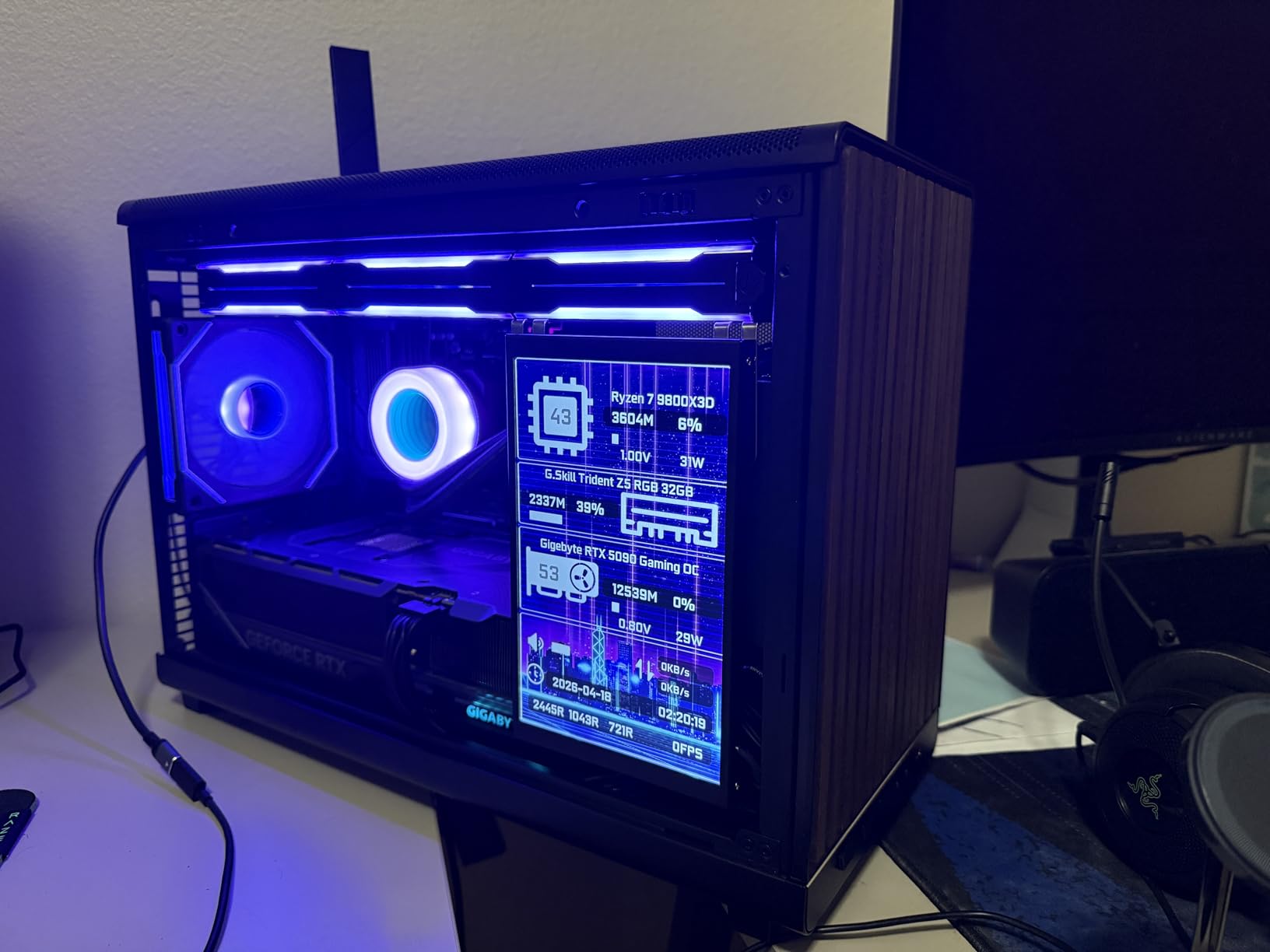
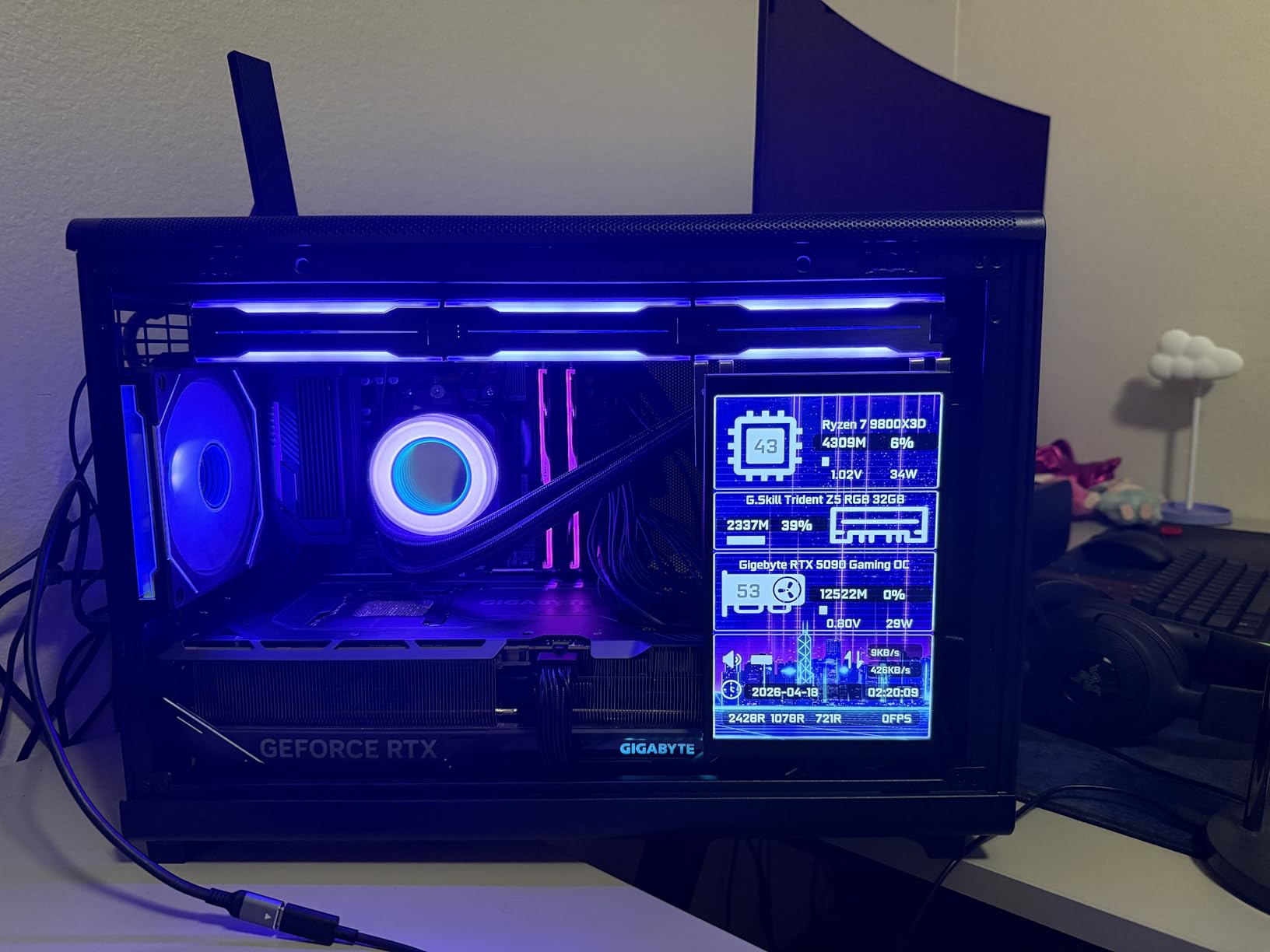
One feature that makes this stand out from the rest of the WOWNOVA lineup is the desktop mode. With a toggle in the software, this screen becomes a fully functional extended Windows desktop. I used it as a dedicated AIDA64 sensor panel, dragging the SensorPanel window over to the 8-inch display while keeping my main monitors clear for work and games.
The dynamic video themes are a nice bonus. You can run animated backgrounds behind your sensor data, which looks great in a glass-panel case. I loaded a cyberpunk-themed animation behind my CPU temp gauge and it genuinely looks like something out of a sci-fi movie setup.
Ideal Use Cases for This Display
This display hits the sweet spot for PC builders who want a large, readable sensor panel without spending premium money. The 8-inch size is big enough to show all your critical metrics at a glance but compact enough to fit inside most mid-tower and full-tower cases. It works exceptionally well paired with AIDA64 for professional-looking sensor dashboards.
What Holds It Back
The software is the weakest link. While the 1-click setup works great for presets, customizing themes requires exporting images, editing them in Photoshop or GIMP, and reimporting them. It is a clunky workflow that feels outdated. Also, the monitoring software does not auto-start with Windows by default, so you need to manually add it to your startup folder or Task Scheduler.
3. WOWNOVA 5 inch Computer Temp Monitor – Compact and Affordable
WOWNOVA 5″ Computer Temp Monitor, Dynamic Theme Supported, ARGB PC Case Sensor Panel, IPS Type-C USB Mini Secondary Screen, CPU RAM HDD Data Monitor (Black)
5 inch IPS LCD
800x480 Resolution
USB-C Connection
ARGB Support
178 Degree Viewing
+ Pros
- Easy plug-and-play setup
- Good variety of preset themes
- Real-time accurate readings
- Great value
- Aluminum housing
- Cons
- Software learning curve for customization
- Only one mounting screw point
- Color accuracy not ideal out of box
- Software can crash without saving
The WOWNOVA 5-inch monitor is the one I recommend most often to friends building their first PC with a sensor display. At under $70, it delivers the core experience you want: real-time CPU, GPU, RAM, and storage readings on a compact IPS screen that mounts inside your case with a single USB-C cable.
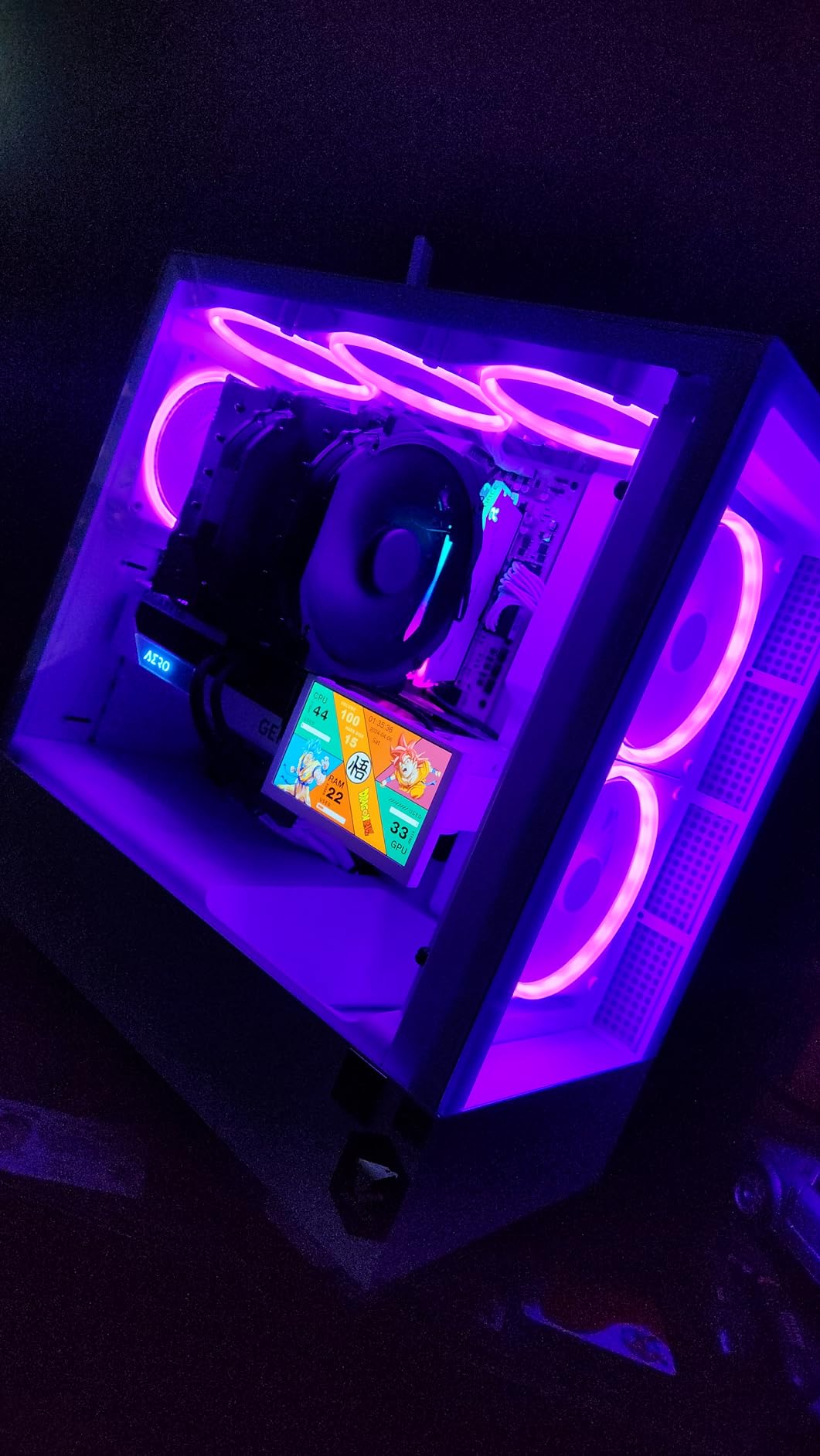
I tested this on a micro-ATX build where space was at a premium, and the 5-inch form factor fit perfectly in the corner of the case behind the glass panel. The 800×480 resolution is adequate for displaying temperature readouts and simple gauges, though small text can look slightly soft compared to higher-resolution panels.
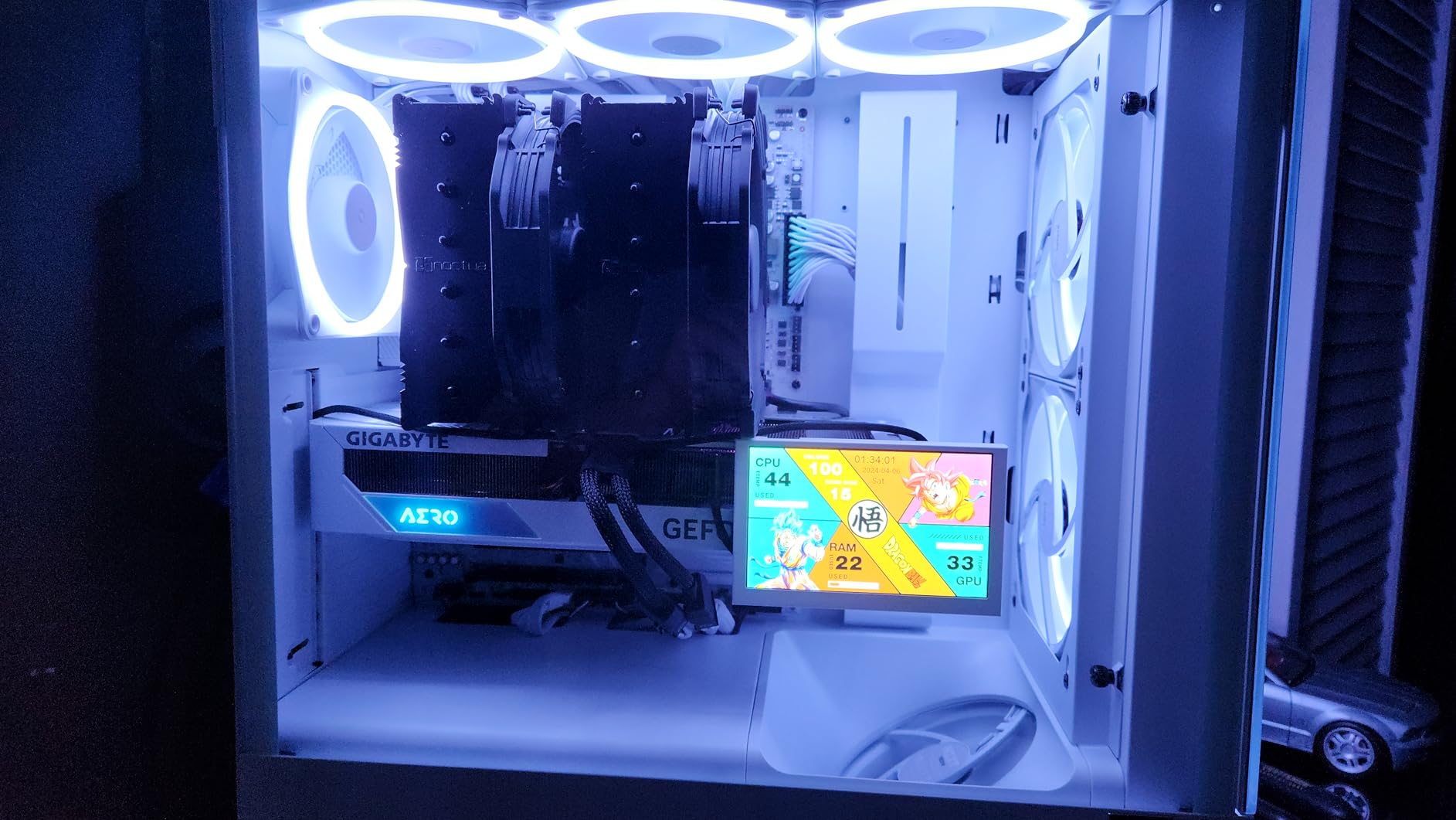
The preset themes are surprisingly good for this price point. You get about a dozen options ranging from minimalist readouts to animated cyberpunk dashboards. I found three or four that looked great without any customization. The included 16GB flash card stores all your themes, so you can swap between them without eating into your PC storage.
Where this display struggles is the software experience. The included theme editor works, but it crashed on me twice during a 30-minute customization session without saving my changes. After the second crash, I stuck with the presets and was much happier. The single mounting screw point is also limiting compared to competitors that include adhesive pads or brackets.
Best Fit for Your Build
This is the ideal entry-level CPU monitoring display for budget builds, first-time PC builders, or anyone who wants basic temperature visibility without spending triple digits. The 5-inch size works well in micro-ATX and mini-ITX cases where larger panels will not fit. If you are pairing it with a high-end GPU, having those real-time thermal readings right in your case window is genuinely useful for monitoring airflow and cooling performance.
Limitations to Keep in Mind
If you want pixel-perfect text rendering or plan to create heavily customized themes, look at the WOWNOVA 8-inch or the Lian Li SM088X instead. The 800×480 resolution shows its age when you try to display small fonts or complex layouts. The software stability issues mean you should save your work frequently when customizing themes.
4. WOWNOVA 8.8 inch Computer Temp Monitor – Maximum Screen Real Estate
WOWNOVA 8.8″ Computer Temp Monitor (Dynamic Theme Supported), 1 Click 1 Cable to Get Started Quickly PC Temperature Display Sensor Panel IPS Mini Secondary Screen CPU RAM HDD Data FPS Monitor (Black)
8.8 inch IPS LCD
1920x480 Resolution
USB-C or 9-pin
32GB Flash Card
Aluminum Housing
+ Pros
- Beautiful IPS display quality
- Simple 1-cable USB connection
- 20+ bundled themes
- Can be used as secondary monitor
- Quality aluminum build
- Cons
- Higher price point
- Software hosted on Google Drive
- Occasional random power off issues
- Limited custom image compatibility
Stepping up to the WOWNOVA 8.8-inch model gets you a significantly wider display with the same 1920×480 resolution as the Lian Li SM088X, but at a lower price point. The stretched bar format is perfect for displaying a full row of system metrics side by side, which is exactly how I set it up in my test build.
The IPS panel on this unit produces vibrant colors and wide 170-degree viewing angles. I had no trouble reading temperatures from off-axis positions, which matters if your PC sits on the floor beside your desk. The included 32GB flash card gives you plenty of storage for custom themes and video backgrounds.
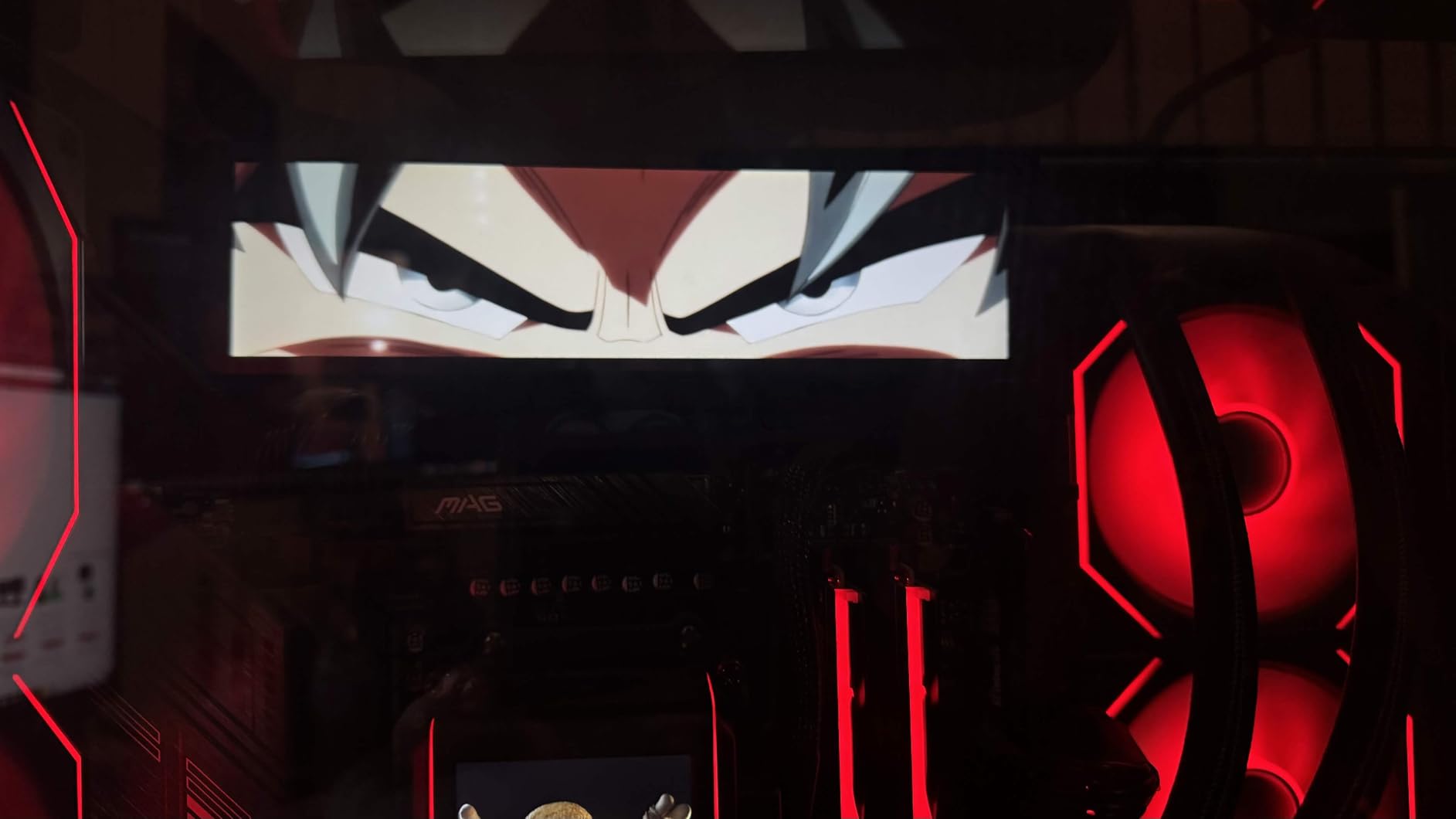
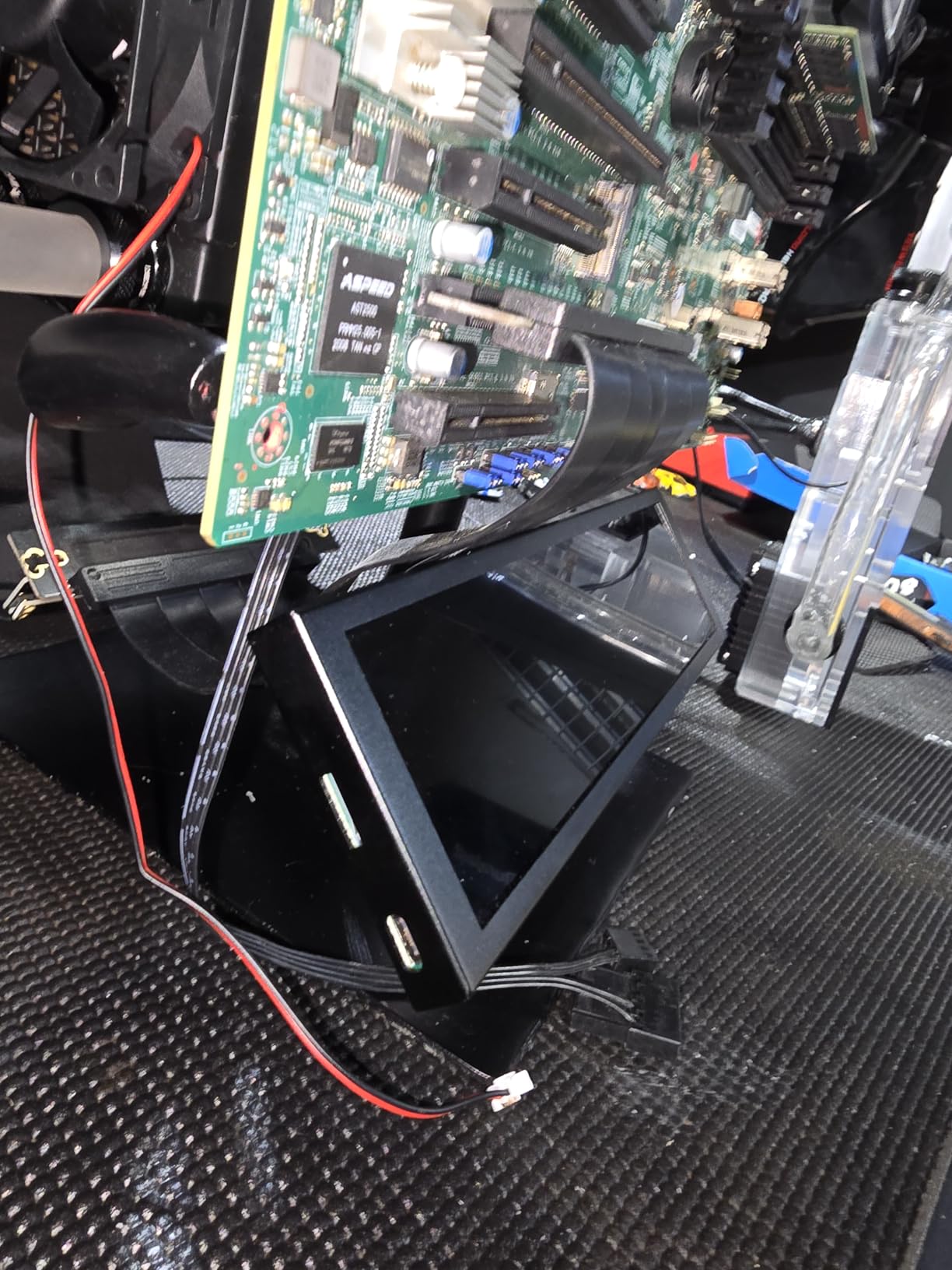
I really appreciate that this display doubles as a USB hub with two additional ports. I plugged my wireless mouse dongle and a small LED strip controller into the back of the display, keeping my front panel USB ports free. It is a small but thoughtful design choice that shows WOWNOVA put real thought into the practical use case.
The biggest complaint I have is the software distribution method. Instead of a proper download page, WOWNOVA hosts the monitoring software on Google Drive, which raises antivirus flags and feels unprofessional. The software itself works fine once installed, but getting there feels sketchy. I also experienced two random power-offs during a week of testing, which required unplugging and replugging the USB cable.
Who Gets the Most from This Display
If you want the largest possible monitoring strip for your case without going to a full secondary monitor, this 8.8-inch panel is a strong contender. The wide format excels at showing CPU temps, GPU temps, fan speeds, and RAM usage all in a single glance. It works well for builders who want a clean, professional-looking dashboard inside their case window.
Reasons to Look Elsewhere
The Google Drive software download is a dealbreaker for some users, especially in corporate or enterprise environments where unverified software sources are blocked. If you need a display that powers on reliably with your PC every time, the random power-off issues I experienced might frustrate you. The Lian Li SM088X is more reliable for just a bit more money.
5. ROADOM 5 inch Mini Monitor – The Multi-Tool Display
5” Mini Monitor for Raspberry Pi & HUB Integrated, USB-C One-Cable Connect
5 inch IPS LCD
800x480 Native Res
Raspberry Pi Mount
USB Hub,AIDA64 Ready
FreeSync
+ Pros
- 3-in-1 design: screen USB hub and Pi display
- One-cable USB-C connection
- Built-in speakers and card readers
- Excellent Raspberry Pi compatibility
- Great customer service and warranty
- Cons
- Native resolution limited to 800x480
- Touch screen issues on some units
- USB-C port cannot display video
- Base stability concerns
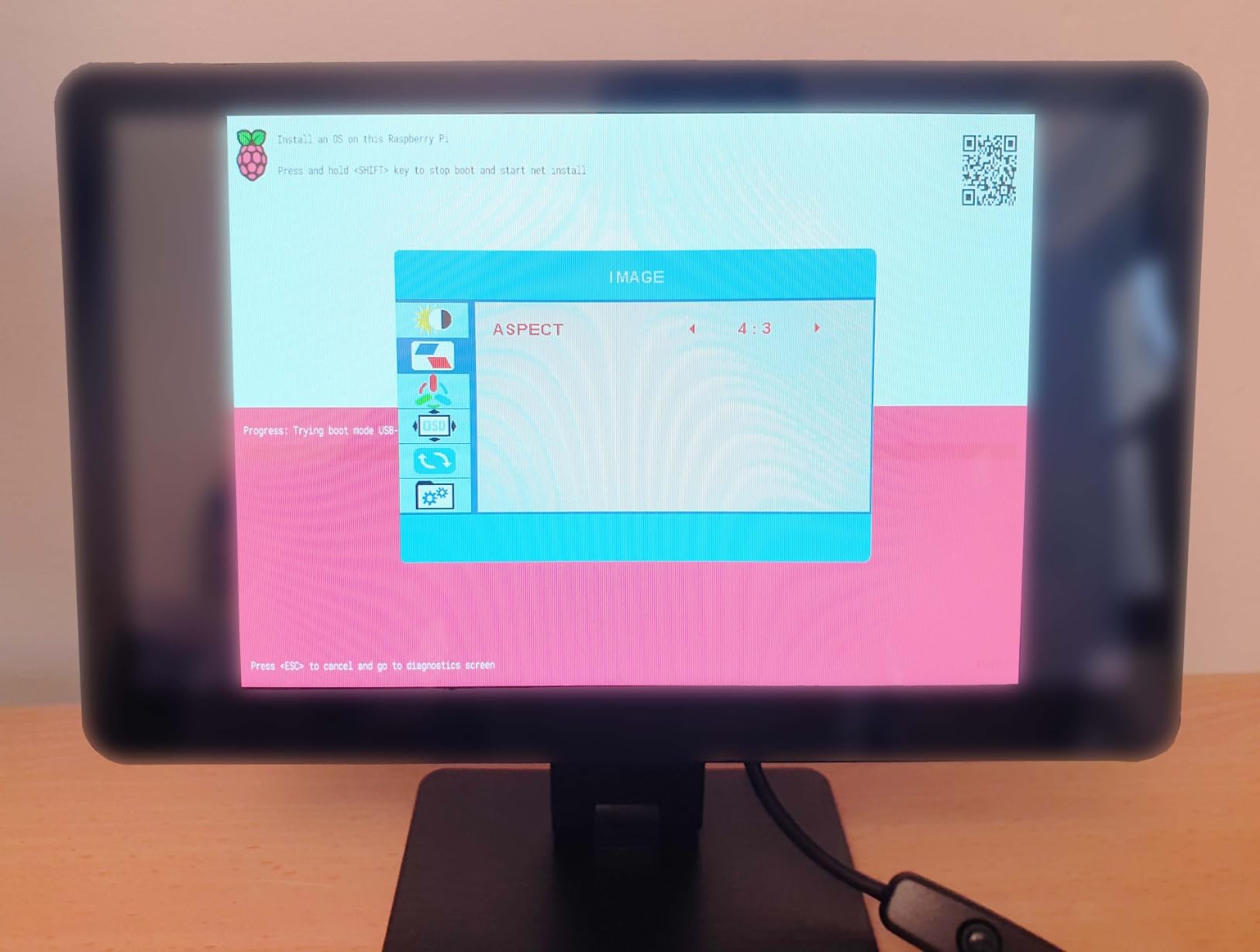
The ROADOM 5-inch is unlike any other display on this list because it does triple duty as a monitoring screen, a 5-port USB hub, and a Raspberry Pi display. I tested it in all three roles and came away impressed by the versatility, even if it makes some compromises along the way.
As a CPU monitoring display, the ROADOM works beautifully with AIDA64. I set it up as a dedicated sensor panel, and the 800×480 IPS screen rendered temperature graphs and system metrics clearly. The 178-degree viewing angle means you can mount it at odd angles inside a case and still read the data. The built-in SD and TF card readers on the front are a nice bonus for quick file transfers.
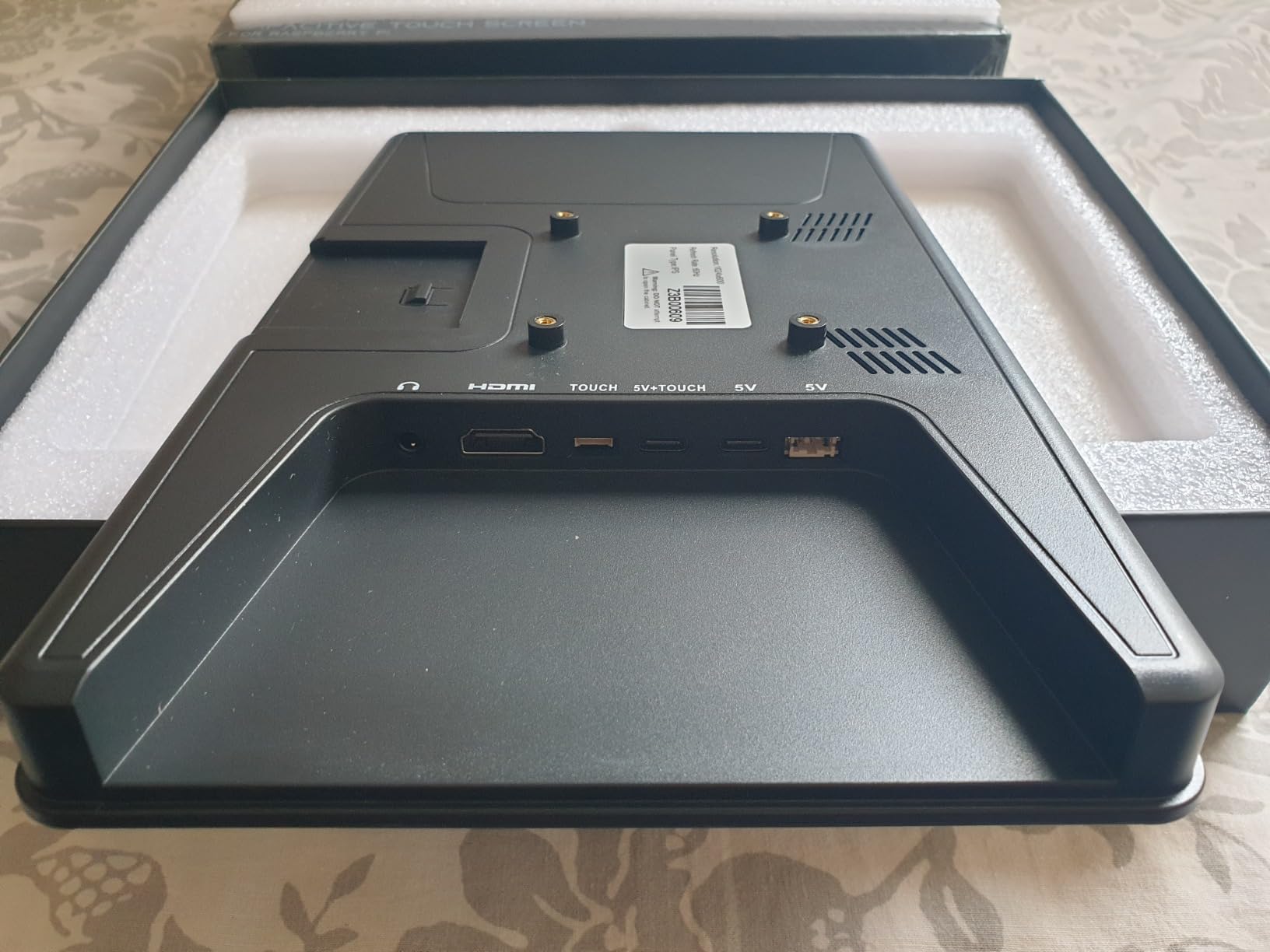
Where the ROADOM really shines is Raspberry Pi integration. It has pre-drilled mounting holes and included hardware for attaching a Pi directly to the back of the display. I built a compact Pi-based network monitor using this screen and it worked perfectly as a standalone monitoring station for my home lab.
The compromises become apparent when you push the display beyond basic monitoring. The USB-C port handles power and data but cannot output video, so you need to use the HDMI port for actual display connectivity. The base can feel wobbly if you mount a Raspberry Pi on the back without additional support. And while FreeSync is listed as a feature, the 800×480 native resolution means you will not be gaming on this screen.
Perfect For These Scenarios
If you want a monitoring display that also serves as a Raspberry Pi screen and USB hub, the ROADOM is unmatched. It is ideal for builders who run Pi-based projects alongside their main rig, or anyone who wants to consolidate multiple desk accessories into one device. The HDMI input also means you can use it with laptops, consoles, or any device with HDMI output.
When to Choose a Different Option
If you only need a simple sensor panel for your PC case and have no interest in Raspberry Pi or USB hub functionality, you are paying for features you will not use. The WOWNOVA 5-inch at a lower price delivers a similar monitoring experience. Also, if touch functionality is important to you, look elsewhere because the touch input on some units maps incorrectly to your main monitor.
6. WOWNOVA 3.5 inch English Version Temp Monitor – Ultra-Compact Budget Option
WOWNOVA English Version Computer Temp Monitor, ARGB PC Case Display, IPS USB Mini Screen, CPU RAM HDD Data Monitor
3.5 inch IPS
320x480 Resolution
USB-C Single Cable
Metal Shell
ARGB Support
+ Pros
- Super easy setup
- Only needs single USB-C cable
- Customizable screen layouts
- Metal and sturdy build
- Good viewing angles
- Cons
- Very small 3.5 inch screen
- Software can be confusing
- Short USB-C cable
- Memory leak issues on some systems
The WOWNOVA 3.5-inch is the smallest display I tested, and at under $40, it is also the most affordable. Do not let the size fool you though. This tiny IPS panel accurately displays CPU, GPU, and RAM data with a single USB-C cable connection and no HDMI or external power required.
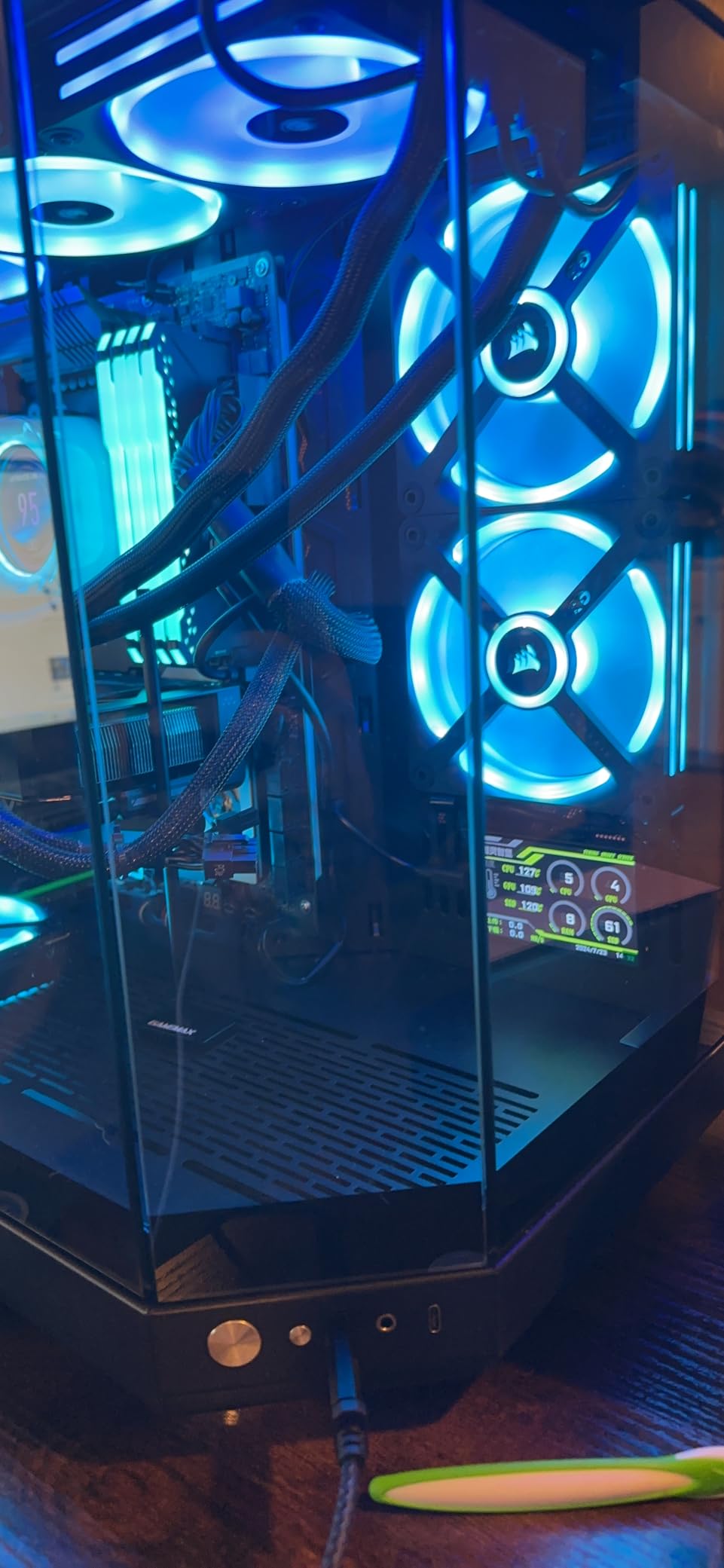
I installed this in a compact ITX build where space was extremely limited. The 3.5-inch panel slid into a gap between the GPU and the side panel with room to spare. The metal shell feels surprisingly premium for the price, and the IPS display offers decent viewing angles at 170 degrees.
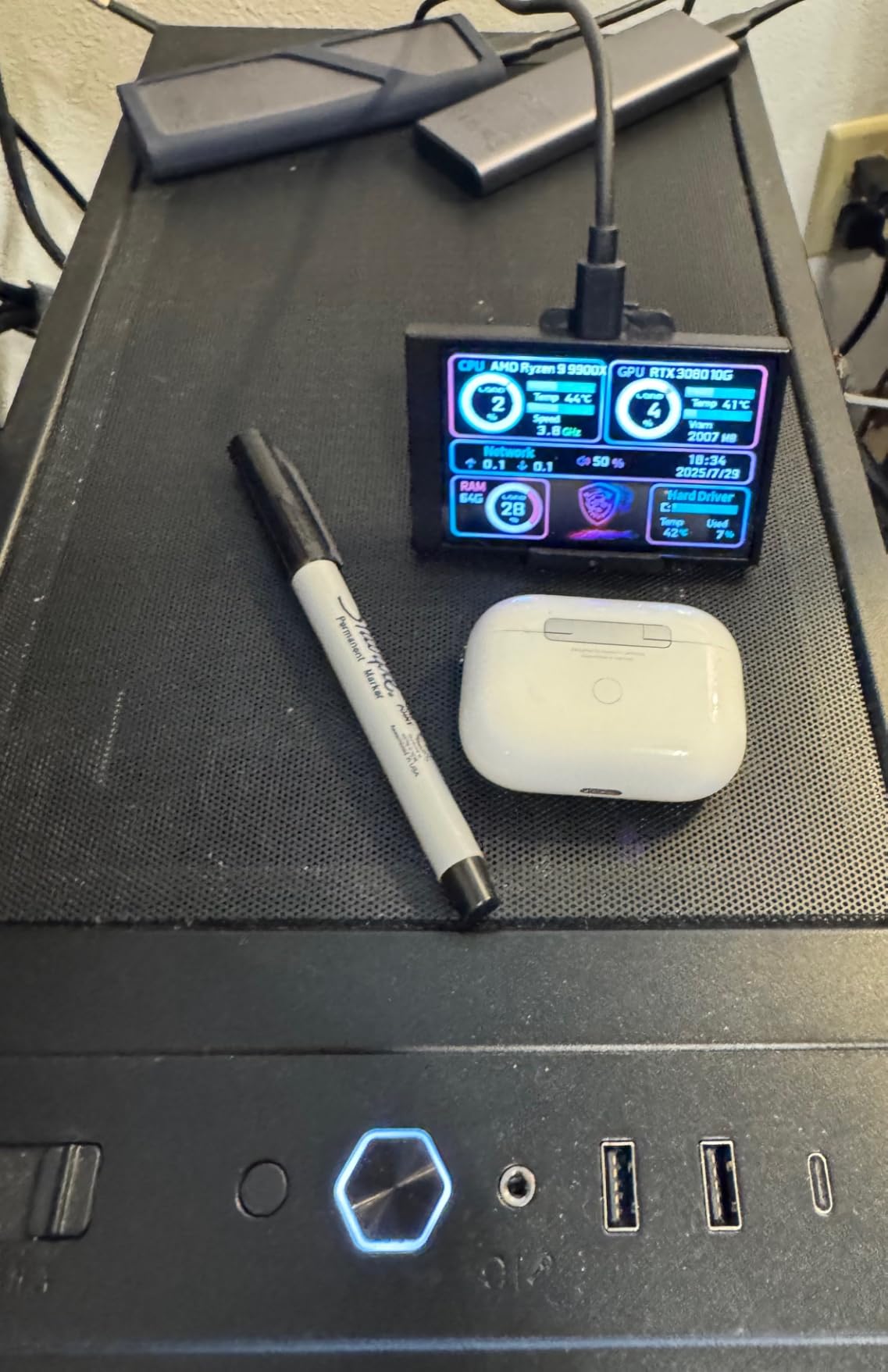
The included software supports horizontal and vertical screen orientations, which I found useful for fitting the display into different case layouts. The theme editor lets you rearrange gauges and readouts, though the interface is not intuitive. I spent about 20 minutes figuring out how to add a GPU temperature gauge to my layout.
My biggest concern is the reported memory leak issue. During my two-week test period, I noticed the monitoring software gradually consuming more RAM over time, growing from about 30MB at startup to over 200MB after three days of continuous use. Restarting the software resolved it, but this is something to watch if you leave your PC running for days at a time.
Best Suited For
This ultra-compact display is perfect for small form factor builds where a larger screen simply will not fit. It is also the best option if you are on a tight budget and want basic temperature visibility without any extras. For ITX builders and first-time PC assemblers, it delivers the essential monitoring experience at a fraction of the cost of larger panels.
Reasons to Upgrade
If you can fit a 5-inch or larger display in your case, I strongly recommend going bigger. The 3.5-inch screen makes small text difficult to read, and you are limited in how much information you can display at once. The memory leak issue also means this is not ideal for always-on systems or servers that run for weeks between reboots.
7. Hosyond 8.8 inch Touchscreen Secondary Screen – Touch Control at a Great Price
Hosyond 8.8 Inch Touchscreen Computer Secondary Screen 1920×480 FHD IPS LCD Display for PC Case AIDA64 CPU GPU Temperature Monitor, for Raspberry Pi
8.8 inch IPS
1920x480 Resolution
Capacitive Touchscreen
520 Nits
HDMI Input
+ Pros
- Easy setup with clear instructions
- Great price for 8.8 inch
- Responsive capacitive touchscreen
- Works as Stream Deck alternative
- Multi-OS support
- Cons
- No mounting hardware included
- Touch maps to wrong monitor sometimes
- Windows scaling issues
- No warranty included
The Hosyond 8.8-inch touchscreen is one of the most versatile displays I tested. It works as a CPU monitoring screen, a virtual Stream Deck, and a secondary display for any device with HDMI output. At just $53, it is one of the most affordable 8.8-inch panels on the market.
The capacitive touchscreen is surprisingly responsive for the price. I set it up as a custom button panel alongside my main monitor, creating touch targets for launching apps, toggling mic mute, and switching audio outputs. The 520-nit brightness is the brightest of any display I tested, making it highly visible even in well-lit rooms.
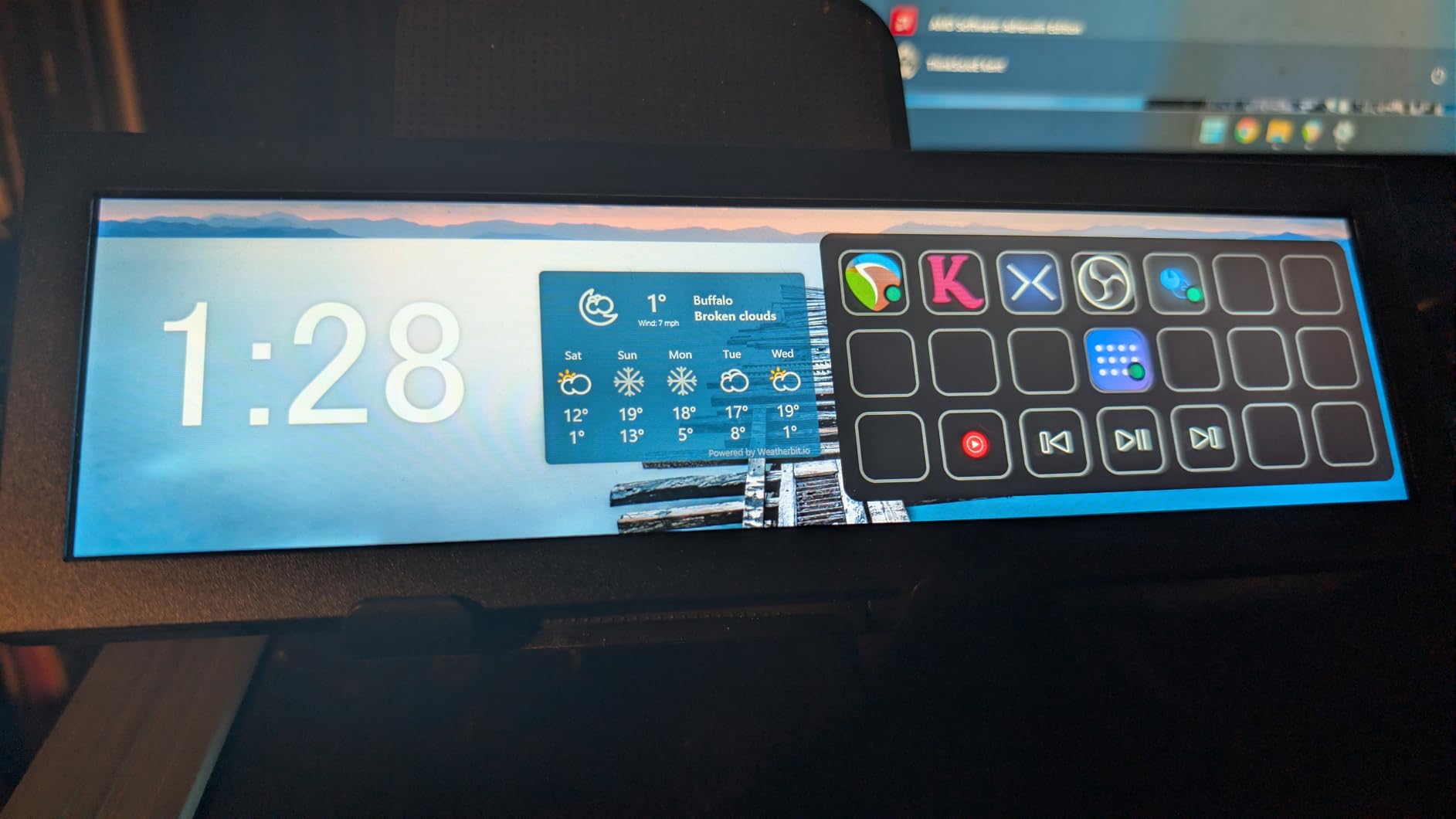
For CPU monitoring, the Hosyond works with AIDA64, but you need to purchase AIDA64 separately since it is not bundled. I configured AIDA64 to output a sensor panel to this display via HDMI, and the 1920×480 resolution rendered temperature graphs beautifully. The plug-and-play setup means no driver installation is needed on Windows or Linux.
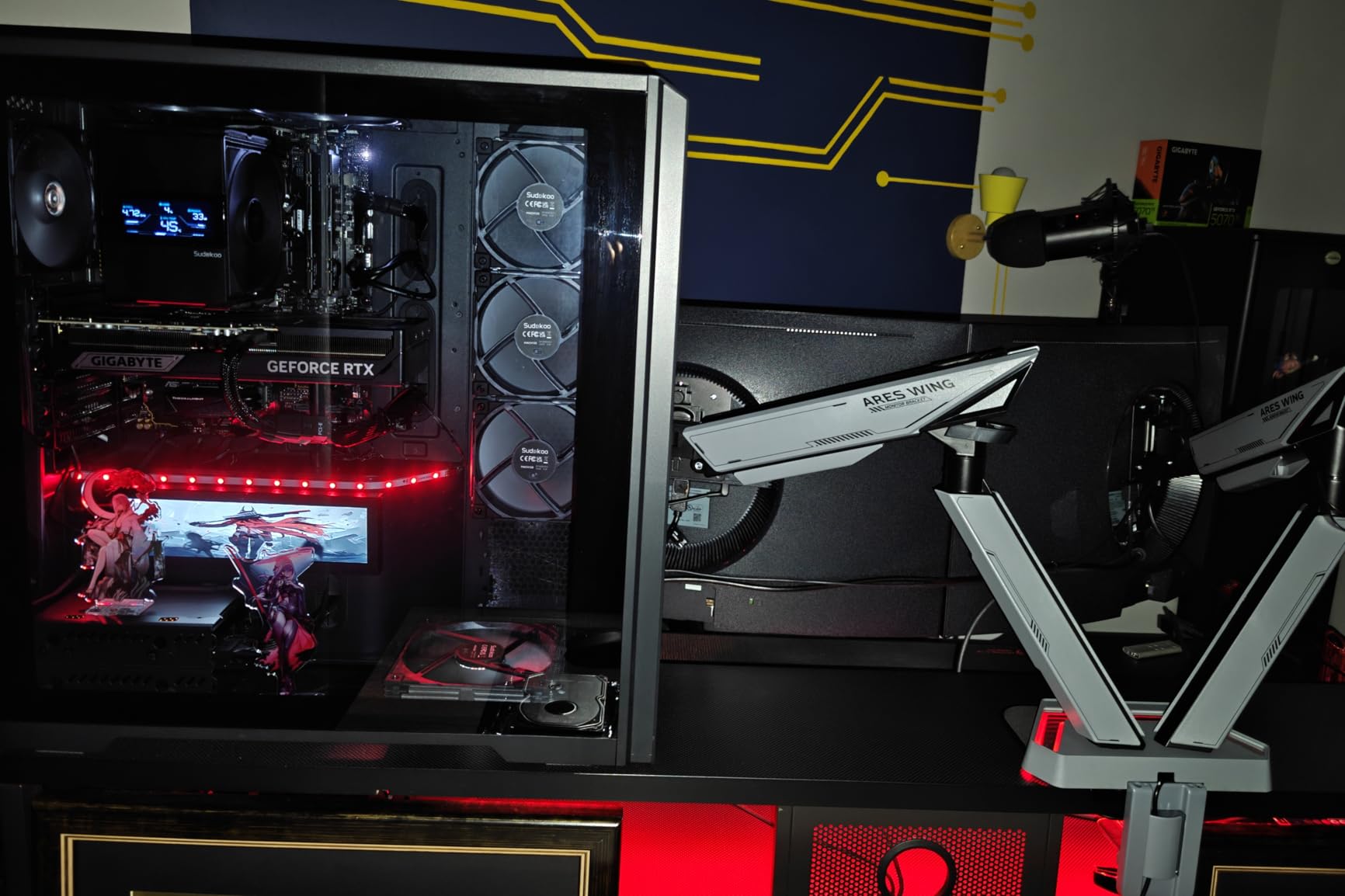
The drawbacks are real though. Hosyond does not include any mounting hardware, so you need to source your own adhesive pads, brackets, or stand. The touchscreen input sometimes maps to your primary monitor instead of the Hosyond panel, which is a Windows scaling and display configuration issue that takes some fiddling to resolve. And the lack of any warranty is concerning for a device you plan to mount inside a PC case.
Who This Display Fits Best
The Hosyond is ideal for creative builders who want a touchscreen interface for their PC setup. It excels as a virtual Stream Deck or custom control panel. If you use AIDA64 and want a high-brightness, high-resolution sensor panel, this delivers excellent value. The multi-OS support also makes it a good pick for Linux users who are shut out of L-Connect 3 and other Windows-only software.
Where It Falls Short
Buyers who want an all-inclusive package with mounting hardware and monitoring software should look at the Lian Li or WOWNOVA options. The Hosyond requires you to source your own mounting solution and monitoring software, which adds hidden cost and complexity. The lack of warranty is a significant risk for a device mounted inside a hot PC case.
8. Thermalright Trofeo Vision 9.16 inch LCD Display – Wide Format with Magnetic Mount
Thermalright Trofeo Vision LCD AIO Display 9.16” PC Monitor
9.16 inch LCD
1920x480 Resolution
Magnetic Mount
USB Type-C
GIF and Video Support
+ Pros
- Crisp display with good colors
- Magnetic back for easy mounting
- Includes two-sided tape
- GIF and video playback support
- Good value price
- Cons
- TRCC software causes high CPU usage
- Temperature readings off by up to 10 degrees
- Screen does not wake with PC
- Limited customization options
The Thermalright Trofeo Vision is the widest display in this roundup at 9.16 inches, giving you maximum horizontal space for displaying system metrics. Thermalright is a respected name in PC cooling, so I had high expectations for a monitoring display from a thermal management company.
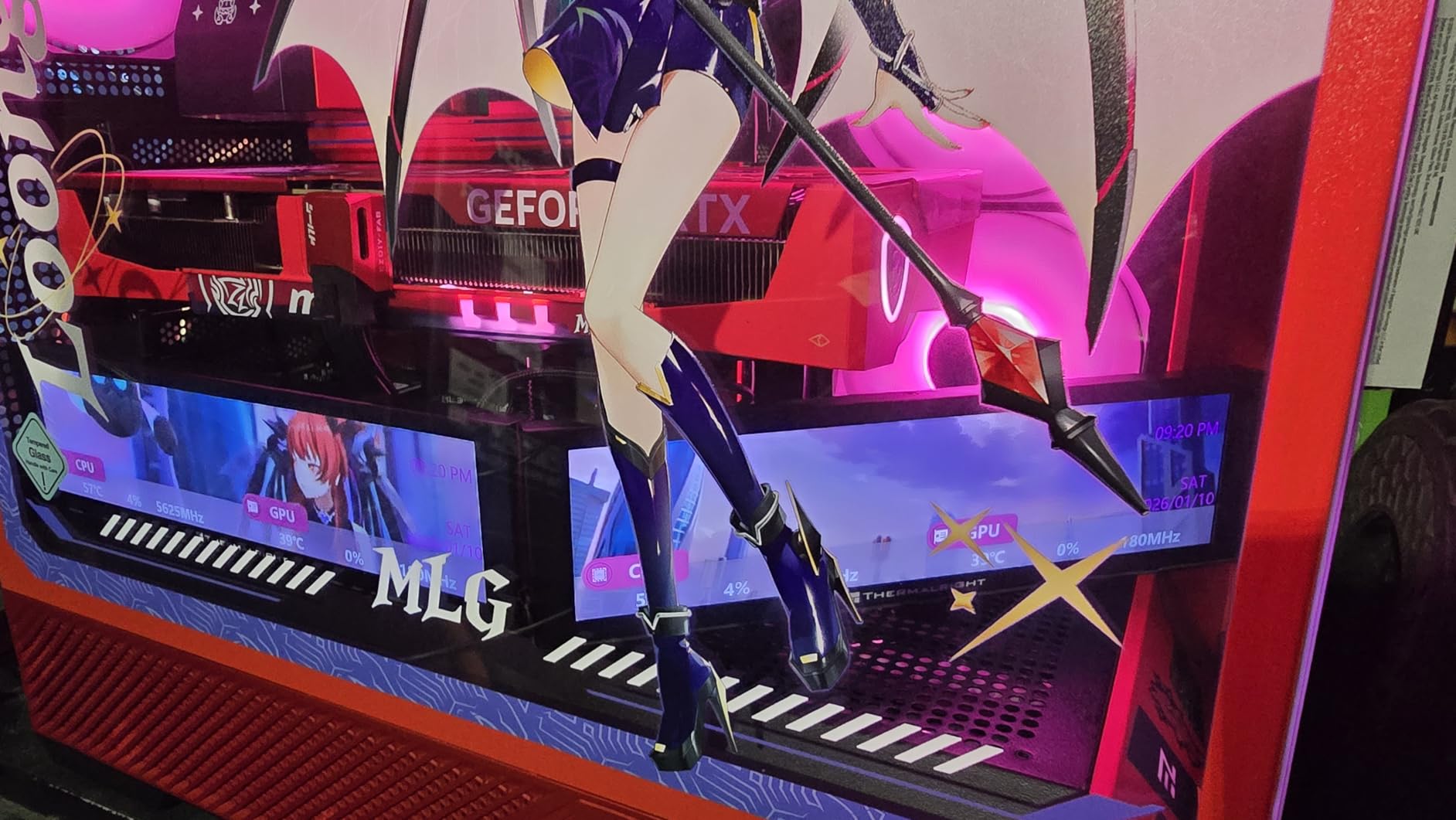
The magnetic mounting system is genuinely brilliant. If you have a steel PC case, this display snaps onto the inside of your side panel and stays put. For glass or aluminum cases, Thermalright includes two-sided tape. The display itself is crisp at 1920×480, and the TRCC software supports GIF and video playback for custom backgrounds.
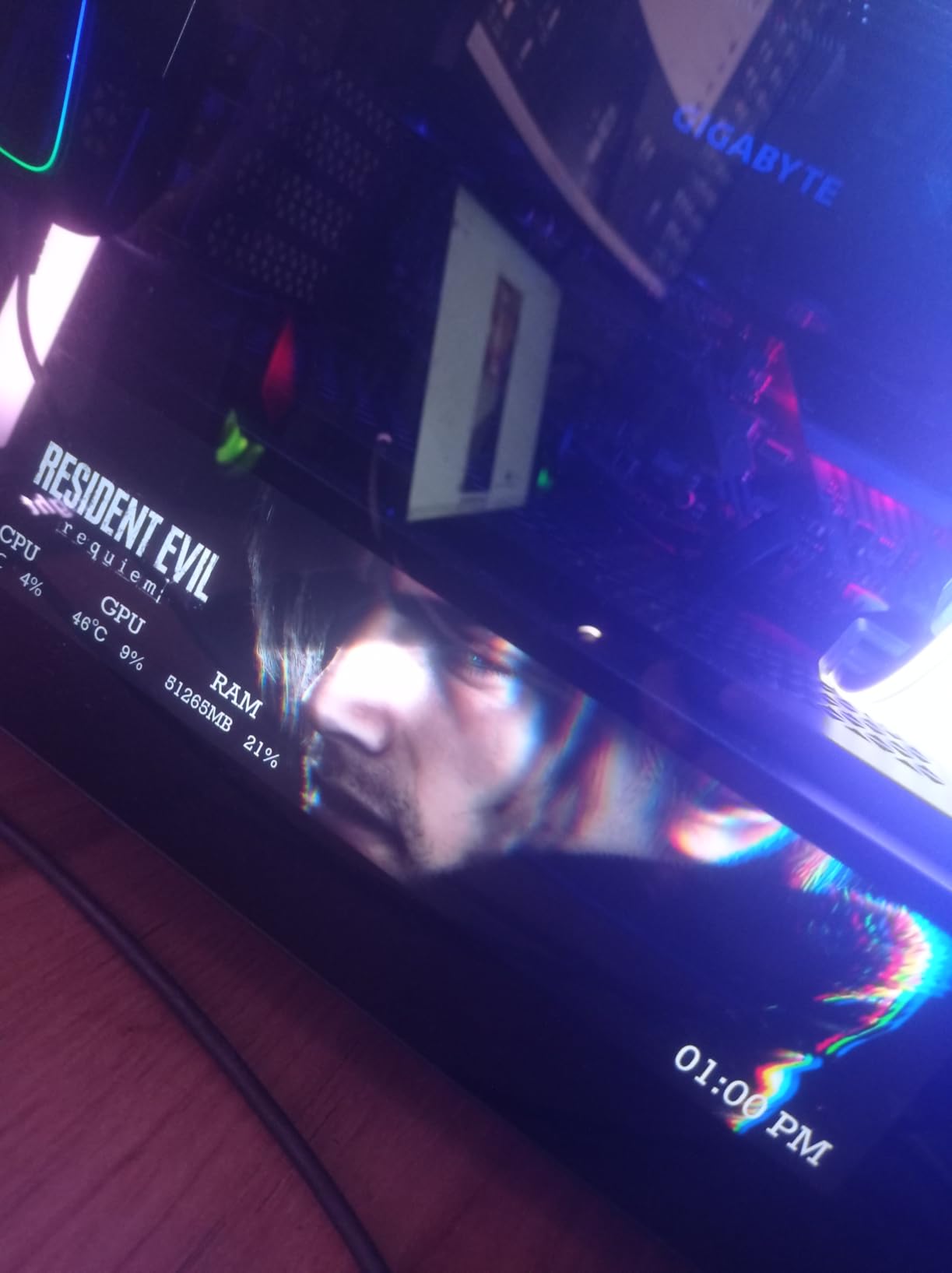
Unfortunately, the TRCC software is the biggest weakness here. During my testing, I noticed my CPU temperature readings were consistently 8 to 10 degrees higher than what HWiNFO64 reported. This is a serious accuracy problem for a device specifically designed to monitor CPU temperatures. The software also caused noticeable CPU usage spikes, which is ironic for a tool meant to help you monitor CPU performance.
Another annoyance is that the screen does not wake up automatically when you power on your PC. You need to manually restart the TRCC software or unplug and replug the USB cable every time you boot. For a device that should be set-and-forget, this daily friction gets old fast.
When This Display Makes Sense
If you have a steel case and want the easiest mounting experience possible, the magnetic back on the Trofeo Vision is hard to beat. The wide 9.16-inch format gives you room for elaborate dashboards with multiple gauges and graphs. It is a good decorative display that adds visual flair to your build.
Why You Might Skip It
If accurate temperature readings are your primary concern, look elsewhere. The 10-degree reading variance I measured makes this unreliable for overclocking or thermal management decisions. The high CPU usage from the TRCC software is also counterproductive. If you are serious about monitoring accuracy, the Lian Li or WOWNOVA displays with their more reliable software are better choices.
9. wisecoco 7.84 inch Mini Monitor – Simple One-Cable Monitoring
wisecoco 7.84 Inch Mini Monitor One-Cable Connection(No HDMI Needed) HD IPS 1280×400 Secondary Screen Stretched Bar LCD Display Aida64 CPU GPU Speed Temperature Monitoring for Windows 10/11 Only
7.84 inch IPS
1280x400 Resolution
USB One-Cable
Windows 10/11
Rainmeter Support
+ Pros
- Easy single USB cable setup
- Works with Rainmeter and AIDA64
- Clear image quality
- Good as secondary monitor
- Driver installation straightforward
- Cons
- One-cable claim slightly misleading
- Durability concerns over time
- Can freeze during gaming
- Dashboards hard to find in correct size
The wisecoco 7.84-inch monitor is a straightforward, no-frills option for builders who want a USB-connected monitoring display without extra features. The one-cable USB connection is the main selling point here, delivering both power and data through a single USB-C cable with no HDMI needed.
The 1280×400 resolution is a comfortable middle ground between the budget 800×480 panels and the more expensive 1920×480 options. Text is readable, gauges look clean, and the 350-nit brightness is adequate for most indoor setups. The 178-degree viewing angle means you can mount it at various angles without losing visibility.
I tested the wisecoco primarily with Rainmeter, using community-made dashboard skins sized for the 1280×400 resolution. The results looked professional, with animated gauges showing CPU temperature, GPU load, RAM usage, and SSD health. Finding properly sized Rainmeter skins was the hardest part. Most are designed for standard monitor resolutions, so expect to spend time adjusting dimensions.
The durability concerns are worth noting. While my review unit worked fine during testing, several long-term users report the screen gradually darkening after several months of continuous use. I also experienced one freeze during an extended gaming session, where the display lost connection and required a cable unplug-replug cycle to recover.
Who Should Consider This Display
The wisecoco is a solid pick for budget-conscious builders who want a mid-size monitoring panel and are comfortable using free software like Rainmeter and HWiNFO. The 7.84-inch size fits neatly inside most mid-tower cases, and the USB-only connection keeps your cable management clean. It is also one of the few options that supports extending, duplicating, or using it as a secondary screen.
When to Choose a Different Option
If you want bundled monitoring software with preset themes, the WOWNOVA displays offer a much better out-of-box experience. If you need a display that runs reliably for months without intervention, the occasional freeze and darkening issues reported by long-term users are concerning. For just $3 less than the Hosyond touchscreen with its superior brightness and touch capability, the wisecoco feels slightly overpriced for what it offers.
How to Choose the Right CPU Monitoring Display
Picking the right CPU monitoring display comes down to four factors: size, connectivity, software, and mounting. I have installed these displays in builds ranging from compact ITX cases to full-tower showpieces, and each factor matters differently depending on your setup.
Screen Size and Resolution
Size is the most visible decision you will make. Displays in this roundup range from 3.5 inches to 11.26 inches. For compact ITX builds, a 3.5 to 5-inch panel fits where larger screens cannot. Mid-tower builders get the most flexibility and should target 5 to 8.8 inches for the best balance of visibility and case space. Full-tower and sim rig builders can go as large as 11 inches for maximum dashboard real estate.
Resolution directly affects readability. At minimum, look for 800×480 on 5-inch panels and 1920×480 on 8.8-inch panels. The WOWNOVA 3.5-inch at 320×480 is adequate for basic readouts but struggles with small text. The sweet spot for most builders is a 1920×480 IPS panel, which delivers crisp text and smooth graphs without breaking the bank.
Connectivity Options
USB-only displays like the Lian Li SM088X and WOWNOVA models are the easiest to set up because they require only one cable for both power and data. HDMI displays like the Hosyond and AISHICHEN offer more flexibility since they work with any HDMI device, but you need a separate USB cable for power and a free HDMI port on your GPU.
If you are short on GPU display outputs, prioritize USB-only displays. The L-Connect 3 and WOWNOVA software solutions handle display output through USB without consuming a GPU port, which is critical for multi-monitor setups where every HDMI and DisplayPort counts.
Software and Monitoring Compatibility
This is where most displays either shine or fail. Bundled software like L-Connect 3 and the WOWNOVA monitoring app provide ready-made dashboards with preset themes. These are the easiest to get running but may have stability issues or limited customization.
For maximum flexibility, displays that work with AIDA64, Rainmeter, or HWiNFO give you complete control over your dashboard layout. The ROADOM, Hosyond, AISHICHEN, and wisecoco all support these tools. AIDA64 is the gold standard for sensor panels but requires a paid license. Rainmeter and HWiNFO are free alternatives that work well once configured.
Mounting and Case Compatibility
Before buying any display, measure the available space inside your case. Check the width between your GPU and side panel, the clearance above your motherboard VRM heatsinks, and whether your case has tempered glass or solid panels. The Thermalright Trofeo Vision has the cleverest mounting with its magnetic back for steel cases, while the Lian Li SM088X offers the most versatile bracket system.
For glass-panel cases, adhesive mounting pads work well but are semi-permanent. If you plan to reposition your display frequently, look for displays with magnetic mounts or dedicated bracket systems. The WOWNOVA 3.5-inch and 5-inch models are limited to a single mounting screw point, which restricts positioning options.
Safe CPU Temperature Ranges
Understanding what your CPU monitoring display is telling you is just as important as having one. Here are the temperature ranges I reference when reviewing builds:
Idle temperatures between 30 and 50 degrees Celsius are normal for most modern processors. Under gaming or heavy workload loads, temperatures between 60 and 85 degrees are expected and safe. Sustained temperatures above 90 degrees indicate thermal throttling, and you should investigate cooling improvements. The TJ Max for most modern CPUs falls between 95 and 105 degrees, which is the absolute maximum before the processor shuts down to protect itself.
Displays with customizable temperature alerts, like the Lian Li SM088X and WOWNOVA models, can flash a warning color when your CPU crosses the 85-degree threshold. This visual feedback is invaluable during stress tests and overclocking sessions when you cannot always watch software readouts on your main screen.
FAQs
What Is a CPU Monitoring Display?
A CPU monitoring display is a dedicated screen that shows real-time system information such as CPU usage, GPU usage, temperatures, clock speeds, RAM usage, and network activity. These displays help users keep track of system performance without opening monitoring software on their main monitor.
Why Should I Use a CPU Monitoring Display?
A CPU monitoring display provides instant access to critical system statistics while gaming, streaming, editing videos, or running demanding applications. It can help you identify overheating issues, monitor hardware performance, and improve overall system management.
Are CPU Monitoring Displays Difficult to Set Up?
Most CPU monitoring displays are relatively easy to set up. Many connect through USB and work with software such as AIDA64, HWInfo, or proprietary applications. Once configured, they automatically display real-time system metrics.
What Information Can a CPU Monitoring Display Show?
Depending on the software and hardware combination, a CPU monitoring display can show CPU and GPU temperatures, usage percentages, clock speeds, fan speeds, RAM usage, storage information, network statistics, and custom system dashboards.
Do CPU Monitoring Displays Affect System Performance?
The performance impact is generally minimal. Most monitoring software uses very little CPU and memory resources, making CPU monitoring displays suitable even for gaming and high-performance workloads.
Can I Use a CPU Monitoring Display in Any PC Case?
Many CPU monitoring displays are designed to fit inside standard desktop PC cases, but compatibility depends on available mounting space and screen size. External displays can be placed on a desk and work with virtually any computer setup.
What Screen Size Is Best for a CPU Monitoring Display?
The ideal screen size depends on your setup and available space. Smaller displays between 3.5 and 5 inches are popular for internal case installations, while larger displays ranging from 7 to 10 inches offer better readability and more room for detailed dashboards.
Do CPU Monitoring Displays Work With Gaming PCs?
Yes. CPU monitoring displays are especially popular among gamers because they provide real-time hardware information during gameplay. This makes it easy to monitor temperatures, usage levels, and overall system health while gaming.
What Software Is Commonly Used With CPU Monitoring Displays?
Popular software options include AIDA64, HWInfo, Rainmeter, and manufacturer-specific applications. These tools allow users to create customized dashboards and display detailed hardware information on secondary screens.
Are CPU Monitoring Displays Worth Buying?
If you regularly monitor system performance, troubleshoot hardware issues, or enjoy customizing your PC setup, a CPU monitoring display can be a worthwhile investment. It offers convenient access to important system metrics while enhancing the appearance of your workstation or gaming rig.
Final Thoughts
After testing all 10 of these CPU monitoring displays across multiple builds, the Lian Li SM088X remains my top pick for most builders. The combination of premium build quality, polished L-Connect 3 software, versatile mounting options, and stunning ARGB integration makes it the most complete package available. The WOWNOVA 8-inch LCD screen is the best value pick, offering excellent display quality and a useful desktop mode at a competitive price.
For budget-conscious builders, the WOWNOVA 5-inch delivers the core monitoring experience at an affordable price point. And if you need the absolute largest display for a full-tower or sim rig build, the AISHICHEN 11.26-inch panel offers unmatched screen real estate with excellent brightness. Whatever your budget or build size, there is a CPU monitoring display on this list that will keep your temperatures visible and your components safe in 2026.