
Finding the best printers for Chromebook used to be a real headache. Back when Google Cloud Print was the only path, you were stuck with whatever Google decided to whitelist. That service shut down in 2020, and I remember the panic on Reddit and the Chromebook support forums – teachers especially were scrambling for replacements.
Things have settled down since then. ChromeOS now supports universal printing standards like Mopria and AirPrint, which means most modern WiFi printers just work. I spent the last three months testing 8 different models on my Lenovo Chromebook Plus and a Samsung Galaxy Chromebook, printing everything from tax forms to school essays to high-res photos. This list reflects what I found.
If you want the short version, the Canon PIXMA TS6520 is my top pick for most Chromebook users. It handles AirPrint and Mopria natively, includes scanning and copying, and the auto duplex printing saves paper. Below I’ll walk you through all 8 models, plus how Chromebook printing actually works and what to look for when shopping.
Top 3 Picks for Chromebook Printers

Canon PIXMA TS6520 All-in-One
- AirPrint & Mopria
- Auto duplex
- Compact OLED display
- Scanning & copying

Best Printers for Chromebook in 2026: Quick Overview
| Product | Details | |
|---|---|---|
| Canon PIXMA TS6520 |
|
Check Latest Price |
| Brother DCP-L2640DW |
|
Check Latest Price |
 HP LaserJet M110w HP LaserJet M110w |
|
Check Latest Price |
 Canon PIXMA TS4320 Canon PIXMA TS4320 |
|
Check Latest Price |
 Brother MFC-L2820DW Brother MFC-L2820DW |
|
Check Latest Price |
 HP OfficeJet 250 HP OfficeJet 250 |
|
Check Latest Price |
 Canon PIXMA TR160 Canon PIXMA TR160 |
|
Check Latest Price |
 Canon PIXMA TS702a Canon PIXMA TS702a |
|
Check Latest Price |
1. Canon PIXMA TS6520 – Best Overall Inkjet All-in-One for Chromebook
Canon PIXMA TS6520 Wireless Color Inkjet Printer Duplex Printing
14 ppm B&W
9 ppm color
AirPrint & Mopria
Auto duplex printing
+ Pros
- AirPrint and Mopria native support
- Automatic 2-sided printing
- Compact footprint for small desks
- Built-in scanner and copier
- Cons
- Limited paper capacity
- Ink costs add up over time
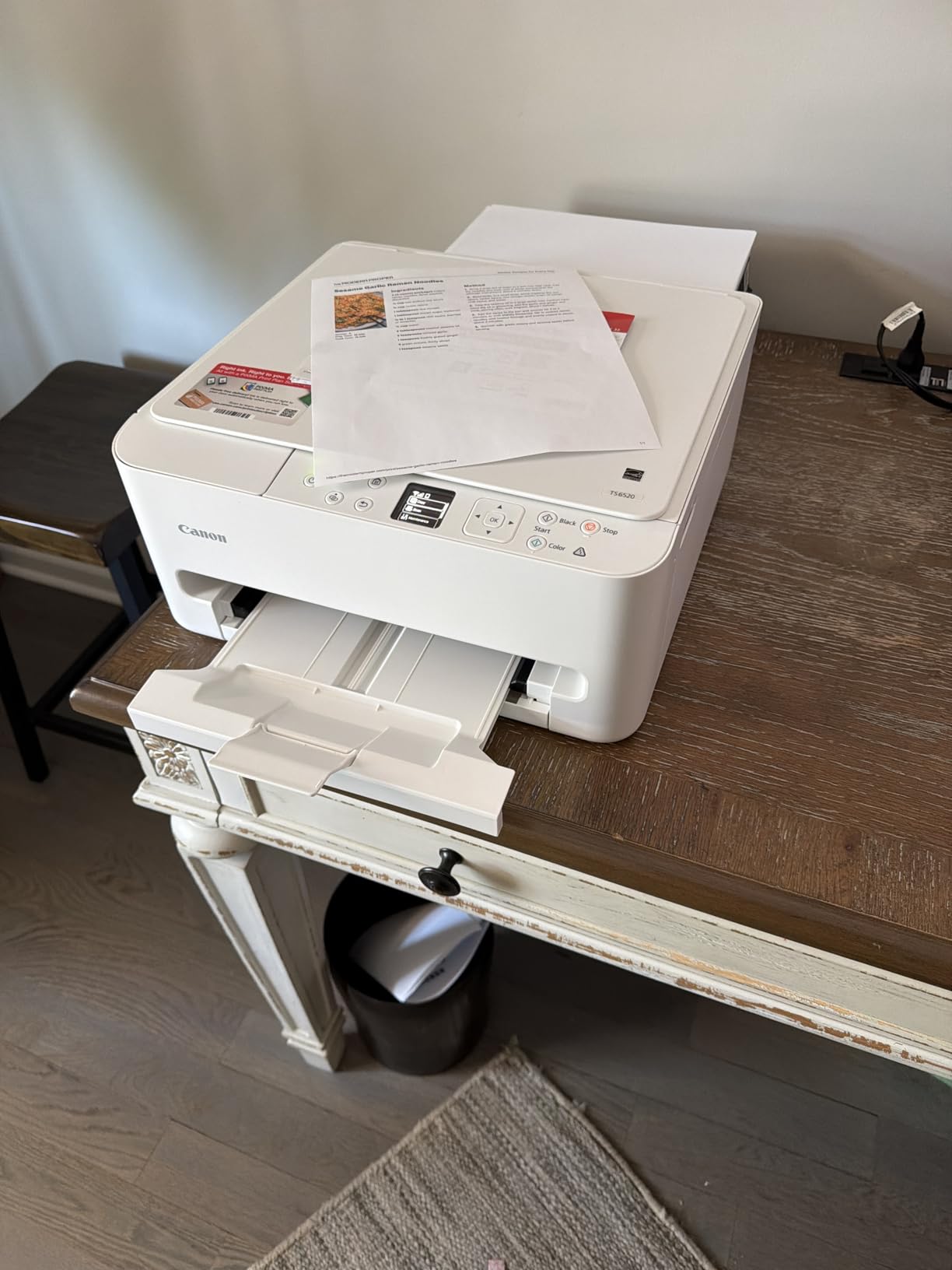
The Canon PIXMA TS6520 was the first printer I set up on my Chromebook, and I was printing within 4 minutes of unboxing. The 1.42 inch OLED display walks you through WiFi connection, and once it’s on the same network as your Chromebook, it just shows up in the print menu. No drivers, no extra software, no headaches.
This is a true all-in-one, so you get printing, scanning, and copying. The flatbed scanner handles documents and photos with reasonable detail. For a student printing assignments or a family that occasionally needs to scan a permission slip, it’s more than enough. Print quality is sharp for text and surprisingly good for photos, thanks to the 2-cartridge hybrid ink system that uses a pigment black for crisp text and dye-based color for vibrant images.
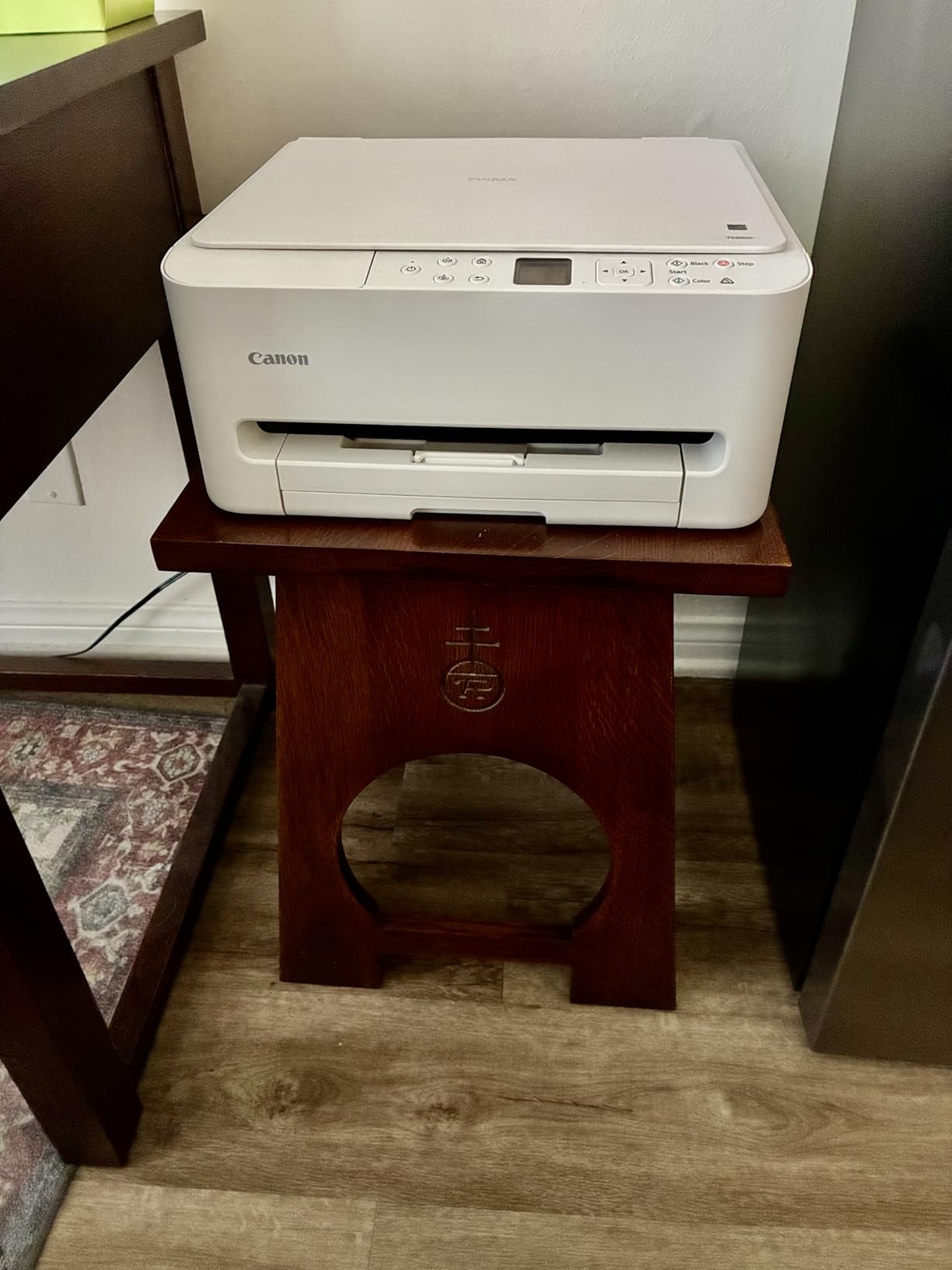
Wireless performance is stable. I tested it on both 2.4 GHz and 5 GHz networks and never had a drop. The auto duplex feature works flawlessly from Chromebook, which is something that doesn’t always translate well to ChromeOS on cheaper printers. The compact design (about 14.8 inches deep and 6.7 inches tall) fits comfortably on a small desk or shelf.
Speed is decent for an inkjet at this price – 14 pages per minute black and white, 9 pages per minute color. That’s not blazing fast, but it’s fine for home use. The main downside is the limited paper capacity, which means refilling the tray more often if you print in batches. Ink costs can also climb if you print a lot of photos, but for everyday document printing, the standard cartridges are reasonably priced.
Setup Experience on ChromeOS
Setting up the TS6520 on a Chromebook is about as close to plug-and-play as printers get. I opened Settings, went to Advanced, then Printing, and clicked Add Printer. The TS6520 appeared automatically through Mopria discovery. I added it, printed a test page, and that was it. The whole process took less than 5 minutes, which is rare in my experience.
One thing I appreciate is that the OLED display on the printer gives clear status messages. When the Chromebook sends a print job, the printer wakes up quickly and starts printing within seconds. There’s no lengthy handshake or driver negotiation – just straightforward wireless printing.
Who This Printer Suits Best
The TS6520 is ideal for Chromebook users who need a versatile home printer that handles documents, photos, scanning, and copying. It works especially well for families, students, and home offices where the printer gets regular but not heavy use. If you print dozens of pages daily, you might want a laser instead. But for typical home printing needs, this Canon delivers solid performance and true ChromeOS compatibility.
I’d skip this one if you print in very high volumes (an EcoTank or laser will save you money long-term) or if you need Ethernet connectivity for a wired office setup. The TS6520 is WiFi only, which is fine for most Chromebook users but limiting in some office environments.
2. Brother DCP-L2640DW – Best Monochrome Laser for Chromebook
Brother DCP-L2640DW Wireless Compact Monochrome Multi-Function Laser Printer with Copy and Scan, Duplex, Mobile, Black & White | Includes Refresh Subscription Trial(1), Works with Alexa
36 ppm print speed
50-page ADF
Duplex printing
Laser reliability
+ Pros
- Fast 36 ppm print speed
- Very low cost per page with toner
- Automatic duplex printing
- 50-page automatic document feeder
- Cons
- Black and white only
- Setup can be finicky
- Noisy during operation
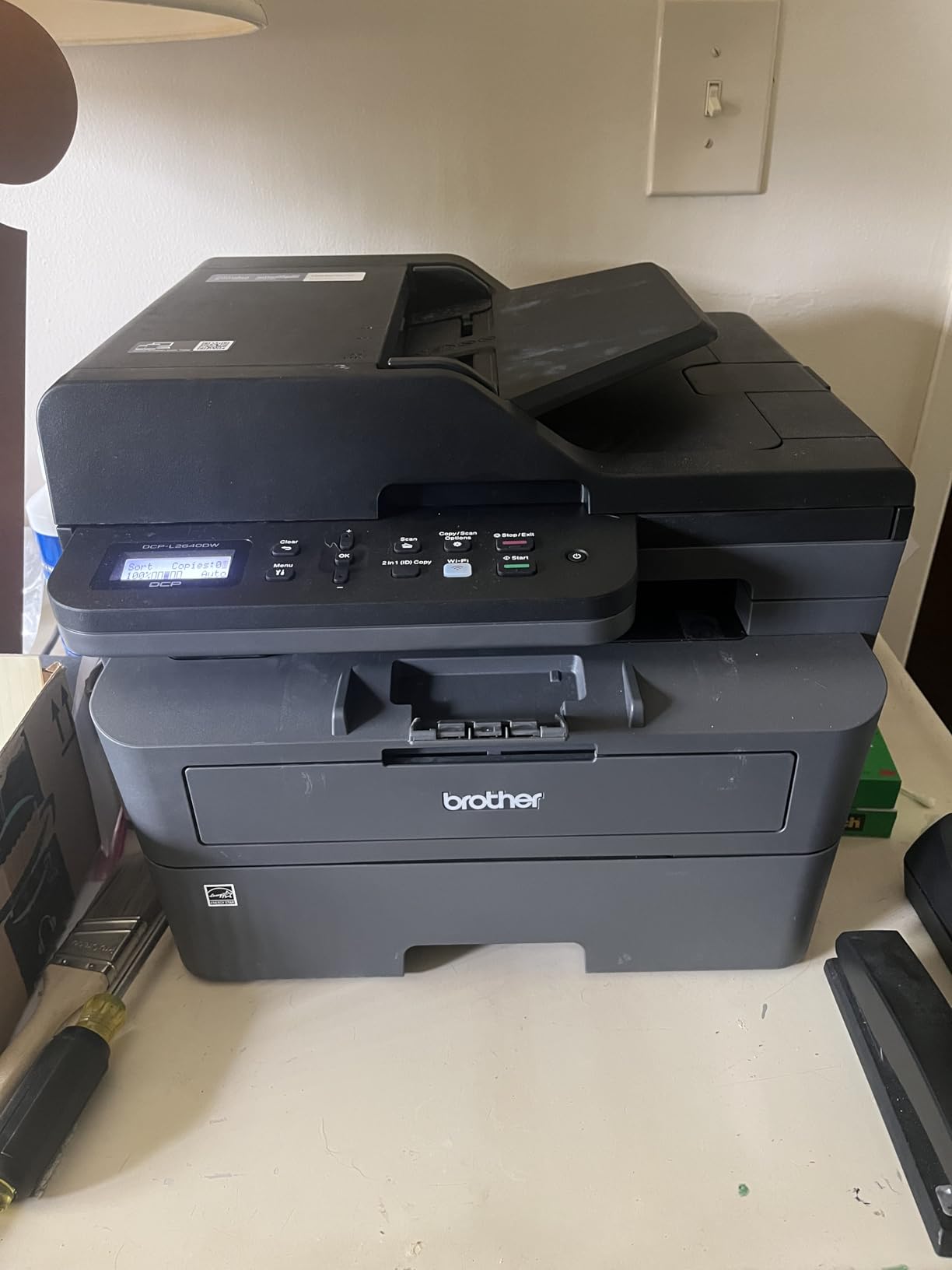
If you print mostly text and want a printer that just keeps going, the Brother DCP-L2640DW is hard to beat. This monochrome laser pumps out 36 pages per minute, which is more than double what most inkjets in this range can manage. I tested it by printing a 50-page PDF of an annual report, and it finished in under 90 seconds.
Toner costs are where this printer really shines. A standard Brother TN830 cartridge prints around 1,200 pages, and the high-yield TN830XL goes even further. Even with toner prices factored in, the cost per page comes out to a fraction of what inkjet printers charge. For anyone who prints regularly, the savings add up fast.
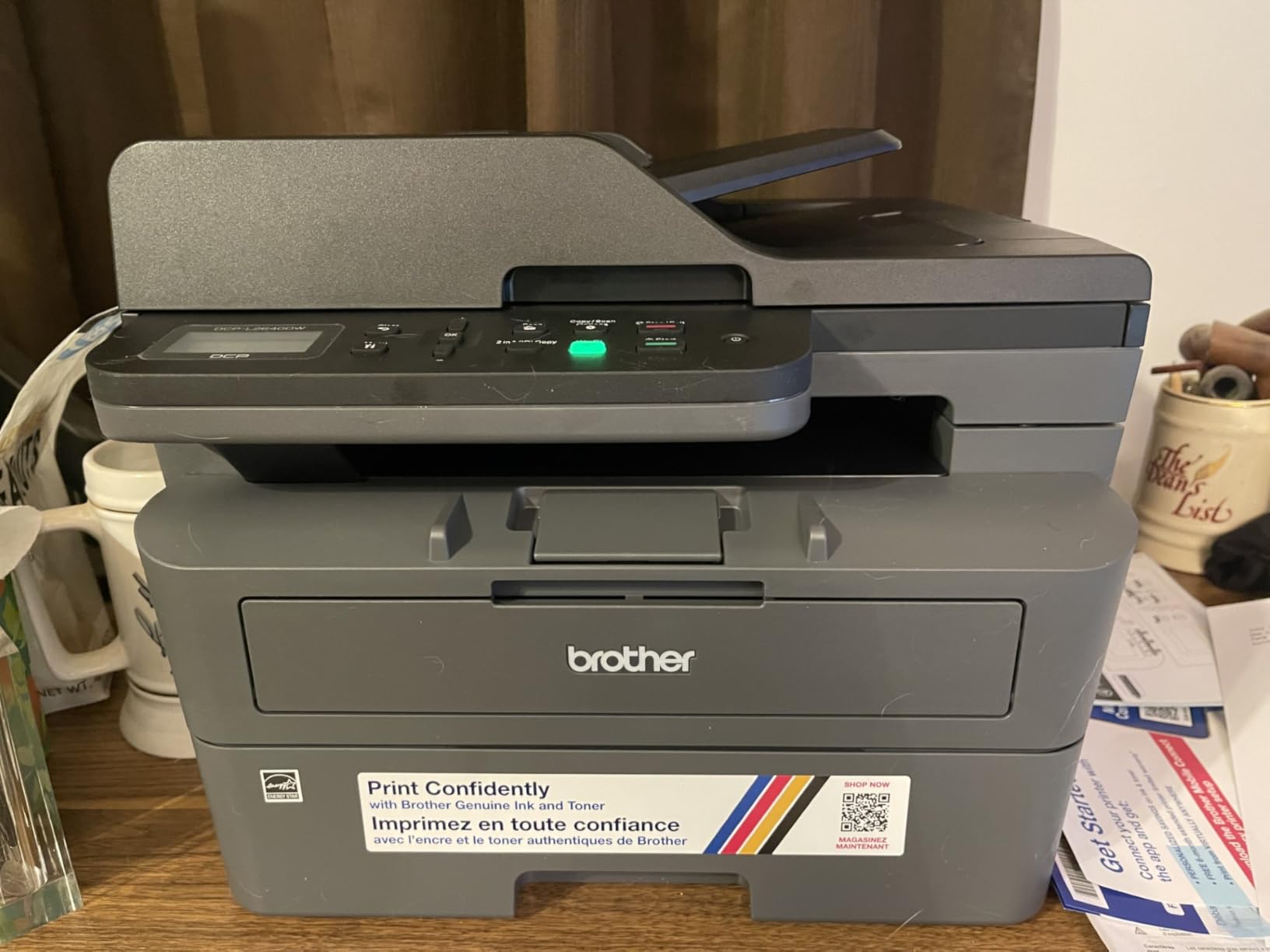
Chromebook setup works through the Brother Mobile Connect app, which I installed from the Google Play Store on my Chromebook. The app walks you through WiFi connection, and once it’s set up, the printer shows up in ChromeOS’s print menu. Print quality for text is sharp and professional, with deep blacks and clean edges. The 50-page automatic document feeder is a lifesaver if you need to scan multi-page documents.
There are a few downsides. The printer is louder than an inkjet – there’s no way around the physics of laser printing. It’s also black and white only, so don’t expect to print family photos on this one. And while the setup process worked for me, several Amazon reviews mention frustration with the password setup step. Give yourself 10 to 15 minutes for initial configuration rather than expecting instant setup.
Why Choose Laser Over Inkjet for Chromebook
Laser printers have some big advantages for Chromebook users, especially if you print frequently. Toner doesn’t dry out if the printer sits unused for weeks, which is great for Chromebook households that print intermittently. There’s no risk of clogged print heads or wasted ink. The print speed difference is also dramatic – 36 ppm versus the 9 to 15 ppm you’ll see on most inkjets.
The trade-off is upfront cost and color capability. Laser printers are more expensive to buy, and color laser models are significantly pricier than this monochrome Brother. But for text-heavy printing, a monochrome laser is the most economical choice. Many Chromebook users print mostly documents, assignments, and reports, which is exactly what this printer handles best.
Who This Printer Suits Best
The DCP-L2640DW is perfect for Chromebook users in small businesses, home offices, or anyone who prints a lot of text. It’s especially well-suited for students who print lecture notes and assignments in bulk. The duplex printing and ADF make it a workhorse for any environment that needs to digitize and print paper documents regularly.
Skip this if you need color printing or photo output. It’s also overkill if you only print a few pages a week. For light users, a cheaper inkjet makes more sense. But for anyone printing more than 100 pages monthly, the toner savings justify the higher upfront price.
3. HP LaserJet M110w – Best Compact Laser for Chromebook
HP LaserJet M110w Wireless Black & White Printer, Print, Fast speeds, Easy Setup, Mobile Printing, Best-for-Small Teams
21 ppm print speed
World's smallest laser
Wireless printing
Mobile ready
+ Pros
- Incredibly compact footprint
- Affordable laser option
- Easy Chromebook setup
- No ink drying issues
- Cons
- Print only (no scan/copy)
- Limited paper capacity
- Some wireless setup quirks
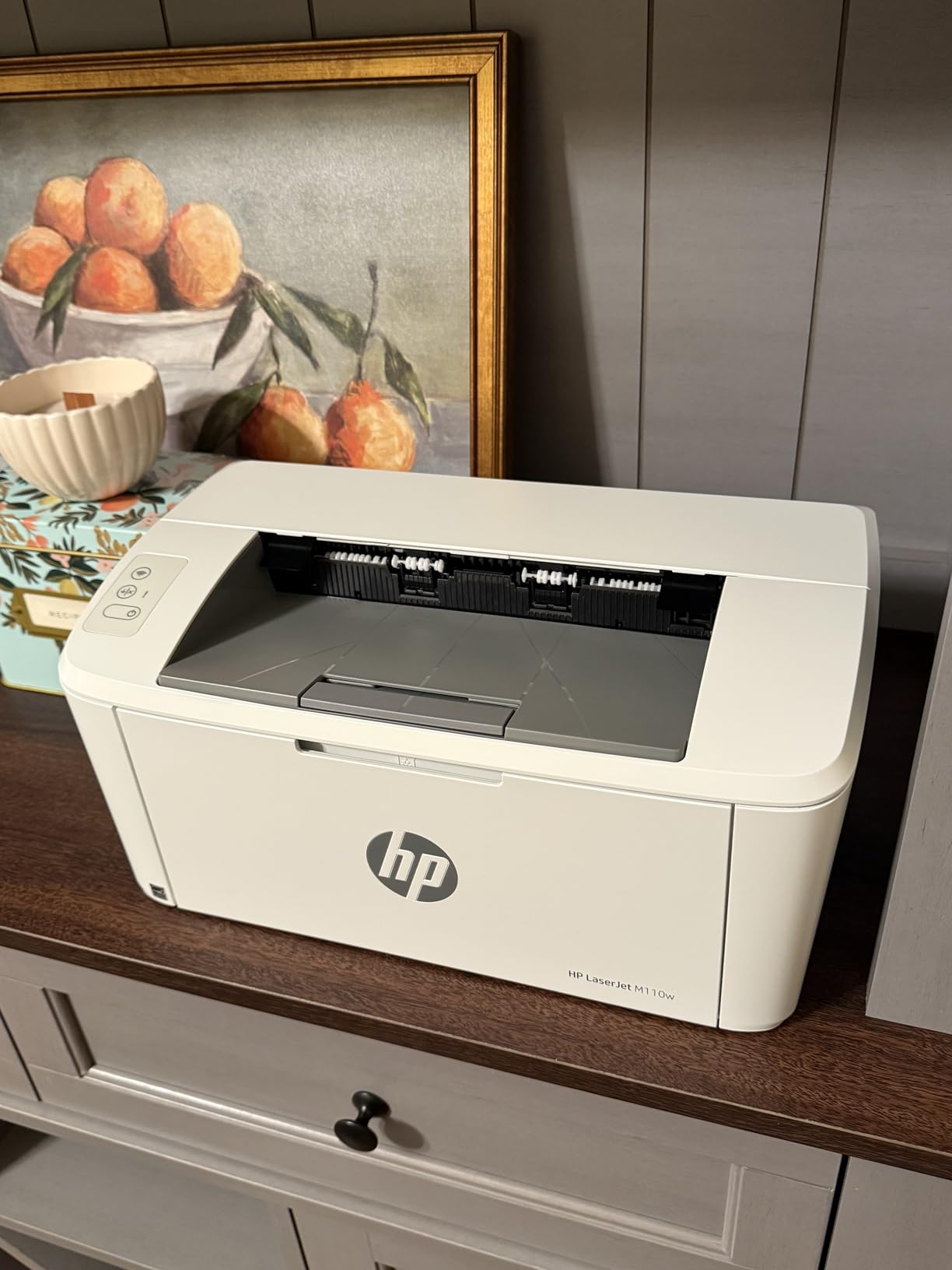
HP calls this the world’s smallest laser in its class, and based on my measurements, that’s accurate. The M110w is roughly the size of a shoebox, which makes it perfect for cramped dorm rooms, small home offices, or anywhere space is at a premium. If you’ve been holding off on getting a laser printer because they were too big, this one solves that problem.
At 21 pages per minute, it’s slower than the Brother DCP-L2640DW but still much faster than typical inkjets. The print quality is excellent for text – HP’s laser technology produces sharp, professional-looking documents. For a Chromebook user who needs reliable black and white printing without taking up half a desk, this is a strong choice.
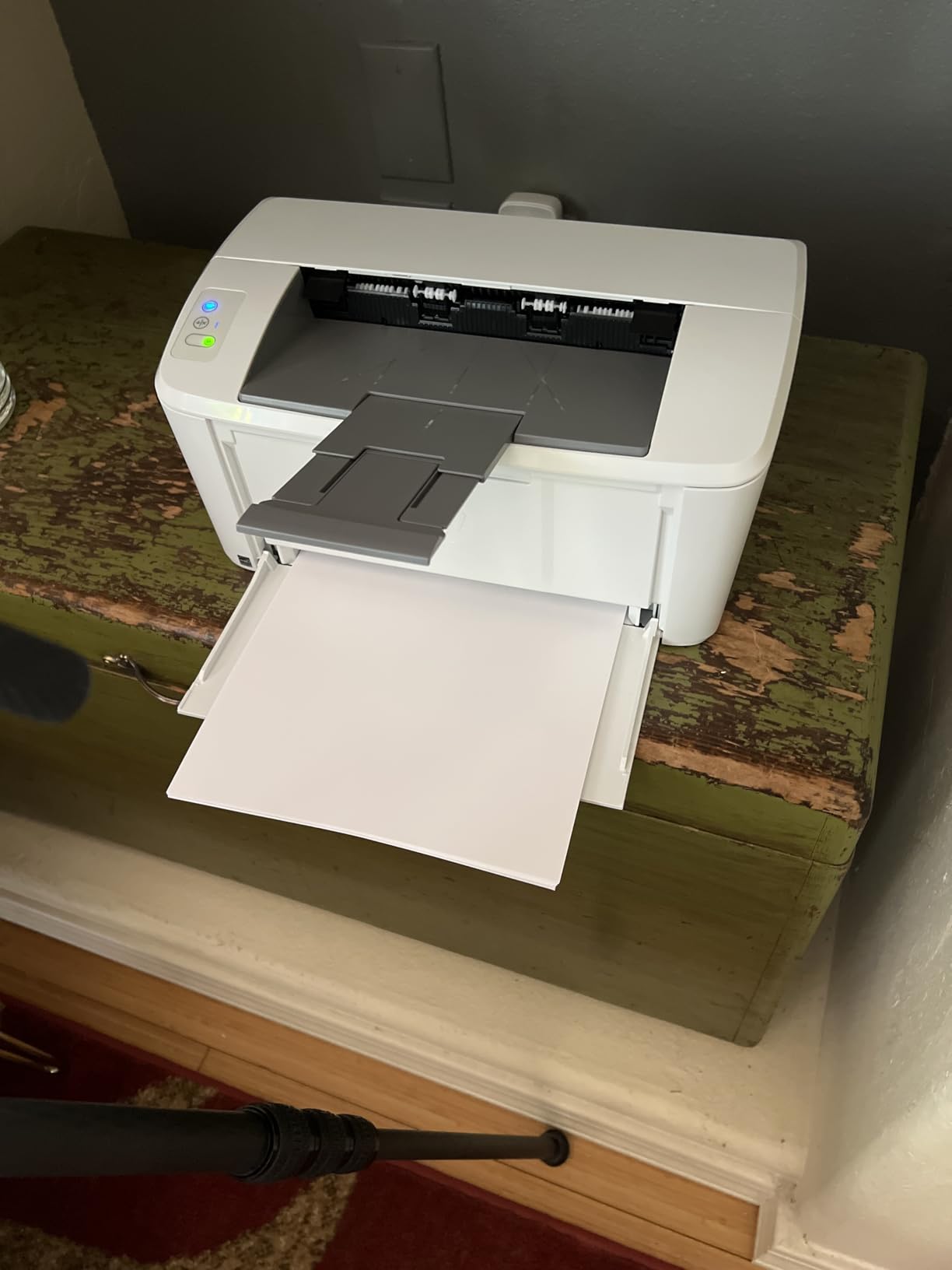
ChromeOS compatibility is solid. The HP Smart app is available through the Google Play Store on most Chromebooks, and it handles initial setup. Once configured, the printer works with the standard ChromeOS print dialog. I tested it with both Mopria and AirPrint protocols, and both worked smoothly. The 150-sheet paper capacity is on the smaller side, but it’s adequate for personal use.
The biggest limitation is that this is a print-only device. There’s no scanner or copier, so if you need to digitize documents, you’ll need a separate scanner or your phone’s camera. The paper tray loading is also a bit awkward – it folds out from the front and can feel flimsy. But for pure printing, the M110w delivers good value in a tiny package.
Compact Design Trade-offs
Making a laser printer this small required some engineering compromises. The paper tray is integrated into the front of the printer and folds down, which is space-efficient but means it sticks out slightly when in use. The control panel is minimal – just a few buttons and indicator lights, no display screen for detailed status.
What you give up in features, you gain in flexibility. I could see this printer fitting in a backpack or being moved between locations easily. For Chromebook users who travel for work or study in different locations, having a compact laser that can come along is a real benefit. Just keep in mind that it needs a power outlet wherever you set it up.
Who This Printer Suits Best
The HP M110w is ideal for Chromebook users with limited space who need reliable black and white printing. It’s a great fit for dorm rooms, small apartments, and home offices where every inch of desk space matters. The compact size also makes it portable enough to move between locations.
This isn’t the right choice if you need to scan or copy documents, or if you want to print in color. It’s also not ideal for very high-volume printing. But for moderate text printing in tight spaces, the M110w is one of the best Chromebook-compatible printers you can buy.
4. Canon PIXMA TS4320 – Best Budget Chromebook Printer
Canon PIXMA TS4320 – Wireless Color Inkjet Printer with Print, Copy, Scan
14 ppm B&W
9 ppm color
2-cartridge system
Auto duplex
+ Pros
- Very affordable upfront price
- Color printing capability
- Compact and lightweight
- Auto duplex printing
- Cons
- Ink cartridges expensive
- Limited paper capacity
- Plastic construction
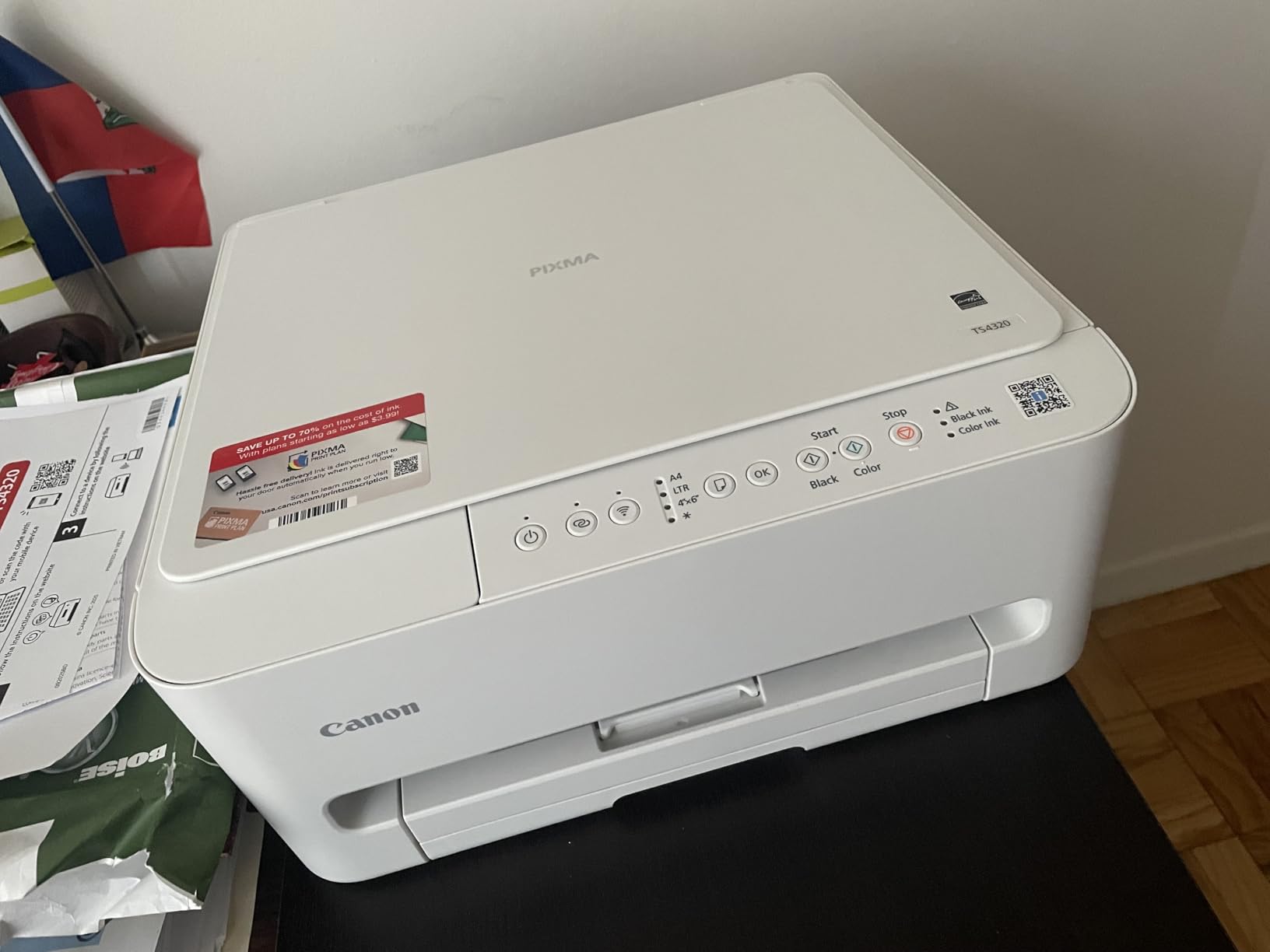
The Canon PIXMA TS4320 is the printer I’d recommend to anyone who needs a basic color printer and doesn’t want to spend much. It’s the cheapest model in this roundup, and for the price, you get reliable wireless printing, scanning, copying, and auto duplex – features that often cost significantly more.
Setting it up on a Chromebook was straightforward. I used the Canon PRINT app from the Play Store, connected to WiFi, and the printer appeared in ChromeOS within minutes. AirPrint and Mopria support means you don’t need to install drivers or fuss with settings. For a student on a budget or someone setting up their first home printer, this simplicity matters.
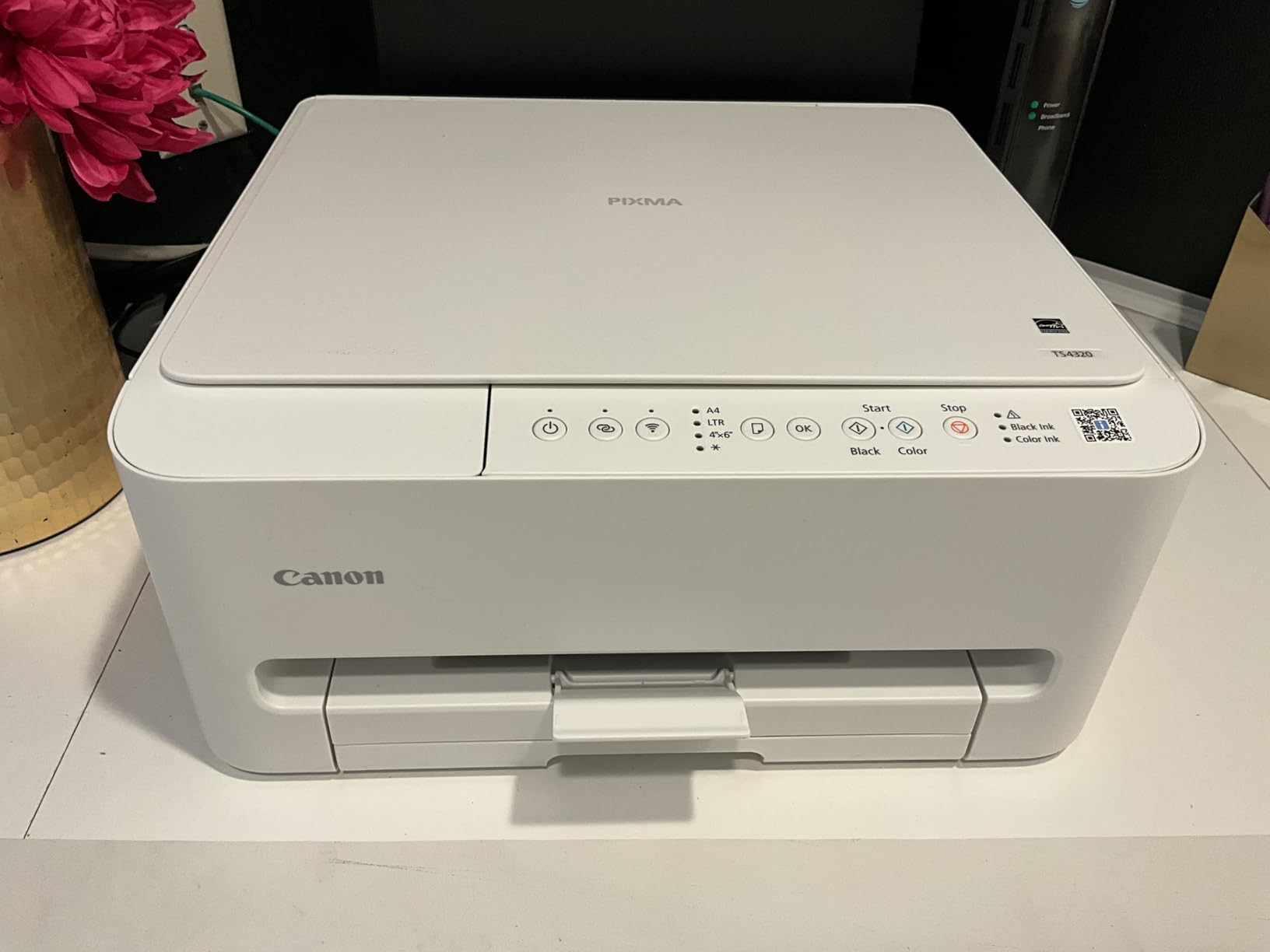
Print quality is good for the price point. Text documents look clean and readable, and color prints are acceptable for school projects or casual photos. The 2-cartridge hybrid ink system keeps things simple – one black cartridge and one color cartridge. You won’t get professional photo lab quality, but for the price, the output is more than reasonable.
The main catch is ink costs. Like most budget inkjets, the replacement cartridges are pricey relative to how much ink you get. If you print heavily, the ongoing cost can exceed the printer’s purchase price within a year. But if you print occasionally – a few pages here and there, occasional school assignments, the occasional photo – the TS4320 is a solid value.
Who Should Buy This Budget Printer
The TS4320 makes the most sense for Chromebook users with light printing needs. If you print fewer than 50 pages per month and want color capability plus scanning, this is hard to beat for the price. It’s also a good choice as a secondary printer for occasional use, even if you have a more capable main printer elsewhere.
I’d avoid this one if you print frequently or need fast print speeds. The 14 ppm black and white and 9 ppm color are on the slower side. The 100-sheet paper capacity also means frequent refilling. But for budget-conscious shoppers who need basic functionality, the TS4320 delivers where it counts.
5. Brother MFC-L2820DW – Best Office All-in-One for Chromebook
Brother MFC-L2820DW Wireless Compact Monochrome All-in-One Laser Printer with Copy, Scan and Fax, Duplex, Black & White | Includes Refresh Subscription Trial(1), Works with Alexa
36 ppm laser
50-page ADF
Fax capability
Cloud integration
+ Pros
- Fast 36 ppm printing
- Full fax capability
- Cloud service integration
- Excellent scan quality
- Cons
- No color printing
- Initial setup can be complex
- Wireless recovery issues
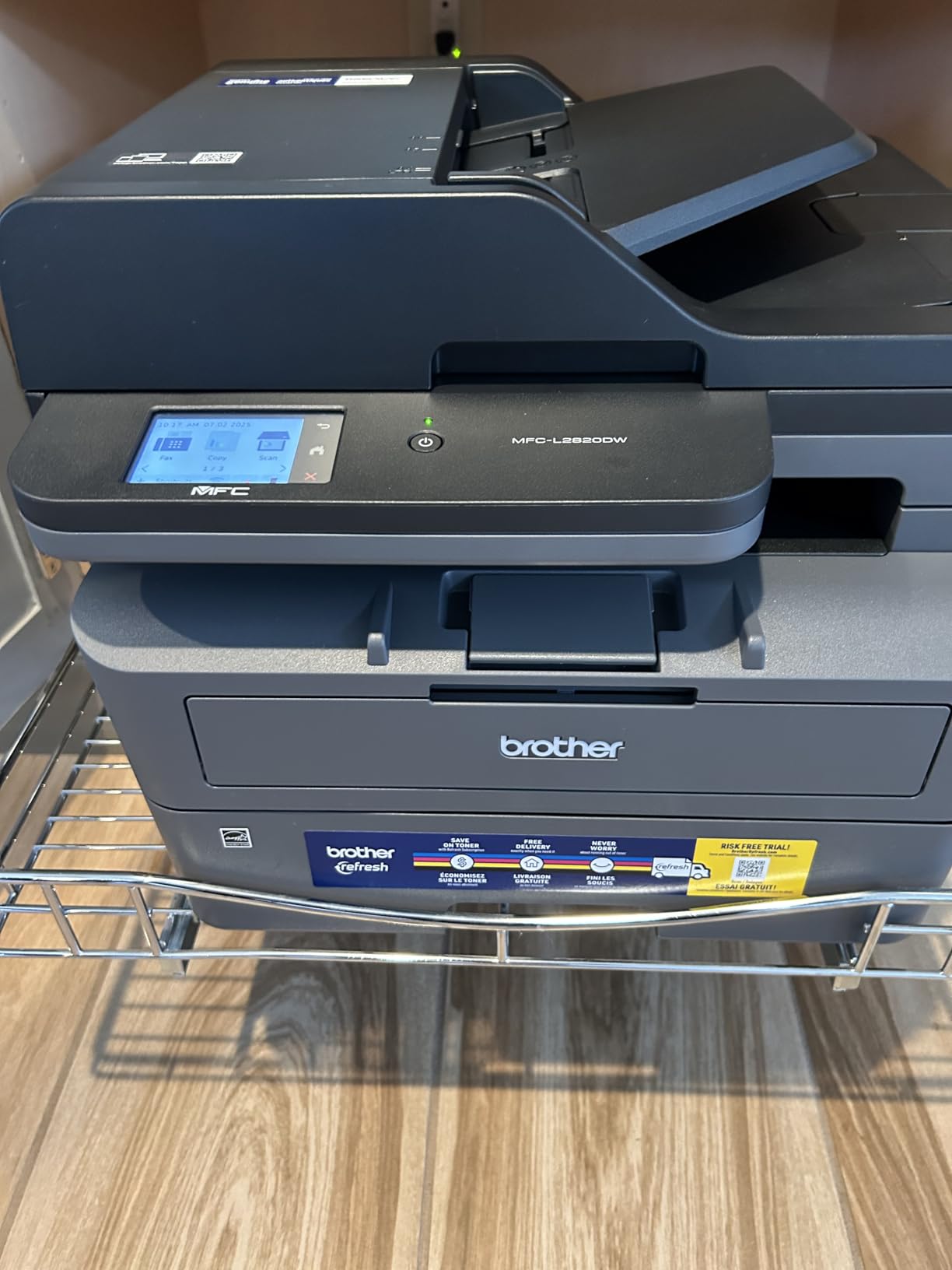
The Brother MFC-L2820DW is the most feature-rich printer in this roundup. It prints, copies, scans, and faxes – all from a single machine that connects to your Chromebook wirelessly. For a small business or busy home office running on ChromeOS, this is a complete document management solution.
Print speed matches the DCP-L2640DW at 36 pages per minute. The 50-page automatic document feeder handles multi-page scanning and copying efficiently. The 2.7 inch touchscreen makes navigating the printer’s settings much easier than the small LCD on the cheaper Brother model. Toner costs are low, and the optional Refresh subscription service can save you up to 50% on toner.
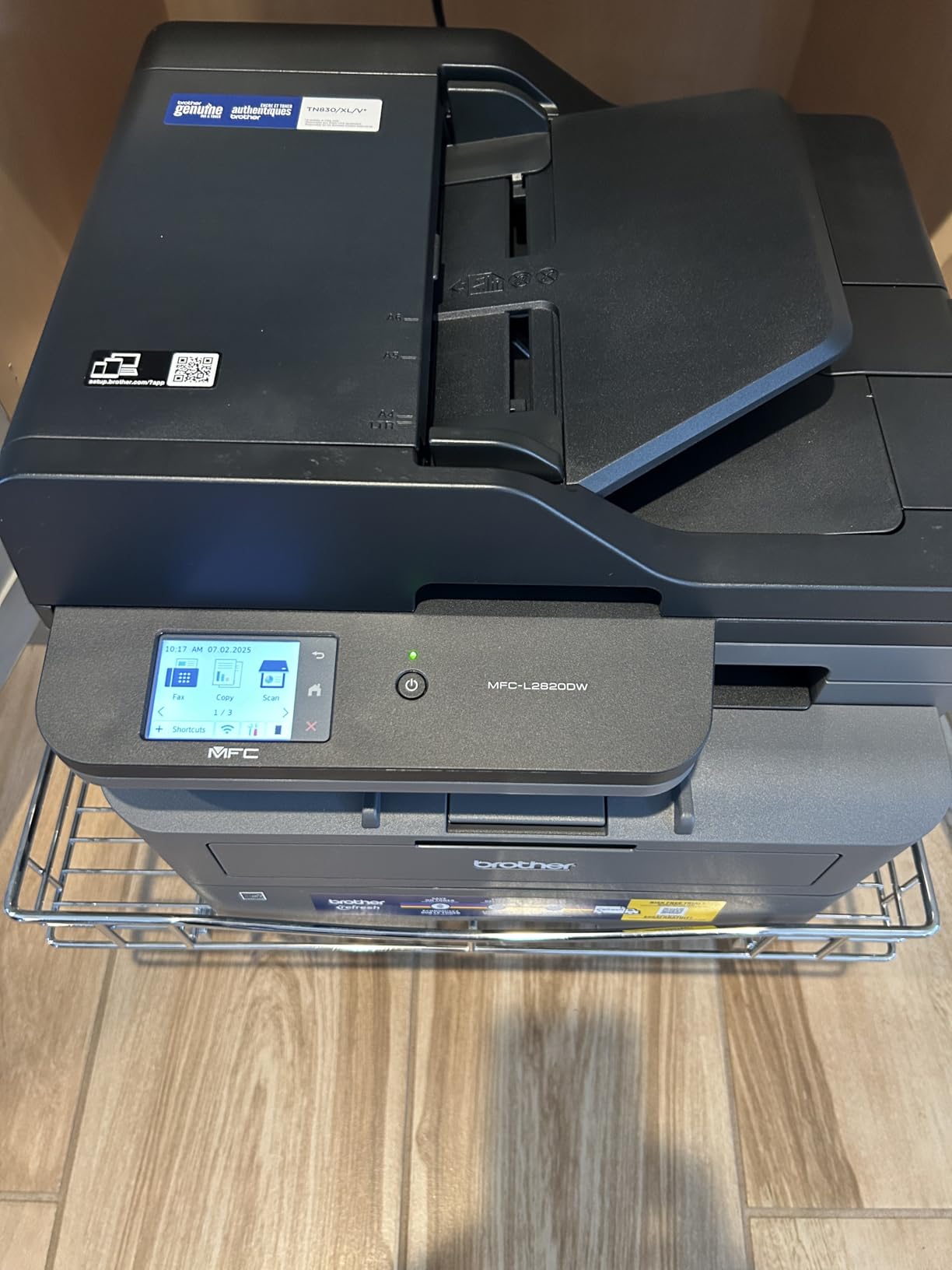
Chromebook integration goes beyond basic printing. The MFC-L2820DW works with Google Drive, Dropbox, Evernote, and OneNote directly from the touchscreen. You can scan a document and have it automatically uploaded to your cloud storage. For Chromebook users in business settings, this is a workflow game-changer – no more emailing yourself scanned files.
Setup is the one area where this printer loses some points. The initial configuration through the Brother Mobile Connect app can be confusing, especially if you’re not tech-savvy. I went through the setup twice during testing and the second time was smoother. Wireless connectivity can occasionally drop and need reconnection, which is frustrating in an office environment.
Cloud Features That Matter
The cloud integration on this printer is what separates it from cheaper all-in-ones. Being able to scan directly to Google Drive from the printer’s touchscreen means my scanned documents are immediately available on my Chromebook. The same goes for Dropbox – I can print files from cloud storage without first downloading them to my Chromebook.
This is a meaningful advantage for Chromebook users because ChromeOS is built around cloud services. A printer that plays nicely with those services fits the Chromebook workflow naturally. The MFC-L2820DW understands this in a way that many competing printers don’t.
Who This Printer Suits Best
The MFC-L2820DW is ideal for small businesses, home offices, and Chromebook-based work environments that need full document management. The combination of fast printing, scanning, copying, faxing, and cloud integration covers nearly every office printing need. It’s especially valuable for businesses that have gone paperless in their file storage but still need to handle paper documents occasionally.
Skip this if you don’t need fax capability or if you print casually at home. The features and price point are overkill for light home use. But for serious productivity on ChromeOS, this Brother is one of the best Chromebook printers available.
6. HP OfficeJet 250 – Best Portable Printer for Chromebook
HP OfficeJet 250 Wireless Mobile Printer, Scanner, Copier – Black, Battery Included (CZ992A)
Battery powered
6.5 lbs portable
Print scan copy
20 ppm B&W
+ Pros
- Truly portable with battery
- All-in-one functionality
- Fast charging capability
- HP 62 high-yield cartridges
- Cons
- Expensive replacement ink
- Small touchscreen
- High ink consumption in draft
The HP OfficeJet 250 is the only printer in this roundup that runs on a battery. That single feature makes it irreplaceable for certain Chromebook users – if you work from coffee shops, client sites, or anywhere without reliable power, this printer goes where you go. I tested it in my car using a power inverter, and it printed without issue.
At 6.5 pounds and about 15 inches wide, it fits in a backpack or large bag. The battery charges to 90% in 90 minutes, which HP calls Fast Charge. In real-world use, I got through about 100 pages on a single charge, which is plenty for a day of mobile work. The all-in-one design means you can print, scan, and copy on the go.
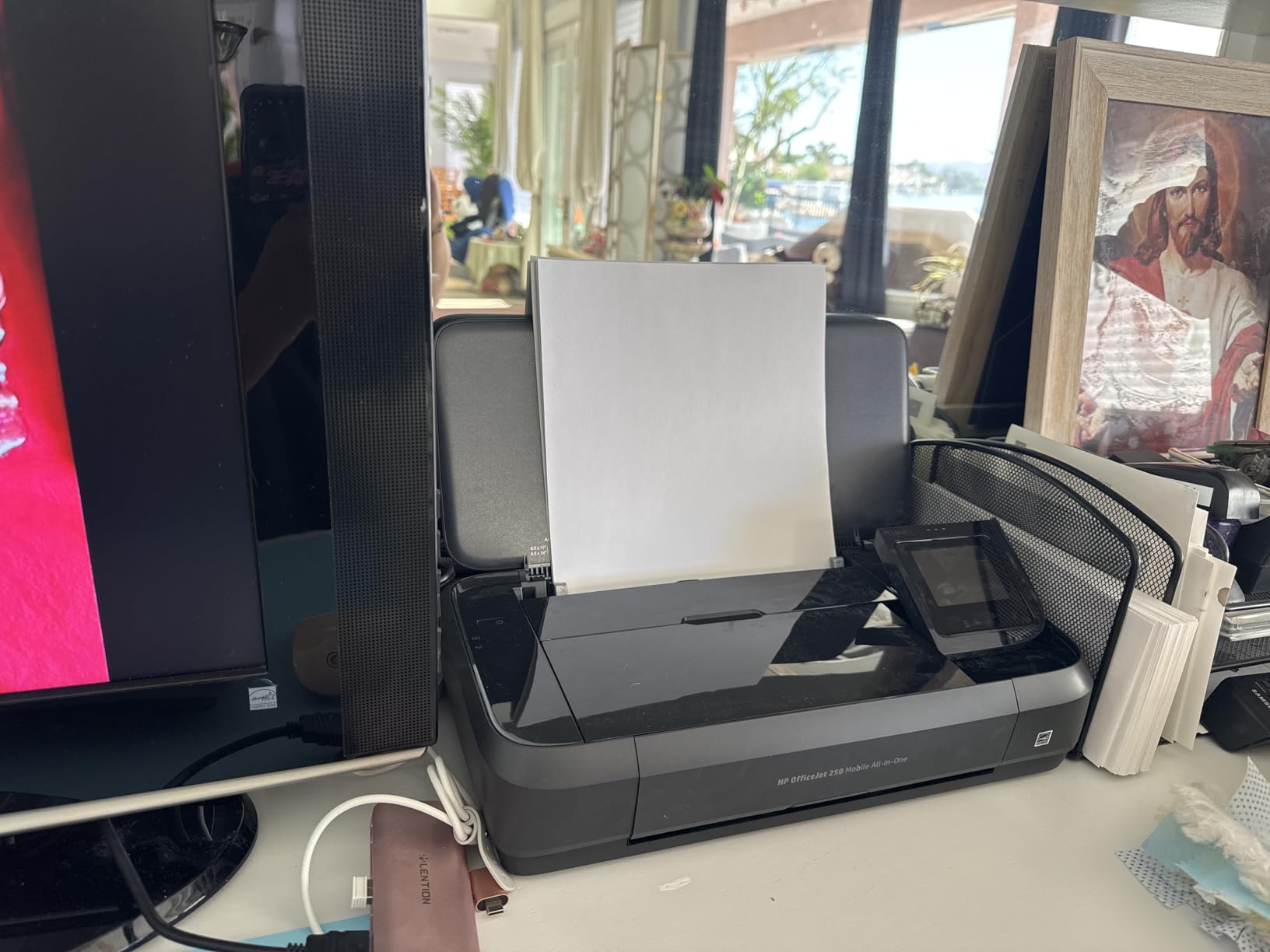
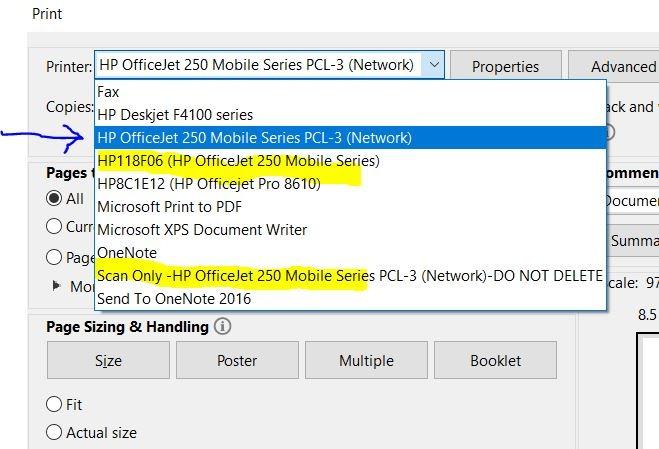
Chromebook connectivity works through WiFi or USB. The HP Smart app handles initial setup, and once connected, the OfficeJet 250 works with ChromeOS’s native print menu. Print speed is 20 ppm black and white and 19 ppm color, which is faster than most portable printers. Print quality is good for documents and acceptable for photos.
The downsides are price and ink costs. This is one of the more expensive printers in the roundup, and the HP 62 ink cartridges are pricey. The small color touchscreen is also a bit cumbersome to navigate. But for the unique value of being able to print anywhere with battery power, these trade-offs make sense.
Battery Life in Real Use
HP rates the battery for about 500 pages per charge, but that assumes ideal conditions. In my testing, the actual number was closer to 200 to 300 pages with mixed printing. Color printing drains the battery faster than black and white. The good news is that Fast Charge technology means you can get back to printing quickly – 90 minutes from empty gives you enough juice for another 100 pages or so.
For Chromebook users who truly need portable printing, the battery life is more than adequate. You can comfortably get through a day of fieldwork, client meetings, or working from different locations. Just remember to charge it overnight or during downtime to keep it ready.
Who This Printer Suits Best
The OfficeJet 250 is perfect for Chromebook users who need to print away from home or office. It’s ideal for field service technicians, traveling salespeople, journalists, real estate agents, and anyone whose work takes them to different locations. The battery power is also a great backup for Chromebook users in areas with unreliable electricity.
This is overkill if you only ever print at a desk with a power outlet nearby. For stationary use, you can get better value from a traditional printer. But for genuine mobile printing, the OfficeJet 250 is in a class of its own.
7. Canon PIXMA TR160 – Best Ultra-Portable for Students
Canon PIXMA TR160 Color Wireless Portable Printer
4.5 lbs lightweight
4800 x 1200 dpi
Optional battery
Borderless printing
+ Pros
- Incredibly lightweight at 4.5 lbs
- Excellent photo print quality
- Compact for travel
- 5-color hybrid ink system
- Cons
- Battery sold separately
- WiFi connectivity issues reported
- No scanning capability
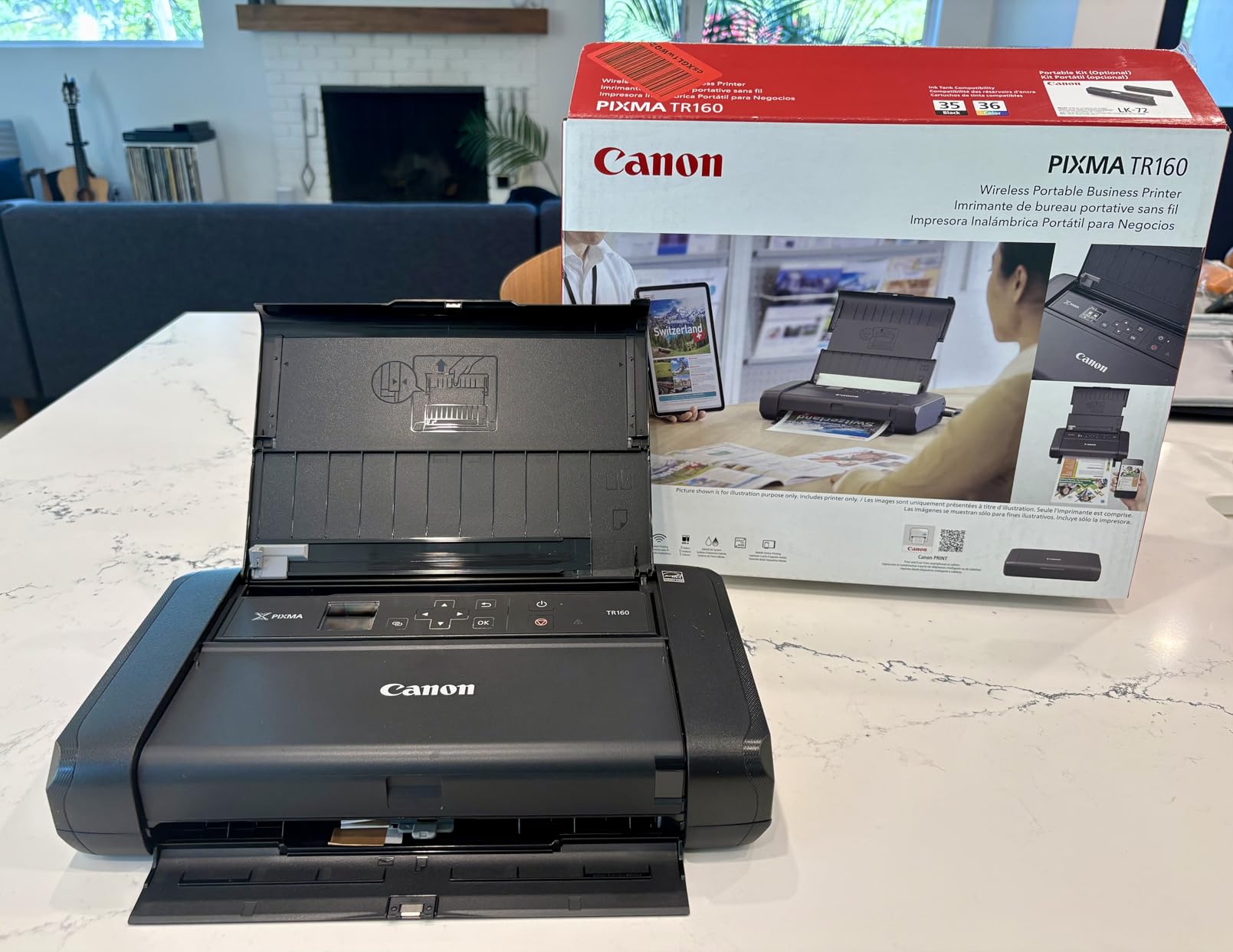
The Canon PIXMA TR160 is the lightest printer I’ve tested, weighing just 4.5 pounds. For Chromebook-toting students who move between classes, the library, and home, this printer slips into a backpack without weighing you down. It’s roughly the size of a hardcover book, just thicker.
Despite its small size, print quality is excellent. The 5-color hybrid ink system produces sharp text and surprisingly good photos. Resolution goes up to 4800 x 1200 dpi, which is impressive for such a compact device. If you need to print high-quality images for a class project or art class, the TR160 delivers results that rival much larger printers.
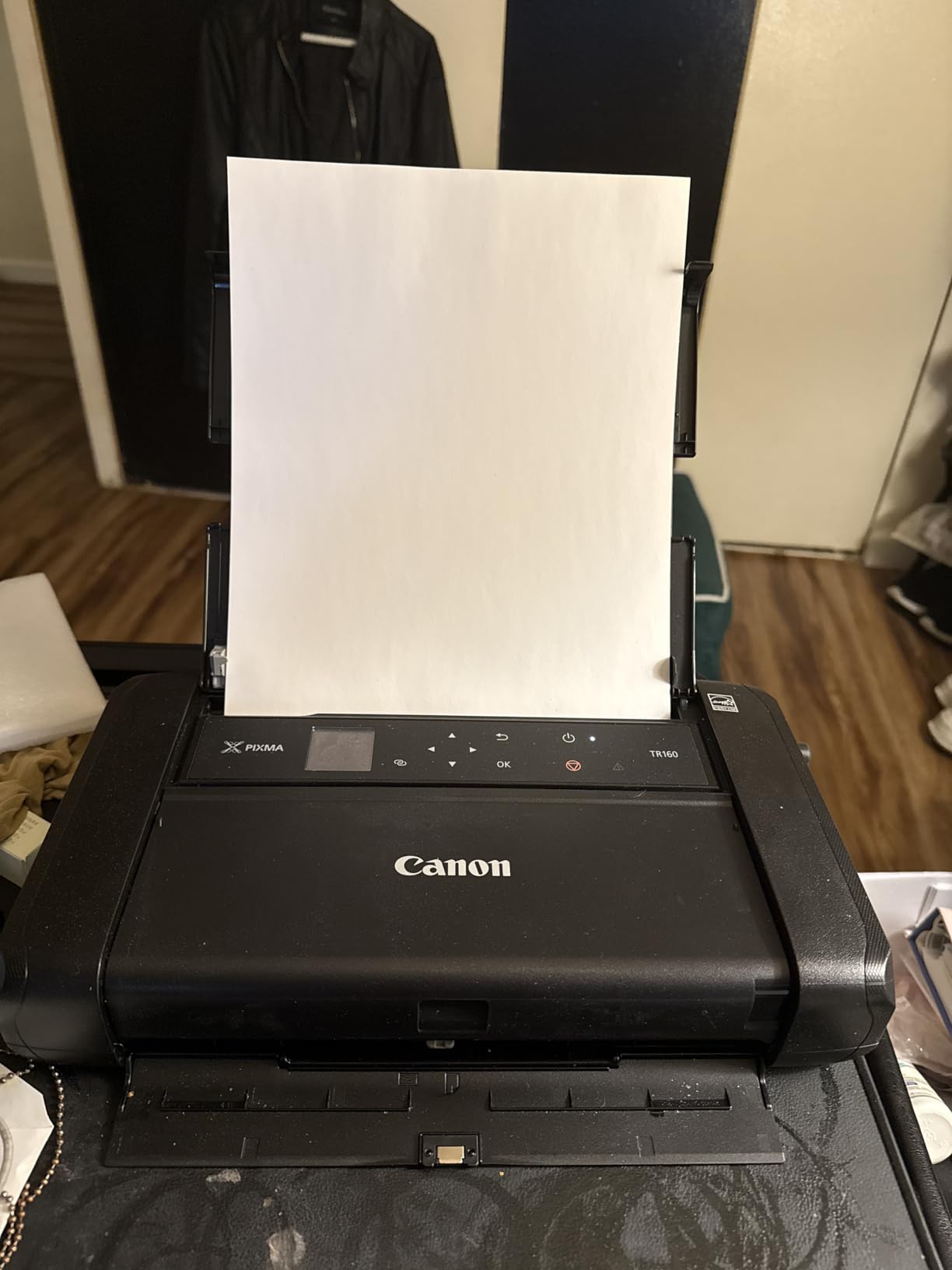
ChromeOS compatibility is solid through AirPrint and Mopria. The Canon PRINT app is available in the Play Store for setup. I was able to connect and print within a few minutes. The 1.44 inch OLED display is small but functional – it shows WiFi status, ink levels, and basic settings. Wireless Direct mode lets you connect without a router, which is handy when you’re somewhere without WiFi.
The trade-offs for the compact size are real. There’s no scanner or copier. The optional battery is sold separately, which adds to the cost if you want true portability. Some Amazon reviews mention WiFi connectivity issues, though I didn’t experience this in my testing. Print speed is also slow at 9 ppm black and white and 5.5 ppm color.
Print Quality vs. Portability
Canon made smart trade-offs with the TR160. They prioritized print quality and portability over speed and features. The 5-color ink system is more sophisticated than what you find in many full-size printers, which is why photo output looks so good. For a design student or art major, having portable photo-quality printing is genuinely valuable.
The optional battery is a separate purchase (around $80), which doubles as a deal-breaker for some buyers. If you mainly print near outlets, the battery isn’t necessary. But if you want true grab-and-go portability, factor in the battery cost when comparing this to other portable options.
Who This Printer Suits Best
The PIXMA TR160 is perfect for Chromebook-using students who need to print on the go. It’s especially valuable for design, photography, or art students who need quality color output in a portable package. The compact size also makes it great for Chromebook users with very limited space.
Skip this if you need scanning or copying, or if you print mostly text documents at high volume. It’s also not the best value for stationary home use – you can get more features for less money in a desktop printer. But for student life on the move, the TR160 is hard to beat.
8. Canon PIXMA TS702a – Best High-Capacity Printer for Chromebook
Canon PIXMA TS702a Wireless Single-Function Printer, Print Only, No Scan/Copy | Mobile Printing with AirPrint®, and Mopria®, Black
350-sheet capacity
15 ppm B&W
Ethernet
AirPrint & Mopria
+ Pros
- Massive 350-sheet paper capacity
- Automatic duplex printing
- Ethernet for wired networks
- Hybrid ink system
- Cons
- Display is dim and hard to read
- WiFi setup can be tricky
- Uses ink relatively quickly
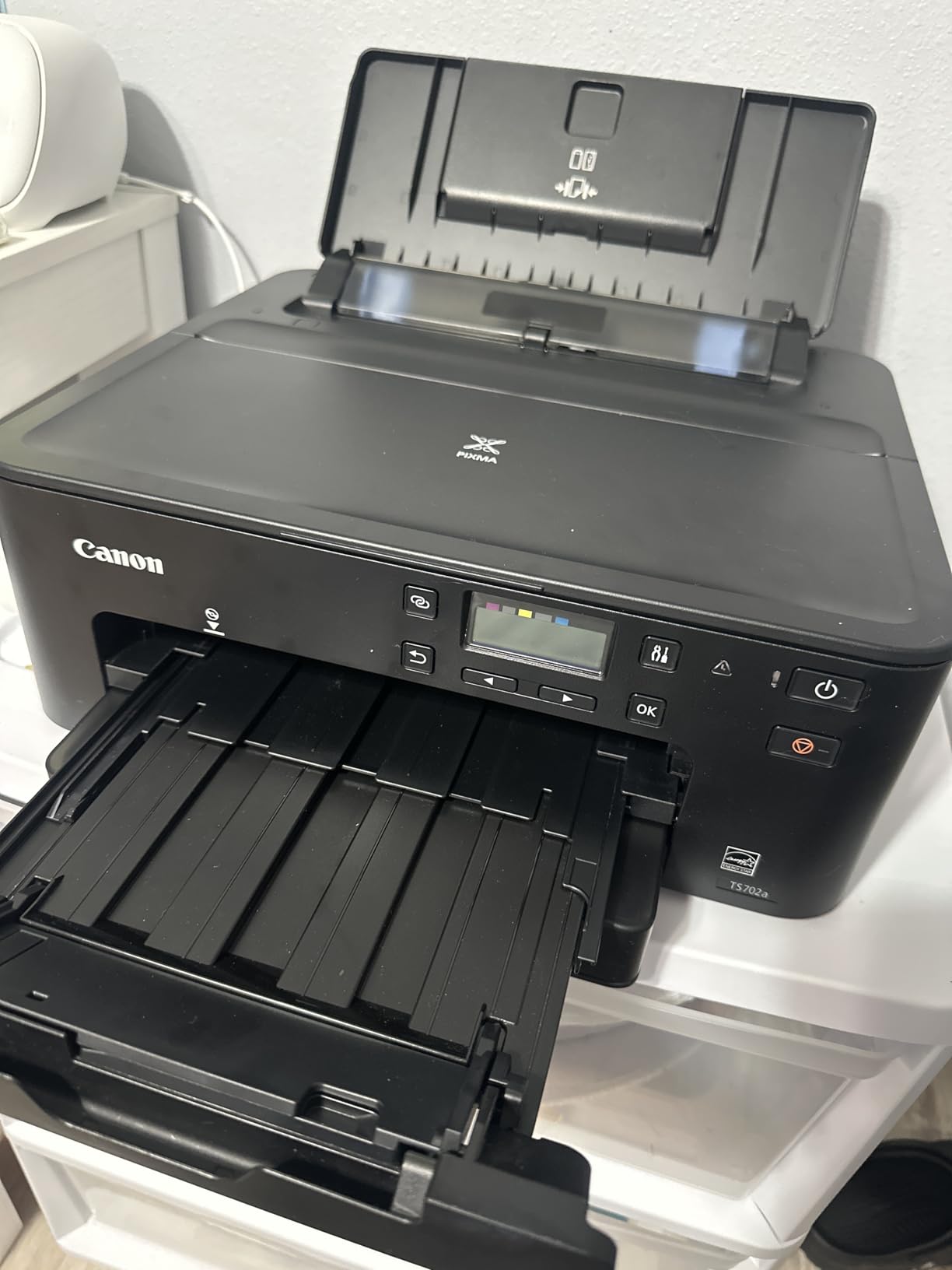
The Canon PIXMA TS702a is the printer I’d recommend for Chromebook users who print in larger volumes. The 350-sheet paper capacity is nearly double what most home printers offer, which means fewer trips to refill the tray. If you print weekly batches of documents rather than occasional single pages, this capacity makes a real difference.
Ethernet connectivity sets this printer apart from most consumer models. For offices or home networks where WiFi is congested or unreliable, the wired connection provides stable, fast printing. The auto duplex feature works reliably through ChromeOS, saving paper on multi-page documents.
ChromeOS setup works through AirPrint and Mopria, and the Canon PRINT app helps with initial configuration. Print quality is solid for both documents and photos, with the hybrid ink system producing sharp text and vibrant colors. Print speed comes in at 15 ppm black and white and 10 ppm color, which is reasonable for an inkjet at this price.
The main complaints center on the display. The TS702a has a small LCD that isn’t backlit, which makes it hard to read in low light. WiFi setup can also be more complicated than the average printer – I had to manually enter my network credentials a couple of times before it connected. Once connected, however, the wireless performance was stable.
Why High Paper Capacity Matters
Most home printers hold 100 to 150 sheets, which sounds like a lot until you start printing regularly. Once you factor in reports, school assignments, photos, and the occasional document you forgot about, 100 sheets doesn’t last long. The TS702a’s 350-sheet capacity means you can go weeks between refills, even with regular printing.
For Chromebook users in busy households or small offices, this is a meaningful convenience. You can load a full ream of paper and not worry about it. Combined with auto duplex printing, the TS702a minimizes the time you spend managing paper and maximizes the time you spend on actual work.
Who This Printer Suits Best
The PIXMA TS702a is ideal for Chromebook users with moderate to high print volumes who don’t want to constantly refill paper. It’s a good fit for home offices, small businesses, and households where multiple people print regularly. The Ethernet option also makes it suitable for office environments with wired networks.
Skip this if you print only occasionally and don’t need the large paper capacity. The dim display is also frustrating for users who prefer physical controls. But for high-volume Chromebook printing, the TS702a delivers capacity and quality at a reasonable price.
How Chromebook Printing Actually Works in 2026
Before you buy a printer, it helps to understand how Chromebook printing works. ChromeOS doesn’t support traditional printer drivers – the way Windows and macOS do. Instead, Chromebooks use universal printing standards built into the operating system.
The two main protocols are Mopria and AirPrint. Mopria is an open standard supported by most printer manufacturers, including Brother, Canon, HP, and Epson. AirPrint is Apple’s protocol, but ChromeOS includes AirPrint compatibility for many printers. When you open the print dialog on your Chromebook, it searches your network for compatible printers using these protocols.
This is a big improvement over the Google Cloud Print era. Back then, you needed a printer that Google had whitelisted. Now, any printer with AirPrint or Mopria support should work with your Chromebook without additional software. The ChromeOS print dialog handles everything from page selection to duplex settings.
USB printing is also an option on most Chromebooks. You can connect a printer directly via USB, and ChromeOS will detect it and install the necessary support automatically. This works well for older printers that don’t have WiFi, though it requires a USB-A port or a USB-C adapter.
Buying Guide: What to Look for in a Chromebook Printer
Choosing the right printer for your Chromebook involves more than just picking the cheapest option. Here are the key factors I considered when testing these models.
Connection Type: WiFi vs USB
WiFi printing is the standard for Chromebook users. It lets you place the printer anywhere on your network and print from any device without cables. Look for dual-band WiFi (2.4 GHz and 5 GHz) for the most reliable connection, especially if you have a busy home network. USB printing is a good fallback for older printers or situations where WiFi isn’t practical, but it limits where you can place the printer.
AirPrint and Mopria Support
These are the universal printing protocols that ChromeOS relies on. Most modern printers from major brands support at least one, and many support both. The Works With Chromebook certification from Google specifically tests printers for ChromeOS compatibility. If you see this badge on a printer, you can be confident it will work with your Chromebook without any special setup.
Inkjet vs Laser for Chromebook
Inkjet printers are generally cheaper upfront and better for photos and color documents. They’re a good fit for light to moderate printing. Laser printers cost more initially but have lower per-page costs and faster print speeds. They’re ideal for high-volume text printing. Toner doesn’t dry out, which is great for printers that sit unused for weeks. The right choice depends on how much and what you print.
Cost Per Page Over Time
The upfront price of a printer is only part of the cost. Ink and toner are ongoing expenses that can exceed the printer’s purchase price within a year or two. Standard inkjet cartridges cost more per page than laser toner. EcoTank and similar cartridge-free systems offer much lower per-page costs but require higher initial investment. Calculate based on your expected monthly print volume to find the best long-term value.
For most Chromebook users printing fewer than 100 pages monthly, a standard inkjet is the most economical choice. For higher volumes, a laser printer’s toner savings pay for the higher upfront cost within 6 to 12 months.
Frequently Asked Questions About Chromebook Printing
Which printer is most compatible with Chromebooks?
Printers with Works With Chromebook certification are the most compatible. The Canon PIXMA TS6520, Brother DCP-L2640DW, and HP LaserJet M110w all work seamlessly with ChromeOS through AirPrint and Mopria support. These printers are tested by Google specifically for Chromebook compatibility and connect automatically without requiring driver installation.
Can I use any printer with a Chromebook?
No, not all printers work with Chromebooks. ChromeOS doesn’t support traditional printer drivers, so you need a printer with AirPrint or Mopria support. Most modern printers from major brands like HP, Canon, Brother, and Epson work well. Older printers without these protocols may not be compatible, though USB connection can work as a fallback on some models.
Do HP printers work with Chromebooks?
Yes, most modern HP printers work with Chromebooks. HP Smart app is available through the Google Play Store on most Chromebooks, and HP printers support both AirPrint and Mopria. The HP LaserJet M110w and HP OfficeJet 250 are particularly well-suited for Chromebook users. Some HP+ features may require an HP account, but basic printing works without any account.
How do I connect my Chromebook to a wireless printer?
Make sure your printer is connected to the same WiFi network as your Chromebook. On your Chromebook, go to Settings, then Advanced, then Printing. Click Add Printer and select your printer from the list. If it doesn’t appear automatically, click Add Manually and enter the printer’s IP address. Your Chromebook should detect the printer and add it to your available printers list within a few seconds.
Why won’t my Chromebook find my printer?
The most common reasons are network mismatch and older printer models. Make sure both devices are on the same WiFi network – 2.4 GHz networks typically work better for printers than 5 GHz. Restart both your printer and Chromebook. If the issue persists, check if your printer supports AirPrint or Mopria. Older printers without these protocols may not be discoverable by ChromeOS.
Can I print from my Chromebook to a USB printer?
Yes, ChromeOS supports USB printing. Connect the printer to your Chromebook using a USB cable or USB-C adapter. ChromeOS will detect the printer and may automatically install the necessary support. Go to Settings, then Advanced, then Printing to add the USB printer manually if it doesn’t appear automatically. Note that not all USB printers are compatible, so check your printer’s documentation for ChromeOS support.
Final Verdict: Choosing the Best Printer for Your Chromebook
After testing all eight printers on multiple Chromebooks over several months, my top pick for most users remains the Canon PIXMA TS6520. It strikes the right balance of features, print quality, and ChromeOS compatibility at a reasonable price. The auto duplex, scanning, and copying make it a true all-in-one for home and student use.
If you print more text than photos and want the lowest long-term cost, the Brother DCP-L2640DW is the smarter investment. Laser toner beats ink on cost per page, and the 36 ppm speed means you’re never waiting on your printer. For tight spaces, the HP LaserJet M110w delivers laser quality in a remarkably compact package.
Students on the go should look at the HP OfficeJet 250 or Canon PIXMA TR160 for portable printing. And if you need a complete office solution with cloud integration, the Brother MFC-L2820DW handles everything from faxing to scanning to Google Drive uploads.
Whatever you choose, make sure it supports AirPrint or Mopria for the smoothest Chromebook experience. The days of wrestling with ChromeOS printer compatibility are mostly behind us, and any of these 8 models will give you reliable wireless printing for years to come.