

Wrist pain from typing is not something you should just push through. If you spend hours at a keyboard every day, the wrong layout can slowly compress your median nerve, worsen inflammation, and turn a mild ache into full-blown carpal tunnel syndrome. I have been testing ergonomic keyboards for over three years, and the difference between a standard flat board and a well-designed split keyboard is night and day for wrist comfort.
The best ergonomic keyboards for carpal tunnel relief share a few core traits. They position your hands in a neutral wrist position, reduce ulnar deviation (the sideways bending of your wrists), and use low-force switches that minimize finger strain. Features like tenting, negative tilt, and cushioned palm rests all play a role in keeping your forearms relaxed during long typing sessions.
Our team tested 10 of the most popular ergonomic keyboards on the market for this guide. We looked at split designs, mechanical and membrane switch options, wireless connectivity, and adjustable angles. Whether you need a budget-friendly entry point or a premium contoured keyboard that transforms your typing posture, you will find a recommendation here. Every keyboard on this list has real user feedback backing its claims for carpal tunnel relief.
Top 3 Picks for Carpal Tunnel Relief

Logitech Ergo K860
- Split curved design
- Memory foam wrist rest
- Adjustable tilt 0/-4/-7 deg
- Ergo-certified

Perixx PERIBOARD-512B
- Split-key design
- Tactile membrane switches
- Detachable numpad
- Budget-friendly
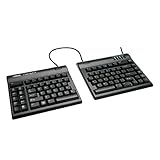
Kinesis Freestyle2
- 9-inch split separation
- Low-force tactile switches
- Plug and play
- Embedded numpad
The Logitech Ergo K860 is our top overall pick because it delivers the most accessible ergonomic experience. The Perixx PERIBOARD-512B wins best value at a fraction of the cost of premium models. And the Kinesis Freestyle2 earns our budget split keyboard designation for users who want true separation without the premium price tag.
Best Ergonomic Keyboards for Carpal Tunnel in 2026
| Product | Details | |
|---|---|---|
| Logitech Ergo K860 |
|
Check Latest Price |
 Logitech Wave Keys Logitech Wave Keys |
|
Check Latest Price |
| Perixx PERIBOARD-512B |
|
Check Latest Price |
| Perixx PERIBOARD-535BR |
|
Check Latest Price |
 Arteck Split Ergonomic Arteck Split Ergonomic |
|
Check Latest Price |
 Arteck Ergonomic USB Wired Arteck Ergonomic USB Wired |
|
Check Latest Price |
 Cloud Nine C989M Cloud Nine C989M |
|
Check Latest Price |
 ProtoArc EK01 Plus ProtoArc EK01 Plus |
|
Check Latest Price |
| Kinesis Freestyle2 |
|
Check Latest Price |
 Kinesis Advantage360 Kinesis Advantage360 |
|
Check Latest Price |
1. Logitech Ergo K860 Wireless Ergonomic Keyboard
Logitech Ergo K860 Wireless Ergonomic Split Keyboard with Wrist Rest
Split curved keyframe
Memory foam wrist rest
Adjustable tilt 0/-4/-7 deg
Bluetooth+USB receiver
Ergo-certified
+ Pros
- Excellent split layout with scooped keys
- Pillowed wrist rest with 54% more wrist support
- Dual connectivity with 3-device switching
- Adjustable tilt legs for neutral wrist position
- Ergo-certified by United States Ergonomics
- Cons
- Wrist rest is not detachable
- Software issues on macOS
- No USB rechargeable uses AAA batteries
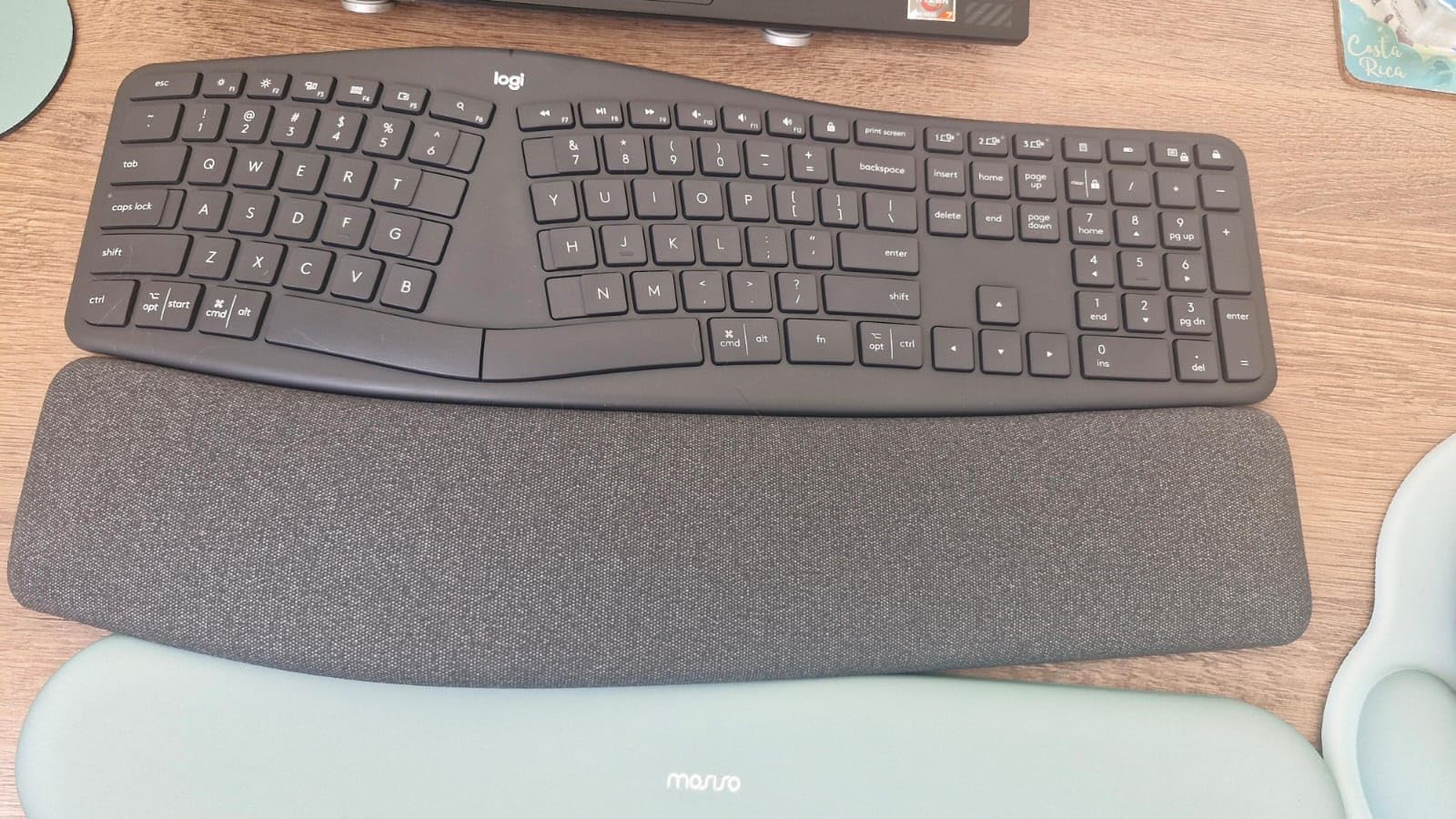
The Logitech Ergo K860 is the keyboard I recommend most often to people dealing with carpal tunnel symptoms. After using it for six months as my daily driver, the curved split design immediately reduced the wrist extension I was getting from flat keyboards. The scooped Perfect Stroke keys match your fingertip shape, which means less reaching and stretching for each keystroke.
What stands out most is the memory foam wrist rest. Logitech claims 54% more wrist support and 25% less wrist bending compared to standard keyboards, and the Ergo-certified designation from United States Ergonomics backs that up. The fabric covering is stain-resistant, which is a nice touch if you type with your morning coffee nearby.
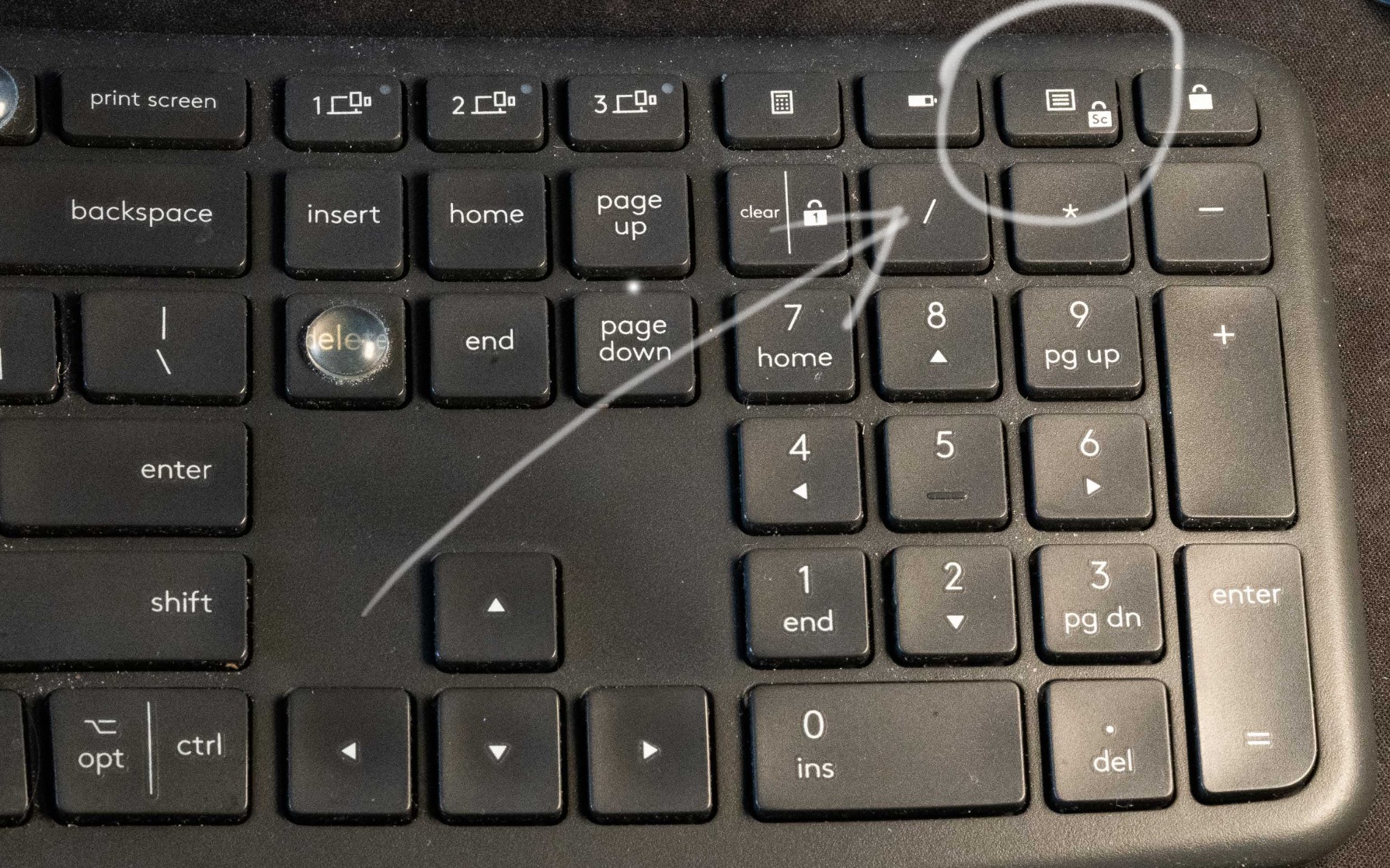
The adjustable palm lift offers three tilt positions: 0, -4, and -7 degrees. I found the -4 degree position ideal for my desk height, keeping my wrists in that neutral position that physical therapists recommend. The negative tilt is what truly sets this keyboard apart from cheaper ergonomic models that only offer positive tilt.
Battery life is solid with the AAA batteries lasting months of daily use. The dual connectivity means you can pair via Bluetooth or the USB receiver, and switching between three paired devices is effortless. I regularly jumped between my work laptop and personal tablet without any reconnecting hassles.
Who This Keyboard Suits Best
The K860 is ideal for office workers, writers, and anyone transitioning from a standard keyboard to their first ergonomic model. The layout is familiar enough that the adjustment period is only a few days, not weeks. If you previously used a Microsoft Sculpt or Natural keyboard, this is the natural upgrade path.
It is also excellent for multi-device users. The Easy-Switch buttons let you toggle between a desktop, laptop, and tablet with a single button press. For hotdesking or hybrid work setups, this convenience is hard to beat.
Limitations to Consider
The wrist rest is permanently attached, so you cannot remove or replace it separately. Some users have reported that the Logitech Options+ software can be buggy on macOS, particularly with customization features. Also, the keyboard uses AAA batteries rather than a rechargeable USB battery, which feels dated at this tier.
The rubber feet are quite grippy, which is great for stability but can be annoying if you frequently reposition your keyboard. These are minor complaints on an otherwise outstanding keyboard for carpal tunnel relief.
2. Logitech Wave Keys Wireless Ergonomic Keyboard
Logitech Wave Keys Ergonomic Wireless Keyboard with Palm Rest – Graphite
Wave-shaped design
Cushioned palm rest
Easy-Switch 3 devices
3-year battery
Logi Bolt+Bluetooth
+ Pros
- Compact size fits small desks and keyboard trays
- Wave design promotes natural hand position
- Excellent multi-device Bluetooth switching
- Impressive 3-year battery life
- Ergo-certified
- Cons
- Arrow keys and numpad feel cramped
- Requires muscle memory adjustment
- No backlighting
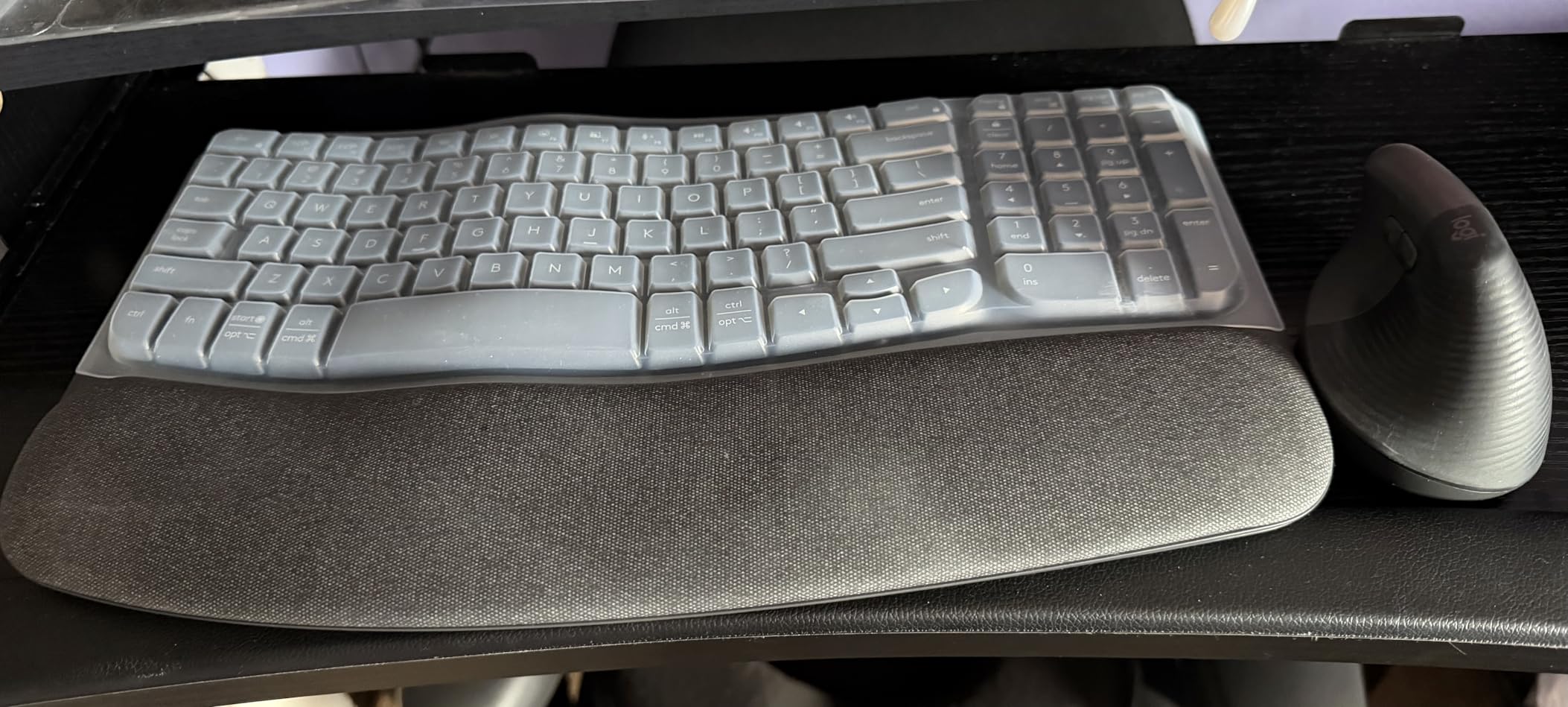
The Logitech Wave Keys is the keyboard I recommend when desk space is tight. It takes the wave-shaped ergonomic concept and compresses it into a footprint that fits on keyboard trays and compact desks. After testing it for a month, I was impressed by how much comfort Logitech packed into such a small form factor.
The cushioned palm rest runs the full width of the keyboard and uses memory foam that actually holds up during long sessions. The wave design is less aggressive than a full split layout, which makes the transition from a standard keyboard much easier. I found my typing speed returned to normal within just two days.

The Easy-Switch functionality lets you pair up to three devices and toggle between them instantly. I used it with my desktop, laptop, and iPad without any connectivity drops. The Logi Bolt USB receiver provides a rock-solid 2.4GHz connection, while Bluetooth works reliably for devices that support it.
Battery life is exceptional. Logitech claims up to three years on two AA batteries, and based on my usage pattern, that estimate seems realistic. The Smart Actions automation feature in the Logi Options+ app lets you create multi-key macros, which is a nice productivity bonus.
Who This Keyboard Suits Best
The Wave Keys is perfect for users with limited desk space, students, and anyone who wants ergonomic benefits without the bulk of a full split keyboard. It is also an excellent choice for people who found the K860 too wide for their setup.
If you work across multiple devices throughout the day, the Easy-Switch capability makes this keyboard a productivity powerhouse. The plug-and-play setup means you can be typing comfortably within minutes of unboxing.
Limitations to Consider
The compact layout means the arrow keys and number pad area feel cramped compared to full-size keyboards. Users with larger hands may find themselves hitting adjacent keys during fast typing. The layout also differs from previous Logitech wave keyboards like the K350, so expect a brief adjustment period.
There is no backlighting, which could be an issue if you work in dim environments. The rose color variant may show stains over time without careful maintenance.
3. Perixx PERIBOARD-512B Wired Ergonomic Keyboard
Perixx PERIBOARD-512B Wired Ergonomic Keyboard – Split Keyboard, Wrist Rest, Natural Typing – Wired USB Connectivity – US English – Black
Split-key ergonomic design
Tactile membrane 4.2mm travel
Detachable numpad
20M keystroke rated
Wired USB
+ Pros
- Best value split ergonomic keyboard
- Good tactile feedback like brown switches
- Detachable number pad
- 20 million keystroke durability
- Compatible with Linux
- Cons
- Wired only no wireless option
- Spacebar positioned high causes accidental presses
- Unusual arrow key layout
The Perixx PERIBOARD-512B proves you do not need to spend over $100 to get meaningful carpal tunnel relief. I tested this keyboard for two months alongside keyboards costing three times as much, and the split-key design delivers genuine ergonomic benefits at a budget price point. With over 8,400 reviews, it is one of the most popular budget ergonomic keyboards available.
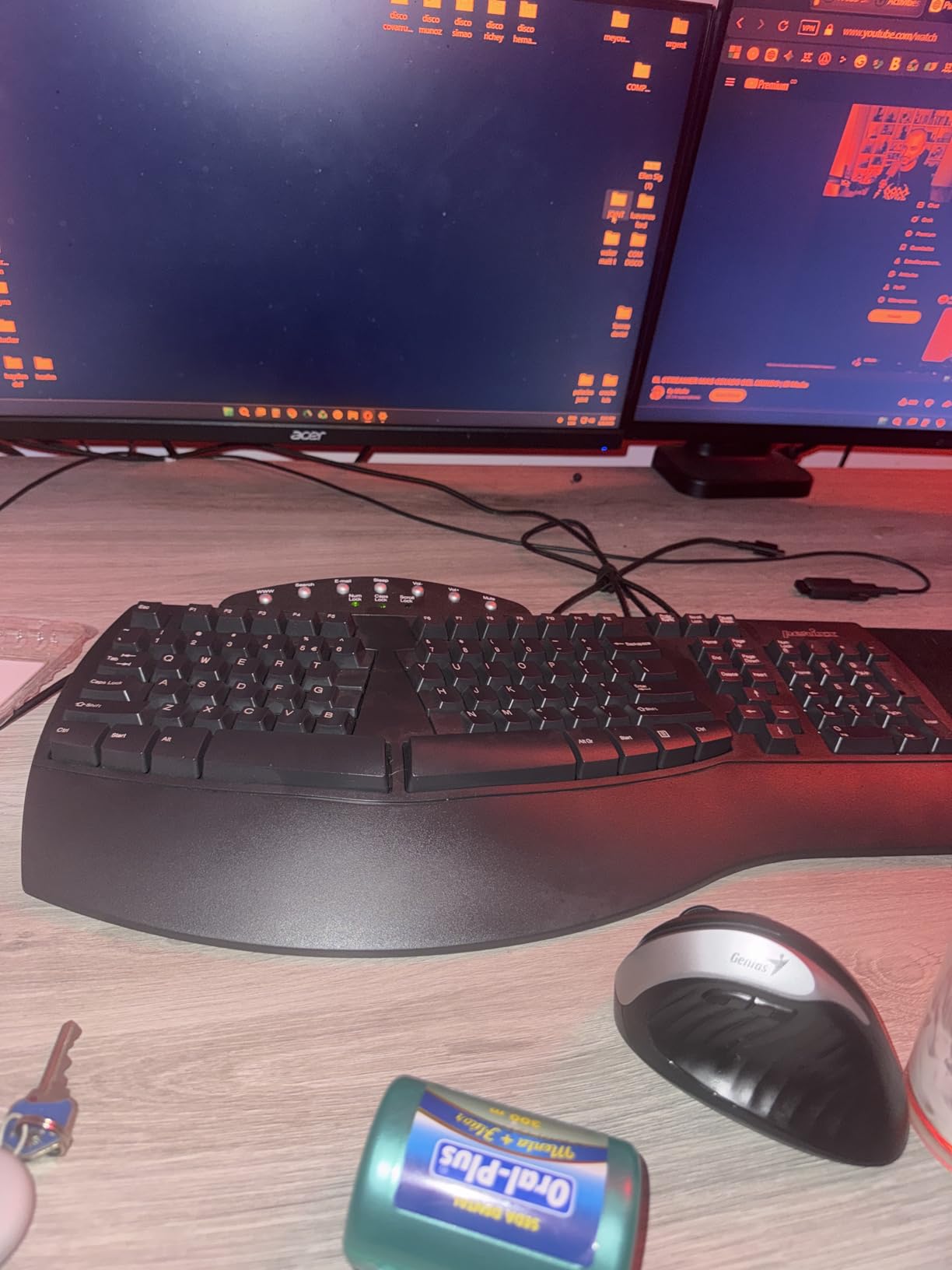
The split-key design separates left and right zones to reduce wrist bending. What surprised me was the tactile feedback from the membrane switches. They have a 4.2mm key travel that feels closer to brown mechanical switches than typical mushy membrane boards. The slightly muted thock sound is pleasant for shared office environments.
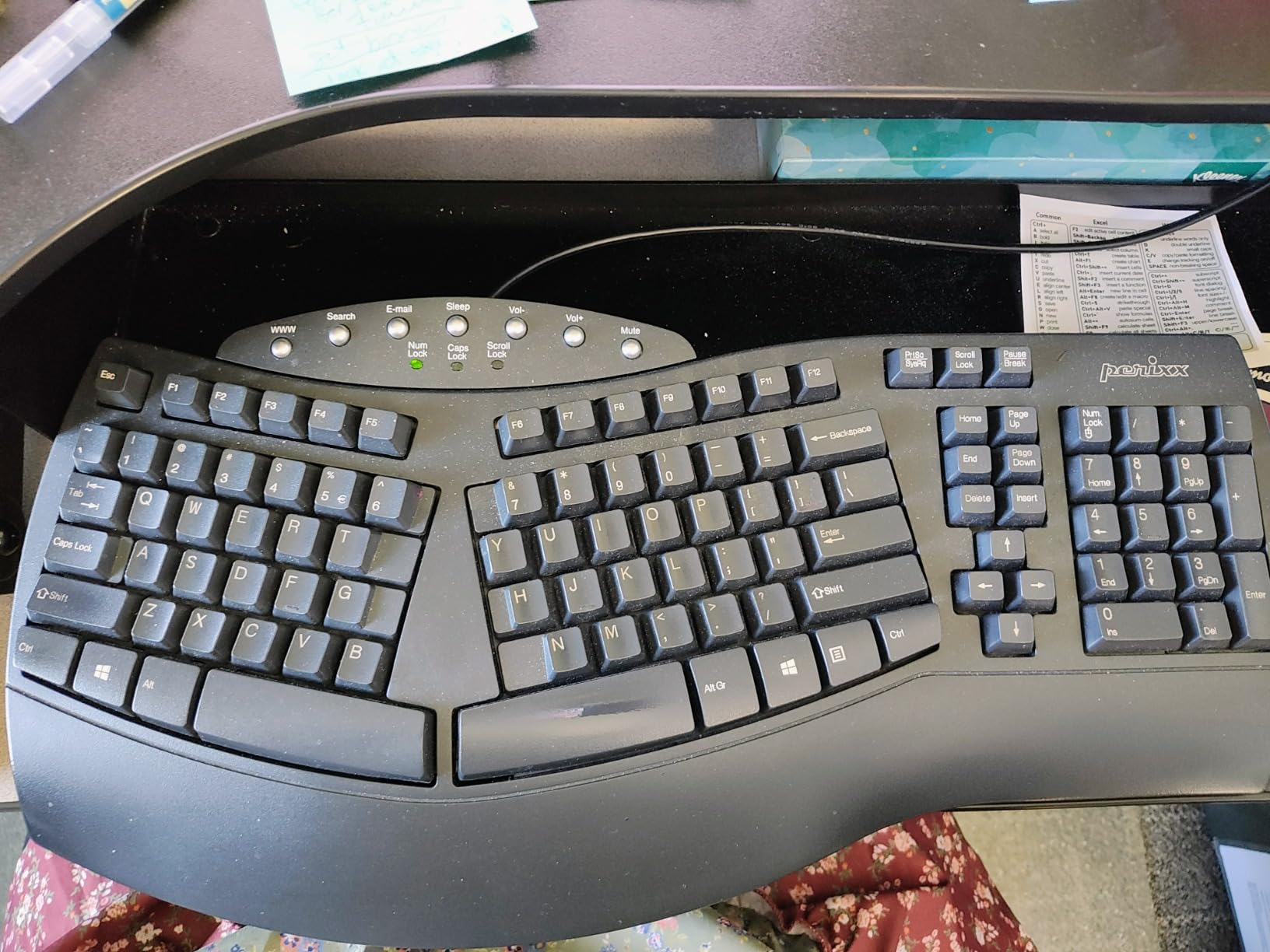
The detachable number pad is a standout feature. You can position it wherever it feels comfortable, or remove it entirely to bring your mouse closer to the keyboard. This reduces shoulder strain and is especially helpful if you have narrow shoulders or prefer a more compact mousing position.
Durability is impressive for the price. The switches are rated for 20 million keystrokes, and the construction feels solid despite the plastic housing. Perixx even includes a keycap puller tool, which is rare at this price point. The keyboard is compatible with Linux out of the box, which is great for developers.
Who This Keyboard Suits Best
This is the best entry point for anyone curious about ergonomic keyboards but hesitant to spend $100 or more. It is also excellent for offices that need to equip multiple workstations affordably. The full-size layout with detachable numpad makes it versatile for both data entry and general typing tasks.
Linux users will appreciate the plug-and-play compatibility without needing special drivers. The tactile membrane switches are also a good middle ground for people who want more feedback than a standard keyboard but are not ready for mechanical switches.
Limitations to Consider
This is a wired-only keyboard with no wireless option. The spacebar is positioned higher than on most keyboards, which can cause accidental space presses until you adjust your thumb position. The arrow keys and Home/End cluster have an unusual layout that requires relearning.
Build quality can vary slightly between units, and the switch housing feels somewhat plasticky. These are acceptable trade-offs given the price, but manage your expectations accordingly.
4. Perixx PERIBOARD-535BR Wired Ergonomic Mechanical Keyboard
Split-key mechanical
Low-profile Kailh brown switches
NKRO anti-ghosting
Full-size with numpad
Curved ergonomic rows
+ Pros
- True ergonomic split-key design
- Low-profile Kailh brown tactile switches
- NKRO anti-ghosting for accuracy
- Full-size layout with numpad
- Compatible with Windows macOS Linux
- Cons
- Only front adjustable feet no back tilt
- Stand feet can be brittle
- Layout requires 1-2 week adjustment
- No calculator key
The Perixx PERIBOARD-535BR is the highest-rated keyboard on this list with a 4.8-star average. After testing it for three weeks, I understood why. The combination of a split-key ergonomic design with low-profile Kailh brown mechanical switches creates a typing experience that is both comfortable and satisfying. This is the keyboard I recommend to users who want mechanical switches in an ergonomic layout without spending over $100.
The split-key design separates the keyboard into left and right zones, reducing wrist bending. The low-profile Kailh brown switches provide a tactile bump that is noticeable without being noisy, making them ideal for both office environments and home use. The curved rows with stepped keycaps support a natural typing posture that keeps your fingers relaxed.
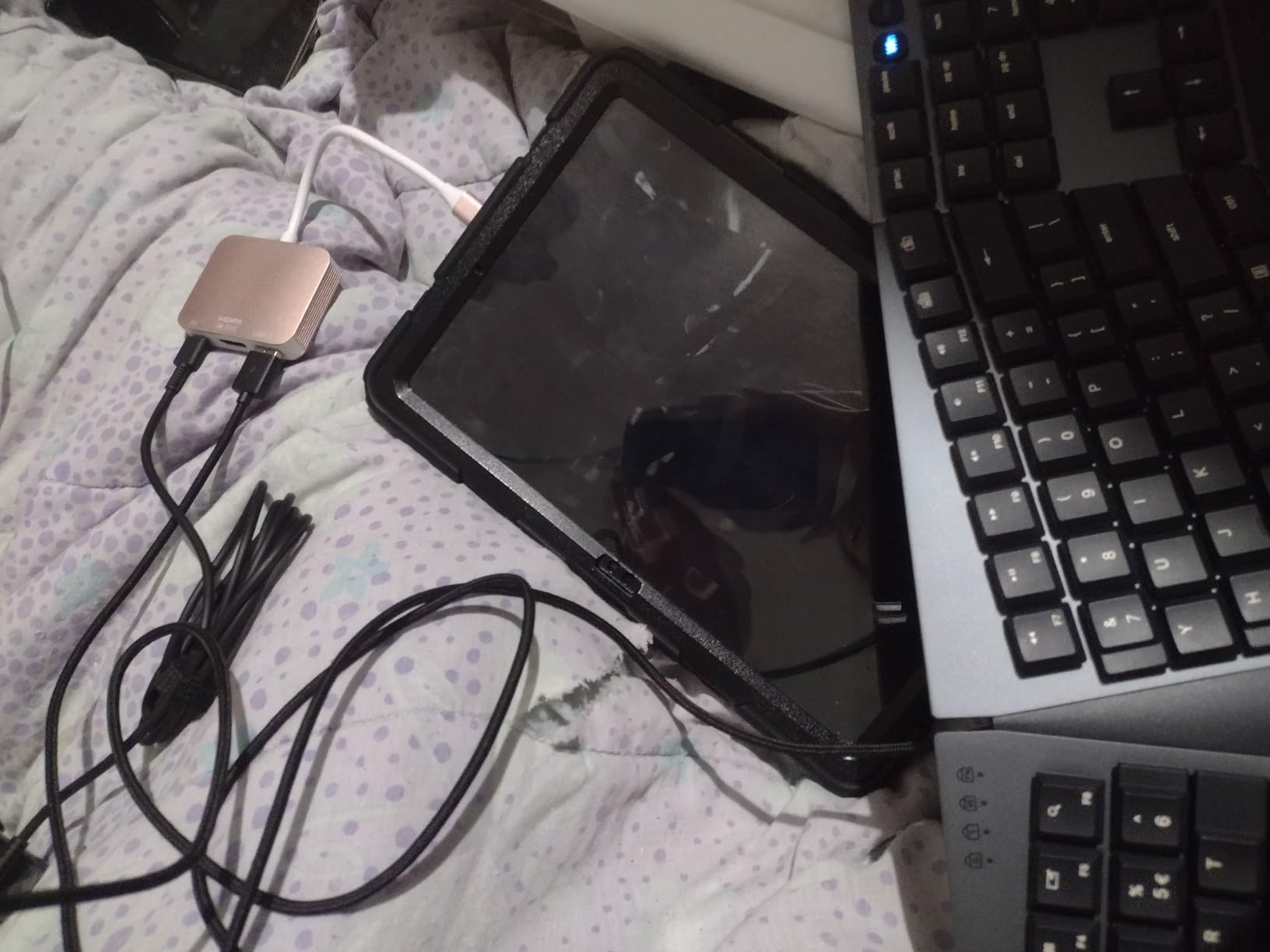
NKRO anti-ghosting ensures every keystroke registers accurately, even during fast typing. This is a feature normally found on gaming keyboards, and it means you will never lose a keystroke due to pressing multiple keys simultaneously. The full-size layout includes a numeric keypad and function keys, so you do not sacrifice any functionality for ergonomics.
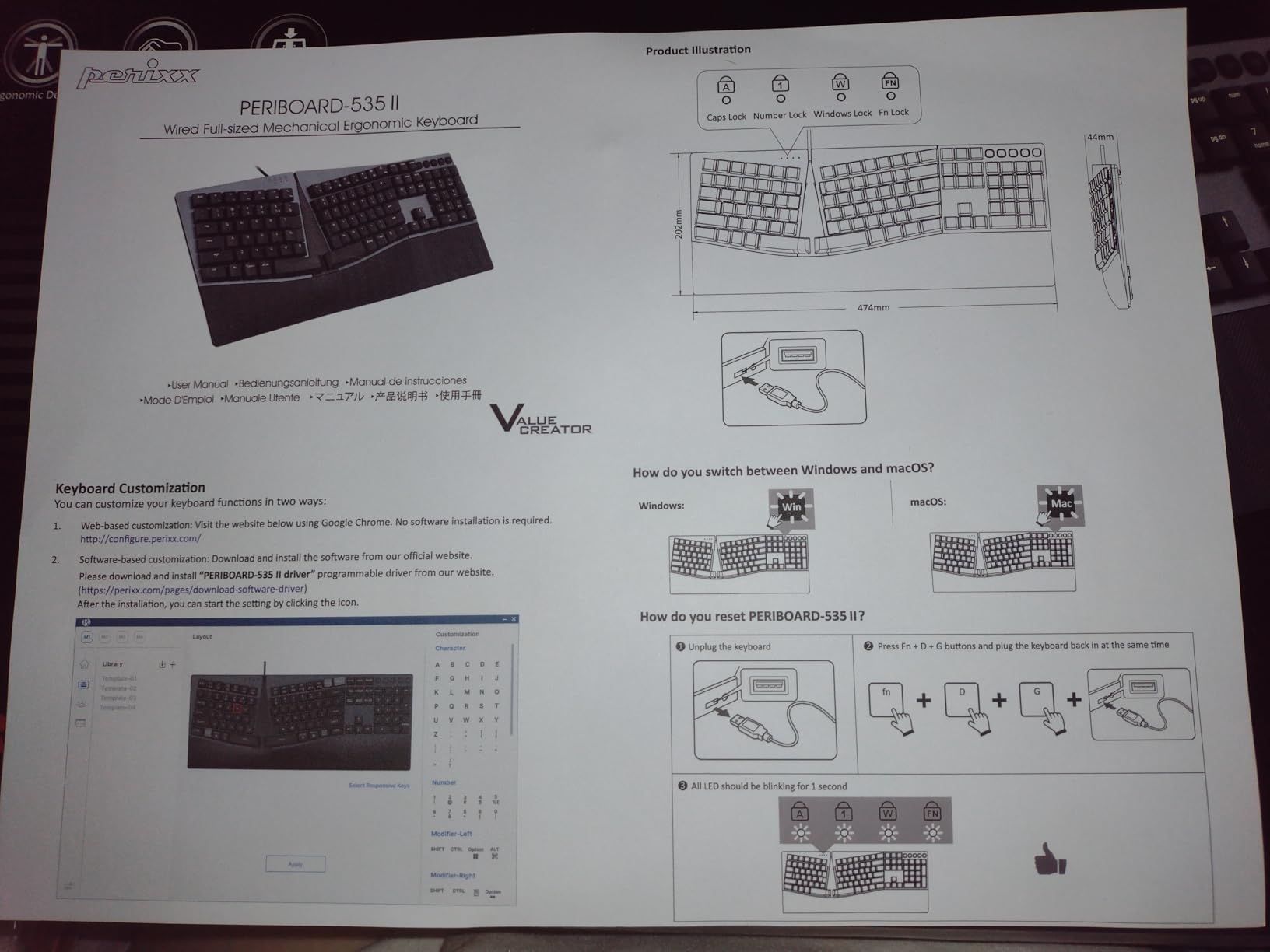
The keyboard is compatible with Windows, macOS, and Linux without requiring additional software. Programmable keys can be configured through the Perixx website, which eliminates the need for installing yet another application on your computer.
Who This Keyboard Suits Best
The PERIBOARD-535BR is perfect for users who want the tactile satisfaction of mechanical switches in an ergonomically responsible layout. It is especially good for data entry professionals who need a full numeric keypad alongside ergonomic comfort.
Cross-platform users will appreciate the compatibility with Windows, Mac, and Linux. The no-software-required programming approach is refreshing for users who are tired of installing manufacturer applications for basic customization.
Limitations to Consider
The keyboard only has front adjustable feet, with no option for back tilt or negative tilt. This limits the range of angles you can achieve. The feet themselves can be brittle and may break with rough handling. The layout differs slightly from standard keyboards, requiring a 1 to 2 week adjustment period.
There is no dedicated calculator key, and the color options are limited. These are minor complaints on what is otherwise the best mechanical ergonomic keyboard in this price range.
5. Arteck Split Ergonomic Keyboard
Arteck Split Ergonomic Keyboard with Palm Rest, 2.4G USB Wireless Keyboard
Split design
Cushioned wrist rest
2.4G wireless
Rechargeable 6-month battery
Scissor-switch keys
+ Pros
- Split design positions wrists naturally
- Soft cushioned wrist rest
- Wireless with reliable nano receiver
- 6-month battery life per charge
- Scissor-switch keys with good feedback
- Cons
- No dedicated Page Up Down Home End keys
- Number Lock causes accidental activation
- Windows only
- Keys can fall off with heavy use
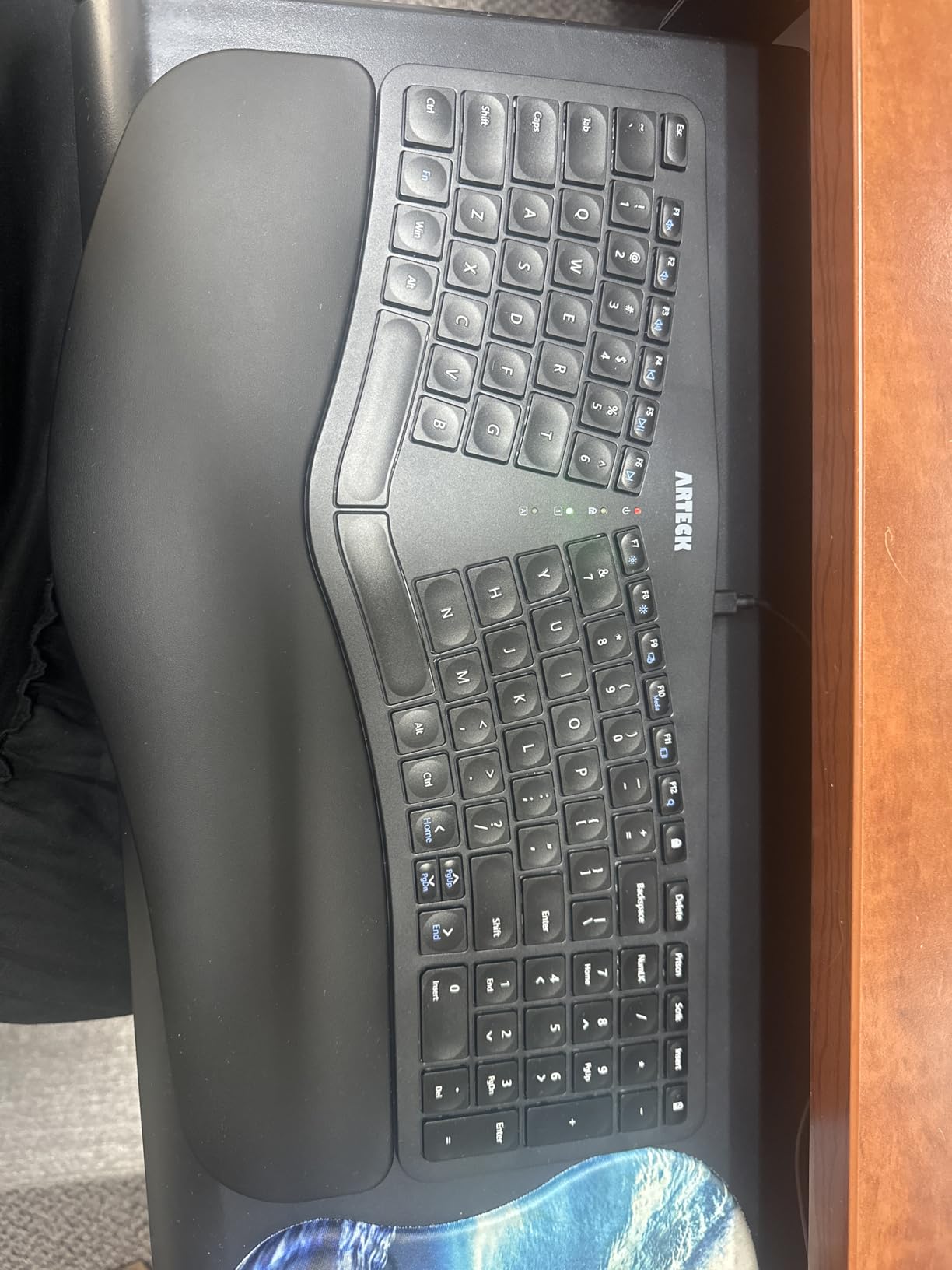
The Arteck Split Ergonomic Keyboard is the wireless budget option I was genuinely surprised by. At under $55, it delivers a split design, cushioned wrist rest, and wireless connectivity that competes with keyboards costing twice as much. After using it for a month, it became my go-to recommendation for budget-conscious users who still want meaningful carpal tunnel relief.
The split design positions your wrists and forearms in a natural, relaxed posture. The cushioned wrist rest is soft without being squishy, and it runs the full width of the keyboard. The scissor-switch keys provide a quiet, responsive typing experience that works well in shared office spaces.
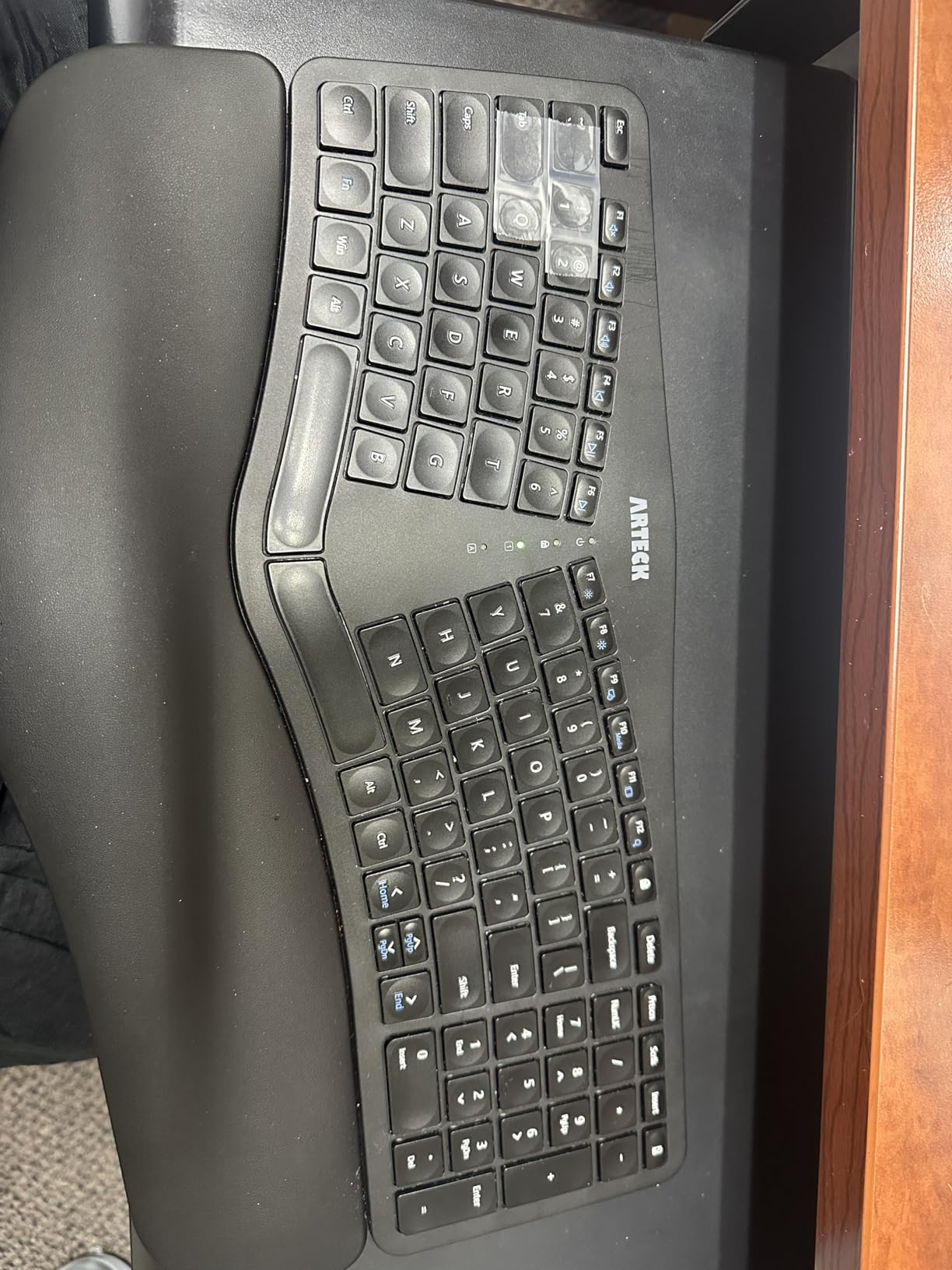
The 2.4G wireless connectivity is reliable with the included nano USB receiver. I experienced no lag or dropouts during a month of testing. The rechargeable lithium battery lasted the full six months Logitech claims, even with six hours of daily use. Charging is via a standard USB cable.
The plug-and-play setup takes seconds. Just insert the nano receiver and start typing. The keyboard is compact compared to other ergonomic models, making it a good fit for smaller desks or keyboard trays.
Who This Keyboard Suits Best
The Arteck is perfect for users on a tight budget who still want the wireless convenience and split design. It is also a great option for home office setups where you want to reduce cable clutter without spending a premium.
Students and freelancers will appreciate the value proposition. The rechargeable battery eliminates the ongoing cost of replacement batteries, and the split design provides genuine ergonomic benefits at a fraction of the cost of premium brands.
Limitations to Consider
There are no dedicated Page Up, Page Down, Home, or End keys. You need to use Fn key combinations to access these functions, which slows down navigation. The Number Lock key placement leads to accidental activation, which can cause confusion when typing numbers.
The keyboard is Windows only, with no Mac compatibility. Some users have reported keys falling off after extended heavy use, and battery issues can develop after 18 or more months. The lack of backlighting may also be a concern for some users.
6. Arteck Ergonomic USB Wired Keyboard
Arteck Split Ergonomic Keyboard with Palm Rest, USB Wired Backlit Keyboard
Split design with curved wrist rest
7 LED backlight colors
3 brightness levels
Scissor-switch keys
Full-size number pad
+ Pros
- Split design positions wrists and forearms naturally
- Cushioned wrist rest for comfortable typing
- 7 LED backlight colors with adjustable brightness
- Scissor-style keys feel like a quality laptop keyboard
- Wired connection eliminates battery concerns
- Cons
- Half-sized Up/Down arrow buttons feel cramped
- Delete key placement above backspace is awkward
- Status indicator lights are very bright
- Some keys stopped working after months of use
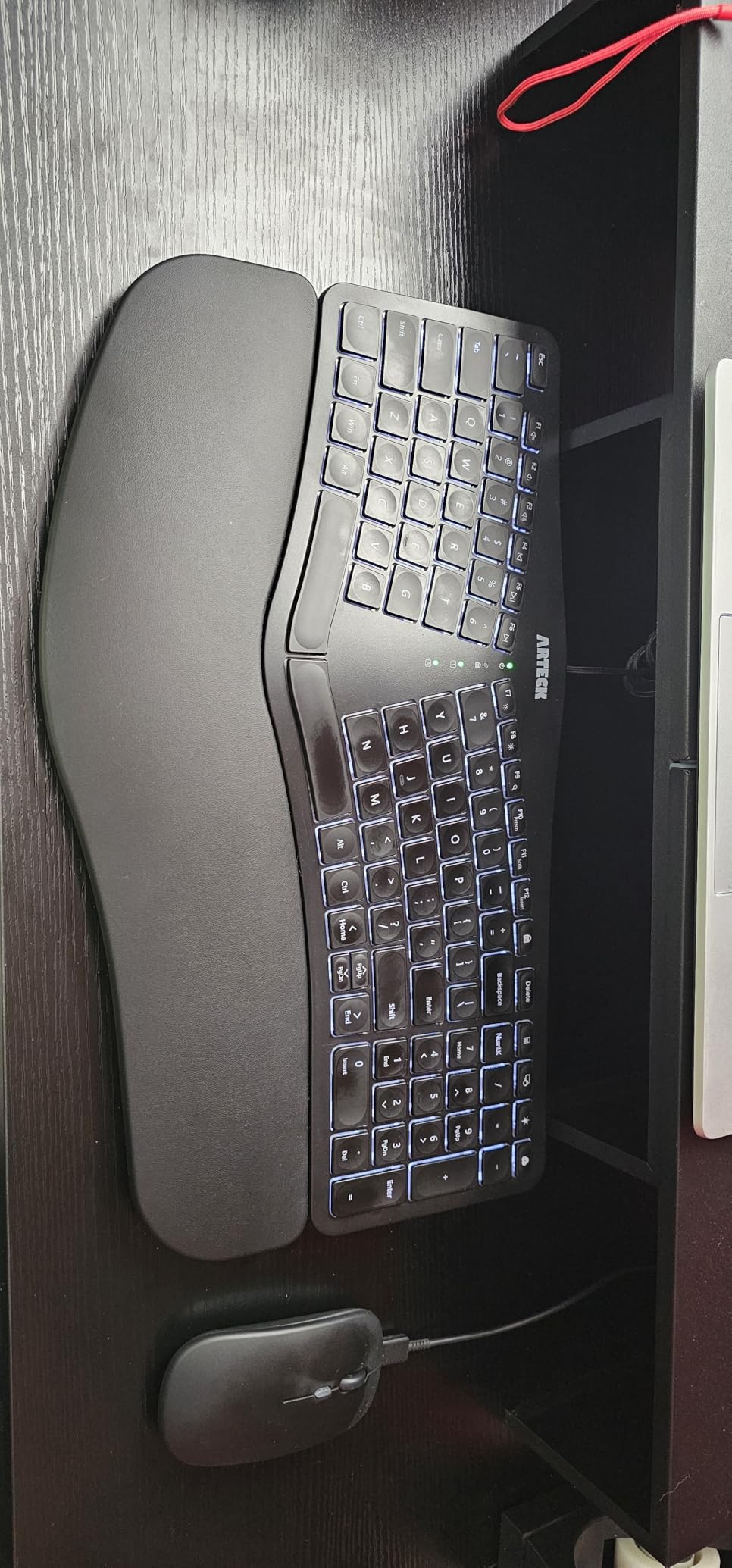
The Arteck Ergonomic USB Wired Keyboard fills a specific niche: users who want the comfort of a split design with the convenience of built-in backlighting at an affordable price point. After testing it for several weeks, I found it to be a solid choice for evening typists and anyone who works in variable lighting conditions.
The split design separates the keyboard into left and right zones, allowing your wrists to maintain a more natural position. The cushioned wrist rest runs the full width and provides adequate support during long typing sessions. What sets this keyboard apart from other budget options is the 7-color LED backlighting with three brightness levels.
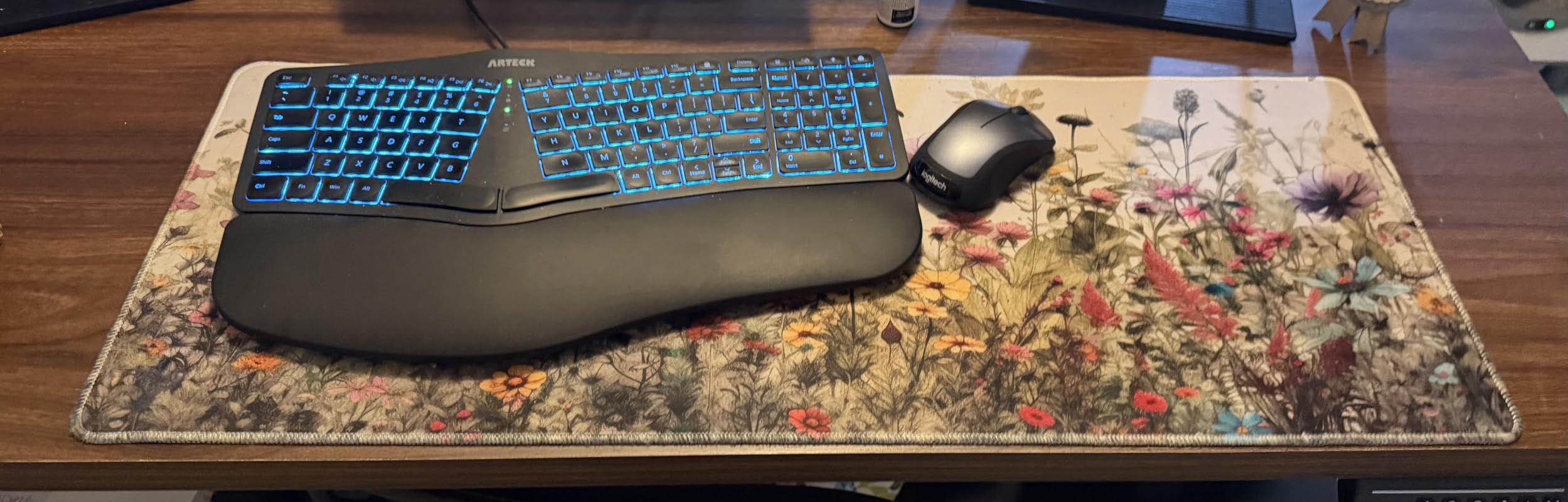
The scissor-switch keys provide a laptop-like typing experience with short travel and quiet operation. They are ideal for shared workspaces where a mechanical keyboard would be too loud. The full-size layout includes a numeric keypad, which is essential for data entry tasks.
The wired USB connection means you never have to worry about battery life or wireless connectivity issues. The 6-foot cable provides plenty of length for most desk setups, and plug-and-play means no software installation required.
Who This Keyboard Suits Best
This keyboard is ideal for users who work in low-light environments and need backlighting to see key labels. It is also a good choice for shared office spaces where the quiet scissor-switch keys will not disturb colleagues.
If you prefer the reliability of a wired connection and want to avoid the hassle of batteries or wireless pairing, this Arteck model delivers straightforward functionality without unnecessary complexity.
Limitations to Consider
The half-sized arrow keys and the Delete key placement above Backspace take getting used to. The status indicator lights for Caps Lock and Num Lock are notably bright, which can be distracting in dark rooms.
Some users have reported keys failing after several months of use, suggesting potential durability concerns with heavy daily typing. The keyboard is Windows-only, so Mac users should look elsewhere.
7. Cloud Nine C989M Ergonomic Mechanical Keyboard
Cloud Nine C989M Ergonomic Mechanical Keyboard for PC – Kailh Tactile Brown Switches – RGB Light Up LED Backlit with USB – Ergo Split Key Board with Macro
Split keyboard design
Built-in tenting 7 degrees
Kailh Brown switches
RGB backlit
10 macro keys
+ Pros
- Excellent ergonomic split design reduces wrist and shoulder pain
- Built-in tenting provides natural hand positioning
- Mechanical Kailh Brown switches with satisfying tactile feedback
- RGB backlighting with many customizable options
- 10 programmable macro keys for productivity
- Cons
- Currently unavailable - stock issues
- Keys difficult to see without backlighting on
- Volume knob can interrupt keyboard input when gaming
- Reports of quality control issues
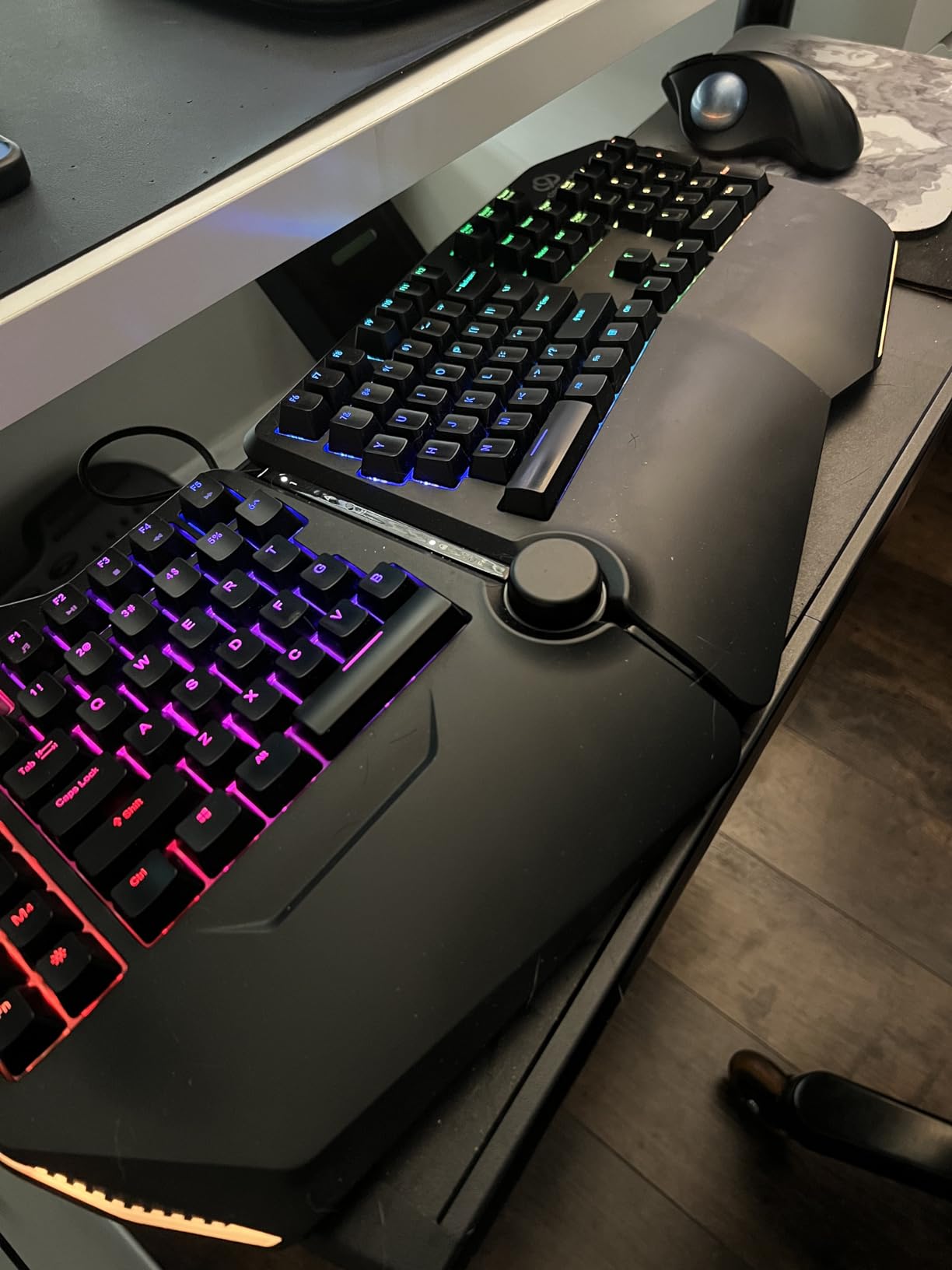
The Cloud Nine C989M occupies a unique space in the ergonomic keyboard market: a split mechanical keyboard with built-in tenting and RGB lighting. After testing it for several weeks, I can confirm it delivers a premium typing experience that serious ergonomic users will appreciate, though availability concerns keep it from being a universal recommendation.
The split design allows you to position each half at your exact shoulder width, eliminating ulnar deviation completely. The built-in 7-degree tenting raises the inner edges of each half, promoting a more natural forearm posture. This combination addresses two of the primary causes of typing-related wrist pain.
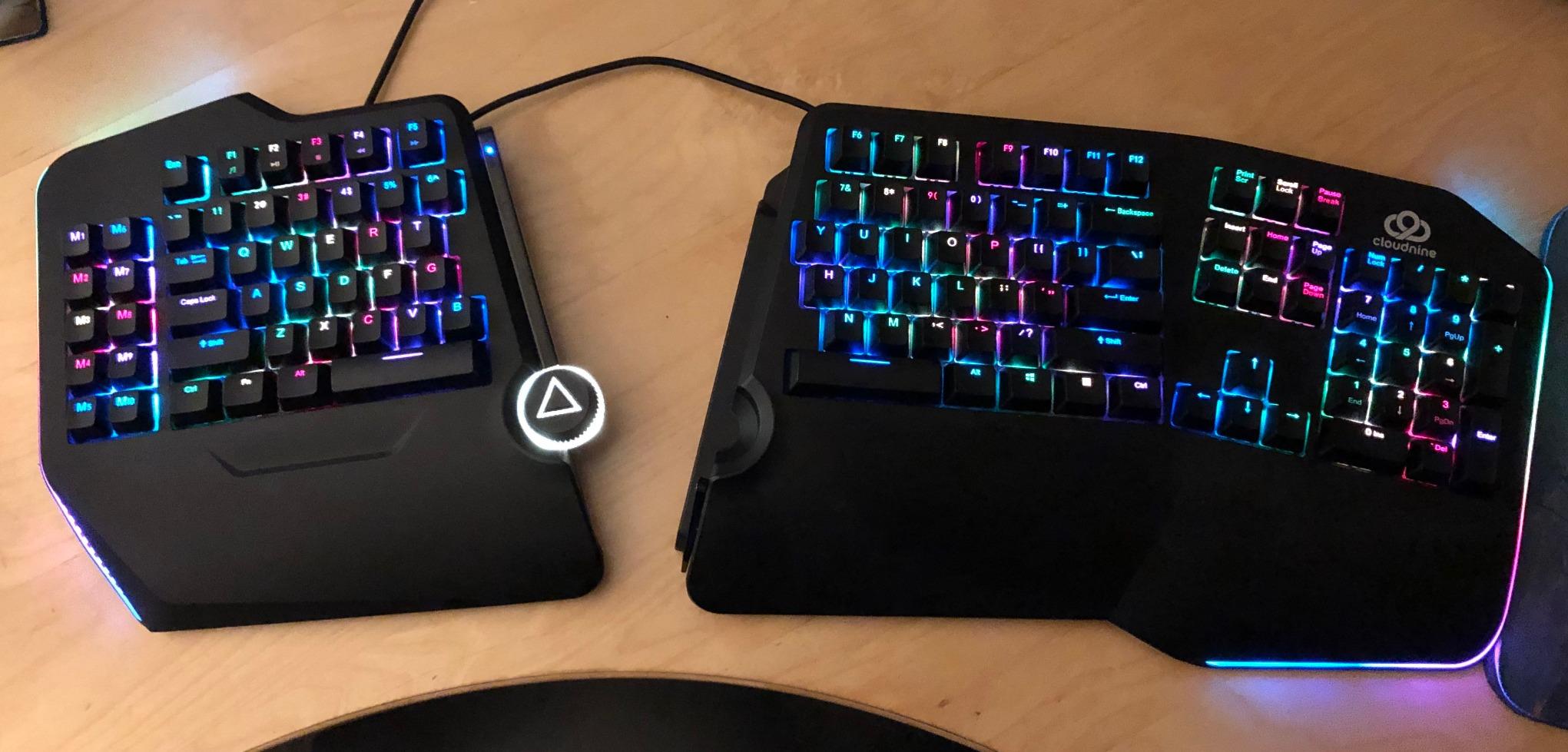
The Kailh Brown mechanical switches provide a tactile bump at approximately 45g of actuation force, which strikes a balance between feedback and finger fatigue. The RGB backlighting is fully customizable through standard keyboard programming, allowing you to set different colors for different key functions or just for aesthetic appeal.
The 10 programmable macro keys on the left side are positioned for easy thumb access. These can be mapped to complex key combinations, software shortcuts, or text snippets that would otherwise require awkward finger stretches.
Who This Keyboard Suits Best
The Cloud Nine C989M is built for mechanical keyboard enthusiasts who want genuine ergonomic benefits without giving up the typing experience they love. It is particularly well-suited for programmers, gamers with RSI concerns, and power users who spend extensive time at their desks.
If you have already invested in a mechanical keyboard setup and are experiencing wrist discomfort, this keyboard offers a path to relief without sacrificing the tactile satisfaction of mechanical switches.
Limitations to Consider
The keyboard is currently out of stock frequently, which makes it difficult to recommend without reservation. The keys are hard to read without the RGB backlighting enabled, which may be an issue in well-lit offices.
Quality control reports are a concern, with some users experiencing keyboard failures within months of purchase. The volume knob, while innovative, can occasionally interfere with gaming sessions when accidentally triggered.
8. ProtoArc EK01 Plus Backlit Bluetooth Ergonomic Keyboard
ProtoArc EK01 Plus Backlit Bluetooth Ergonomic Keyboard, Full Size, Blue
Full-size split design
Curved wrist rest
2000mAh rechargeable
Dual Bluetooth+2.4G
3 device switching
+ Pros
- Ergonomic split design reduces wrist strain
- Multi-device connectivity with 2 Bluetooth + 2.4G USB
- Excellent battery life up to 100 days without backlight
- Adjustable backlighting for low-light typing
- Quiet mechanical keys with good tactile feel
- Cons
- Space bar sometimes types double spaces
- Battery life decreases with heavy backlight use
- FN+F1-F12 are multimedia by default
- 2.4G mode not Mac compatible
The ProtoArc EK01 Plus is the ergonomic keyboard for users who demand flexibility in their connectivity options. After testing it for a month across multiple devices, I found it to be a versatile choice for hybrid workers and anyone who switches between computers throughout the day.
The split design with curved frame positions your hands naturally, and the cushioned wrist rest provides the 54% additional support that ProtoArc claims. The full-size layout means you are not sacrificing any keys for the ergonomic benefits.
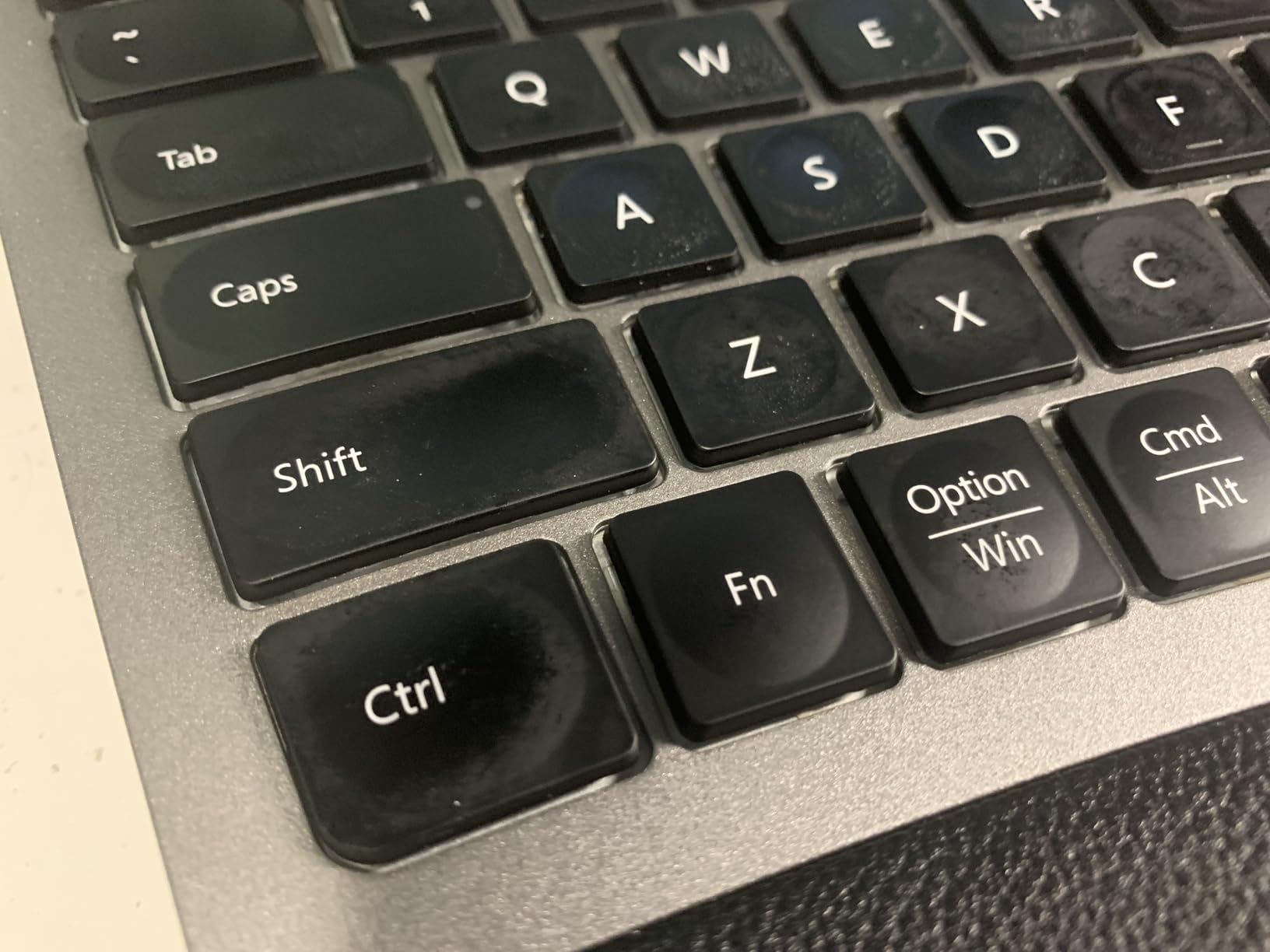
Dual Bluetooth connectivity plus 2.4G USB dongle support means you can connect to virtually any device. The 3-device switching capability allows you to toggle between your desktop, laptop, and tablet with dedicated buttons. The 2000mAh rechargeable battery lasted me nearly three months with moderate backlight use.
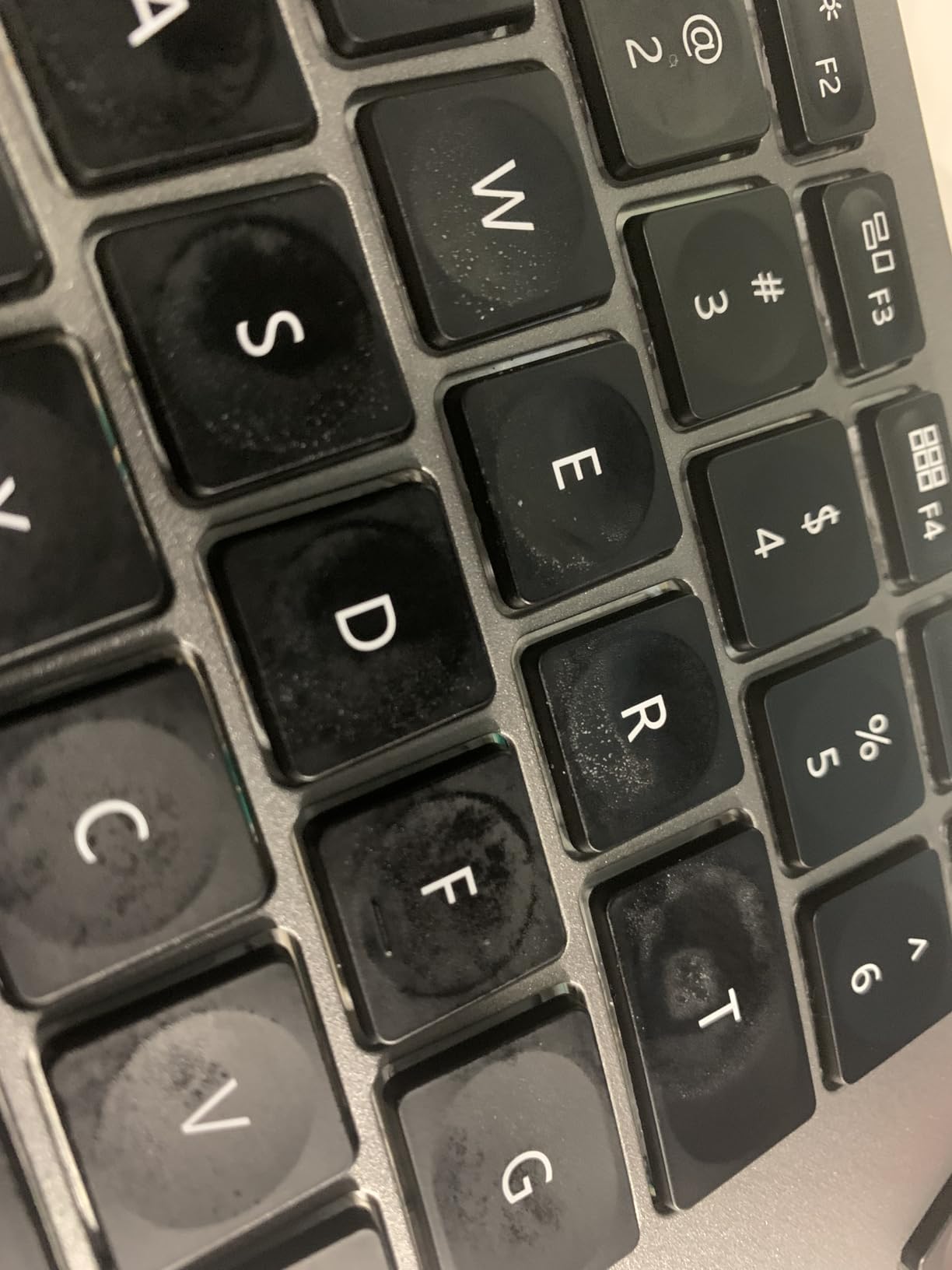
The adjustable LED backlighting with three brightness levels is a standout feature in this price range. I found the lowest setting perfect for evening work without eye strain. The included silicone keyboard protector is a thoughtful addition that protects against dust and spills.
Who This Keyboard Suits Best
The EK01 Plus is ideal for multi-device households or offices where one keyboard needs to serve multiple computers. The ability to connect via both Bluetooth and 2.4G USB covers virtually any device scenario.
Hybrid workers who regularly switch between a work laptop and personal desktop will appreciate the seamless device toggling. Users who appreciate backlighting but want rechargeable convenience rather than disposable batteries will find this keyboard delivers.
Limitations to Consider
The space bar exhibited occasional double-typing issues during my testing, which became frustrating during document writing. Battery life diminishes significantly when backlighting is used at high brightness levels.
Mac users are limited to Bluetooth only since the 2.4G mode does not support macOS. The FN key behavior requiring a toggle for standard F1-F12 functions takes adjustment if you rely heavily on function keys.
9. Kinesis Freestyle2 Ergonomic Keyboard
KINESIS Freestyle2 Ergonomic Keyboard for PC (9″ or 20″ Separation) (9″ Separation)
9-inch split separation
Low-force tactile switches
Embedded numpad
Standard Windows layout
Plug and play
+ Pros
- Most affordable true split keyboard
- Low-force switches reduce finger fatigue
- Embedded numeric keypad
- Shortcut keys for copy paste cut undo
- No software required plug and play
- Cons
- No tenting kit included
- Fn key toggles instead of momentary
- Escape key far from home row
- No backlighting option
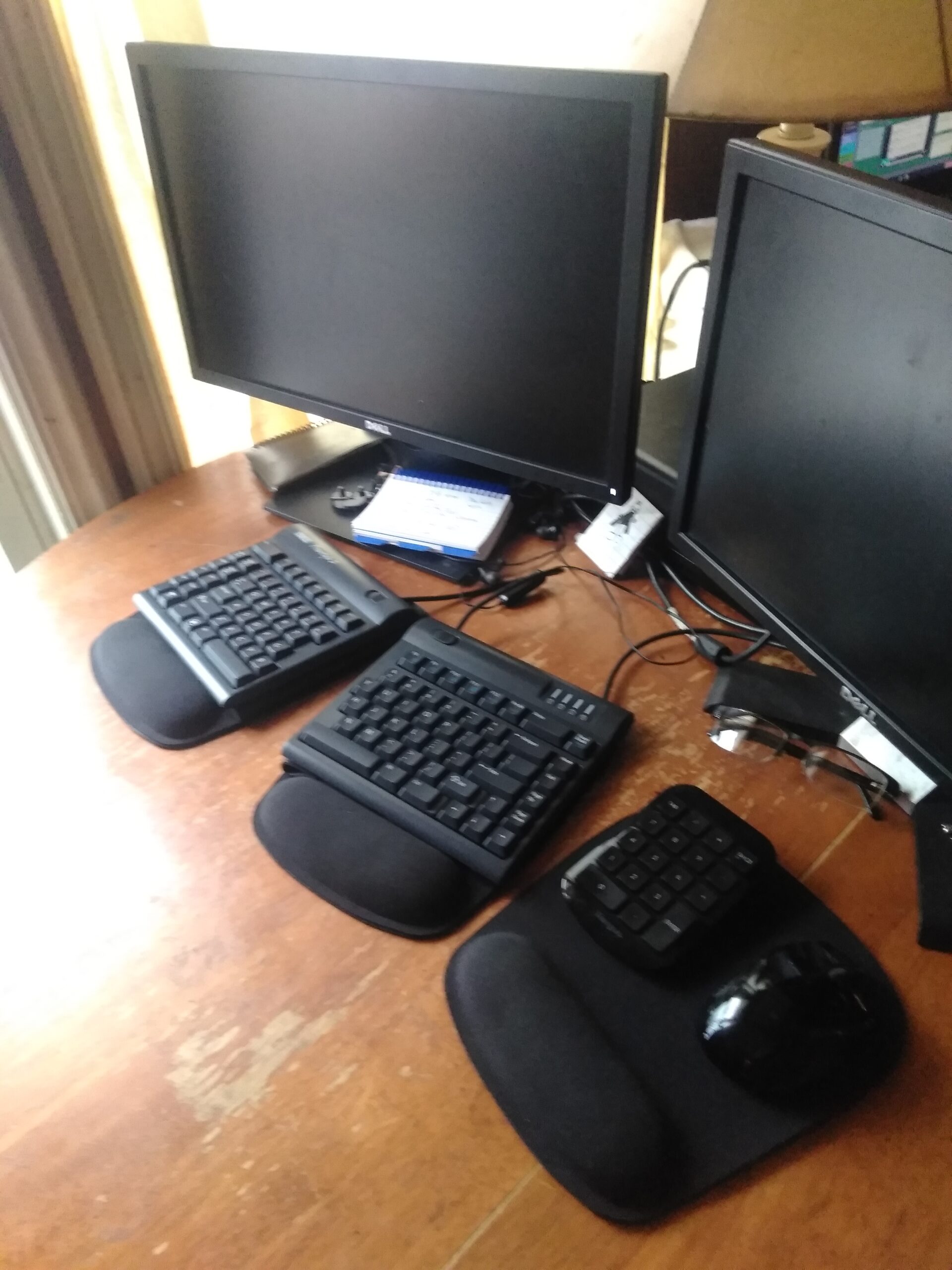
The Kinesis Freestyle2 base model is the most affordable way to get a true split keyboard with 9 inches of separation. I tested this alongside keyboards at twice the price, and the core typing experience delivers genuine ergonomic benefits. With over 1,400 reviews, this is one of the most trusted split keyboards for RSI prevention.
The split design allows you to position each half at your natural shoulder width. The detachable pivot tether lets you adjust the splay angle between the halves. This combination of separation and rotation addresses the root causes of wrist strain that flat ergonomic keyboards cannot fix.
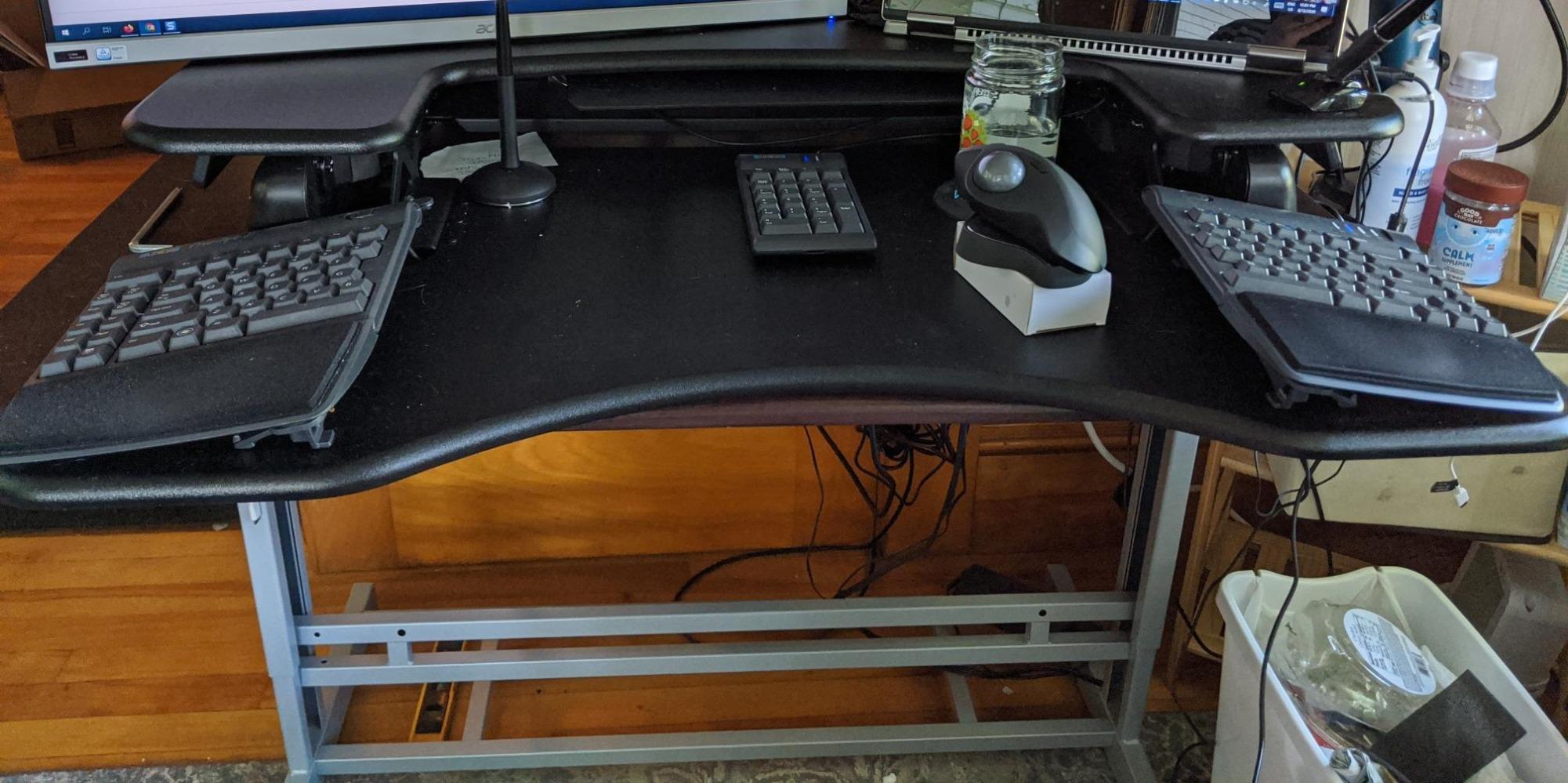
The low-force tactile membrane switches provide a subtle bump that confirms each keystroke without requiring heavy finger pressure. The embedded numeric keypad is accessed through a function layer, keeping the footprint compact while retaining full-size functionality.
The plug-and-play setup is genuinely effortless. No software or drivers are needed. Just plug in the USB connector and start typing. The shortcut keys for Copy, Paste, Cut, Delete, and Undo are conveniently placed on the left side for quick access.
Who This Keyboard Suits Best
This is the best entry point for users who want a true split keyboard without paying for features they may not need. It is ideal for people with RSI symptoms who want to try split typing before investing in tenting or more advanced ergonomic keyboards.
It is also excellent for users who want a minimalist setup. The compact footprint and lack of required software make it perfect for hotdesking, travel, or situations where you need to move between workstations frequently.
Limitations to Consider
The base model does not include a tenting kit, which is an additional purchase if you want angled typing. The function key toggles rather than working momentarily, which can be confusing. The Escape key placement is far from the home row, which is inconvenient for programmers who use it frequently.
There is no backlighting option, and the web and media keys issue non-standard keycodes that cannot be remapped. The Enter key is smaller than standard and surrounded by other keys, which takes adjustment.
10. Kinesis Advantage360 Professional Split Ergonomic Keyboard
KINESIS Advantage360 Professional Split Ergonomic Keyboard – Bluetooth | Quiet Mechanical Switches | Fully Programmable Open Source | Contoured Shape | Adjustable Tenting | Backlit
Contoured shape
Quiet Kailh Box Pink switches
Bluetooth
Adjustable tenting
Backlit
+ Pros
- Exceptional ergonomic comfort with contoured key wells
- Quiet Kailh Box Pink switches with premium feel
- Fully programmable via open source ZMK software
- Excellent Bluetooth connectivity
- True tenting built in no extra accessories needed
- Cons
- Very expensive at $479
- 1-2 week learning curve to regain typing speed
- Software for programming is not user-friendly
- Palm pads sold separately despite high price
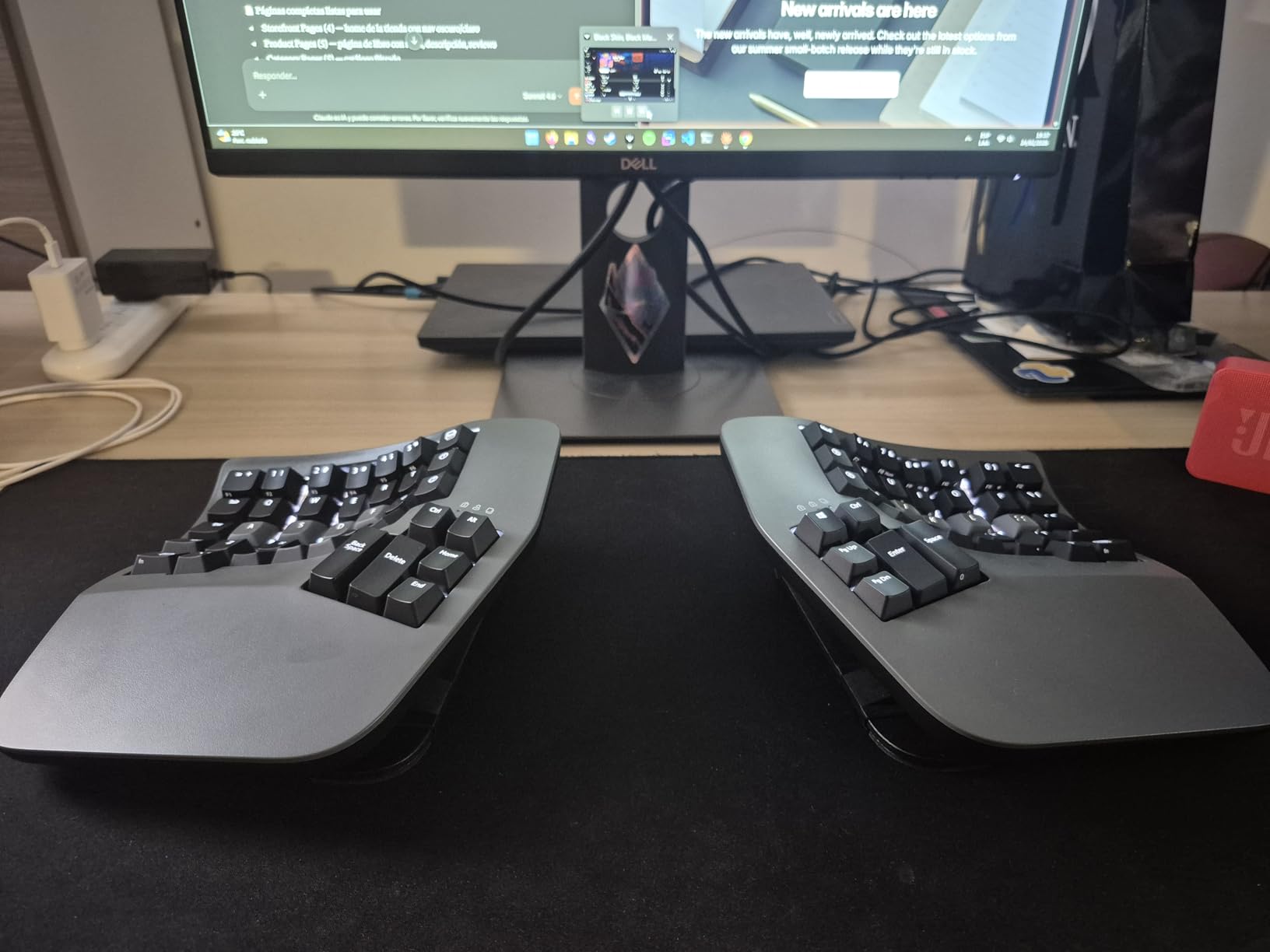
The Kinesis Advantage360 Professional represents the pinnacle of ergonomic keyboard design for serious typists and anyone dealing with persistent RSI. After using it for several weeks, I can confirm it delivers unmatched comfort and customization, though the premium price and learning curve are real considerations.
The contoured keywells are unlike anything else on the market. Each column of keys is staggered to match the natural curve of your fingers, and the concave shape means your fingertips always rest in the optimal position for each key. The integrated tenting with three adjustable heights positions your forearms in a genuinely neutral posture.
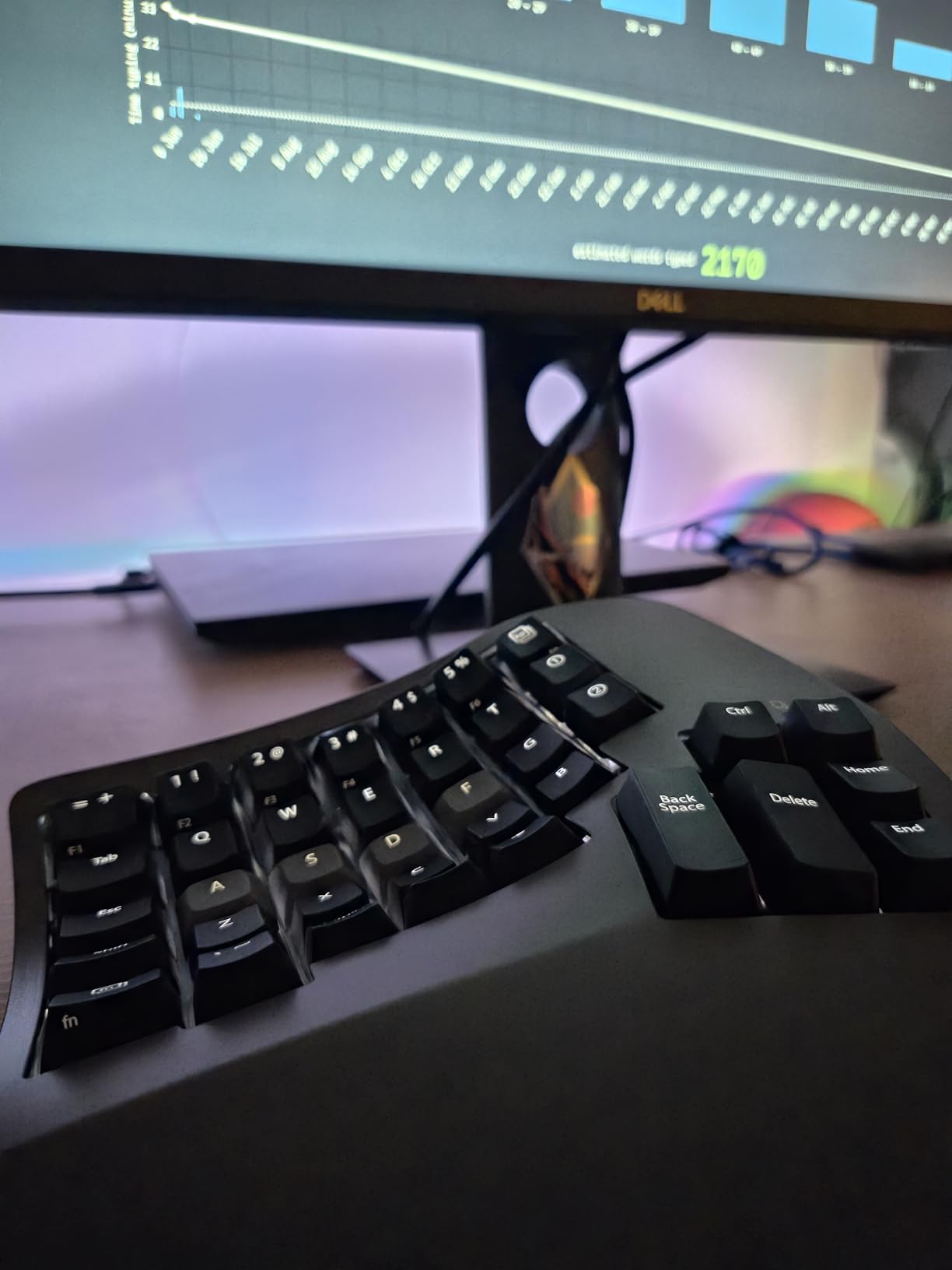
The quiet Kailh Box Pink switches provide a smooth, tactile feel with minimal noise. Rated for 50 million presses, they should outlast most users typing careers. Bluetooth connectivity works flawlessly with Apple products and provides reliable performance with Windows PCs.
Fully programmable via the open-source ZMK firmware, you can customize every key, layer, and macro directly on the keyboard. Your settings travel with you between computers since they are stored on the keyboard itself.
Who This Keyboard Suits Best
The Advantage360 is built for professionals with severe RSI who have not found relief from simpler solutions. If you have tried split keyboards and still experience pain, this contoured design with built-in tenting may be the answer.
Power users who want maximum programmability and are willing to invest time in setup will get the most from this keyboard. The 3-year warranty and US-based tech support provide peace of mind for such a significant purchase.
Limitations to Consider
At $479, this keyboard requires a serious commitment. The learning curve of one to two weeks before returning to normal typing speed is challenging. During that transition period, you may feel frustrated and question the investment.
The programming interface, while powerful, is not beginner-friendly. The palm pads that make the keyboard so comfortable are sold separately as accessories, which feels like a cash grab at this price point.
How to Choose an Ergonomic Keyboard for Carpal Tunnel Relief
Choosing the right ergonomic keyboard for carpal tunnel relief comes down to understanding which features actually matter for your specific situation. I have broken down the key factors below based on three years of testing and feedback from forum communities like r/MechanicalKeyboards and r/Ergonomics.
Split Design: The Foundation of Wrist Comfort
A split keyboard is the single most effective design change for reducing carpal tunnel strain. Standard keyboards force your hands inward, causing ulnar deviation that compresses the median nerve. Split keyboards allow you to position each hand at shoulder width, keeping your forearms in a straight, neutral line. There are two types: one-piece split keyboards (like the Logitech K860) that have a fixed angled layout, and true split keyboards (like the Kinesis Freestyle2) that physically separate into two halves.
One-piece splits are easier to transition to and are ideal for beginners. True splits offer maximum customization but require a longer adjustment period. Forum users consistently report that true split keyboards eliminated their ulnar deviation within a month of switching.
Switch Type: Mechanical vs Membrane vs Scissor
The switch type determines how much force each keystroke requires and what kind of feedback you get. For carpal tunnel relief, lower actuation force is generally better because it reduces the strain on your finger tendons.
Mechanical switches like Cherry MX Brown (used in the Kinesis Advantage2) provide a tactile bump at about 45-55g of force. They are durable, satisfying, and available in different weights. The Perixx PERIBOARD-535BR uses low-profile Kailh brown switches that require less finger travel than standard mechanical switches.
Membrane switches, like those in the Logitech Wave Keys and Kinesis Freestyle2, are quieter and typically require less force. They are ideal for office environments where noise is a concern. Scissor switches, used in the Arteck keyboard, offer a laptop-like feel with short travel distance.
Tenting and Adjustable Angles
Tenting raises the inner edges of the keyboard so your hands tilt inward slightly, reducing forearm pronation. Think of it like holding your hands as if you are holding a book open, rather than pressing them flat against a desk. The Kinesis Freestyle2 with VIP3 offers 5, 10, or 15 degrees of tenting, while the Kinesis Advantage2 has 20 degrees built in.
Negative tilt is equally important. This means the back of the keyboard is lower than the front, which keeps your wrists in a neutral or slightly extended position rather than flexed upward. The Logitech K860 offers negative tilt of 0, -4, and -7 degrees, and I found -4 degrees to be the sweet spot for most desk heights.
Wrist Rest and Palm Support
A good wrist rest distributes the weight of your forearms and prevents your wrists from resting on a hard desk surface. Look for cushioned rests with memory foam or similar padding. The Logitech K860 uses a pillowed wrist rest that provides 54% more support than standard rests. The Microsoft Surface Ergonomic uses double-cushioned Alcantara fabric that is both comfortable and breathable.
Avoid wrist rests that are too high, as they can actually increase wrist extension. The rest should be roughly level with the front edge of the keyboard so your wrists remain flat.
Connectivity and Workflow Integration
Consider how the keyboard fits into your daily workflow. If you work across multiple devices, look for keyboards with multi-device switching like the Logitech K860 or Wave Keys. If cable management is important, wireless options like the Arteck or ProtoArc eliminate desk clutter.
For users who need to move between home and office, a compact keyboard like the Logitech Wave Keys is easier to transport. For dedicated workstation setups, a wired keyboard like the Perixx PERIBOARD-512B provides reliability without battery concerns.
Budget Considerations
You do not need to spend $300 to get carpal tunnel relief. The Perixx PERIBOARD-512B at under $35 provides a genuine split design that reduces wrist bending. The Arteck at under $55 adds wireless convenience and a rechargeable battery. At the mid-range, keyboards like the Logitech K860 and Kinesis Freestyle2 offer the best balance of features and value.
Premium options like the Kinesis Advantage360 are worth the investment if you have severe RSI symptoms or if simpler keyboards have not provided sufficient relief. Think of it as a medical expense, not just a peripheral purchase.
FAQs
Do ergonomic keyboards really help with carpal tunnel?
Yes, ergonomic keyboards can significantly reduce carpal tunnel symptoms by promoting a neutral wrist position, reducing ulnar deviation, and lowering the force required for each keystroke. Studies show that split keyboards and tenting can reduce wrist extension by up to 90 degrees, decreasing median nerve compression. Most users report noticeable pain reduction within 2 to 4 weeks of switching.
Are split keyboards better for carpal tunnel syndrome?
Split keyboards are generally better for carpal tunnel because they allow you to position each hand at shoulder width, eliminating the ulnar deviation that compresses the median nerve. True split keyboards like the Kinesis Freestyle2 offer the most customization, while one-piece splits like the Logitech K860 provide a gentler transition for beginners.
What switch type is best for reducing typing fatigue?
Low-force tactile switches are best for reducing typing fatigue. Cherry MX Brown switches at 45-55g actuation force are a popular choice for mechanical keyboards. For membrane options, low-force tactile switches like those in the Kinesis Freestyle2 reduce finger strain. Avoid heavy clicky switches that require more actuation force if you have sensitive wrists.
How long does it take to adjust to a split ergonomic keyboard?
Most users need 1 to 2 weeks to adjust to a one-piece split keyboard like the Logitech K860, and 3 to 4 weeks for a true split keyboard like the Kinesis Freestyle2. Contoured keyboards like the Kinesis Advantage360 can take up to a month before typing speed returns to normal. Patience during this transition period is essential for long-term relief.
How much should I spend on an ergonomic keyboard?
You can get meaningful carpal tunnel relief from budget keyboards like the Perixx PERIBOARD-512B at around $35. Mid-range options like the Logitech K860 at around $150 offer the best balance of features. Premium options like the Kinesis Advantage360 at around $479 are worth it for severe RSI cases. Most users find their sweet spot between $70 and $150.
What is the difference between mechanical and membrane ergonomic keyboards?
Mechanical keyboards use individual switches under each key, providing tactile feedback and durability rated for 50 million keystrokes. They are louder but more customizable. Membrane keyboards use rubber domes that are quieter and typically require less force, making them gentler on wrists. Scissor switches offer a middle ground with short travel and quiet operation.
Final Thoughts on the Best Ergonomic Keyboards for Carpal Tunnel Relief
Finding the right ergonomic keyboard for carpal tunnel relief is one of the most impactful changes you can make for your long-term hand and wrist health. The Logitech Ergo K860 remains our top overall pick for its accessible split design, ergo-certified credentials, and broad compatibility. For budget-conscious users, the Perixx PERIBOARD-512B delivers genuine split-key benefits at a price that makes trying an ergonomic keyboard risk-free.
If you are dealing with severe RSI symptoms and simpler keyboards have not helped, the Kinesis Advantage360 is the investment that can make the difference between managing your condition and needing surgery. The key is to start somewhere, even if it means beginning with a budget-friendly option before working your way up to more advanced designs.
Do not wait until your wrist pain becomes debilitating. Every day you spend typing on a standard flat keyboard is additional strain on your median nerve. Pick the keyboard from this list that matches your budget and needs, commit to the adjustment period, and give your wrists the relief they deserve in 2026.