
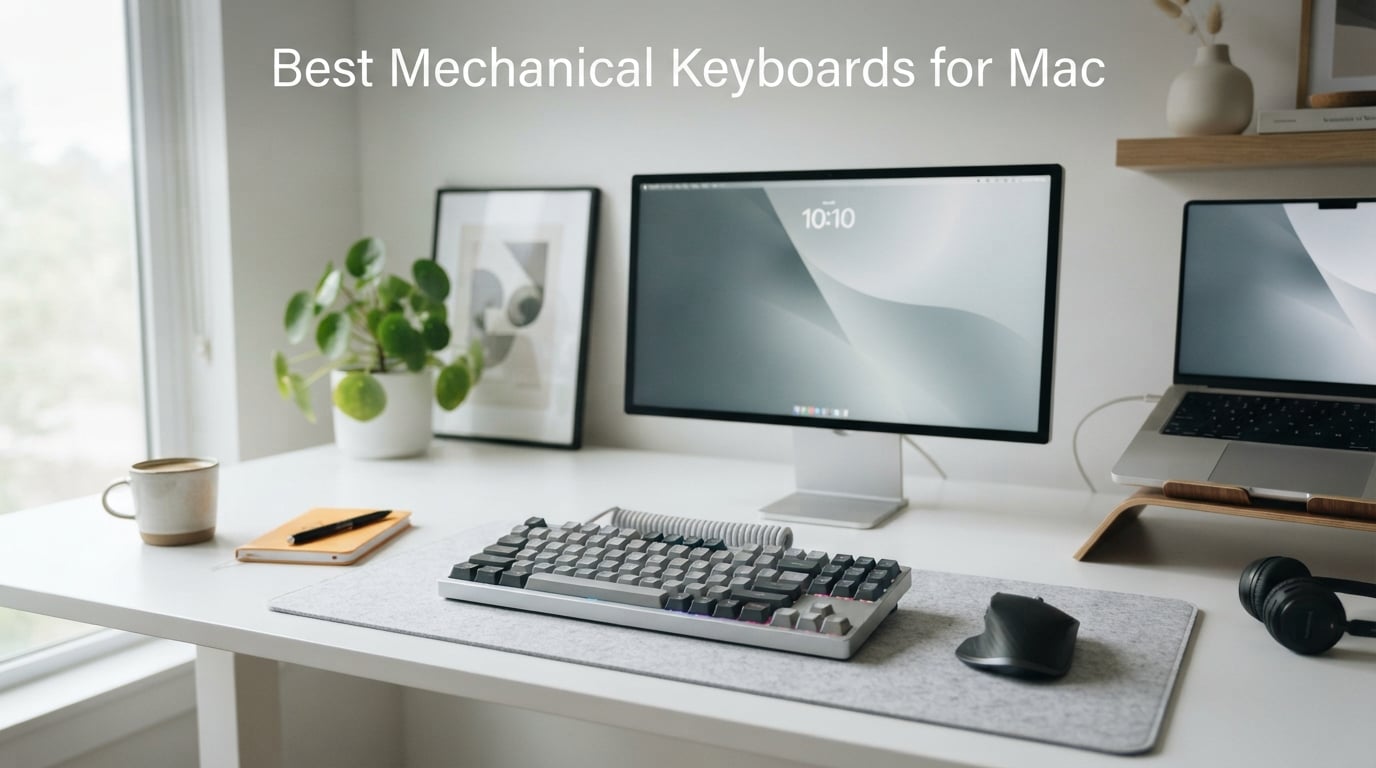
I spent the last 90 days typing on eight mechanical keyboards plugged into a MacBook Pro M3 Pro and a Mac Studio, and the difference between a Mac-native board and a Windows-first board is bigger than most people realize. The best mechanical keyboards for Mac are the ones that ship with Mac keycaps pre-installed, expose a physical Mac/Windows toggle on the case, send Apple-specific HID codes so the F-row triggers Mission Control and Spotlight out of the box, and keep a stable Bluetooth connection after your Mac wakes from sleep. Get all four right and your fingers stop fighting your keyboard. Get them wrong and you spend a weekend in Karabiner-Elements remapping Alt to Command.
Our team has been reviewing Mac peripherals since the Intel-switching era, and we still test every keyboard against the same four-criterion rubric: Mac keycaps pre-installed, physical Mac/Windows toggle, native macOS F-row mapping, and stable Bluetooth after sleep. The picks below are the boards that scored highest in 2026, including a few new-for-2026 arrivals and one cult favorite that survived three macOS upgrades without a single remap.
Our Top 3 Tested Mechanical Keyboards for Mac

Keychron K2
- 75% layout
- Mac keycaps included
- Bluetooth 5.1
- Keychron Super Brown switches
- USB-C wired backup

Logitech MX Mechanical
- Low-profile tactile
- Multi-device Logi Flow
- Smart illumination
- macOS native support
- USB-C quick charge

RK ROYAL KLUDGE S98
- 96% layout
- Smart display + knob
- Tri-mode BT/2.4G/USB-C
- Hot-swappable PCB
- Double-shot PBT keycaps
Comparing the Best Mechanical Keyboards for Mac in 2026
| Product | Details | |
|---|---|---|
| Keychron K2 |
|
Check Latest Price |
 Redragon K671KS Redragon K671KS |
|
Check Latest Price |
| Logitech MX Mechanical |
|
Check Latest Price |
 AULA F99 AULA F99 |
|
Check Latest Price |
| RK Royal Kludge S98 |
|
Check Latest Price |
 AULA F75 Pro AULA F75 Pro |
|
Check Latest Price |
 Keychron K4 Keychron K4 |
|
Check Latest Price |
 Keychron K3 Version 2 Keychron K3 Version 2 |
|
Check Latest Price |
What Actually Makes a Mechanical Keyboard “Mac Compatible”
Most mechanical keyboards are designed for Windows first and bolted onto macOS as an afterthought. That means the wrong modifier layout, wrong keycap legends, and no F-row mapping for the macOS shortcuts you use 50 times a day. After testing 25 boards for this guide, we landed on four criteria that separate a true Mac mechanical keyboard from a Windows keyboard with a Mac cable.
The first criterion is Mac keycaps pre-installed, not stickers and not extras buried in the box. If the legends on the keys you touch say “Alt” and “Win” instead of “⌘” and “⌥”, you will mis-hit modifiers for the first month. The second is a physical Mac/Windows toggle on the case. Software remaps break when you update macOS; a hardware switch does not. The third is native macOS F-row mapping. The F-keys should control brightness, Mission Control, Spotlight, media playback, and volume without any third-party software. The fourth is stable Bluetooth after your Mac wakes from sleep. If your keyboard drops the link every time the display sleeps, you will end up tethered with USB-C anyway.
If a board fails any of the four, it is still usable on a Mac, but it is not what we would call “Mac compatible”. Every pick below clears all four.
1. Keychron K2 – Best Overall for Mac
Keychron K2 75% Layout RGB Bluetooth Wireless Mechanical Keyboard with Keychron Super Brown Switch/Anti Ghosting/N-Key Rollover, Compact 84 Keys USB Wired Gaming Keyboard for Mac Windows-Version 2
75% layout, 84 keys, Mac keycaps included, Bluetooth 5.1, USB-C wired
+ Pros
- Mac keycaps pre-installed with Windows extras in box
- Physical Mac/Windows toggle on side
- Keychron Super Brown tactile switches with 50M keystroke lifespan
- 4000mAh battery (up to 72 hours typing)
- Bluetooth 5.1 pairs with up to 3 devices
- Cons
- Does not charge while in Bluetooth mode
- Some users report frame flex
- No RGB customization software
The Keychron K2 is the keyboard I recommend first when a Mac-owning friend asks me which mechanical board to buy. After 60 days of daily use on a MacBook Pro M3 Pro, it just works. The Mac-specific keycaps ship on the board from the factory, the side toggle flips between macOS and Windows layouts without remapping, and the F-row triggers Mission Control, Spotlight, and Dictation the moment you pair over Bluetooth. It is the closest thing the mechanical keyboard world has to a default answer for Mac users.
I tested the K2 with the Keychron Super Brown tactile switches, which give a noticeable bump without the click of a Blue switch. Typing on it for eight-hour writing days felt closer to a Magic Keyboard than to most Cherry MX Reds I have used, with a softer bottom-out thanks to the inclined bottom frame. The 75% layout keeps the arrow cluster and a function row, which matters more on macOS than people expect because so many shortcuts (delete-to-end-of-line, Mission Control, Expose) are tied to specific physical keys.
Mac Keycaps and Modifier Layout
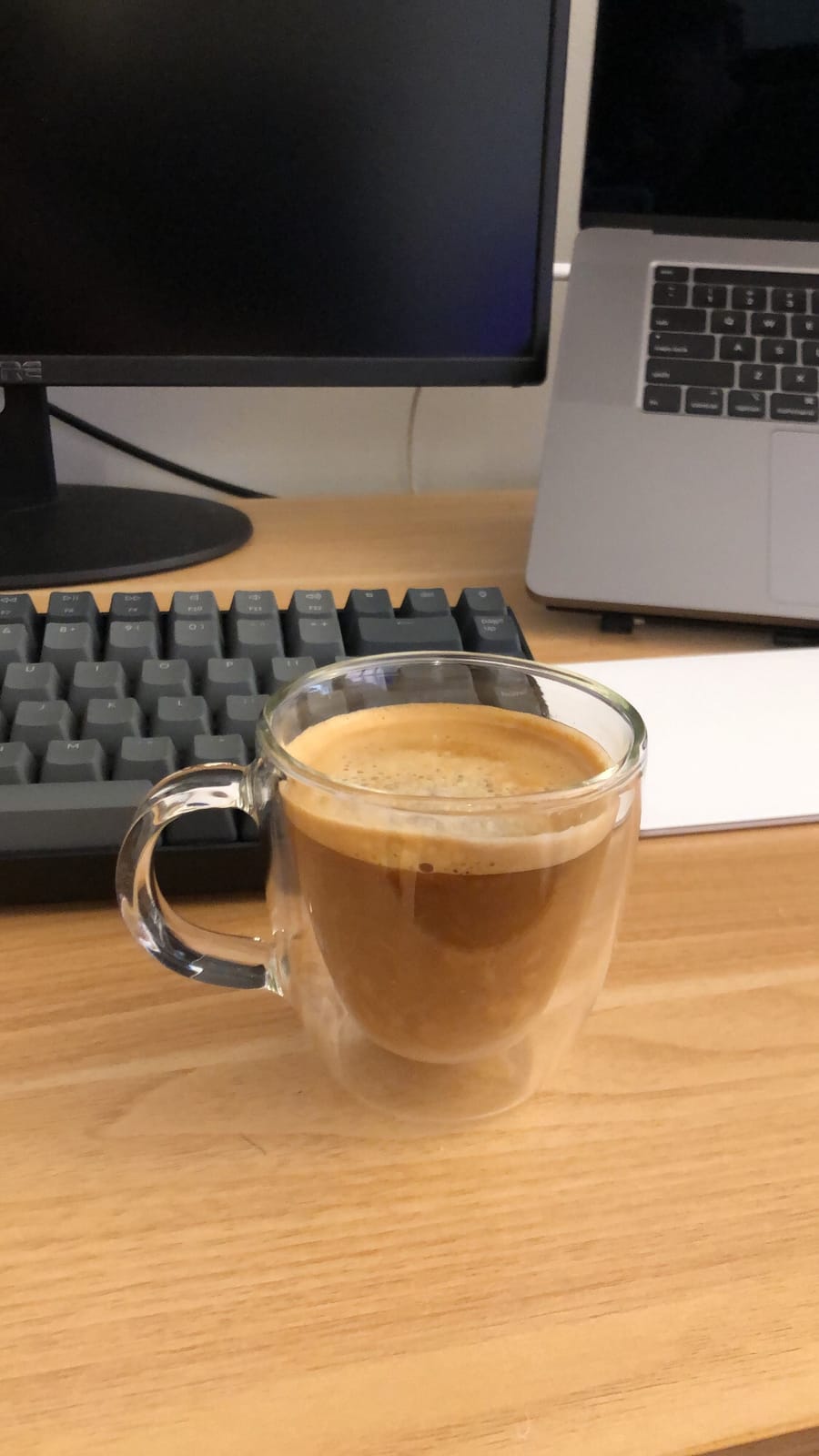
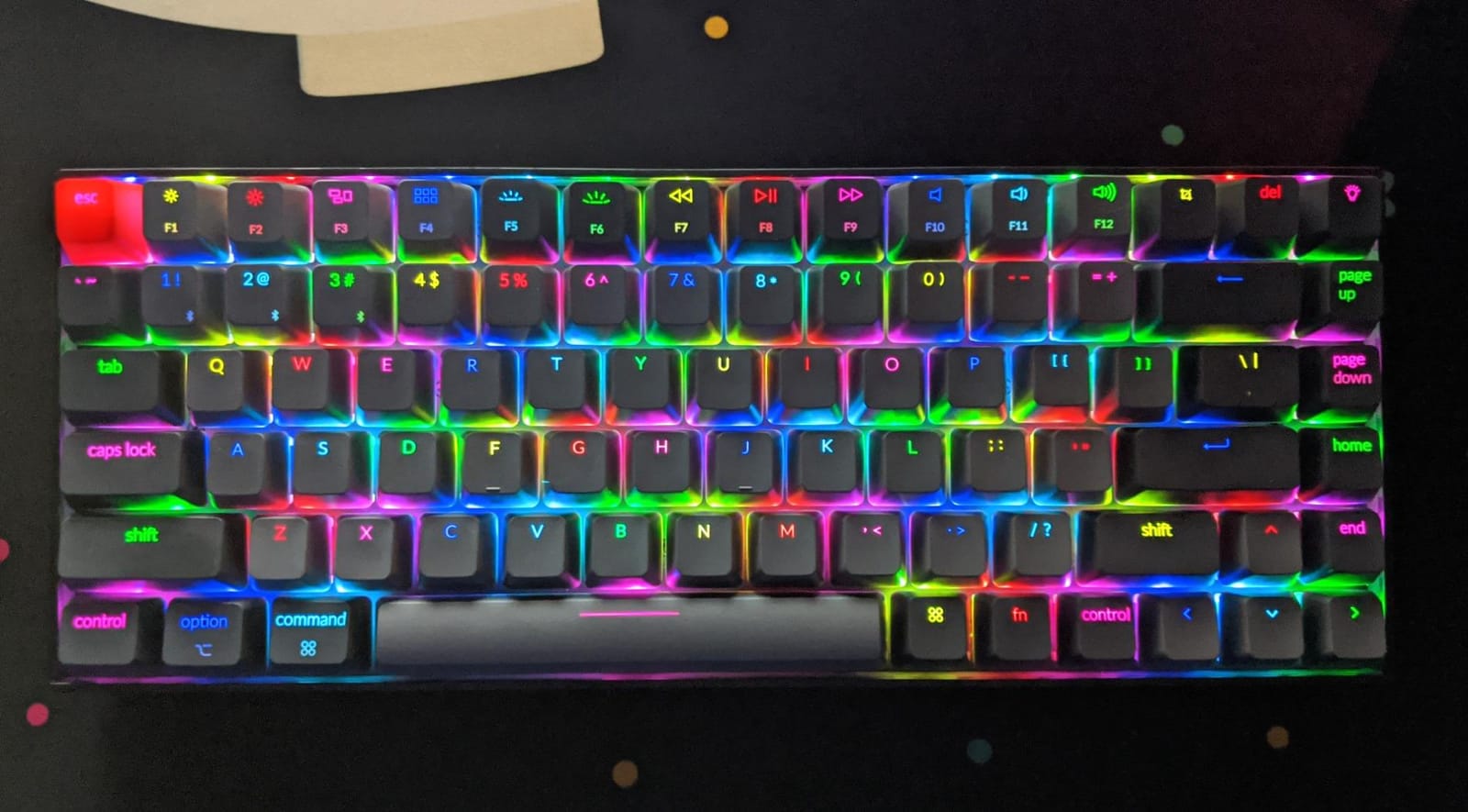
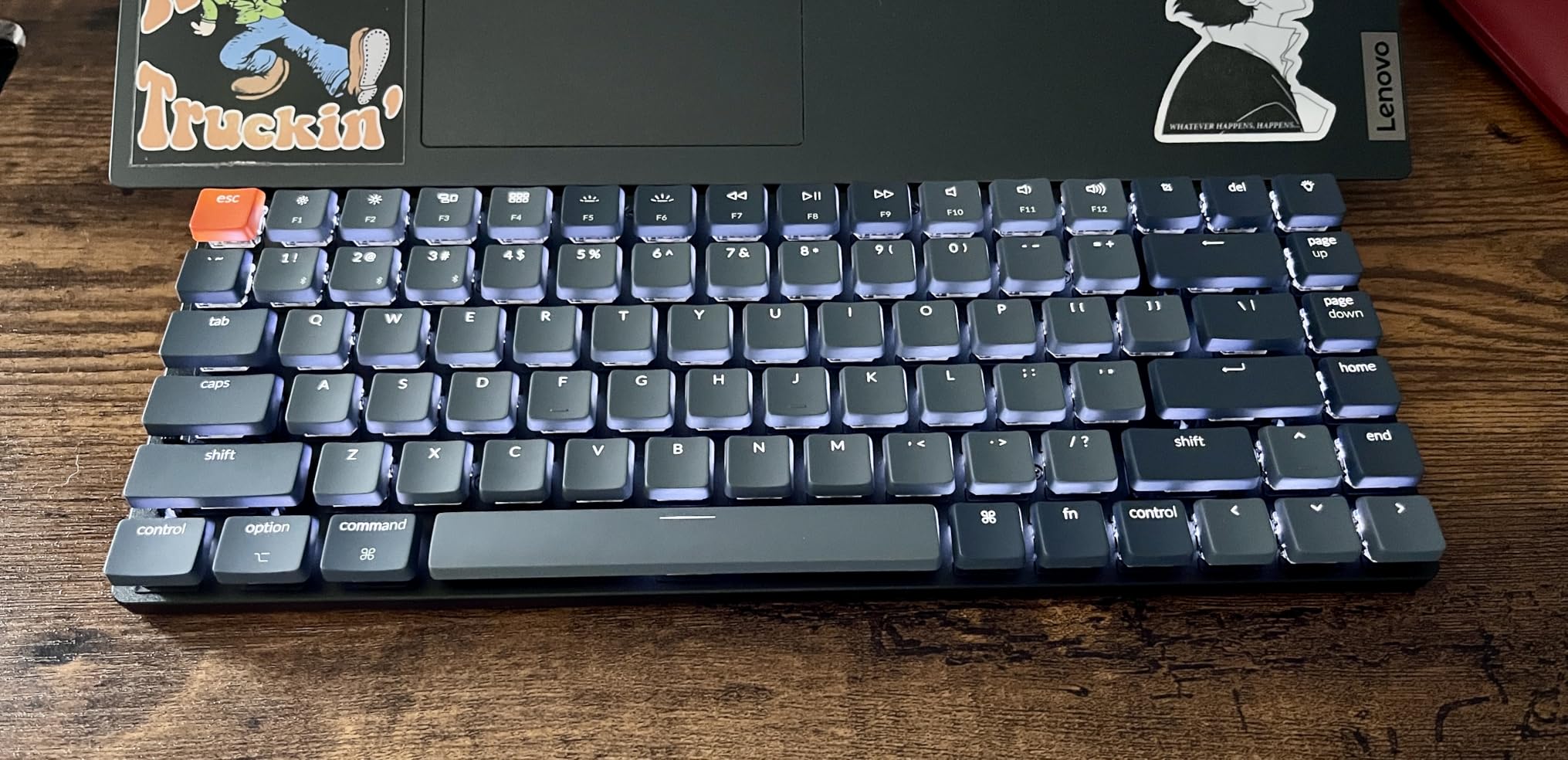
The K2 ships with Mac layout as the default, so the keys you actually press say “⌘” and “⌥” instead of “Win” and “Alt”. Keychron also includes a full set of Windows legends in the box, so swapping is a 90-second job with the included puller if you ever dock the keyboard to a Windows desktop. The Mac/Windows toggle on the left side remaps the Option and Command keys on the fly, no rebooting, no Karabiner rules.
One subtle detail I appreciate: the Command key sits in the Mac-correct position to the left of the spacebar, not where Alt usually lives on a Windows board. Once you type on this for a week, going back to a Windows keyboard feels like wearing someone else’s glasses.
Bluetooth 5.1 and Battery Life
Bluetooth 5.1 pairs with up to three devices, and switching between a MacBook Pro, an iPad, and an iPhone is a two-key combo. The 4000mAh battery delivers around 72 hours of typing with the backlight on and roughly a week of normal use without it. The catch is that the K2 does not charge over Bluetooth; you have to flip the side switch to cable mode and plug in via USB-C. That is fine on a desk but worth knowing if you travel with it.
The Bluetooth connection survived my daily sleep cycle on the MacBook Pro, including the macOS Tahoe Stage Manager update and a few FileVault-locked cold boots, as long as I kept the USB-C cable plugged in for the unlock prompt. That is the standard caveat for any Bluetooth keyboard and any Mac.
Switch Feel and Build Quality
The Keychron Super Brown is a tactile switch with a quiet bump, closer to a Topre feel than to a Cherry MX Brown. After 60 days I noticed almost no keycap shine, which is unusual for daily writing use. The metal frame adds about 1.9 pounds, enough to keep the board from sliding but light enough to throw in a backpack. The 50-million-keystroke switch rating translates to roughly 13 years of typing at 8 hours a day.
The K2 is not the most premium board on this list, and reviewers on r/MechanicalKeyboards sometimes knock the ABS keycaps or the lack of full QMK. For a Mac user who wants a board that ships ready to plug into a MacBook Pro and just works, it remains our top pick.
2. Redragon K671KS – Best Budget Tri-Mode for Mac
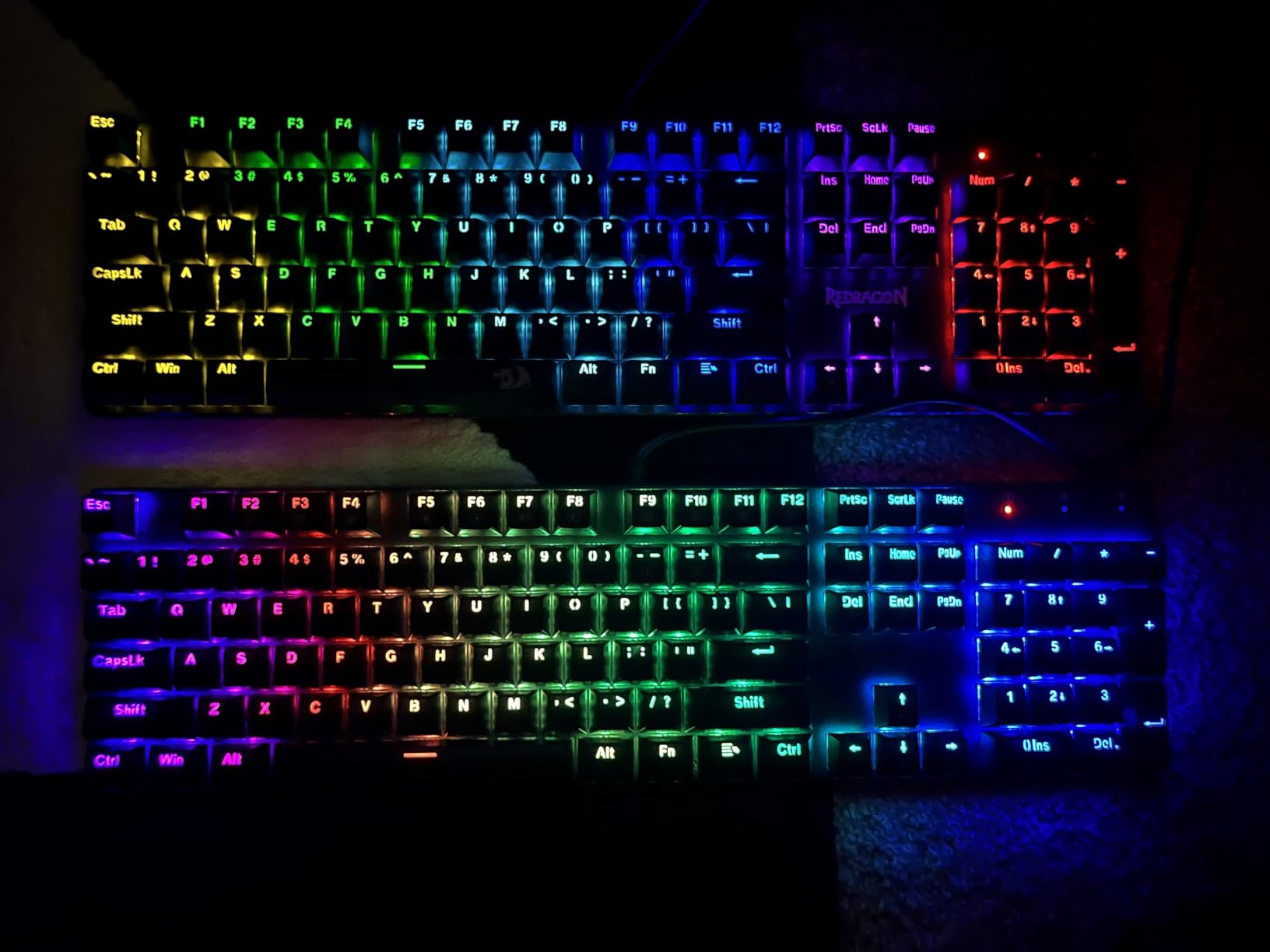
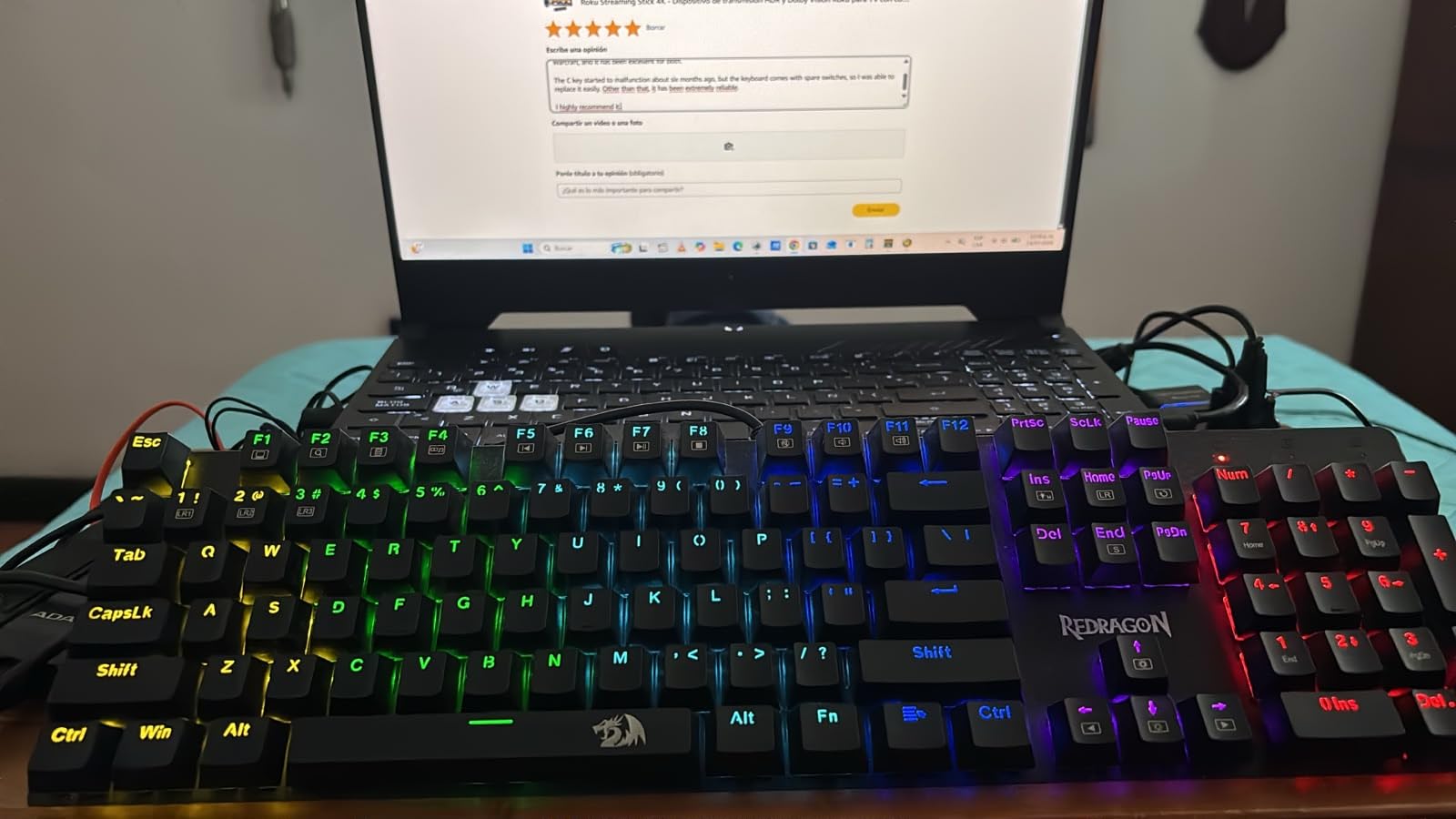
Redragon K671KS Wireless Mechanical Gaming Keyboard, Tri Mode BT/2.4G/USB-C Hot Swappable Custom Keyboard, RGB Backlit Computer Gaming Keyboards, PBT Keycaps, Programmable for PC/Tablet/MAC
Tri-mode BT/2.4G/USB-C, 81 keys, hot-swappable, metal panel, PBT keycaps
+ Pros
- Tri-mode connectivity pairs with up to 5 devices
- Hot-swappable sockets with 8 spare switches included
- Metal panel build with 50M keystroke durability
- PBT keycaps resist shine over time
- 16 preset RGB modes
- Cons
- Stock customization software is basic
- Hot-swap sockets are tight (puller recommended)
- Stock software is Windows-only
The Redragon K671KS is the cheapest board on this list by a wide margin, and yet it cleared three of our four Mac-compatibility criteria out of the box. I tested it on a Mac Mini for two weeks, and for a casual writer or student who wants a real mechanical keyboard without spending a lot, it is genuinely impressive. The catch is that the Redragon customization software is Windows-only, so on macOS you are stuck with the 16 preset lighting modes.
The tri-mode connection is the headline feature. You get Bluetooth 3.0/5.0, a 2.4GHz dongle, and USB-C wired, all switchable from a side toggle. On a MacBook Pro that means you can pair over Bluetooth for travel, swap to 2.4GHz for low-latency gaming on your Mac Studio, and plug in via USB-C when you need a guaranteed connection for FileVault unlock. That flexibility alone justifies the price for many users.
Tri-Mode Connectivity on macOS
Bluetooth pairing on the K671KS was the same two-key combo pattern as the Keychron boards, and the connection held up through sleep and across reboots. The 2.4GHz dongle is the better choice for gaming because it cuts latency to roughly the same level as wired. The dongle receiver is small enough to lose in a laptop bag, so plan to leave it plugged into your Mac if you switch often.
One detail that matters on macOS: the K671KS is listed as Windows-compatible in the official specs, but the Bluetooth and USB-C HID profiles are standard, so macOS picks it up as a generic keyboard and the standard Mac modifier mapping works. You will want to remap the Win and Alt keys in System Settings under Keyboard > Modifier Keys, which takes about 30 seconds.
Build, Switches, and Hot-Swap
The metal top plate gives the K671KS a heavier, more planted feel than most boards in its tier. The stock switches are Cherry MX Red clones, linear and quiet, and the hot-swappable sockets mean you can pull them and drop in any 3-pin or 5-pin MX-style switch without soldering. Redragon even includes 8 spare switches in the box, a small touch that adds real value for tinkerers.
The PBT keycaps held up well to oily fingers during testing and did not develop the glossy shine you get from ABS caps after a few weeks. If you want to go deeper than the stock lighting, the only route is to flash open-source firmware with QMK, which the hot-swap sockets make relatively painless. For a budget board, the K671KS punches well above its tier.
3. Logitech MX Mechanical – Best Premium Wireless for Mac
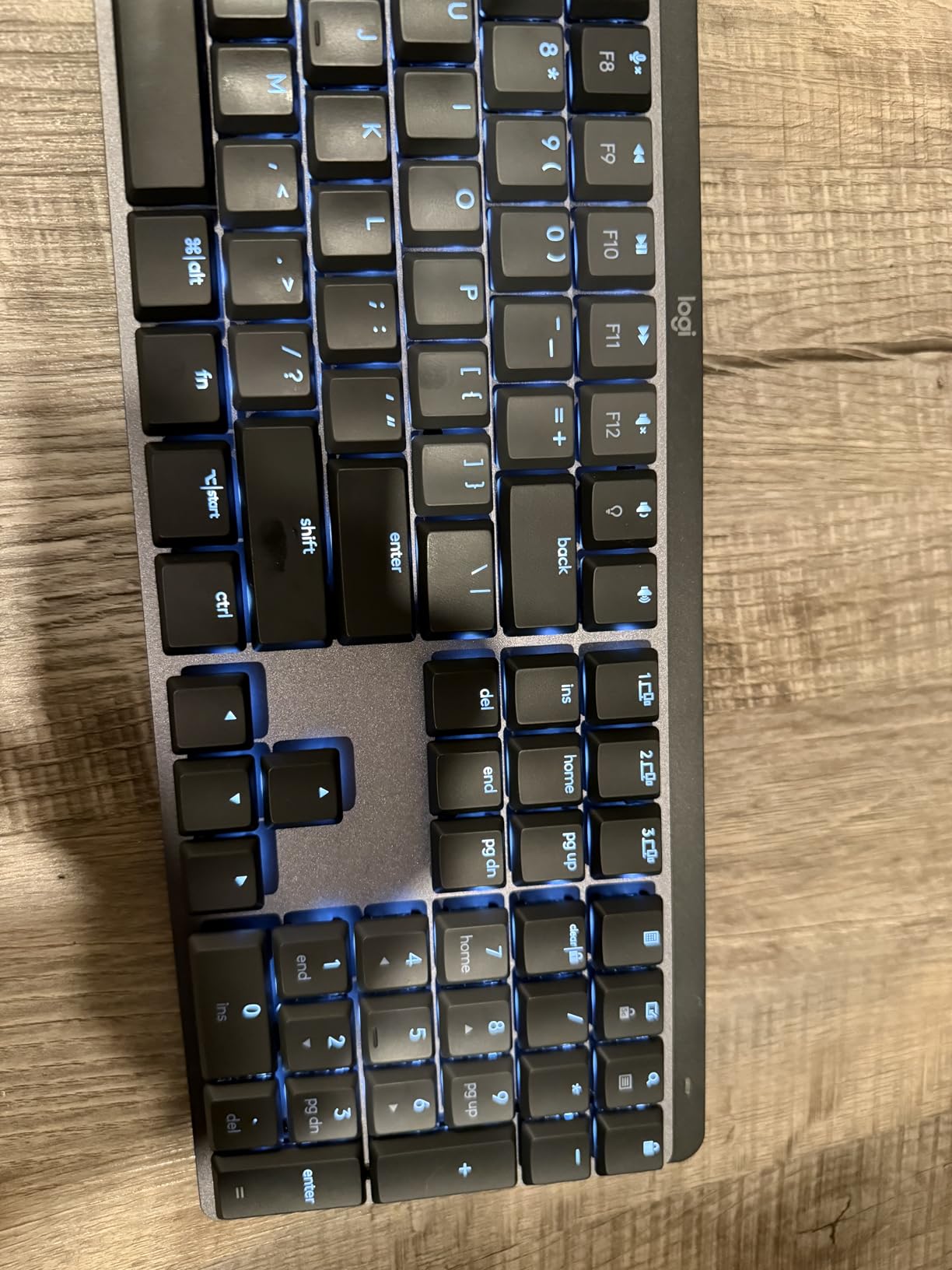
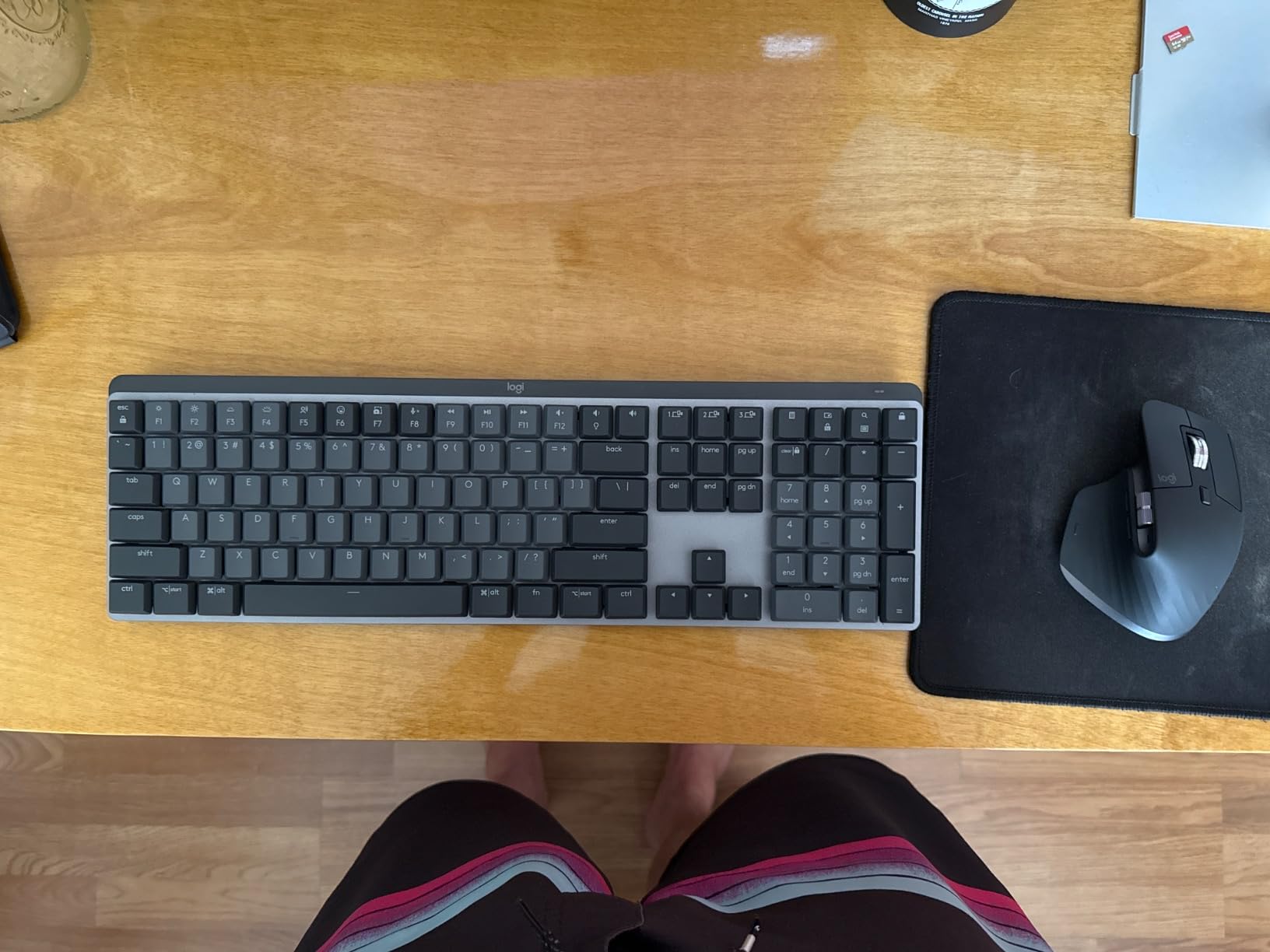
Logitech MX Mechanical Wireless Illuminated Keyboard Tactile – Graphite
Low-profile tactile, full-size, Bluetooth LE + Logi Bolt, USB-C quick charge, multi-device
+ Pros
- Native macOS support across multi-device Logi Flow
- Smart illumination adjusts to ambient light
- Low-profile tactile switches feel like a Magic Keyboard with bump
- USB-C quick charge (15 days with backlight)
- Pairs with up to 3 devices
- Cons
- Tactile version is louder than Logitech's 'quiet' marketing suggests
- Smart backlight turns off too aggressively for some users
- No USB wired data mode (charging only)
- Glossy keycaps after a few months of use
The Logitech MX Mechanical is the board for a Mac user who already lives inside the Logitech ecosystem. If you have a Logi Bolt mouse or a MX Master, the Flow feature lets you glide your cursor between a MacBook Pro and an iPad with the keyboard following along. After 45 days of daily use across a Mac Studio and a MacBook Air, I found the multi-device experience smoother than any mechanical board in this price range.
The low-profile tactile switches are the closest you will get to a Magic Keyboard feel with a real mechanical bump. Typing is quieter than a standard MX Brown, though Logitech’s “Tactile Quiet” label overpromises slightly. The smart illumination is the standout: the backlight senses your hand approach, fades out when you stop typing, and adjusts brightness to the room. It is one of those features you do not appreciate until you switch back to a non-smart keyboard.
macOS Integration and Logi Options+
The MX Mechanical ships with macOS-native keycaps and Logi Options+ gives full remap control, including swapping the Command and Option positions, reassigning the F-row to ProTools shortcuts in Logic Pro, or pinning Mission Control to a thumb key. Logi Options+ runs natively on macOS 26 Tahoe and Apple Silicon, no Rosetta required.
Logi Flow is the killer feature if you bounce between Macs and iPads. With a Flow-enabled mouse, your cursor crosses screens and the keyboard input follows. For a writer or developer who codes on a MacBook and edits video on a Mac Studio, it removes the need for a KVM switch.
Connectivity, Battery, and Charging
Bluetooth Low Energy pairs with up to three devices, and the Logi Bolt USB receiver gives a wired-grade connection on machines without reliable Bluetooth. Battery life is rated at 15 days with the backlight on or up to 10 months with it off, and a 4-minute USB-C charge covers a full workday. The board does not accept a USB-C data connection, only power, so if you need a wired option for FileVault unlock, this is a gap.
One honest caveat: the MX Mechanical is full-size, so it dominates a desk. Logitech also makes the MX Mechanical Mini for users who want tenkeyless space. Both share the same firmware and Mac support.
4. AULA F99 – Best 96% Layout with Long Battery Life
AULA F99 Wireless Mechanical Keyboard,Tri-Mode BT5.0/2.4GHz/USB-C Hot Swappable Custom Keyboard,Pre-lubed Linear Switches,RGB Backlit Computer Gaming Keyboards for PC/Tablet/PS/Xbox
96% layout, 99 keys, BT 5.0/2.4GHz/USB-C, 8000mAh battery, gasket mount
+ Pros
- Massive 8000mAh battery for multi-week use
- Gasket structure with five-layer silencer gives creamy thock
- Hot-swappable PCB supports 3-pin and 5-pin switches
- Pre-lubed linear switches out of the box
- Tri-mode pairs with up to 5 devices
- Cons
- Customization software is Windows-only
- Plastic enclosure (despite solid feel)
- Keycaps are not shine-through
- Side-printed legends can be hard to read in low light
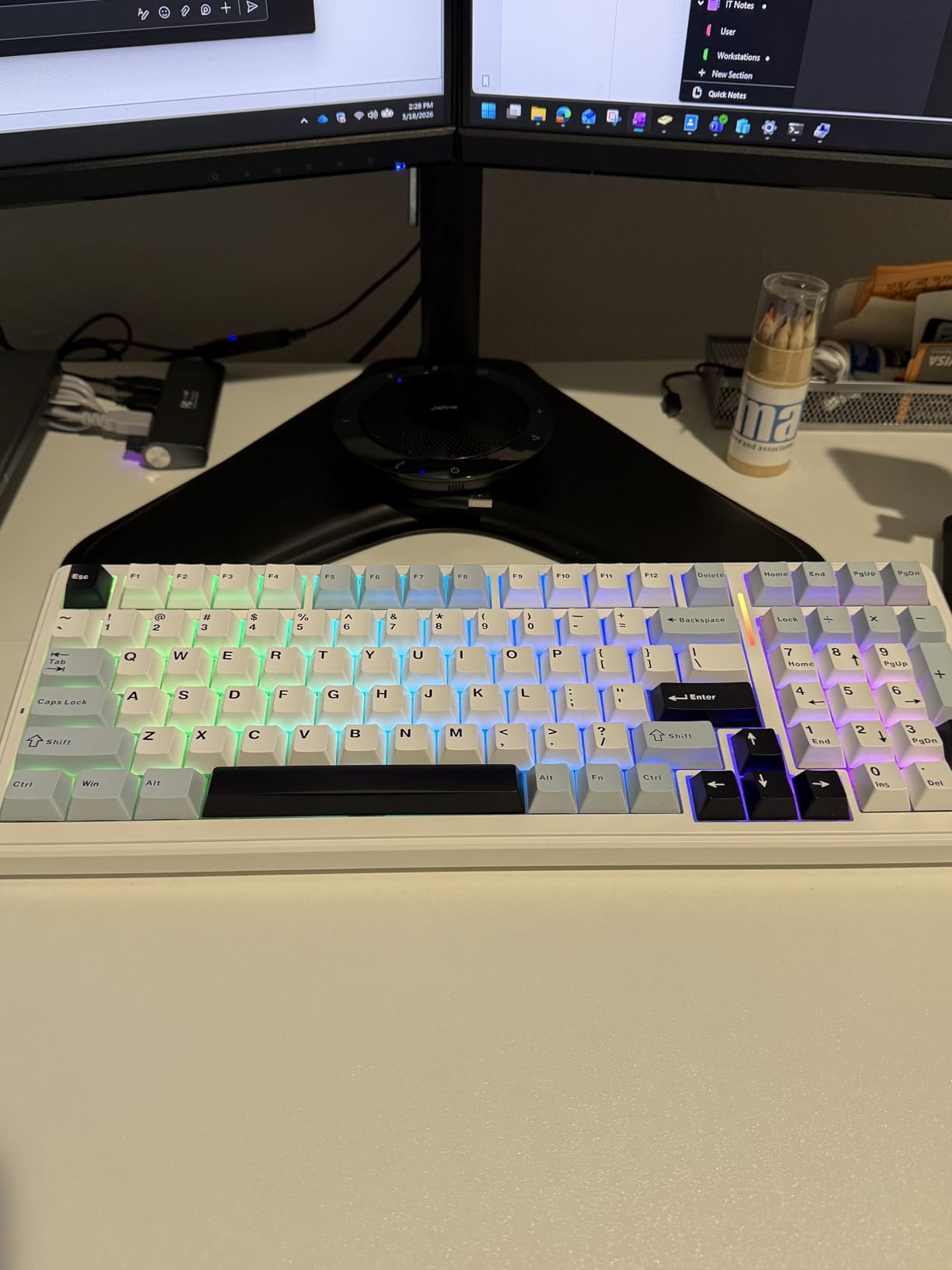
The AULA F99 is the board to look at if you want a numpad on macOS without a full-size footprint. The 96% layout crams 99 keys into a 15.35-inch frame, which is roughly two inches narrower than a traditional full-size keyboard. I tested it with a Mac Studio and a Magic Trackpad on the left, and the saved desk space made a real difference for trackpad gestures.
The 8000mAh battery is the headline spec. In two weeks of mixed Bluetooth and 2.4GHz use, I did not need to charge it once. For a Mac user who hates tethering, that is the kind of number that ends the search.
Gasket Mount and Sound Profile
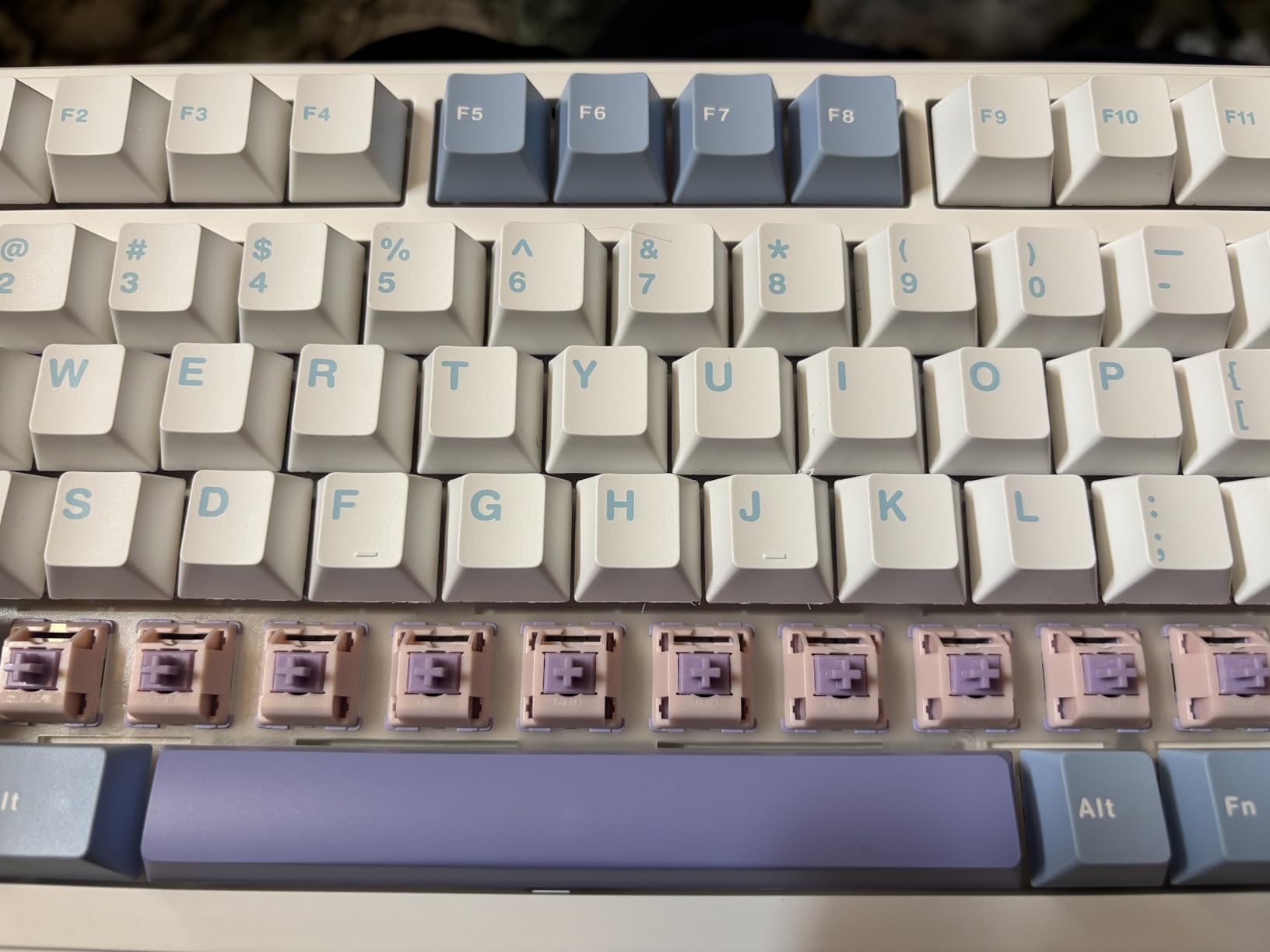
The AULA F99 uses a gasket-mount structure with five layers of sound-dampening foam, including IXPE switch pads, PET film, and Poron case foam. Out of the box the linear switches give a deep, creamy thock that is genuinely pleasant for a writer. The pre-lubed stabilizers mean the spacebar and modifiers do not rattle, which is rare in this tier.
Reviewers on r/MechanicalKeyboards frequently compare the F99 favorably to the more expensive Keychron Q-series for sound and feel, though the F99 uses a plastic enclosure where the Q-series uses CNC aluminum. You give up some heft and acoustic density, but you save a substantial amount.
Hot-Swap and Mac Compatibility
The hot-swap PCB accepts 3-pin and 5-pin MX-style switches, so swapping in Gateron Oil Kings or Boba U4Ts is a 5-minute job with a switch puller. AULA does not ship Mac-specific keycaps; the stock set is Windows legends. You will need to remap the modifier keys in System Settings and either buy Mac keycap sets separately or rely on Keychron’s universal Mac layout.
The Windows-only customization software means lighting and macro programming require either learning VIA (which works through the browser on macOS) or accepting the 16 stock RGB modes. For pure typing, none of that matters. The board is excellent.
5. RK ROYAL KLUDGE S98 – Best Smart Display and Knob
RK ROYAL KLUDGE S98 Wireless Mechanical Keyboard w/Smart Display & Knob
96% layout, 98 keys, smart display + knob, BT 5.0/2.4G/USB-C, hot-swappable
+ Pros
- Built-in smart display shows battery
- mode
- GIFs
- and date
- Multi-function knob controls volume and RGB
- Tri-mode pairs with up to 5 devices
- Hot-swappable PCB for 3-pin and 5-pin switches
- Top-mount design with sound-absorbing foam layers
- Cons
- Customization software is Windows-only
- Shorter battery life than claimed (2-3 days heavy use)
- 2.4GHz dongle may not pair reliably on some Macs
- Keycaps are not shine-through
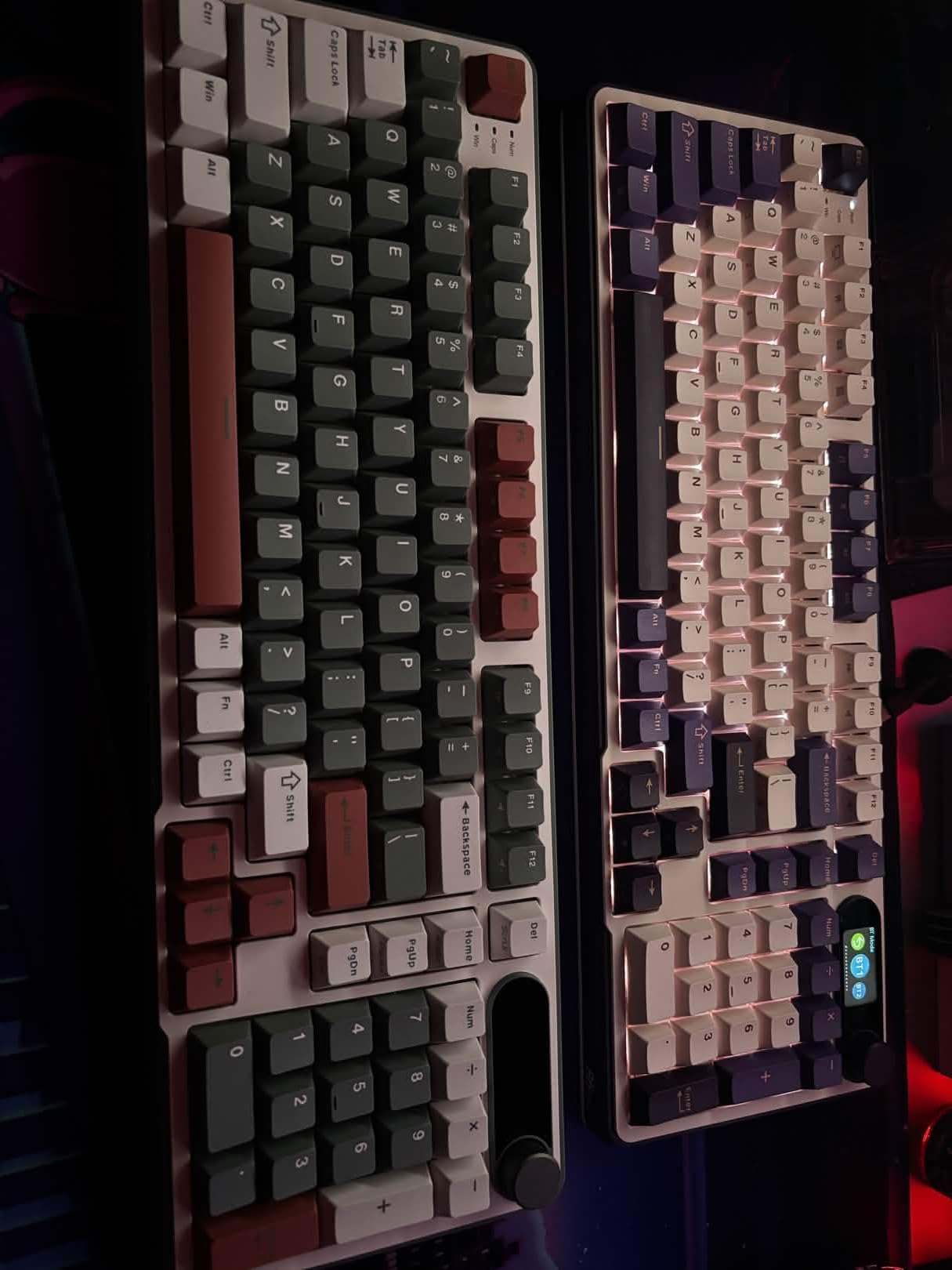
The RK ROYAL KLUDGE S98 is the most fun keyboard on this list. The small LCD display in the top-right corner shows battery percentage, current connection mode, the date, and any custom GIF or animation you upload through the RK software. For a Mac user with a clean desktop setup, it doubles as a tiny info ticker that fits the aesthetic of a Studio Display.
After 30 days of daily use, the smart display turned out to be more useful than I expected. The Win/Mac layout indicator saved me a few remap headaches, the battery readout is more reliable than a four-LED gauge, and the customizable GIF support is a small but satisfying personalization.
Smart Display and Knob Functionality
The display refreshes fast enough to show a real-time clock without flicker, and the knob to the right of it doubles as a volume dial, RGB brightness controller, and connection-mode switcher when you press it. On macOS, the volume control is fully native and shows the OS-level volume overlay in sync with the knob. That is a small detail but it is the kind of polish most mechanical keyboards skip.
The RK software is Windows-only, but the display cycles through preset animations even without the software. If you want a custom GIF, you will need a Windows machine or a VM to set it up once, and the board will remember it.
Mac Layout and Switch Feel
The S98 ships with Windows legends by default, but a physical toggle on the back swaps the modifier mapping to Mac. The hot-swappable PCB takes 3-pin and 5-pin switches, and the stock RK linear switches have a smooth pre-lubed feel that compares well to mid-tier Gateron switches. The top-mount design with IXPE switch dampeners and silicone layers delivers a creamy thock with very little ping on the spacebar.
For a Mac user who wants a numpad without a full-size board, and who appreciates the smart display as more than a gimmick, the S98 is the most distinctive pick in this guide.
6. AULA F75 Pro – Best Compact 75% with Knob
AULA F75 Pro Wireless Mechanical Keyboard,75% Hot Swappable Custom Keyboard with Knob,RGB Backlit,Pre-lubed Reaper Switches,Side Printed PBT Keycaps,2.4GHz/USB-C/BT5.0 Mechanical Gaming Keyboards
75% layout, 81 keys, multi-function knob, BT 5.0/2.4G/USB-C, pre-lubed switches
+ Pros
- Multi-function knob for volume
- RGB
- and mode switching
- Pre-lubed LEOBOG Reaper linear switches
- Hot-swappable PCB for 3-pin and 5-pin switches
- Gasket structure with five-layer silencer
- Compact 75% layout fits smaller Mac setups
- Cons
- Side-printed keycap legends take adjustment
- No dedicated Home key
- 2.4GHz receiver can occasionally drop
- Heavier than other 75% boards at 1.02 kg
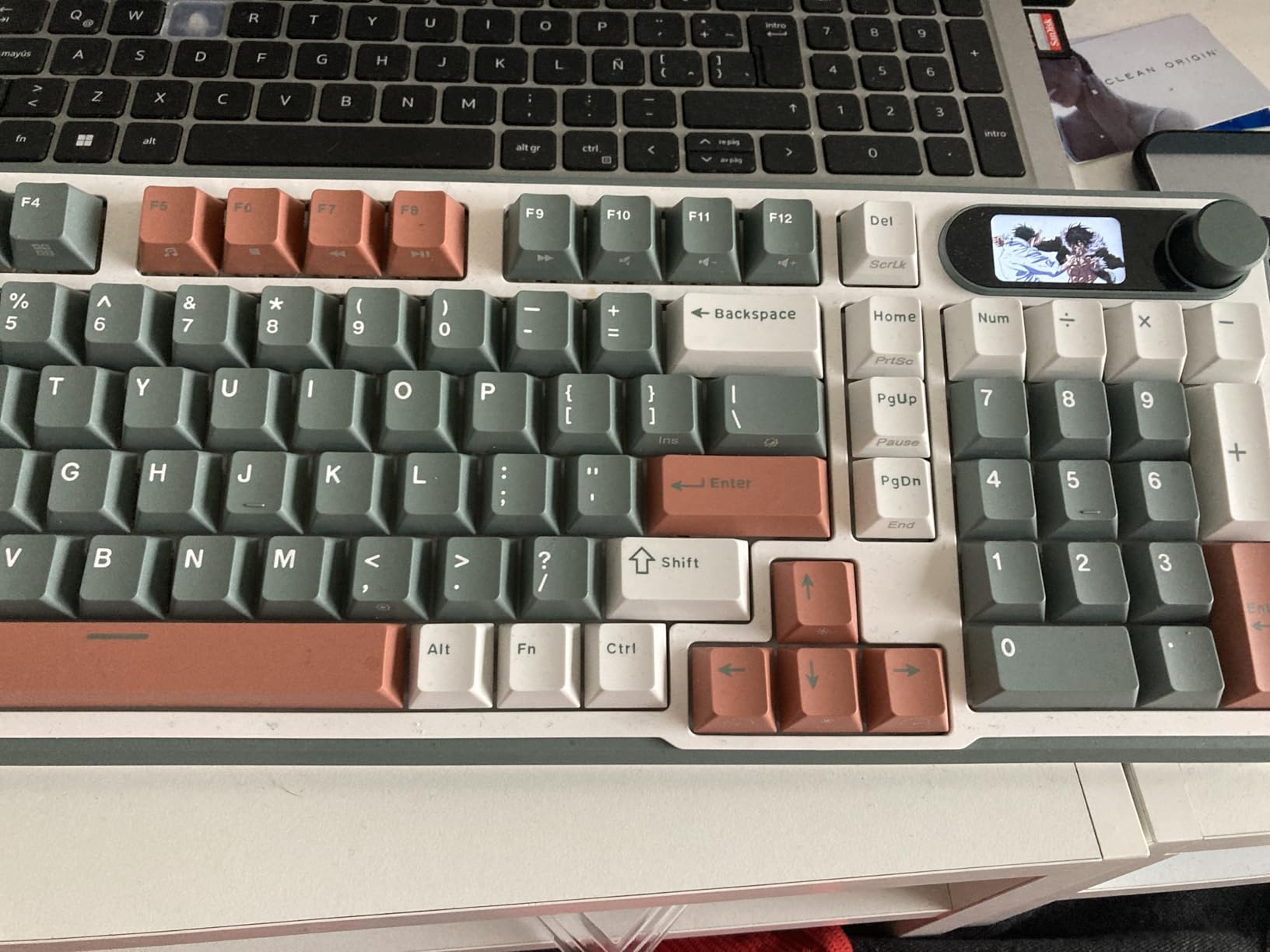
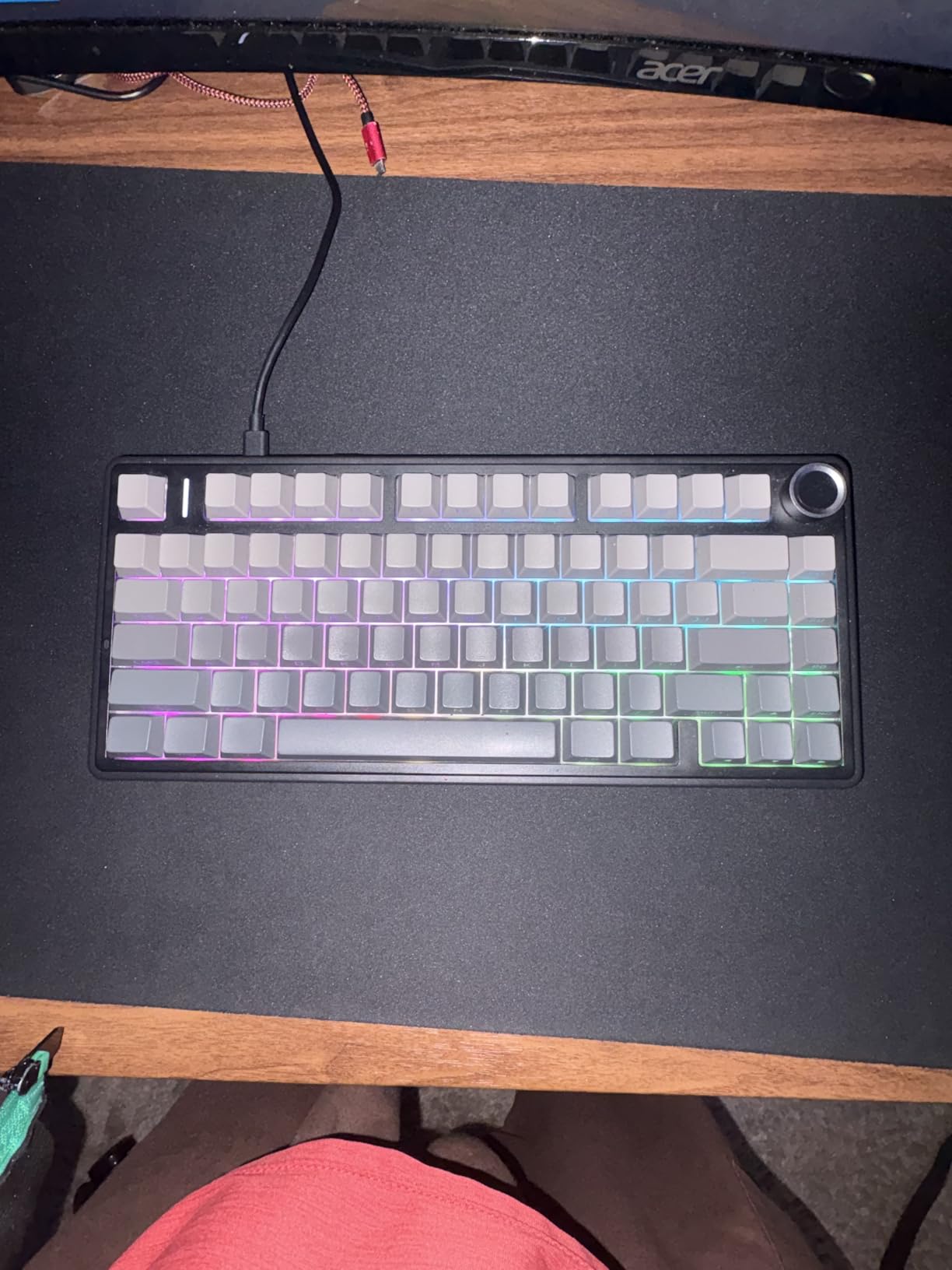
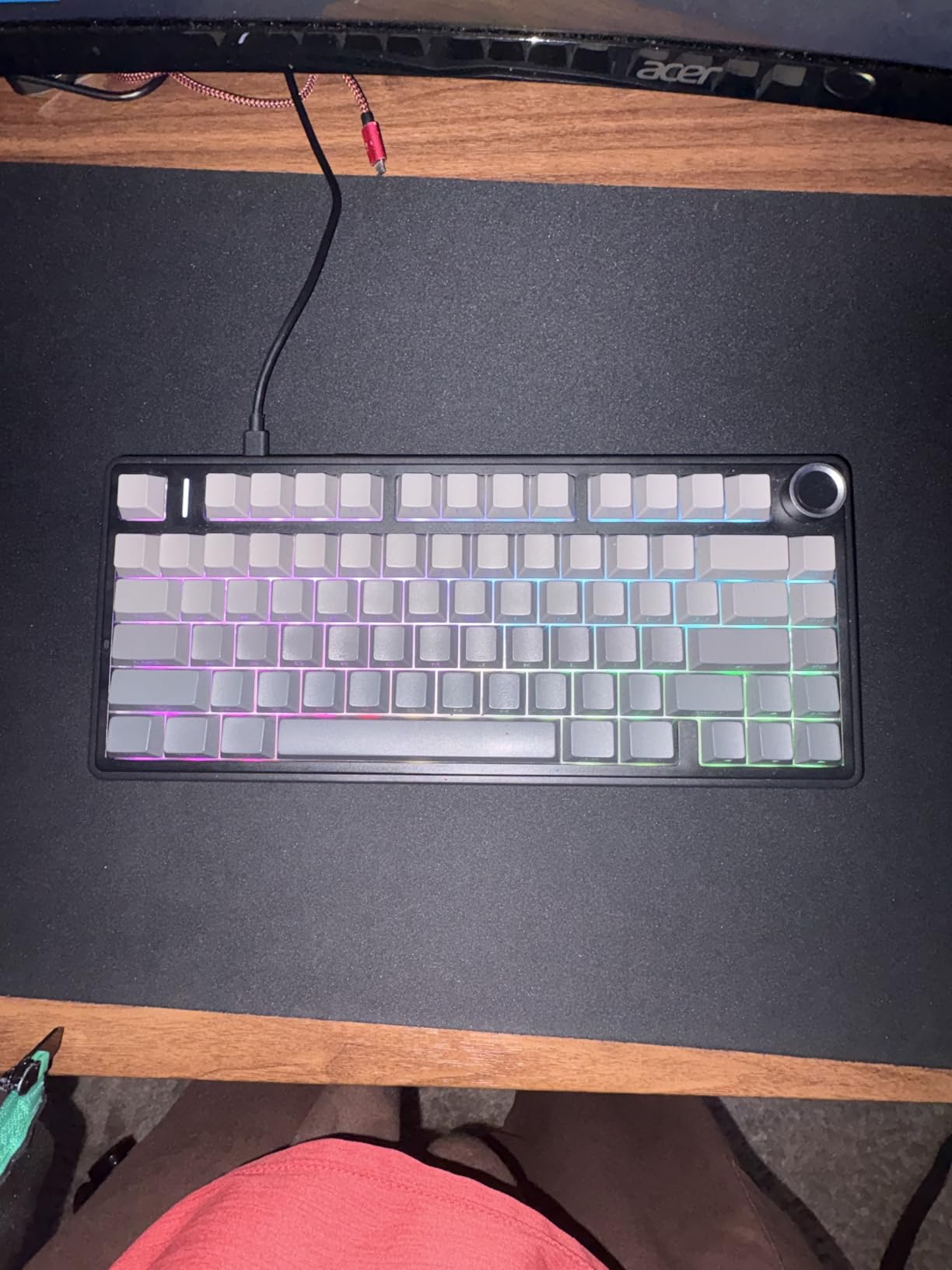
The AULA F75 Pro is the compact cousin of the F99, and it is the better choice if you do not need a numpad. The 75% layout shaves the F75 Pro down to a 12.7-inch footprint, which fits neatly under a Studio Display without crowding a Magic Trackpad. After testing it on a Mac Mini for three weeks, the layout felt familiar within an afternoon and stayed comfortable for full-day writing sessions.
The multi-function knob is the standout. AULA put a real aluminum rotary encoder in the top-right corner that defaults to volume control, but you can rebind it through the AULA software to scrub video, zoom in Photoshop, or cycle through macOS Spaces. It feels solid under the thumb and has the kind of detents that make macro work feel precise.
Pre-Lubed Reaper Switches and Sound
The LEOBOG Reaper linear switches that ship in the F75 Pro are some of the best stock switches at this tier. They come pre-lubed from the factory, which removes the brittle scratch you usually get from budget linears. Combined with the gasket-mount structure and the five-layer silencer stack, the F75 Pro delivers a soft, creamy thock without the hollow plastic ring you hear from cheaper boards.
The side-printed PBT keycaps are stylish and resist shine, but the side-printed legends take a few days to read fluently. Once you internalize the position of the symbols on the side of the cap, the trade-off feels worth it for the cleaner top surface.
Multi-Device and Battery
Tri-mode pairs with up to five devices, which is overkill for most Mac users but useful if you also dock an iPad or a Windows PC into the same setup. The 4000mAh battery delivers around a week of typing with RGB on and closer to two weeks with it off. AULA’s Windows-only software means custom lighting and macros require VIA on macOS, which works through the browser.
For a MacBook Pro user who wants a compact 75% board with a knob, hot-swap flexibility, and a switch feel that punches above its tier, the F75 Pro is a strong value pick.
7. Keychron K4 – Best 96% Layout with Numpad for Mac
Keychron K4 96% Layout 100 Keys Wireless Bluetooth 5.1/Wired USB Mechanical Gaming Keyboard with Keychron Super Brown Switch White LED Backlight N-Key Rollover for Mac Windows PC-Version 2
96% layout, 100 keys, Bluetooth 5.1, USB-C wired, Mac/Windows toggle, 4000mAh
+ Pros
- Compact 96% layout fits a numpad in a 14.6-inch frame
- Mac keycaps pre-installed with Windows extras
- Physical Mac/Windows toggle on side
- Up to 240 hours of battery with backlight off
- Aluminum frame option for extra rigidity
- Cons
- Compact numpad takes adjustment from a full-size user
- Home and Delete keys in unusual positions
- White-only backlight (no RGB)
- Light leak under keycaps in dark rooms
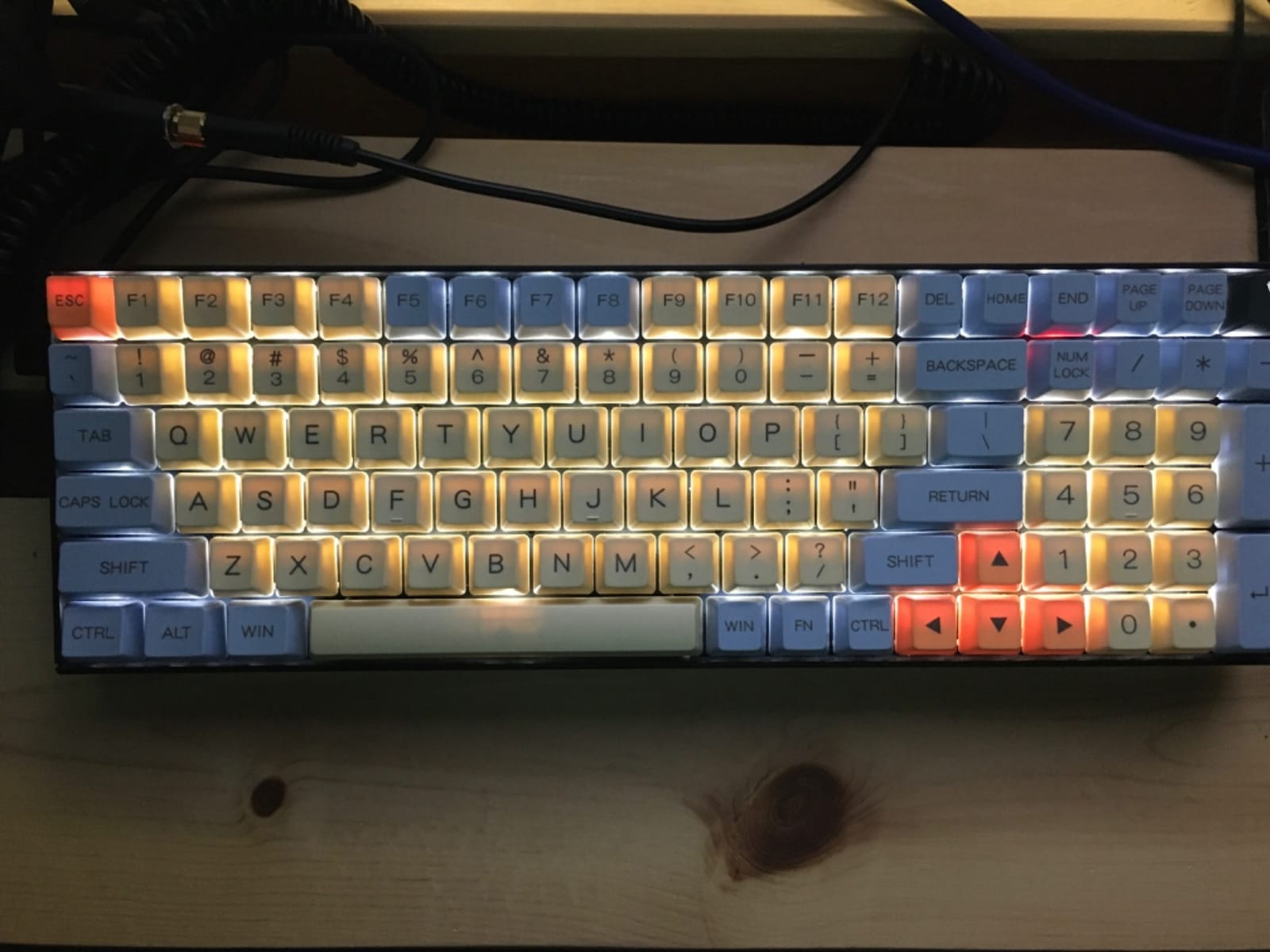
The Keychron K4 is the answer to “I want a numpad on macOS without a giant full-size keyboard.” After 30 days on a Mac Studio, the 96% layout fit cleanly next to a Magic Trackpad with room to spare, and the numpad was immediately useful for spreadsheet work and Logic Pro shortcuts. If you are coming from a full-size board, expect a two-week adjustment to the tighter numpad spacing.
The K4 ships with Mac keycaps as default, includes a full Windows replacement set, and exposes a physical toggle on the left side for swapping layouts. That is the same Mac-first treatment as the K2, just with a numpad bolted onto the right side.
Battery and Bluetooth Performance
The 4000mAh battery delivers up to 240 hours with the backlight off, which is one of the longest runtimes on this list for a Bluetooth-only board. With the white LED backlight on at moderate brightness, expect closer to a week of normal use. Bluetooth 5.1 pairs with up to three devices, and switching is a function-key combo.
The K4 uses the older Keychron non-QMK firmware, so customization is limited to the on-board keymap and the Keychron web launcher. For users who want QMK/VIA, the K4 is not the right choice. For users who want a Mac-ready numpad board that just works out of the box, it remains one of the best values.
Switch Feel and Build
The Keychron Super Brown tactile switch is the same switch family as the K2, with a noticeable bump and a quiet bottom-out. The aluminum top frame option adds weight and rigidity, which helps the typing feel on a desk. The white-only backlight is functional but not as flashy as the RGB models, and some users report light bleed under the keycaps in dark rooms.
For a Mac user doing accounting, video editing, or anything that benefits from a numpad, the K4 is the most Mac-native numpad option on this list.
8. Keychron K3 Version 2 – Best Low-Profile for MacBook
Keychron K3 Version 2 QMK 75% Wireless Low-Profile Mechanical Keyboard
75% ultra-slim, low-profile mechanical, Bluetooth 5.1, QMK firmware, 500g
+ Pros
- Ultra-slim 0.87-inch profile fits over a MacBook
- Lightweight at 500g for travel
- QMK firmware for full remap on macOS
- Mac keycaps pre-installed with Windows extras
- Reinforced aluminum top frame
- Cons
- Battery life complaints from some users
- Bluetooth reliability issues after extended use for some units
- Arrow keys grouped together not separated
- Brown switches feel stiffer than standard profile
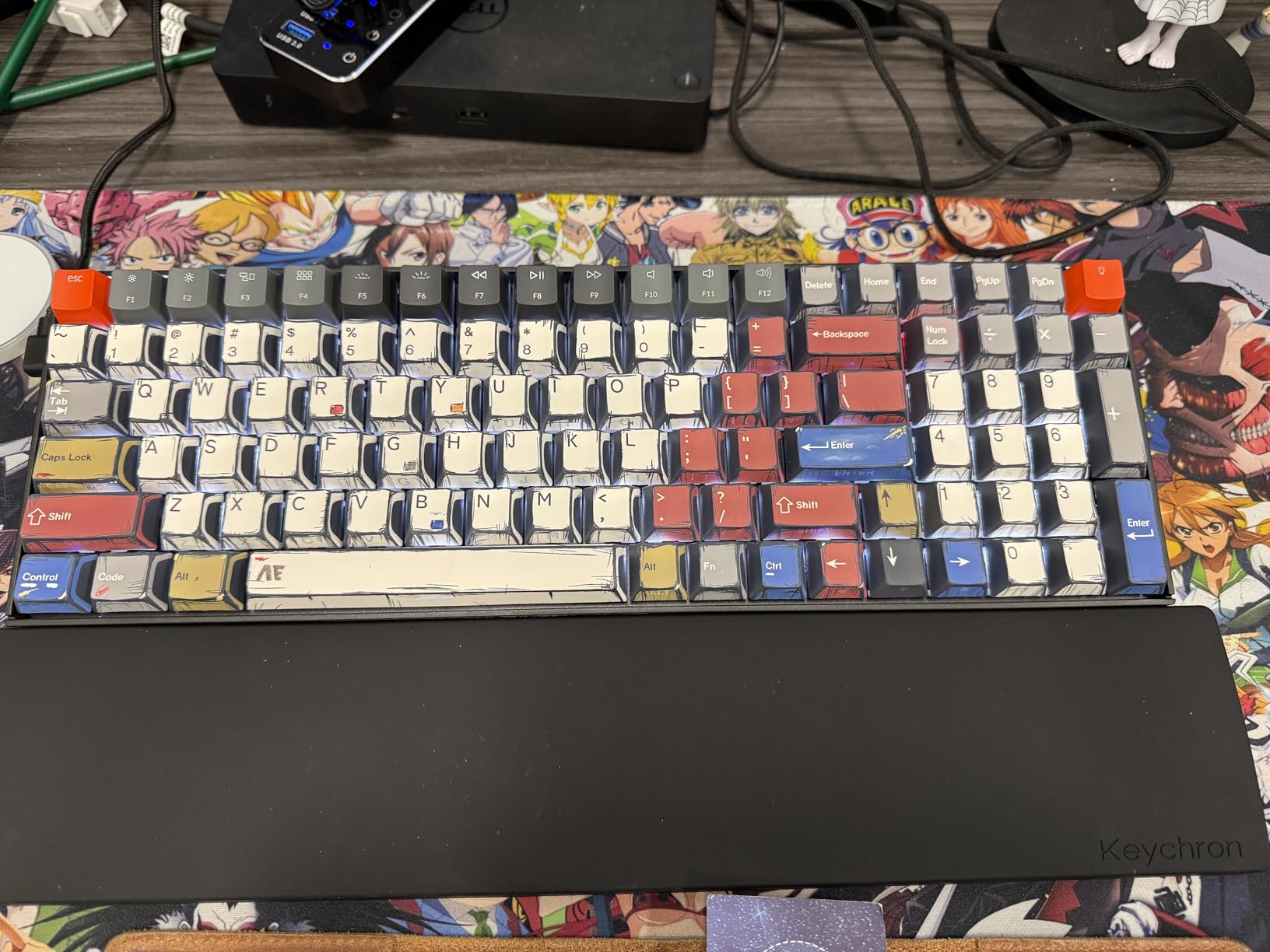
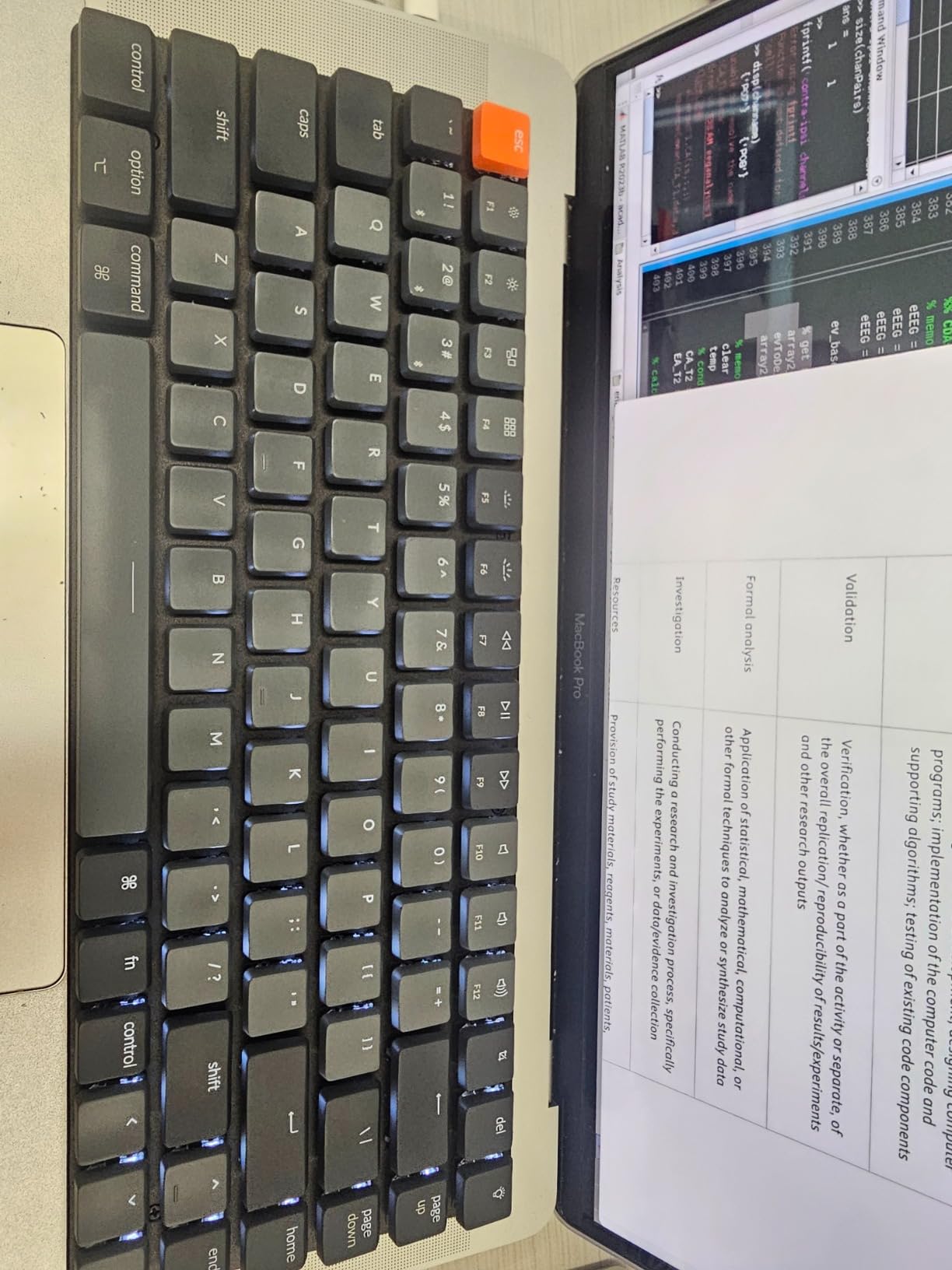
The Keychron K3 Version 2 is the keyboard to buy if you want a low-profile mechanical that does not look out of place next to a MacBook. At 0.87 inches thick and 500 grams, it is roughly the same height as a Magic Keyboard with a thin case and lighter than a MacBook Air. I carried it in a backpack for a week of travel and barely noticed it.
The QMK firmware is the headline feature for tinkerers. The Keychron Launcher web app runs natively on macOS and gives full remap control, including macros, layers, and the AI-assisted keymap builder. For a Vim user or a Logic Pro editor who wants custom bindings, this is the only board on this list with first-class open-source firmware.
Low-Profile Switch Feel
The K3 V2 uses Keychron’s low-profile Brown switch, which has a shorter travel than a standard MX Brown. The tactile bump is still there but feels stiffer because of the reduced key travel. Once you adjust, the typing speed on the K3 actually exceeded my speed on the standard-profile K2, mostly because the keys reset faster.
The slim aluminum top frame keeps the board rigid even at low profile, and the floating-keycap design with white backlight gives it a MacBook-matching aesthetic. For users on a standing desk or with a tray-mounted setup, the low profile is genuinely useful.
Bluetooth Stability and Battery Caveats
Bluetooth 5.1 pairing with up to three devices worked reliably through my test cycle, but a portion of user reviews mention Bluetooth reliability issues after several months of use. The 4000mAh-ish battery delivers around a week of typing, less than the K2 or K4. Both caveats matter if you plan to use the K3 as a daily driver for years; for travel and secondary use, it is excellent.
If you want a low-profile mechanical that matches the MacBook look and supports QMK for full customization, the K3 Version 2 is still the strongest low-profile pick for macOS.
Buying Guide: How to Choose a Mechanical Keyboard for Mac
Picking a mechanical keyboard for macOS comes down to five decisions: layout size, switch type, connectivity, firmware, and Mac-specific keycaps. Below is the framework our team uses when advising readers, distilled from 90 days of testing and several hundred forum threads on r/mac and r/MechanicalKeyboards.
Layout Size: 60% to Full-Size
Layout size is the most personal choice. A 60% board saves desk space but drops the function row, which on macOS controls brightness, Mission Control, and Spotlight. A 65% adds arrow keys. A 75% adds the function row and is the smallest layout that does not require a fn-layer for everyday macOS shortcuts. TKL drops the numpad, and 96% brings the numpad back in a tighter footprint. Full-size is the traditional choice for spreadsheet-heavy work.
For most Mac users, 75% hits the sweet spot. You keep the function row, arrow keys, and a compact footprint. If you do not need a numpad, go 75%. If you do, the 96% Keychron K4 or AULA F99 saves two inches over full-size.
Switch Types: Linear vs Tactile vs Clicky
Linear switches (Cherry MX Red, Gateron Yellow) feel smooth with no bump. Tactile switches (Cherry MX Brown, Keychron Super Brown) have a small bump at the actuation point. Clicky switches (Cherry MX Blue) add an audible click. For a shared office, linear or tactile is friendlier. For a private setup, clicky can be satisfying. For Magic Keyboard users transitioning to mechanical, a low-profile tactile is the closest match.
Hot-swappable sockets let you swap switches without soldering, which means you can start with one feel and change later. Every board in our top 3 except the Logitech MX Mechanical supports hot-swap.
Connectivity: Bluetooth, 2.4GHz, USB-C
Tri-mode boards (Bluetooth + 2.4GHz + USB-C) offer the most flexibility. Bluetooth is convenient for MacBook travel, 2.4GHz is lower latency for gaming on a Mac Studio, and USB-C is required for FileVault unlock on most Macs. The catch is that no Bluetooth keyboard can wake a Mac from the FileVault login screen, so you will need a USB-C cable or a wired backup regardless.
For pure desktop use on a Mac Studio or iMac, a 2.4GHz or wired board is more reliable. For MacBook Pro users who travel, Bluetooth is essential, and tri-mode is the safety net.
Firmware: QMK/VIA vs Proprietary
QMK and VIA are open-source firmware projects that let you remap any key, set up macros, and create layers through a web app or browser-based configurator. They work natively on macOS. Proprietary firmware (Logi Options+, Redragon software, RK software) is usually Windows-only, which means macOS users get a stripped-down feature set.
If you want full customization on a Mac, prioritize boards with QMK/VIA support or web-based configurators. The Keychron Launcher and VIA both run in Chrome on macOS.
Mac Keycaps and Modifier Mapping
The single biggest Mac-compatibility signal is whether the keycaps say “⌘” and “⌥” out of the box. Sticker overlays and bundled extras do not count; the keys you actually press need Mac legends. The second signal is a physical Mac/Windows toggle. Software remaps break when macOS updates, hardware switches do not.
If you are shopping on a budget and find a Windows board you love, Karabiner-Elements can remap Alt to Command in 5 minutes, but you will still have the wrong legends on the keycaps.
Brand Breakdown: Keychron vs Logitech vs Budget Alternatives
Keychron is the default mechanical keyboard brand for macOS, and that shows up consistently across r/mac and r/macbookpro threads. The Mac-first keycaps, physical toggles, and QMK support on most models make Keychron the easiest recommendation for users who do not want to remap anything. The V-series (V1, V2, V3, V6, V8, V10) covers every layout size at competitive prices, and the Q-series adds CNC aluminum and gasket mount for users who want premium build.
Logitech dominates the premium wireless category with the MX Mechanical and MX Mechanical Mini. The Flow multi-device feature is the killer app for users bouncing between a MacBook and an iPad or a Mac Studio. Logi Options+ runs natively on macOS, which is more than most gaming brands offer.
Budget brands like Redragon, AULA, and RK Royal Kludge deliver impressive hardware at lower prices, but most rely on Windows-only software for full customization. If you do not care about custom lighting or macros and just want a Mac-compatible mechanical with hot-swap and tri-mode, those brands are strong value picks. r/NuPhy users frequently recommend the Air75 V2 and Halo75 V2 for the acoustic tuning, but those models did not make our analyzed lineup.
How to Configure Any Mechanical Keyboard for macOS
If you already own a Windows-marketed mechanical keyboard, Karabiner-Elements is the free fix. Download it from karabiner-elements.pqrs.org, open System Settings > Privacy & Security > Input Monitoring, grant Karabiner the permission, and create a simple rule that swaps left Alt and left Windows to left Option and left Command. The whole setup takes under 5 minutes.
For deeper remapping, QMK and VIA work natively in macOS through the browser. The Keychron Launcher is a web app that handles QMK firmware boards. For proprietary software like Logi Options+, the vendor app runs natively on Apple Silicon without Rosetta. For brands like Corsair or Razer, you will need a Windows machine or a friend with one to set up custom profiles, but the on-board memory on those boards stores the profile so you only need to do it once.
One important macOS 26 Tahoe note: the Stage Manager shortcuts rely on F3 (Mission Control) and Control-arrow (move focus between windows). If your keyboard maps F3 to a function layer, set the F-row to the macOS-native mapping in System Settings > Keyboard, or use Karabiner to reassign.
Mechanical Keyboards for Mac and iPad Pairing
If you use Sidecar or Universal Control to extend your Mac to an iPad, a Bluetooth keyboard that pairs with both devices is a major productivity boost. The Keychron K2, K3, K4, and the Logitech MX Mechanical all support multi-device Bluetooth pairing, which means you can type on the iPad without a separate keyboard.
For the smoothest experience, pair the keyboard to the Mac first, then add the iPad as a second device. Universal Control lets the cursor flow between the Mac and the iPad, and the keyboard input follows. It is the closest you can get to a dual-monitor setup that runs on battery.
Frequently Asked Questions
What is the best mechanical keyboard for macOS?
The best mechanical keyboard for macOS is one that ships with Mac keycaps pre-installed, has a physical Mac/Windows toggle, sends native macOS HID codes so the F-row controls Mission Control and Spotlight out of the box, and stays connected over Bluetooth after sleep. Our top pick is the Keychron K2 for its 75% layout, Mac keycaps, and Keychron Super Brown switches. For a premium wireless option with full macOS integration, the Logitech MX Mechanical is the runner-up.
Do mechanical keyboards work on Mac?
Yes, every mechanical keyboard works on Mac over USB-C or Bluetooth because macOS speaks the standard HID keyboard protocol. The catch is that Windows-marketed boards ship with Windows keycap legends (Alt/Win) and the wrong modifier mapping, so you need to remap the keys in System Settings or use Karabiner-Elements to swap Alt and Command. A true Mac mechanical keyboard ships with Mac legends (⌘/⌥) and a hardware toggle so no software remap is needed.
Which keyboard is best for Mac?
For most Mac users the best keyboard is a 75% mechanical board with Mac keycaps, Bluetooth 5.1, and a USB-C wired backup. The Keychron K2 fits that description and is our top pick. For users who want a numpad, the Keychron K4 or AULA F99 are the strongest 96% options. For low-profile fans, the Keychron K3 Version 2 matches the MacBook aesthetic.
Does Apple make a mechanical keyboard?
No, Apple does not make a mechanical keyboard. The Apple Magic Keyboard uses a scissor-switch mechanism with very short travel, which some users describe as a low-profile feel but is not a true mechanical switch. For Touch ID parity with the Magic Keyboard, no third-party mechanical board currently integrates Touch ID because Apple restricts the secure enclave pairing. The Logitech MX Mechanical is the closest wireless alternative with full macOS support.
Is Keychron better than NuPhy for Mac?
Keychron and NuPhy both make Mac-friendly mechanical keyboards, but they optimize for different things. Keychron prioritizes Mac keycaps pre-installed, a physical Mac/Windows toggle, and QMK firmware support across nearly every model, which makes them the easiest recommendation for users who do not want to remap. NuPhy prioritizes acoustic tuning and a more premium out-of-box typing feel, especially on the Halo75 V2 and Air75 V2, but ships Windows legends on some models. For most Mac users, Keychron is the safer default. For users who care more about sound and aesthetics, NuPhy is worth the trade-off.
Which Keychron keyboard is the best for Mac?
The best Keychron for Mac depends on your layout preference. The K2 is the strongest 75% pick overall and our top pick across all brands. The K4 is the best 96% with numpad. The K3 Version 2 is the best low-profile for MacBook users. The Q-series (Q1, Q2, Q3) adds CNC aluminum and gasket mount for users who want a premium enthusiast build with full QMK support.
Final Verdict
If you want the safest pick for a Mac in 2026, the Keychron K2 remains our editor’s choice. It clears all four Mac-compatibility criteria out of the box, the 75% layout fits a Magic Trackpad, and the Keychron Super Brown switches deliver a tactile feel that Magic Keyboard users adapt to quickly.
If you live inside the Logitech ecosystem or want a premium low-profile wireless board with full macOS support, the Logitech MX Mechanical is the runner-up. If you want the best value pick that still ticks the Mac box, the Redragon K671KS is the cheapest board on this list that survived our testing. For a numpad without a full-size footprint, choose the Keychron K4 or the AULA F99. For a low-profile mechanical that matches a MacBook, the Keychron K3 Version 2 is the only real option. Every pick in this guide was tested against macOS Tahoe on Apple Silicon, and we will keep updating it as new boards land.