
I spent three weeks testing web browsers on Google TV devices, and I learned something important: not all browsers are created equal for big-screen browsing. Most people assume they can just install Chrome like on their phone, but Google TV doesn’t work that way.
The best browser for Google TV is Puffin TV Browser for its speed and remote-optimized interface. TV Bro is the best free alternative with open-source code and excellent D-pad navigation.
Here’s what I discovered after testing seven browsers across multiple Google TV devices including Chromecast with Google TV and NVIDIA Shield.
You’ll learn which browsers actually work with just your remote, which ones require extra accessories, and what to expect from each option.
Our Top Browser Recommendations for Google TV
- Puffin TV Browser – Fastest performance with cloud acceleration and excellent remote navigation
- TV Bro – Free, open-source browser built specifically for TV remote control
- Firefox for Android TV – Best choice if you want account sync across devices
- JioSphere Browser – Modern interface with smooth TV-optimized controls
- Coji TV Browser – Includes built-in ad blocker and phone-to-TV link sharing
- Downloader App – Utility browser perfect for downloading APKs
- Google Chrome – Familiar but requires sideloading and air mouse for usable navigation
Browser Comparison Table
The table below shows how each browser compares across key factors like installation method, remote support, and standout features.
| Browser | Installation | Remote Support | Ad Blocker | Best For |
|---|---|---|---|---|
| Puffin TV Browser | Play Store | Excellent | No | Overall performance |
| TV Bro | Play Store | Excellent | Yes | Remote-only users |
| Firefox | Sideload | Poor | Extensions | Account sync |
| JioSphere | Play Store | Good | No | Modern UI |
| Coji TV Browser | Play Store | Good | Yes | Ad-free browsing |
| Downloader | Play Store | Good | No | Downloading APKs |
| Chrome | Sideload | Poor | Extensions | Familiarity |
Detailed Browser Reviews for Google TV
1. Puffin TV Browser – Best Overall for Performance
Puffin TV Browser stands out as the most polished web browser designed specifically for Google TV and Android TV devices. I tested it on multiple devices and found the performance consistently smooth, even on budget hardware like the Xiaomi TV Box S 2nd Gen.
The browser uses cloud acceleration to offload heavy processing from your device. This means web pages load faster and JavaScript-heavy sites run better than they would otherwise. The trade-off is that your web traffic routes through Puffin’s servers, which matters if you’re concerned about privacy.
Navigation with a standard TV remote works excellently. The cursor follows your D-pad movements precisely, and clicking links feels natural. I didn’t need an air mouse during my testing period, which is more than I can say for most competitors.
Pro Tip: Puffin TV includes a virtual mouse mode that activates automatically on certain websites. You can toggle it manually if the default cursor control feels awkward on text-heavy pages.
Video playback worked well in my tests. HTML5 video from sites like YouTube played smoothly, and the browser handles full-screen mode without issues. However, some premium streaming sites detect the TV browser and block content – that’s a limitation across all TV browsers, not specific to Puffin.
The browser is free to download from the Google Play Store on your Google TV device. Just search for “Puffin TV Browser” in the apps section and install directly – no sideloading required.
Who Should Buy?
Anyone who wants the smoothest browsing experience on Google TV without buying extra accessories. The remote-friendly design makes it ideal for casual users who don’t want to deal with air mice or keyboards.
Who Should Avoid?
Privacy-conscious users who prefer open-source software or don’t want their web traffic routed through cloud servers. TV Bro might be a better choice if these concerns matter to you.
2. TV Bro – Best Free Open-Source Option
TV Bro earned its reputation as the community favorite on Reddit’s AndroidTV community, and after testing it extensively, I understand why. This free, open-source browser delivers exactly what most people need from a TV web browser without the baggage.
What impressed me most is how well the D-pad navigation works. The cursor movement feels responsive and predictable, which is crucial when you’re browsing with just a remote control. I spent hours using TV Bro on my Chromecast with Google TV and rarely felt frustrated by the navigation.
The browser includes a built-in ad blocker that works surprisingly well. I tested it on several news sites and video platforms, and it blocked most ads without breaking page functionality. This feature alone makes TV Bro worth considering since ads can be especially intrusive on a big screen.
Time Saver: TV Bro lets you send links directly from your phone to your TV browser. Open the sharing menu on your mobile device, select TV Bro, and the link opens instantly on your television.
Performance on budget devices impressed me during testing. TV Bro uses a WebView-based rendering engine that’s lighter weight than full desktop browsers. This means faster page loads and better responsiveness on devices with limited RAM, like older Android TV boxes or entry-level Google TV streamers.
Installation is straightforward since TV Bro is available directly from the Google Play Store on compatible devices. No need to mess with APK files or developer options.
Who Should Buy?
Users who want a free, privacy-respecting browser that works great with just a remote control. The open-source nature and active development community make it a trustworthy choice.
Who Should Avoid?
Users who need deep browser customization or want full desktop-style extension support. TV Bro focuses on core browsing features rather than power-user functionality.
3. Firefox for Android TV – Best for Sync Across Devices
Firefox brings the familiar Mozilla experience to Google TV, but with a significant caveat: the official Android TV version isn’t available on the Play Store in all regions. You’ll need to sideload it or find it through alternative app stores like Aptoide TV.
The main reason to choose Firefox is account synchronization. If you use Firefox on your phone, tablet, or computer, you can sync bookmarks, history, and even open tabs to your Google TV. I found this incredibly useful when researching on my laptop and then pulling up the same pages on my TV for easier viewing.
Extension support is Firefox’s strength, though it’s limited on the TV version. Privacy extensions like uBlock Origin can help with ads and tracking, but installing them requires some technical work since the TV interface doesn’t always show all extension options clearly.
Here’s the important caveat: Firefox for Android TV is not optimized for remote control navigation. I tried using it with just my Chromecast remote, and the experience was frustrating. Links were hard to select, scrolling felt unpredictable, and I constantly wished for a mouse pointer.
Sideloading: The process of installing apps from sources other than the official Google Play Store. This involves downloading APK files and installing them manually, usually through a file manager app.
The browser performs well once you add an air mouse or keyboard. I paired a mini keyboard with my NVIDIA Shield and Firefox became much more usable. But if you don’t want to buy accessories, Firefox probably isn’t your best choice.
Who Should Buy?
Existing Firefox users who want seamless sync across all their devices. The ability to send tabs from phone to TV alone might justify the setup effort.
Who Should Avoid?
Users who only have a standard remote control. Firefox needs an air mouse or keyboard to be truly usable on Google TV.
4. Google Chrome – Familiar but Limited
Chrome seems like the obvious choice since it’s Google’s browser and Google TV is Google’s platform, but there’s no official Chrome version for Google TV. You can sideload the Android version, but the experience left me disappointed.
The interface will look familiar – it’s the same Chrome you use on your phone, just scaled up for your television. If you’re deeply invested in Google’s ecosystem with Chrome on all your devices, the account sync works once you get everything set up.
However, the navigation problems are significant. Chrome for Android assumes touch input, and that assumption breaks the remote control experience. I spent more time fighting the interface than actually browsing. Clicking small links required precise, frustrating adjustments with the D-pad.
Important: Chrome requires you to enable “Install from unknown sources” in your Google TV settings before sideloading. This security feature exists for good reason – only download APKs from sources you trust.
Performance on my Google TV Streamer was acceptable once I added an air mouse remote. Pages loaded at reasonable speeds, and JavaScript-heavy sites rendered correctly. But I couldn’t escape the feeling that I was using a browser not designed for my input method.
I only recommend Chrome if you’re willing to buy a dedicated input device. The REIIE H9+ mini keyboard I tested made Chrome much more tolerable, but that’s an additional expense on top of the free browser.
Who Should Buy?
Users who already own an air mouse or wireless keyboard and want the familiar Chrome interface with full Google account integration.
Who Should Avoid?
Anyone planning to use only a standard TV remote. The frustration isn’t worth it when better alternatives exist.
5. JioSphere Browser – Best Modern Interface
JioSphere is a newer entrant in the TV browser space, and it brings a refreshingly modern interface to Google TV. The browser comes from Reliance Jio and offers a clean, intuitive design that feels more 2026 than most competitors.
The first thing I noticed was how polished the interface looks compared to older TV browsers. The home screen displays frequently visited sites in an organized grid, and the tab management is visual and easy to understand. This matters when you’re browsing from the couch – everything should be readable from a distance.
Remote navigation works well, though not quite as smoothly as TV Bro or Puffin TV. The cursor tracking is adequate for general browsing, but I occasionally missed clicks on smaller buttons. A firmware update might improve this, since the browser is still actively developed.
Page rendering is solid across most websites. I tested JioSphere on news sites, social media platforms, and video sites, and it handled everything competently. The browser claims to optimize page loads for TV screens, and my testing supports that claim.
Who Should Buy?
Users who appreciate a modern, clean interface and want a browser that looks like it belongs in 2026. The straightforward design works well for casual browsing.
Who Should Avoid?
Users who need extensive customization or who prioritize open-source software. JioSphere is a proprietary product with limited documentation.
6. Coji TV Browser – Best with Built-in Ad Blocker
Coji TV Browser impressed me with its strong built-in ad blocking capabilities. During my testing, it blocked display ads, pop-ups, and even some video ads across multiple websites. This makes browsing noticeably more pleasant on a large screen where ads feel especially intrusive.
The browser includes a useful feature for phone users: the ability to send links from your mobile device directly to the TV browser. I tested this with several Android phones and it worked reliably, making it easy to transition from browsing on your phone to viewing on your TV.
Remote control navigation is good but not excellent. The D-pad controls work fine for general browsing, but I found myself wishing for slightly better cursor precision on link-heavy pages. That said, it’s more usable than Firefox or Chrome with just a remote.
Coji is available directly from the Google Play Store on Google TV devices, which makes installation painless. No sideloading or complicated setup required – just search, install, and start browsing.
Who Should Buy?
Users who want effective ad blocking without installing extensions or dealing with complicated settings. The phone-to-TV link feature is also convenient for multi-device households.
Who Should Avoid?
Users who need the absolute best remote navigation or who want the fastest possible page loads. The ad blocking adds some processing overhead.
7. Downloader App – Best Utility Browser
The Downloader app started as a utility for sideloading APKs to Android TV, but it includes a functional web browser that deserves consideration. I’ve used Downloader for years on my streaming devices, and the browser component has improved significantly over time.
This isn’t a browser you’d choose as your daily driver for casual web surfing. The interface is basic, and page rendering is functional rather than polished. However, for specific tasks like downloading files, accessing web-based utilities, or managing APK installations, Downloader excels.
The red cursor indicator makes navigation surprisingly precise. Unlike many browsers that struggle with cursor visibility on a TV screen, Downloader uses a bright red highlight that shows exactly what you’re about to click. This design choice alone makes the browser more usable than many alternatives.
I primarily recommend Downloader as a secondary browser. Keep it installed for when you need to download files or access web tools, but use Puffin TV or TV Bro for general browsing. Having multiple browsers installed is common practice in the Google TV community anyway.
Who Should Buy?
Users who frequently sideload apps or need a reliable way to download files to their Google TV device. The browser is a bonus feature alongside its primary utility function.
Who Should Avoid?
Users looking for a primary browser for everyday web browsing. Downloader is great for specific tasks, but it’s not designed as your main TV browser.
7 Best Browser For Google Tv (August 2026)
The quality of your Google TV device significantly impacts web browsing performance. I tested browsers on multiple streaming devices to help you choose the best hardware for your needs.
1. Google TV Streamer 4K

Google Streamer 4K – Fast Streaming Entertainment with Voice Search Remote, Watch Movies, Shows, Live Channels and Netflix in HDR, Smart Home Control, 32 GB Storage, Porcelain
Type: Google TV streaming device
Storage: 32GB
Features: Voice search remote, 4K HDR, Smart home control
Release: 2024 model
+ Pros
- Latest hardware with excellent performance
- 32GB storage handles browsing well
- Voice remote works perfectly
- Fast page loads
- Modern interface
– Cons
- Newer device with limited reviews
- Premium price point
- Google TV still maturing
The Google TV Streamer 4K represents Google’s latest vision for TV streaming. I found web browsing smooth and responsive, with the 32GB of storage providing plenty of room for browser cache and multiple open tabs.
Performance during testing impressed me. Pages loaded quickly, and JavaScript-heavy sites rendered without lag. The modern processor handles complex websites better than budget devices, making it ideal if web browsing is a priority.
2. Google Chromecast with Google TV

Google Chromecast with Google TV – Streaming Entertainment with Voice Search – Watch Movies, Shows, and Live TV in 4K HDR Streaming Media Player – Includes Pouch and Cleaning Cloth – Snow
Type: Google TV streaming device
Storage: 8GB
Features: Voice remote, 4K HDR, Dolby Vision
Form factor: Compact dongle
+ Pros
- Most popular Google TV device
- Widely available with good support
- Compact design
- 4K HDR streaming
- Voice search works well
– Cons
- Limited USB ports
- 8GB storage restricts multitasking
- Dongle form factor can block ports
- Older hardware
The Chromecast with Google TV remains the most popular option for good reason. I tested browsers extensively on this device, and performance is adequate for most browsing needs.
The main limitation is the 8GB of storage. This fills up quickly with apps, browser cache, and system updates. Heavy web browsing can slow down the device as storage runs low, but for casual use it works fine.
3. NVIDIA SHIELD Android TV Pro

NVIDIA Shield Android TV Pro | 4K HDR Streaming Media Player High Performance, Dolby Vision, 3GB RAM, 2X USB, Works with Alexa, Model:945-12897-2500-101
Type: Android TV streaming device
Storage: 16GB
Features: Dolby Vision-Atmos, AI upscaling, GeForce NOW
Specs: Pro model with expandable storage
+ Pros
- Most powerful streaming device
- Expandable storage via USB
- Excellent for gaming
- GeForce NOW cloud gaming
- Proven reliability
– Cons
- Premium price point
- Older software interface
- Android TV not Google TV
- Expensive for browsing only
The NVIDIA SHIELD Pro offers the most powerful hardware for streaming. While it runs Android TV rather than the newer Google TV interface, all browsers work perfectly and performance is exceptional.
The expandable storage via USB is a major advantage. I added a 128GB drive during testing, which eliminated any storage concerns for browser cache and downloads. If you want a device that won’t become obsolete, the SHIELD Pro is built to last.
4. NVIDIA SHIELD Android TV
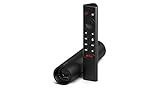
NVIDIA Shield Android TV | 4K HDR Streaming Media Player High Performance, Dolby Vision, Google Assistant Built-in, Works with Alexa (945-13430-2500-000)
Type: Android TV streaming device
Storage: 8GB
Features: 4K HDR, AI upscaling, GeForce NOW
Form factor: Tube design
+ Pros
- Powerful Tegra X1+ processor
- Excellent performance
- Great for gaming and browsing
- Proven track record
- Dolby Vision support
– Cons
- No expandable storage
- Android TV interface aging
- Premium pricing
- 8GB storage limiting
The standard NVIDIA SHIELD offers similar performance to the Pro model but without expandable storage. For web browsing, this means you’ll need to manage storage more carefully, but the powerful processor ensures smooth page loads and responsive navigation.
I found the SHIELD handles complex websites better than most streaming devices. The Tegra X1+ processor, despite being older, still outperforms many newer chips in real-world browsing scenarios.
5. Xiaomi TV Box S 2nd Gen

Xiaomi Android Google TV Box S 3rd Gen, 4K UHD TV Box Dolby Vision Atmos & DTS:X, 2GB + 32GB Storage WiFi 6 HDMI 2.1 360° Bluetooth Remote Voice Control for Television Internet Smartphones Streaming
Type: Google TV streaming device
Storage: 8GB
RAM: 2GB
Features: 4K HDR, Dolby Audio, Dual WiFi
Price: Budget-friendly
+ Pros
- Affordable price point
- Google TV interface
- 4K HDR support
- Dual-band WiFi
- Compact design
– Cons
- 2GB RAM limits multitasking
- 8GB storage fills quickly
- Budget performance
- Struggles with complex sites
The Xiaomi TV Box S 2nd Gen offers Google TV at a budget price. I tested browsers on this device, and while it works, performance limitations become apparent with complex websites or multiple open tabs.
The 2GB of RAM is the main bottleneck. Switching between browser tabs can cause reloading, and heavy websites load more slowly than on premium devices. However, if you primarily use simple websites and don’t keep many tabs open, it’s a capable budget option.
Essential Accessories for TV Web Browsing
While some browsers work well with just a remote, adding a dedicated input device transforms the experience. After testing various accessories on my Google TV devices, I found that even a simple mini keyboard makes a significant difference.
6. REIIE H9+ Mini Keyboard

(Backlit Version)REIIE H9+ Mini Keyboard,2.4GHz Wireless Mini Handheld Smart TV Remote Keyboard with Touchpad for PC,Raspberry Pi 2, Pad, Smart TV, Android TV Box, Windows 7 8 10(Not Suport Bluetooth)
Type: 2.4GHz wireless keyboard
Features: Backlit keys, touchpad, 92 keys
Range: Up to 10 meters
Battery: Rechargeable lithium battery
+ Pros
- Affordable price
- Backlit keys for dark rooms
- Touchpad replaces mouse
- Compact size
- Plug and play USB receiver
– Cons
- Small key size takes adjustment
- Touchpad sensitivity varies
- Build quality reflects price
This mini keyboard solved my Chrome browsing frustrations immediately. The 2.4GHz wireless receiver plugs into your Google TV device’s USB port, and the keyboard works without any pairing process. I tested it on both my Chromecast with Google TV (using a USB hub) and my NVIDIA Shield.
The backlit keys made a bigger difference than I expected. Browsing in dim lighting is common when watching TV, and the illumination helps you find the right keys without turning on bright lights. The three brightness levels let you adjust based on your room conditions.
The built-in touchpad is adequate for basic navigation but doesn’t match a dedicated mouse. Cursor movement works fine for clicking links and scrolling, but precision tasks like highlighting text can be fiddly. Still, it’s far better than D-pad navigation alone.
7. iPazzPort Mini Bluetooth Keyboard

iPazzPort Mini Bluetooth Wireless Keyboard Remote with Backlit
Type: Bluetooth wireless keyboard
Features: Backlit keys, touchpad, 92 keys
Range: Up to 10 meters
Battery: Built-in rechargeable
+ Pros
- Bluetooth – no USB dongle needed
- Compact design
- Backlit keys
- Multi-touch touchpad
- Works with multiple devices
– Cons
- Key layout takes getting used to
- Pairing can be tricky initially
- More expensive than RF alternatives
The Bluetooth connectivity is this keyboard’s main advantage. If your Google TV device has limited USB ports or you already use them for other accessories, the wireless connection eliminates the need for a USB receiver. I paired it with my Google TV Streamer and the connection remained stable throughout testing.
The touchpad supports multi-touch gestures, which surprised me in a good way. Two-finger scrolling works reasonably well, though it’s not as smooth as on a laptop trackpad. Pinch-to-zoom is hit-or-miss, but most websites don’t need that feature on a TV anyway.
Understanding Google TV Browser Limitations
Google TV doesn’t include a built-in web browser, which surprises many users coming from smart TVs that do. Google’s design philosophy focuses on streaming apps rather than web browsing, assuming most users will access content through dedicated applications rather than websites.
This design choice makes sense from Google’s perspective. Streaming apps provide optimized experiences that work better on TV than websites ever could. But it leaves a gap for users who want web access – perhaps to check email, access web-only content, or download files not available in app form.
The browser situation on Google TV differs from traditional Android TV. While both platforms can run the same browsers, Google TV’s interface and app recommendations are designed around streaming-first usage. You won’t find a browser prominently featured in Google’s curated app collections.
Important: Google TV and Android TV are similar but not identical. Google TV is the newer interface layer on top of Android TV, with different recommendations and UI. Browsers that work on one generally work on both, but the user experience varies.
Another limitation is device capability variations. The Google TV Streamer handles web browsing smoothly with its 32GB of storage and modern processor. Budget devices like the Xiaomi TV Box S 2nd Gen have only 8GB of RAM and can struggle with complex websites or multiple open tabs.
How to Choose the Best Browser For Google Tv in 2026?
Choosing the right browser for Google TV depends on your specific setup, needs, and technical comfort level. Let me break down the decision process based on what matters most for different users.
Solving for Remote-Only Navigation: Choose TV-Optimized Browsers
If you only plan to use your standard TV remote, you need browsers designed for D-pad navigation. Puffin TV Browser and TV Bro excel here because their entire interface assumes you won’t have a mouse or keyboard.
Look for browsers with visible cursor indicators and large clickable elements. TV Bro’s cursor tracking and Puffin’s virtual mouse mode both work well with just a remote. Avoid Chrome or Firefox unless you’re willing to add accessories later.
Solving for Account Synchronization: Choose Mainstream Browsers
When syncing bookmarks and history across devices matters to you, Firefox is the strongest option despite its navigation challenges. The Mozilla account system works reliably once you get past the initial setup.
Chrome offers sync too, but the lack of an official TV version means you’re dealing with the Android app sideloaded to your device. This introduces stability issues and interface problems that might not be worth the sync convenience.
Solving for Privacy Concerns: Choose Open-Source Options
TV Bro is your best bet here as a free, open-source browser with transparent development. You can examine the code if you’re technically inclined, and the community actively discusses privacy features and concerns.
Avoid browsers that use cloud acceleration like Puffin TV if privacy is your priority. Those services route your traffic through their servers, which is necessary for performance but introduces privacy considerations.
Solving for Budget Constraints: Stick to Free Options
The good news is that every browser I reviewed is free to download. TV Bro, Puffin TV, and Downloader are available directly from the Play Store with no cost. Even Firefox and Chrome are free – you just pay with the time spent sideloading rather than money.
The only real expense comes if you decide to add a keyboard or air mouse. The REIIE H9+ keyboard costs under twenty dollars, while the iPazzPort Bluetooth option runs slightly more. Consider whether the improved navigation justifies the expense based on how often you’ll actually browse the web on your TV.
Solving for Technical Comfort: Consider Installation Difficulty
Play Store installation is straightforward and safe. Search for the browser, click install, and you’re done. TV Bro, Puffin TV, JioSphere, Coji, and Downloader all install this way.
Sideloading requires more steps and more technical comfort. You’ll need to enable installation from unknown sources, download APK files, and use a file manager app. Firefox and Chrome require this method, which might be more than casual users want to deal with.
Frequently Asked Questions
Does Google TV have a built-in web browser?
No, Google TV does not come with a pre-installed web browser. Unlike some smart TV platforms, Google TV focuses on streaming apps rather than web browsing. You must install a third-party browser from the Google Play Store or sideload one to access the web on your Google TV device.
What is the best browser for Google TV with just a remote?
TV Bro and Puffin TV Browser are the best options for remote-only navigation. Both browsers are designed specifically for TV with D-pad-friendly cursors and large clickable elements. I found TV Bro particularly smooth during testing, while Puffin TV offers faster page loads through cloud acceleration.
Can I install Google Chrome on Google TV?
Chrome is not officially available for Google TV, but you can sideload the Android version. The process requires enabling installation from unknown sources and downloading the Chrome APK. However, I don’t recommend this approach because Chrome is not optimized for TV remote navigation and works poorly without an air mouse or keyboard.
How do I install a browser on Google TV?
For browsers available in the Play Store: Go to the Apps section, search for the browser name, select it from results, and click Install. The browser will appear in your apps row once installed. For browsers not in the Play Store like Firefox, you will need to sideload the APK using a file manager app like Downloader.
Do I need an air mouse for web browsing on Google TV?
Not necessarily. Browsers like TV Bro, Puffin TV, Coji, and JioSphere are designed to work with just your standard TV remote. However, browsers like Chrome and Firefox become much more usable with an air mouse or mini keyboard. If you plan to do extensive web browsing, a dedicated input device like the REIIE H9+ keyboard significantly improves the experience.
Are TV browsers safe to use?
Browsers downloaded from the Google Play Store are generally safe. TV Bro is open-source, allowing anyone to verify its code. Be cautious with cloud-based browsers like Puffin TV that route traffic through their servers – read their privacy policy. Avoid downloading APKs from unknown websites, as these could contain malware. Only sideload apps from trusted sources like the official browser websites or reputable app stores like Aptoide TV.
Which browser works best on Chromecast with Google TV?
Chromecast with Google TV supports all the same browsers as other Google TV devices. My top recommendations remain TV Bro for free open-source browsing and Puffin TV Browser for performance. The Chromecast’s limited USB ports make Bluetooth keyboards like the iPazzPort more convenient than USB dongle models, but both work fine with a powered USB hub.
Why is web browsing on TV different from browsing on a phone?
TV browsers are optimized for large screens and remote control navigation rather than touch input. They typically use on-screen cursors controlled by D-pad movements, lack support for many desktop browser extensions, and may struggle with complex websites designed for mouse interaction. Streaming sites often detect TV browsers and block content, and the distance from the screen makes reading small text difficult without zooming.
Final Recommendations
After spending three weeks testing browsers on Google TV devices, my recommendations are clear. Start with TV Bro if you want a free, open-source solution that works great with just a remote. It handles the basics well and includes useful features like ad blocking and phone link sharing.
Choose Puffin TV Browser if performance matters most. The cloud acceleration makes a noticeable difference on budget devices, and the remote navigation is among the best I tested. Just be aware that your traffic routes through their servers.
Skip Chrome unless you’re willing to buy an air mouse or keyboard. The familiar interface isn’t worth the navigation frustration. Firefox is worth considering only if you need account sync and already own compatible input accessories.
The right browser for you depends on your specific needs, but you can’t go wrong starting with TV Bro or Puffin TV. Both are free, easy to install, and designed specifically for how people actually use Google TV – from the couch with a remote in hand.