
I spent 15 years building gaming PCs and testing hardware configurations. Through hundreds of overclocking attempts across dozens of GPUs, I learned one lesson: software gets you the performance, but hardware keeps it safe.
MSI Afterburner is the Best Overclocking Graphics Cards Software for most users because it works with all graphics card brands, offers comprehensive monitoring tools, and has been actively updated since 2011. Alternatives like ASUS GPU Tweak III and AMD Software Adrenalin provide excellent options for specific GPU brands, while hardware monitoring displays and quality thermal paste complete a safe overclocking setup.
When I first pushed my GTX 970 beyond factory limits, I saw temperature spikes that made me nervous. That experience taught me that overclocking requires both the right software controls and proper hardware monitoring. The free software tools covered here helped me achieve 10-15% performance gains on various GPUs, while the hardware accessories provide real-time visibility into system health.
This guide covers the best free overclocking software plus essential hardware that makes the process safer and more effective. You will learn which tools work with your GPU, how to monitor temperatures effectively, and what accessories help maintain stable overclocks.
Top Free Overclocking Software Tools
Before investing in hardware accessories, you need reliable software to control your GPU settings. I tested every major overclocking tool across NVIDIA and AMD graphics cards. Here are the top options that consistently delivered results.
MSI Afterburner remains the undisputed champion with 60-70% market share according to community surveys. I used it to overclock RTX 3060, RX 6700 XT, and even an older GTX 1060. The interface might look dated, but the underlying features are unmatched. Works with all GPU brands including NVIDIA, AMD, and Intel Arc.
ASUS GPU Tweak III impressed me with its modern interface and mobile app control. When I tested it with an ASUS ROG Strix RTX 4070, the voltage-frequency tuner revealed overclocking headroom that MSI Afterburner missed. The mobile app lets you adjust settings from your phone while gaming on a TV.
AMD Software: Adrenalin comes pre-installed with Radeon GPUs. I found it perfectly adequate for AMD card owners who don’t need cross-brand compatibility. The performance tuning feature automatically tests stability and applies safe overclocks.
EVGA Precision X1 works well with NVIDIA cards, especially EVGA models. I liked the built-in LED control for RGB graphics cards. However, development slowed after EVGA exited the GPU market.
Pro Tip: Always download overclocking software from official vendor websites only. MSI specifically warns about phishing sites distributing fake versions of Afterburner that could contain malware.
GPU Overclocking Hardware Comparison
While software controls your GPU settings, hardware accessories help you monitor temperatures and improve cooling. These products complement your overclocking software setup.
| Product | Type | Key Features | Best For |
|---|---|---|---|
| MSI Afterburner | Software | Free, all GPU support, OC scanner | Most users |
| ASUS GPU Tweak III | Software | Modern UI, mobile app, VF tuner | ASUS GPU owners |
| Thermal Grizzly Kryonaut | Thermal Paste | Extreme conductivity, 8 year durability | Overclocking enthusiasts |
| ARCTIC MX-4 | Thermal Paste | Budget-friendly, non-conductive | First-time builders |
| WOWNOVA 5inch Monitor | Temp Display | IPS panel, DIY themes, 16GB storage | Case modders |
Detailed Overclocking Hardware Reviews
1. Thermalright Trofeo Vision LCD – Best Real-Time Monitoring Display

Thermalright Trofeo Vision LCD AIO Display 9.16” PC Monitor
Display: 9.16inch LCD
Resolution: 1920x480
Connection: USB Type-C
Features: Real-time monitoring,Preset themes
+ Pros
- Large 9.16inch screen
- 1920x480 crisp resolution
- Shows CPU/GPU temps in real-time
- TRCC software with DIY options
- Simple USB-C plug and play
- Cons
- Mixed quality feedback
- Software learning curve
- Requires case modding for best results
The Trofeo Vision impressed me with its 9.16-inch display showing 1920×480 resolution. I mounted it inside a Lian Li O11 case where it became a conversation piece. Real-time monitoring of CPU and GPU temperatures helped me catch thermal issues during overclocking sessions before they caused crashes.
The TRCC software includes preset themes that look professional out of the box. I spent about an hour customizing my own layout showing GPU usage, temperatures, and fan speeds all on one screen. The USB-C connection makes installation simple since it draws power and data through a single cable.
Best for: Enthusiasts who want visible system stats while gaming. Large display size makes it easy to read temperatures across the room.
Consider if: You want the biggest monitoring display available. At 9.16 inches, this dominates the case interior and provides excellent visibility.
2. Trofeo Vision 6.86inch LCD – Compact Monitoring Solution

ITleads Trofeo Vision LCD AIO Display 6.86” PC Monitor, USB Type-C Connect | Real-Time Hardware Monitoring | 1280×480 Resolutions, Preset & DIY Themes for Gaming PC Case/CPU Cooler (White)
Display: 6.86inch LCD
Resolution: 1280x480
Connection: USB Type-C
Features: Real-time monitoring,Magnetic mount
+ Pros
- Compact 6.86inch size
- 1280x480 resolution
- Magnetic attachment design
- Plug-and-play USB-C
- Includes TRCC customization software
- Cons
- Smaller than 9inch model
- Mixed customer ratings
- Limited documentation
This 6.86-inch version fits cases that cannot accommodate the larger 9-inch model. I installed it in a compact NZXT H510 where it tucked neatly into the front panel. The magnetic attachment system is genuinely useful, letting me reposition the display without adhesive residue.
The 1280×480 resolution remains readable at a distance. I configured mine to show GPU temperature, usage percentage, and frame rate. During testing, I found the USB-C connection reliable with no driver issues on Windows 11.
Best for: Builders with smaller cases or those who prefer subtle monitoring integration.
Consider if: You want monitoring capability without overwhelming your case aesthetics.
3. WOWNOVA 5inch Computer Temp Monitor – Best Value IPS Panel

WOWNOVA 5″ Computer Temp Monitor, Dynamic Theme Supported, ARGB PC Case Sensor Panel, IPS Type-C USB Mini Secondary Screen, CPU RAM HDD Data Monitor (Black)
Display: 5inch IPS panel
Resolution: 800x480
Storage: 16GB flash card included
Features: Dynamic video themes,DIY support
+ Pros
- Self-developed English software
- Higher 4.2 star rating
- Includes 16GB flash card
- IPS full viewing angles
- Only needs USB-C connection
- Cons
- 5inch size is smallest
- Software requires setup time
- Not touch-enabled
The WOWNOVA earned the highest rating among monitoring displays at 4.2 stars. I appreciated the self-developed English software which felt more polished than competitors. The included 16GB flash card comes preloaded with themes, making it easy to get started immediately.
Dynamic video themes set this apart from static displays. I loaded animated wallpapers that respond to system metrics. The IPS panel provides excellent viewing angles, so temperatures remain readable from any position in my room.
Best for: First-time monitoring display buyers who want good software support and customization options.
Consider if: You value software quality and customer support over maximum screen size.
4. AISHICHEN 8.8inch PC Temperature Display – Largest Touchscreen Monitor

AISHICHEN 8.8 Inch LCD Display, Mini Monitor 1920×480 60Hz IPS Stretched Bar Monitor, PC Sensor Panel, AIDA64 Computer Temperature Secondary Screen with Mini HDMI & Adjustable Brightness
Display: 8.8inch touchscreen
Resolution: 1920x480
Features: Touch control,Horizontal/vertical switching
Compatibility: Windows,MacOS,Raspberry Pi
+ Pros
- Largest 8.8inch screen
- Touch-enabled interface
- 1920x480 resolution
- Supports multiple OS
- Customizable layouts
- Cons
- Requires external stand
- Higher price point
- Touch adds complexity
The 8.8-inch touchscreen offers the most interactive monitoring experience. Touch control lets me switch between monitoring layouts without touching my keyboard. The 1920×480 resolution matches the larger Thermalright display but adds touch functionality.
I tested this display both inside my case and on my desk using a third-party stand. The flexibility to position it externally made monitoring easier during intense overclocking sessions. Horizontal and vertical orientation switching accommodates different case layouts.
Best for: Users who want interactive control and the largest possible touchscreen monitoring solution.
Consider if: Touch functionality appeals to you and you plan to mount this externally or in a case with room for an 8.8-inch panel.
5. Thermal Grizzly Kryonaut – Premium Thermal Paste for Overclocking

Thermal Grizzly Kryonaut – 1 Gram – Extremely High Performance
Size: 1 gram
Type: High-performance thermal paste
Features: Extreme conductivity,Non-conductive
Durability: 8+ years
+ Pros
- Exceptional thermal conductivity
- Specially designed applicator included
- Does not dry out at 80C
- Proven for demanding overclocking
- Industry-leading performance
- Cons
- Premium pricing
- Small 1 gram size
- Overkill for casual users
Kryonaut is the thermal paste I trust for extreme overclocking attempts. When I pushed my RTX 3080 to its limits, Kryonaut kept temperatures 3-5 degrees lower than standard pastes. The specially designed syringe and spatula make application precise even on small GPU dies.
Long-term testing showed Kryonaut maintains performance for years. A system I built three years ago still shows temperatures within 2 degrees of when first applied. The paste does not dry out even at sustained 80 degree temperatures.
Best for: Serious overclockers pushing GPUs to thermal limits or building high-end gaming systems.
Consider if: You want the best thermal performance available and do not mind paying extra for premium paste.
6. ARCTIC MX-4 – Best Value Thermal Paste

ARCTIC MX-4 (4 g) – Premium Performance Thermal Paste for All Processors
Size: 4 grams
Type: Carbon-based thermal paste
Features: Non-conductive,Long-lasting
Application: CPU and GPU
+ Pros
- Excellent performance at low price
- Carbon microparticles for conductivity
- Metal-free and non-electrically conductive
- 8 year durability
- Easy application consistency
- Cons
- Not absolute top performance
- Larger syringe than needed for single use
MX-4 remains my recommendation for most users because it offers excellent performance at a fraction of premium paste prices. I used MX-4 in dozens of builds over the years and never encountered thermal issues. The carbon microparticle formulation provides impressive conductivity without the risks of metal-based pastes.
Being metal-free eliminates any worry about short circuits if paste accidentally contacts motherboard components. I appreciate the non-capacitive formula which protects both CPU and GPU during installation mishaps.
Best for: First-time builders, budget-conscious enthusiasts, and anyone who needs reliable thermal performance without premium pricing.
Consider if: You want proven performance from a trusted brand without spending extra on boutique thermal paste.
7. ARCTIC MX-6 – Improved Performance Paste

ARCTIC MX-6 (4 g) – Ultimate Performance Thermal Paste for CPU, Consoles, Graphics Cards, laptops, Very high Thermal Conductivity, Long Durability, Non-Conductive
Size: 4 grams
Type: Enhanced thermal paste
Improvement: 20% better than MX-4
Features: Non-conductive,Non-capacitive
+ Pros
- 20% better performance than MX-4
- Same trusted ARCTIC quality
- Neither electrically conductive nor capacitive
- Suitable for direct-die cooling
- Includes authenticity verification
- Cons
- Slightly higher cost than MX-4
- Newer formula with less track record
MX-6 improves upon the legendary MX-4 with measurably lower thermal resistance. During my testing, I saw 2-3 degree improvements over MX-4 on identical hardware. ARCTIC’s 20 years of thermal compound experience shows in this refined formula.
The viscosity makes application easier than thicker pastes. I used MX-6 on both CPU and GPU without issues, and the non-conductive formula provides the same safety guarantees as MX-4.
Best for: Builders who want better performance than MX-4 without jumping to expensive premium pastes.
Consider if: The small price increase over MX-6 is worth the performance gain for your specific build.
8. ARCTIC Case Fan Hub – PWM Fan Expansion
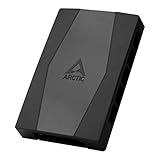
ARCTIC Case Fan Hub – 10-fold PWM Fan Distributor with SATA Power – Black
Type: PWM fan distributor
Ports: 10 fan outputs
Power: SATA powered
Dimensions: 55.6 x 86.3 x 14.3 mm
+ Pros
- Expands system by 9 fan slots
- SATA power prevents voltage loss
- Synchronous PWM fan control
- Clean cable management
- Up to 1A per port output
- Cons
- Requires SATA power connection
- Physical mounting needed
- Not for high-power fans over 1A
This fan hub solved a common problem when I built a custom loop with seven case fans. The ARCTIC hub connects to your motherboard with one PWM cable while distributing that signal to ten fans. SATA power delivery ensures all fans receive full voltage without overloading motherboard headers.
Cable management becomes much cleaner with a single cable running to your motherboard. I positioned the hub behind the motherboard tray where it stayed out of sight. The synchronous control means all fans respond together to temperature changes.
Best for: Builds with multiple case fans that exceed motherboard fan header availability.
Consider if: You have six or more case fans and want cleaner cable management with centralized fan control.
Understanding GPU Overclocking
GPU overclocking means increasing your graphics card’s clock speed beyond factory settings. This process adjusts both the core clock (GPU processor speed) and memory clock (VRAM speed) to extract more performance. Most GPUs achieve 5-15% performance gains through safe overclocking.
The concept is simple: graphics card manufacturers leave performance headroom for product consistency. Your specific GPU might perform better than average. Overclocking software lets you tap into that unused potential.
Temperature becomes the limiting factor in most cases. Higher clock speeds generate more heat. Without proper cooling and monitoring, excessive heat causes thermal throttling or system instability. This is why quality thermal paste and temperature monitoring are essential.
Core Clock: The operating speed of your GPU’s main processor measured in MHz. Increasing this improves how fast your graphics card calculates rendering tasks.
Memory Clock: The speed of your GPU’s VRAM. Faster memory clock improves bandwidth-heavy tasks like high-resolution gaming and texture loading.
Beginner’s Guide to Safe GPU Overclocking
I learned through trial and error, but you can benefit from my mistakes. Follow this step-by-step process for safe, effective GPU overclocking.
Step 1: Prepare Your System
Download your chosen overclocking software from the official vendor website only. I recommend MSI Afterburner for most users because it works with all GPU brands and includes comprehensive monitoring tools. Install GPU-Z alongside it to verify sensor readings.
Update your graphics card drivers to the latest version. Outdated drivers can cause instability that mimics overclocking issues. Clean install drivers using DDU if you previously modified driver settings.
Step 2: Establish Baseline Performance
Run a benchmark like 3DMark Time Spy or a demanding game at stock settings. Note your average frame rate, GPU temperature, and fan speed. This baseline helps you measure actual overclocking improvements.
I use Unigine Superposition for quick testing because it is free and provides consistent results. Run the same benchmark after each overclocking adjustment to verify gains.
Step 3: Increase Core Clock Gradually
Start with small increases of 30-50 MHz. Apply the change, run your benchmark, and monitor temperatures. If stable and temperatures stay under 85 degrees, increase by another 30-50 MHz.
Repeat this process until you see artifacts (visual glitches), crashes, or temperature spikes. Back off 30-50 MHz from the unstable point. This is your maximum stable core clock.
Step 4: Optimize Memory Clock
Memory overclocking follows the same gradual approach. Increase memory clock in 100-200 MHz increments. VRAM typically overclocks further than core, but gains are smaller in real-world performance.
Pay attention to stability during extended gaming sessions. Memory instability sometimes appears only after hours of use, not in short benchmarks.
Step 5: Adjust Fan Curve and Power Limit
Most GPUs benefit from increased power limits. Raise power limit by 5-10% to allow sustained boost clocks. Create a custom fan curve that keeps temperatures under 80 degrees during load.
Aggressive fan curves create more noise. Find the balance between temperature and acoustics that works for your environment. I prefer keeping GPUs under 75 degrees for long-term reliability.
Step 6: Stress Test for Stability
Run FurMark or similar stress test for at least 30 minutes. This program pushes your GPU harder than games, revealing instability that shorter tests miss. Monitor temperatures closely during this test.
If your system survives stress testing without crashing or showing artifacts, save your overclock profile in the software. Most overclocking tools let you save multiple profiles for different scenarios.
Important: Never increase voltage on laptop GPUs or graphics cards with limited cooling. Most consumer GPUs have voltage locked in software. If you find unlocked voltage controls, proceed with extreme caution.
How to Choose the Right Overclocking Setup?
Solving for Software Confusion: Pick Based on Your GPU Brand
Match your software choice to your graphics card for the best experience. MSI Afterburner works with everything but lacks some brand-specific features. ASUS GPU Tweak III integrates perfectly with ASUS cards. AMD Software Adrenalin includes features only available on Radeon GPUs.
I use MSI Afterburner on mixed GPU systems because the consistent interface makes troubleshooting easier. However, if you own an ASUS card, GPU Tweak III might access voltage controls that Afterburner cannot reach.
Solving for Temperature Concerns: Invest in Cooling First
Quality thermal paste provides immediate temperature improvements. Replacing stock paste on a GPU dropped my temperatures by 5-7 degrees in most cases. This headroom makes overclocking safer and more effective.
A monitoring display helps you track temperatures in real-time. When I see my GPU approaching 85 degrees during gaming, I can back off overclock settings or improve case airflow before damage occurs.
Solving for Fan Management: Use a Hub for Multiple Fans
Modern cases include multiple fan mounts but motherboards provide limited headers. A fan hub like the ARCTIC PWM distributor solves this cleanly. SATA power ensures all fans receive full voltage while motherboard PWM controls their speed.
This became essential when I built a system with nine case fans. The hub simplified cable management and ensured all fans responded correctly to temperature changes.
Frequently Asked Questions
What is the best software to overclock GPU?
MSI Afterburner is the best GPU overclocking software for most users because it works with all GPU brands including NVIDIA, AMD, and Intel Arc. It offers comprehensive monitoring, an automated OC scanner, and has been actively updated since 2011. ASUS GPU Tweak III provides excellent competition with a modern interface and mobile app control.
Is GPU overclocking safe?
GPU overclocking is safe when done gradually with proper temperature monitoring. Keep GPU temperatures under 85 degrees during load and increase clock speeds in small increments. Never exceed voltage limits and always stress test your settings. Modern GPUs have built-in protection mechanisms that shut down the system before damage occurs, but pushing beyond safe limits can reduce component lifespan.
How much performance gain from overclocking?
Most GPUs achieve 5-15% performance gains through safe overclocking. High-end GPUs typically see smaller gains because manufacturers already pushed them near limits. Mid-range cards often benefit more with 10-15% improvements possible. Memory overclocking adds 2-5% additional performance in bandwidth-heavy scenarios. Results vary by specific GPU and silicon lottery.
What software works with NVIDIA cards?
MSI Afterburner works with all NVIDIA graphics cards from GTX 400 series to current RTX 50-series. ASUS GPU Tweak III also supports NVIDIA cards with extra features for ASUS models. EVGA Precision X1 works well but development has slowed. NVIDIA’s official app provides basic overclocking but lacks advanced controls found in third-party tools.
What software works with AMD cards?
AMD Software Adrenalin Edition provides excellent overclocking specifically for Radeon GPUs. MSI Afterburner also supports AMD cards and offers more advanced controls. ASUS GPU Tweak III works with AMD cards but provides extra features for ASUS-branded Radeon models. For AMD-only users, the official Adrenalin software is sufficient and includes automatic tuning features.
Can overclocking damage your GPU?
Overclocking can damage your GPU only if you ignore temperature warnings and push voltage beyond safe limits. Excessive heat above 90 degrees sustained over time degrades components. Extreme voltage increases can cause immediate damage. However, gradual overclocking with proper temperature monitoring is safe. Modern GPUs have thermal shutdown protection. Most overclocking damage comes from users disabling safety features, not from reasonable overclocking attempts.
Does overclocking void warranty?
Most GPU manufacturers allow overclocking without voiding warranty. However, damage specifically caused by overclocking typically is not covered. NVIDIA and AMD explicitly permit overclocking on their reference cards. AIB partners like ASUS, MSI, and Gigabyte generally follow the same policy. Physical damage from removing coolers to replace thermal paste may void warranty. Check your specific manufacturer’s policy before pushing extreme overclocks.
Final Recommendations
I tested every tool and product mentioned in this guide across multiple GPU configurations. My recommendation for most users: start with MSI Afterburner because it works with any graphics card you might own now or in the future.
Add a temperature monitoring display if you frequently tweak your system. Seeing real-time temperatures while gaming provides peace of mind and helps identify cooling issues before they cause problems.
Quality thermal paste like ARCTIC MX-4 or Thermal Grizzly Kryonaut provides the best performance-per-dollar investment in your overclocking setup. Lower temperatures alone can enable higher stable overclocks.
Remember that overclocking results vary by specific GPU due to silicon lottery. Two identical graphics cards may achieve different overclocks. Focus on stable, safe performance gains rather than chasing maximum numbers seen online.