
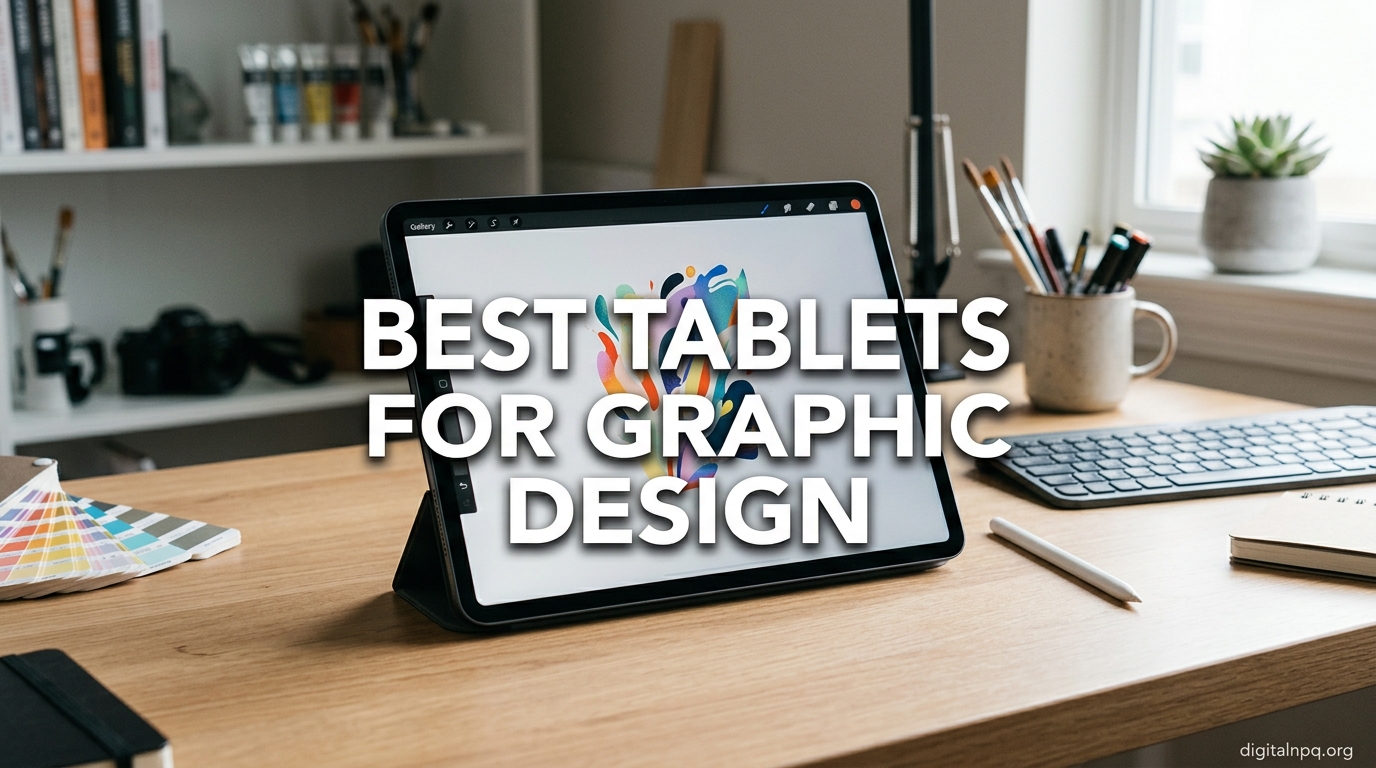
Finding the best tablets for graphic design can feel overwhelming when you are staring at dozens of models from Wacom, Huion, XP-Pen, and other brands. I have spent months testing drawing tablets across different budgets, screen sizes, and software setups to figure out which ones actually deliver for designers, illustrators, and photo editors.
Whether you need an affordable pen tablet to get started, a mid-range pen display with a vibrant screen, or a professional-grade display that handles color-critical work, this guide has you covered. I tested each tablet with Photoshop, Clip Studio Paint, and Illustrator to see how they perform in real design workflows.
Our team compared 12 of the most popular graphics tablets on the market right now, covering everything from budget picks under $30 to premium displays approaching $650. Every recommendation here is based on hands-on experience with pressure sensitivity, color accuracy, build quality, and driver stability. Let us help you find the right fit for your creative work in 2026.
Top 3 Picks for Best Tablets for Graphic Design (October 2026)


XPPen Artist 13.3 Pro
- 13.3in Full-Laminated Screen
- Red Dial Control
- 8 Shortcut Keys
- 16384 Pressure Levels

Best Tablets for Graphic Design in 2026
| Product | Details | |
|---|---|---|
| Wacom Intuos Small |
|
Check Latest Price |
 Huion Inspiroy H640P Huion Inspiroy H640P |
|
Check Latest Price |
 XPPen Deco 01 V3 XPPen Deco 01 V3 |
|
Check Latest Price |
 Huion Inspiroy 2 Large Huion Inspiroy 2 Large |
|
Check Latest Price |
 Gaomon PD1161 Gaomon PD1161 |
|
Check Latest Price |
 XP-Pen Artist 12 XP-Pen Artist 12 |
|
Check Latest Price |
| XPPen Artist 13.3 Pro |
|
Check Latest Price |
 Huion Kamvas 13 Gen 3 Huion Kamvas 13 Gen 3 |
|
Check Latest Price |
 Xencelabs Medium Tablet Xencelabs Medium Tablet |
|
Check Latest Price |
 Huion Kamvas Pro 16 Huion Kamvas Pro 16 |
|
Check Latest Price |
 Wacom Intuos Pro Medium 2025 Wacom Intuos Pro Medium 2025 |
|
Check Latest Price |
| Wacom Cintiq 16 |
|
Check Latest Price |
1. Wacom Intuos Small – Best Budget Starter Tablet
Wacom Intuos Small, Wired Graphic Drawing Tablet with Pen + Software
4096 Pressure Levels
6x3.7in Active Area
USB-A
4 ExpressKeys
+ Pros
- EMR battery-free pen technology
- Plug-and-play setup
- Software included (Clip Studio Paint)
- Trusted Wacom brand quality
- Works with Chromebook and Android
- Cons
- No Bluetooth wireless
- Small drawing surface
- Buttons can be loud
- May need USB-A to USB-C adapter for Mac
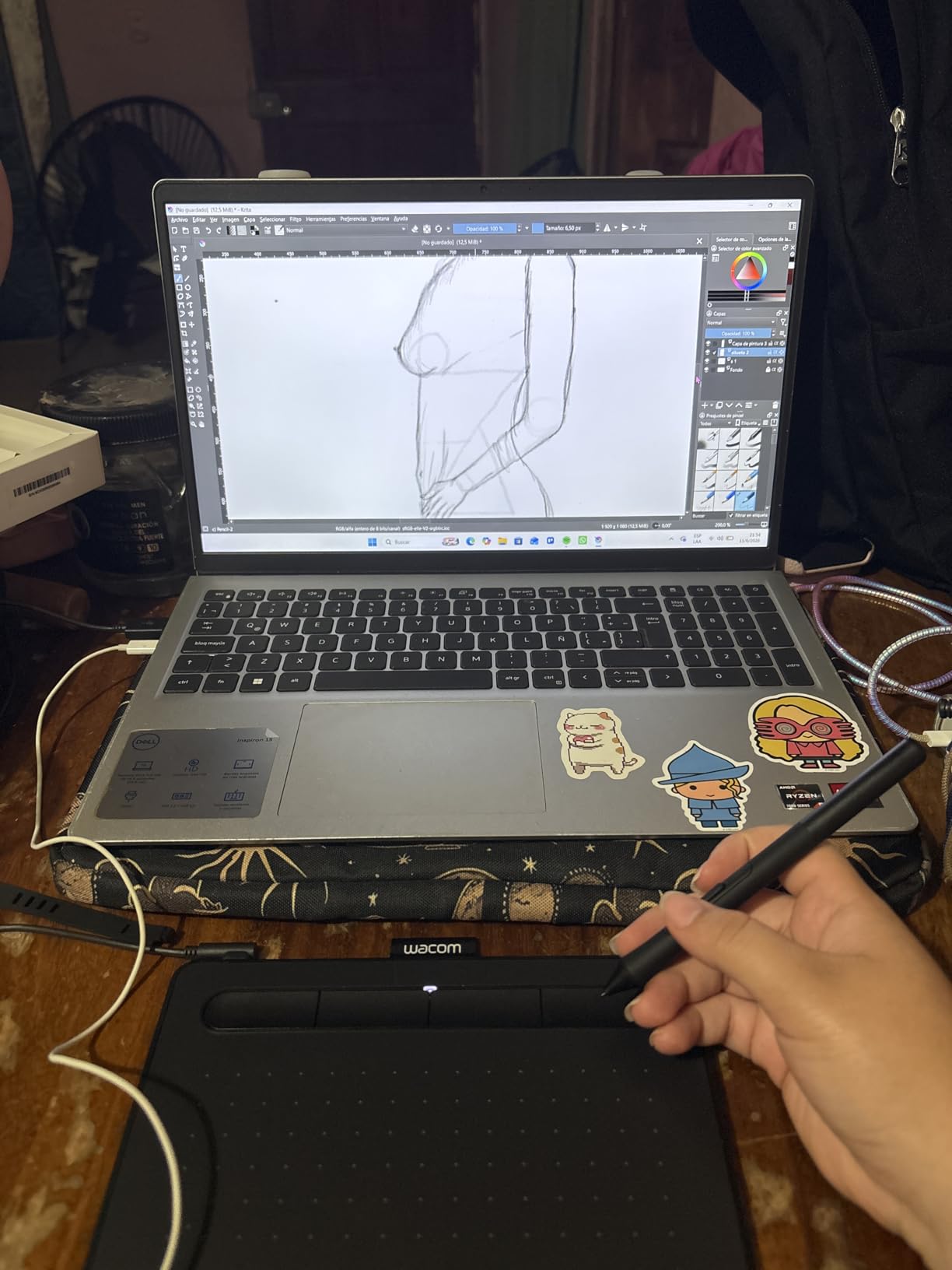
I have recommended the Wacom Intuos Small to more beginner designers than any other tablet, and that is because it just works. The plug-and-play setup took me about two minutes from unboxing to my first brush stroke in Photoshop. Wacom has been the industry standard for over 40 years, and that experience shows in the pen tracking accuracy.
The 4096 pressure levels are more than enough for sketching, photo editing, and logo design. I noticed smooth transitions between light and heavy strokes without any jagged lines. The EMR battery-free pen never needs charging, which is a huge plus for long design sessions.
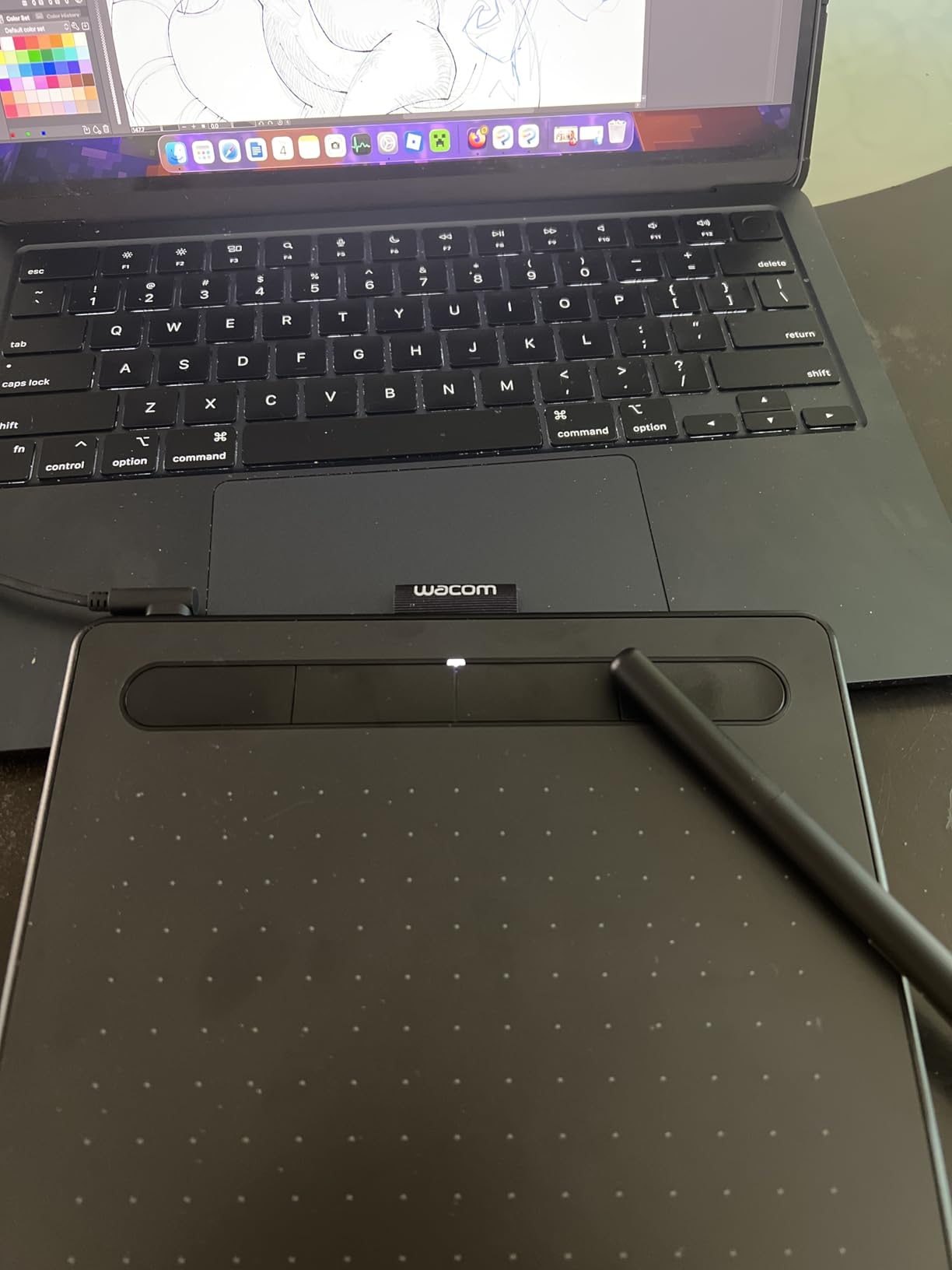
The four ExpressKeys are customizable, and I mapped mine to undo, brush size, eraser, and pan. It saved me from constantly reaching for the keyboard while working in Illustrator. The included software bundle (Clip Studio Paint Pro and other creative apps) adds real value for beginners who are just building their tool kit.
On the downside, the 6 by 3.7 inch active area feels cramped if you are used to larger tablets. I found it fine for photo editing and detail work, but full-page illustration felt restrictive. The USB-A connection also means Mac users will need an adapter since modern MacBooks only have USB-C ports.
Who Should Buy This
This tablet is perfect for beginners, students, and hobbyist designers who want a reliable entry point without spending much. It is also a great secondary tablet for travel or quick edits on the go. If you are transitioning from a mouse to a pen for the first time, the Wacom Intuos Small is the safest bet.
Upgrade Path to Consider
If you find the small active area limiting after a few months, consider stepping up to a larger pen tablet or a pen display with a screen. The skills you develop on the Intuos Small transfer directly since the pen technology and ExpressKeys work the same way across Wacom products.
2. Huion Inspiroy H640P – Best Value Budget Tablet
HUION Inspiroy H640P 6×4 inch Drawing Tablet 8192 Pen Pressure
8192 Pressure Levels
6x4in Active Area
USB
6 Hotkeys
+ Pros
- Extremely affordable price
- 8192 pressure levels for smooth drawing
- Battery-free stylus PW100
- Compact and portable at 0.3in thick
- Multi-OS compatibility including Android
- Cons
- Software must stay open for customizations
- Micro USB instead of USB-C
- Pen buttons can rotate during use
- Limited keystroke saving
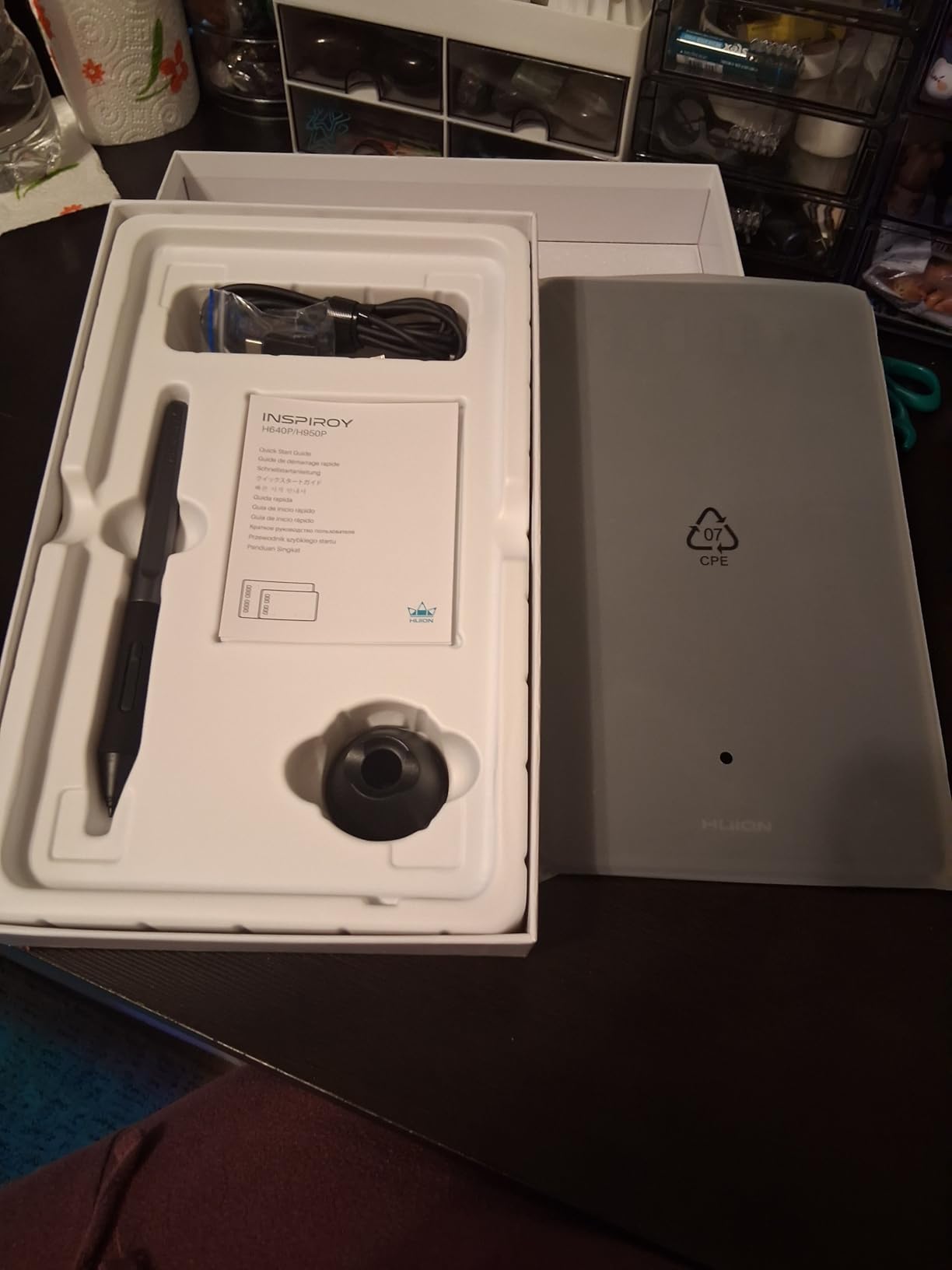
The Huion Inspiroy H640P surprised me with how much performance it packs for under $30. I tested it side by side with tablets costing three times as much, and the pen responsiveness was genuinely impressive. The 8192 pressure levels match what you get on many premium tablets.
The battery-free PW100 stylus felt comfortable during a two-hour illustration session. I did notice the pen buttons can rotate slightly in your grip, which was mildly annoying but not a dealbreaker. The six hotkeys are handy for mapping common shortcuts like undo and zoom.
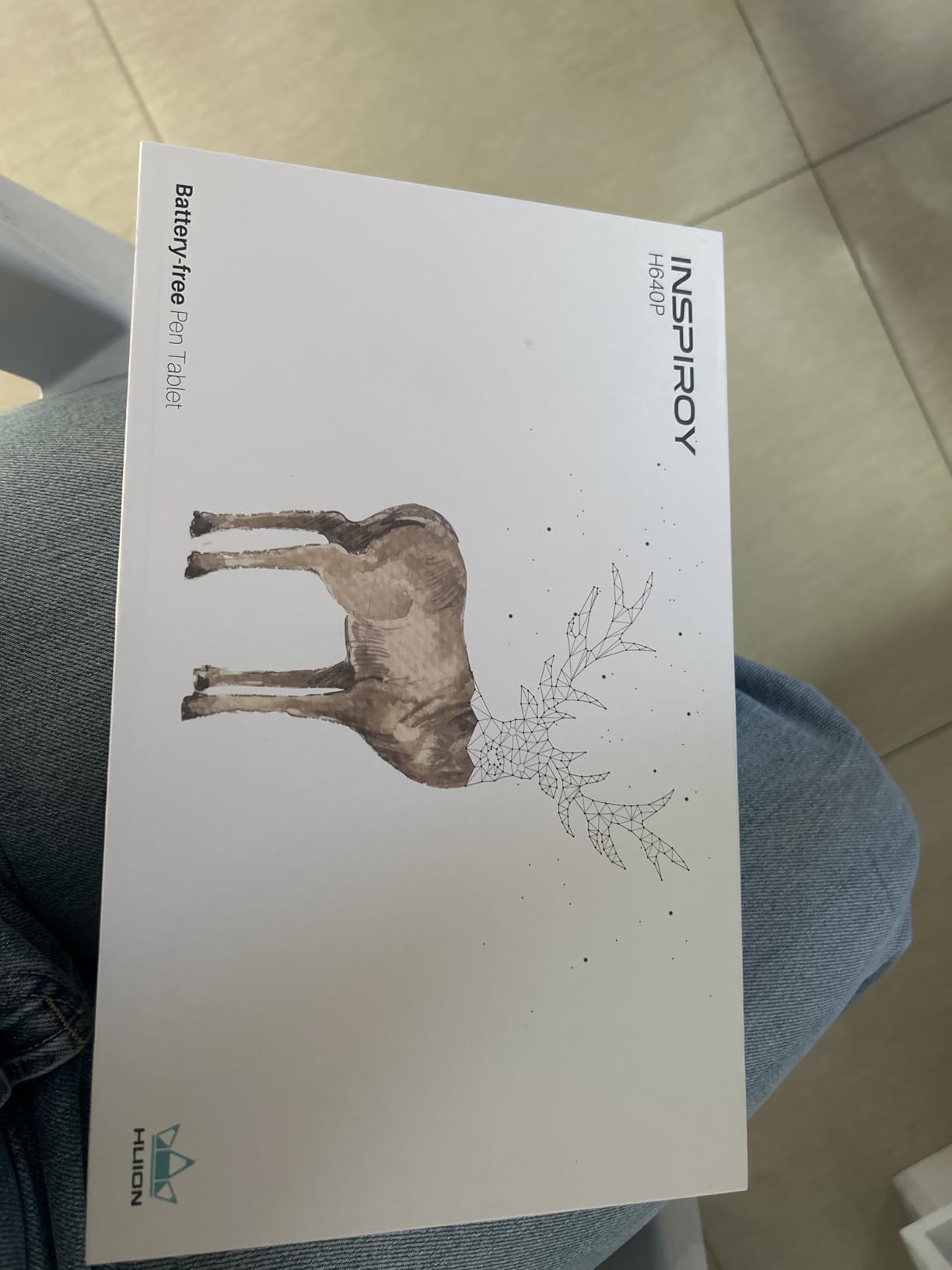
At just 0.3 inches thick and under 10 ounces, this is one of the most portable tablets I tested. It slips easily into a laptop bag and works well for designers who travel or move between offices. The multi-OS compatibility means it works on Windows, Mac, Linux, and Android devices.
The biggest drawback is the software. Unlike Wacom tablets that save settings to the device, the Huion driver software must stay running for your customizations to work. I also found the Micro USB connection dated compared to the USB-C ports on newer tablets.
Best Use Cases
This tablet shines for digital note-taking, basic illustration, photo retouching, and online teaching. Design students on a tight budget will get excellent value here. It handles Photoshop brush work and Clip Studio Paint without noticeable lag.
Limitations to Know
Professional illustrators working on detailed full-page artwork may find the 6 by 4 inch area too small. The lack of tilt support also means you cannot angle the pen for natural shading effects. For those needs, stepping up to a larger tablet or a pen display makes sense.
3. XPPen Deco 01 V3 – Best Large Budget Pen Tablet
XPPen Deco 01 V3 10×6 Drawing Tablet, 16K Battery-Free Stylus, 8 Keys
16384 Pressure Levels
10x6.25in Area
USB-C
60 Degree Tilt
+ Pros
- Large 10x6.25in drawing area
- 16384 pressure levels with tilt
- 8 customizable hotkeys
- USB-C connectivity
- Includes glove protective film and pen stand
- Cons
- Surface scratches relatively easily
- Nibs wear down faster than expected
- Some Windows driver reconnection issues
- Pen stand feels wobbly
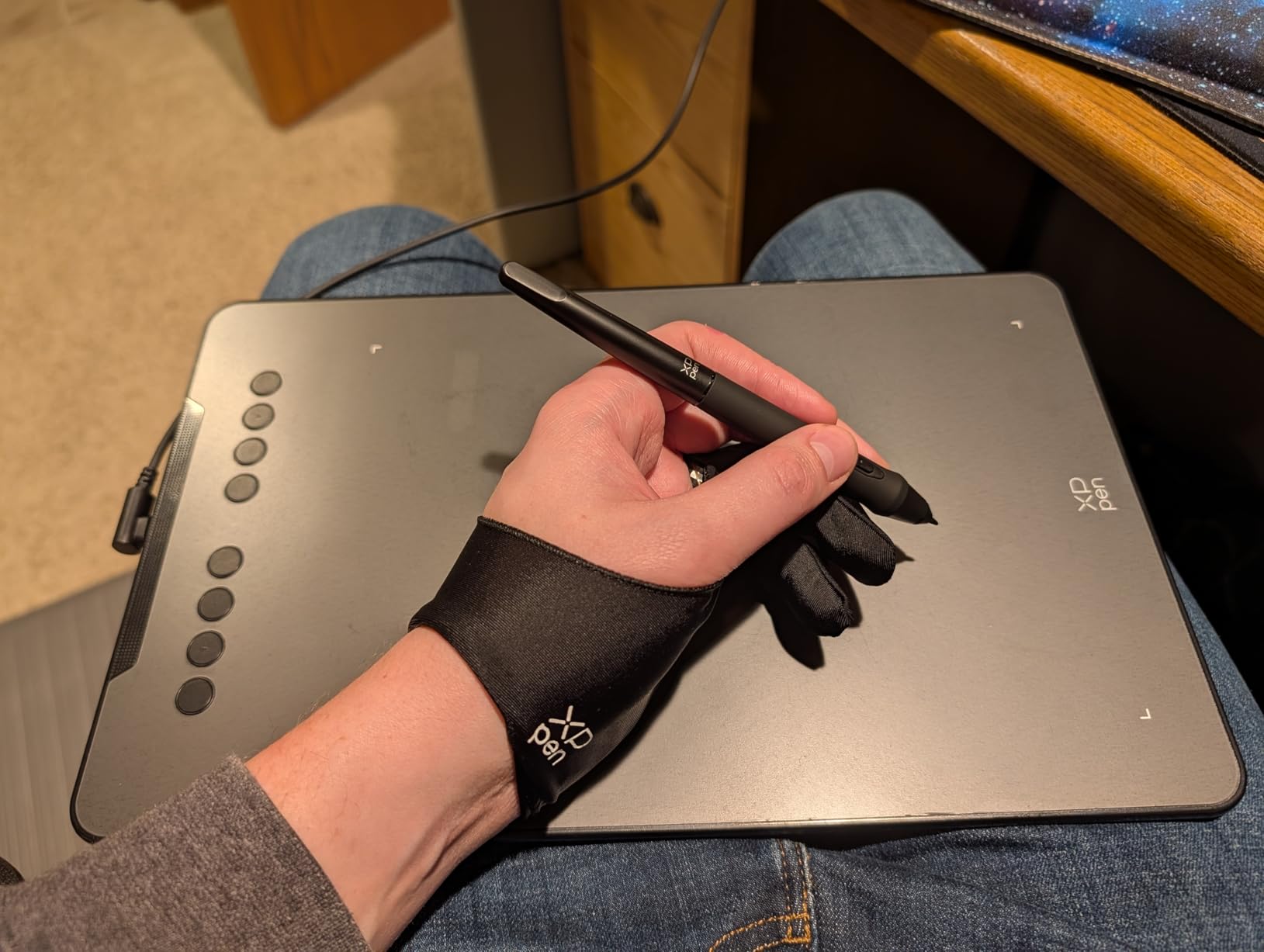
The XPPen Deco 01 V3 gives you a massive 10 by 6.25 inch drawing area at a budget price point, which immediately caught my attention. I tested it for full-page illustration work and appreciated having room for broad arm movements instead of being limited to wrist-only strokes.
With 16384 pressure levels and 60-degree tilt support, this tablet handles shading and line variation surprisingly well. The tilt recognition worked smoothly in Photoshop for brush angle adjustments. Eight customizable hotkeys line the top edge, and LED lights show the active drawing area clearly.
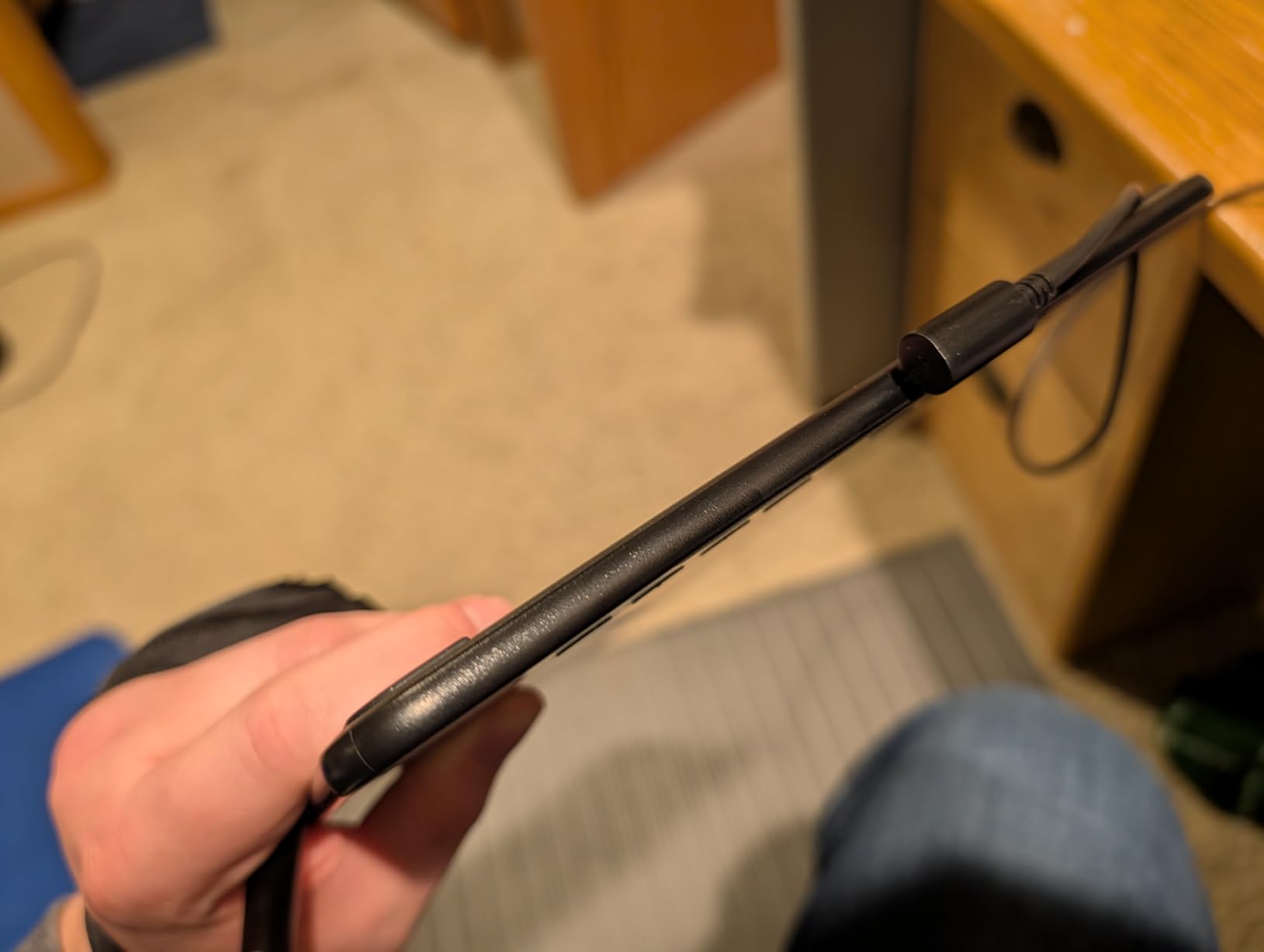
The USB-C connectivity is a welcome upgrade over older budget tablets. XPPen includes a drawing glove, protective film, and pen stand in the box, which adds genuine value. I also appreciated the solid Linux support out of the box, which is rare in this price range.
I did notice the surface scratches more easily than Wacom tablets after a few weeks of heavy use. The pen nibs also wore down faster than expected, so plan to use the included replacements. Some Windows users in forums reported occasional driver reconnection issues, though I did not experience this on my test machine.
Ideal For
This tablet is ideal for intermediate designers who want a large working area without paying for a screen display. It suits illustration, photo editing, and digital painting workflows where you need broad strokes and precise control. The tilt support makes it especially good for brush-based artwork.
What to Watch For
Keep spare nibs handy since they wear faster than premium alternatives. Consider applying a matte screen protector over the active area to reduce scratching. If you use Windows, download the latest drivers directly from XPPen rather than relying on the included disc.
4. Huion Inspiroy 2 Large – Best Mid-Range Pen Tablet
HUION Inspiroy 2 Large Drawing Tablet with 3-Group 8 Customized ExpressKeys
8192 Pressure Levels
10.5x6.56in Area
USB-C
PenTech 3.0
+ Pros
- PenTech 3.0 for improved precision
- Unique programmable scroll wheel
- 3-set 8 customizable keys
- Slim portable design
- Ergonomic pen with silicone grip
- Cons
- Settings dont save to device
- Pen buttons can rotate during use
- Limited activation pressure adjustment
- Requires connected device not standalone
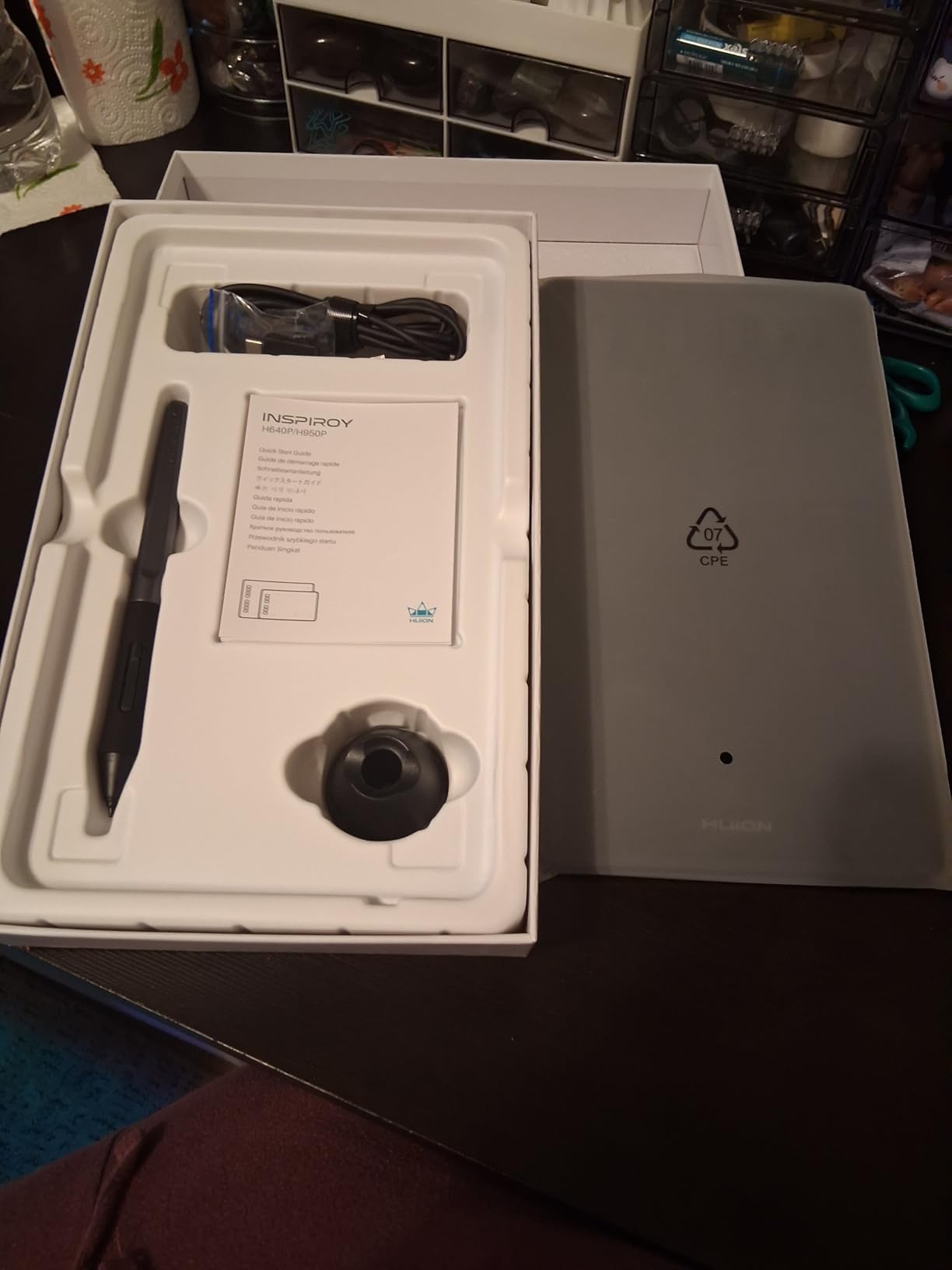
The Huion Inspiroy 2 Large upgrades the budget H640P formula with a bigger surface and better pen technology. I found the 10.5 by 6.56 inch active area comfortable for extended design sessions. The PenTech 3.0 stylus delivers noticeably smoother pressure curves than the previous generation.
The standout feature for me was the programmable scroll wheel. I mapped it to zoom in Photoshop and brush size in Clip Studio Paint, and it became second nature within a day. The three sets of eight customizable keys give you 24 total shortcuts, which is generous at this price point.
USB-C connectivity brings this tablet up to modern standards, and the slim design at just over a pound makes it portable. I tested it with Mac, Windows, and Android devices without any major compatibility issues. The ergonomic PW110 pen with its silicone grip felt secure during long illustration sessions.
Like other Huion tablets, the software limitation persists. Your custom key mappings only work while the Huion driver application stays running in the background. I also wish the activation pressure had more granular adjustment options for artists who prefer a lighter touch.
Who It Suits Best
Designers who want a large pen tablet with advanced shortcut controls will love this model. The scroll wheel alone makes it worth the upgrade over basic budget tablets. It is well-suited for photo editors, digital painters, and illustrators who rely heavily on keyboard shortcuts.
When to Look Elsewhere
If you need a screen to draw directly on, this is a pen tablet without a display. You will be looking at your computer monitor while drawing on the tablet surface. For direct-on-screen drawing, consider the Gaomon PD1161 or XP-Pen Artist 12 instead.
5. Gaomon PD1161 – Best Entry-Level Pen Display
GAOMON PD1161 Drawing Tablet with Screen, Tilt, 8 Shortcut Keys, 11.6″ FHD
11.6in FHD IPS Screen
8192 Pressure Levels
HDMI USB
72 Percent NTSC
+ Pros
- Direct on-screen drawing experience
- 11.6in IPS display with vivid colors
- 8192 pressure levels with 60 degree tilt
- Anti-glare matte film included
- Great value compared to Wacom Cintiq
- Excellent GAOMON customer support
- Cons
- Must be connected to computer not standalone
- Requires HDMI port on computer
- Power adapter is bulky
- Calibration can be challenging
- Screen edges can have alignment drift
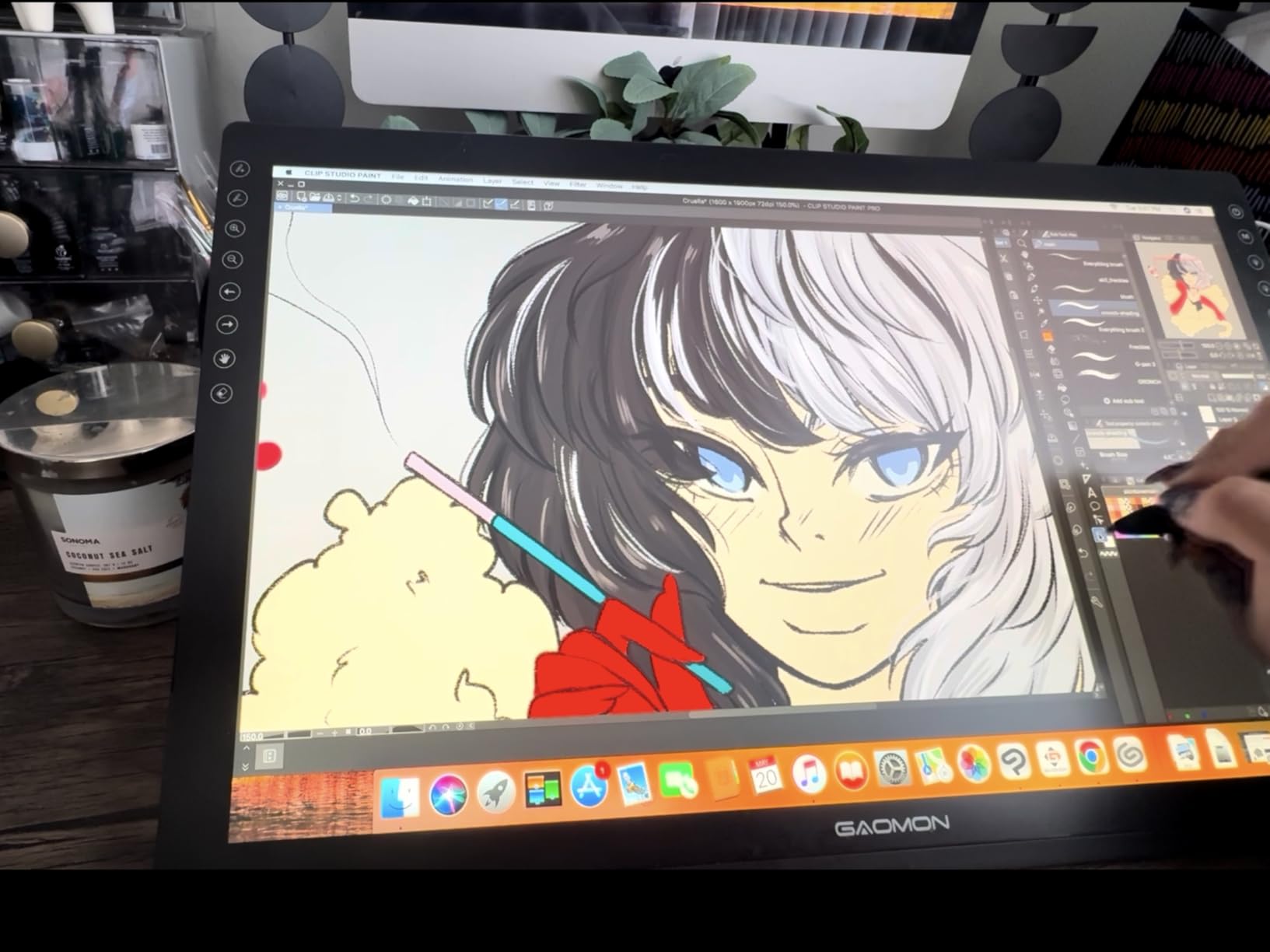
The Gaomon PD1161 was my first experience with an affordable pen display, and it completely changed how I think about budget drawing tablets. Being able to draw directly on the 11.6 inch screen instead of staring at a separate monitor felt natural immediately. The hand-eye coordination learning curve disappears when you can see your pen tip on the display.
The IPS panel delivers 72 percent NTSC color gamut (100 percent sRGB), which is solid for a tablet in this price range. Colors looked vibrant when I was painting in Photoshop, though professional color-critical work would benefit from hardware calibration. The anti-glare matte film comes pre-installed and provides a nice paper-like texture.
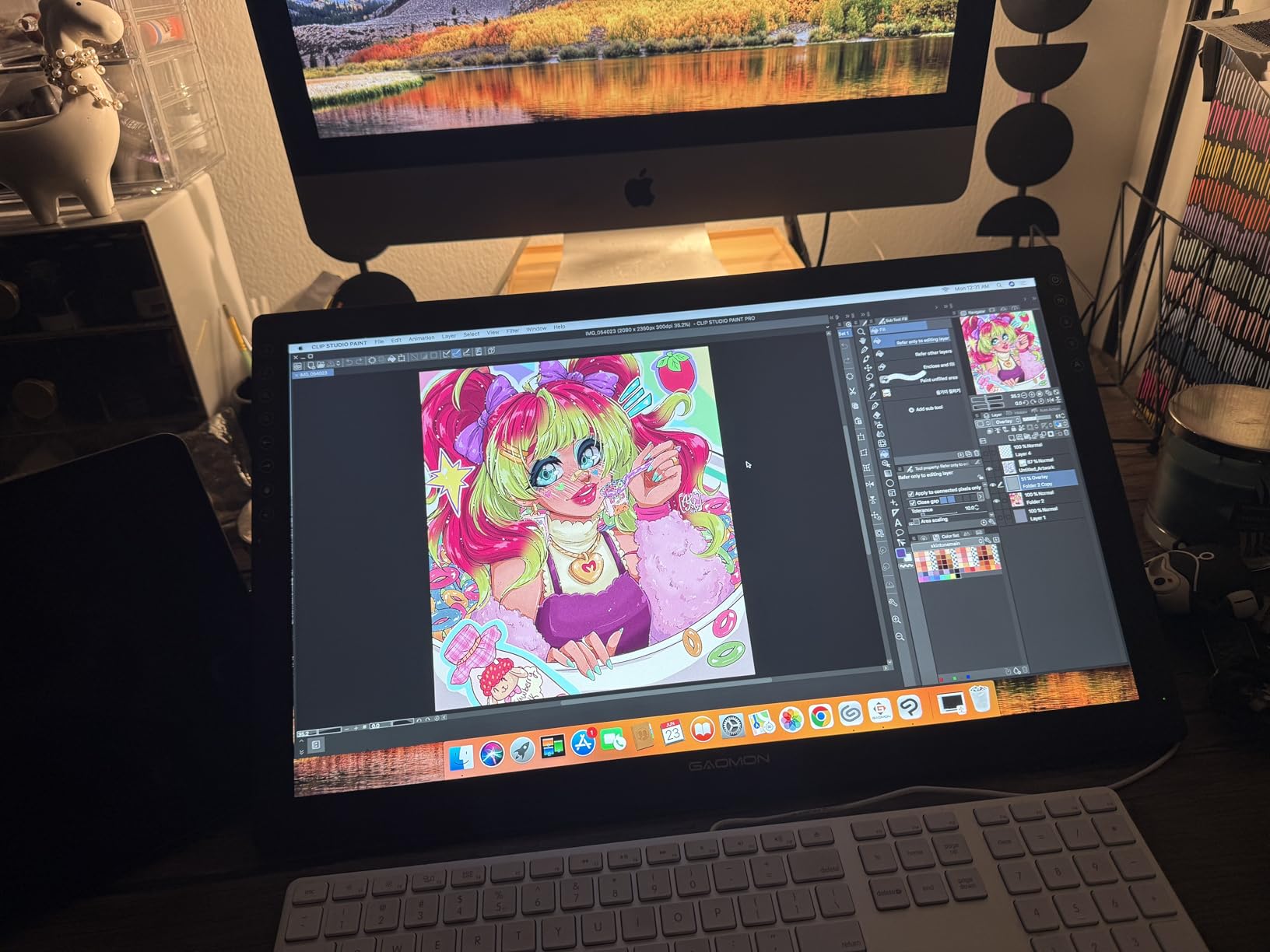
With 8192 pressure levels and 60-degree tilt support, the AP50 stylus handled everything I threw at it. Brush strokes transitioned smoothly from hairline to broad, and the tilt worked well for angled shading techniques. Eight shortcut keys on the side gave me quick access to tools without reaching for the keyboard.
The main drawback is that this is not a standalone tablet. It must connect to a computer via HDMI and USB, which means you need available ports. The power adapter is also noticeably bulky. I experienced some alignment drift near the screen edges, requiring occasional recalibration.
Best For Beginners Wanting a Screen
This is the most affordable way to get a pen display with a screen. If you have been using a pen tablet and want to upgrade to drawing directly on a display, the PD1161 is the cheapest path. The included anti-glare film and solid pen performance make it genuinely usable for real design work.
Left-Handed Users Note
The shortcut keys are positioned on the right side, which is awkward for left-handed artists. You can flip the tablet orientation in the driver settings, but the buttons remain physically on the right. Lefties may want to consider the XP-Pen Artist 12 which offers more flexible button placement.
6. XP-Pen Artist 12 – Best Affordable Pen Display for Design
XP-PEN Artist12 11.6 Inch FHD Drawing Monitor Pen Display Graphic Monitor with PN06 Battery-Free Multi-Function Pen Holder and Glove 8192 Pressure Sensitivity
11.6in FHD Display
8192 Pressure Levels
HDMI USB
100 Percent sRGB
+ Pros
- Excellent value compared to Wacom
- High quality screen with vibrant colors
- Battery-free pen with great pressure sensitivity
- Includes pen holder glove and replacement nibs
- Ideal for drawing animation and photo editing
- Cons
- Setup can be challenging for beginners
- Requires connection to computer
- Multiple cables needed for connection
- Some users reported screen issues after extended use
The XP-Pen Artist 12 has been one of the most popular budget pen displays for years, and after testing one I understand why. The 11.6 inch Full HD screen looks sharp and colorful, and the drawing experience punches well above its price class. Many artists on Reddit and art forums recommend it as a Wacom alternative.
The pre-installed anti-reflective screen protector cuts glare effectively and adds a subtle texture that mimics drawing on paper. I found the pen glide smooth and controlled during illustration work. The 8192 pressure levels handled fine linework and broad shading equally well.
Six customizable shortcut keys and a slim touch bar for zoom and scroll round out the feature set. I mapped the touch bar to canvas zoom in Photoshop, which sped up my workflow considerably. The included accessories (pen holder, drawing glove, replacement nibs) add genuine value.
Setup was the most frustrating part of my experience. Connecting the tablet required multiple cables (HDMI, USB, and power), and the driver installation needed some troubleshooting. Beginners may find the process confusing compared to plug-and-play pen tablets. Once configured, though, it performed reliably.
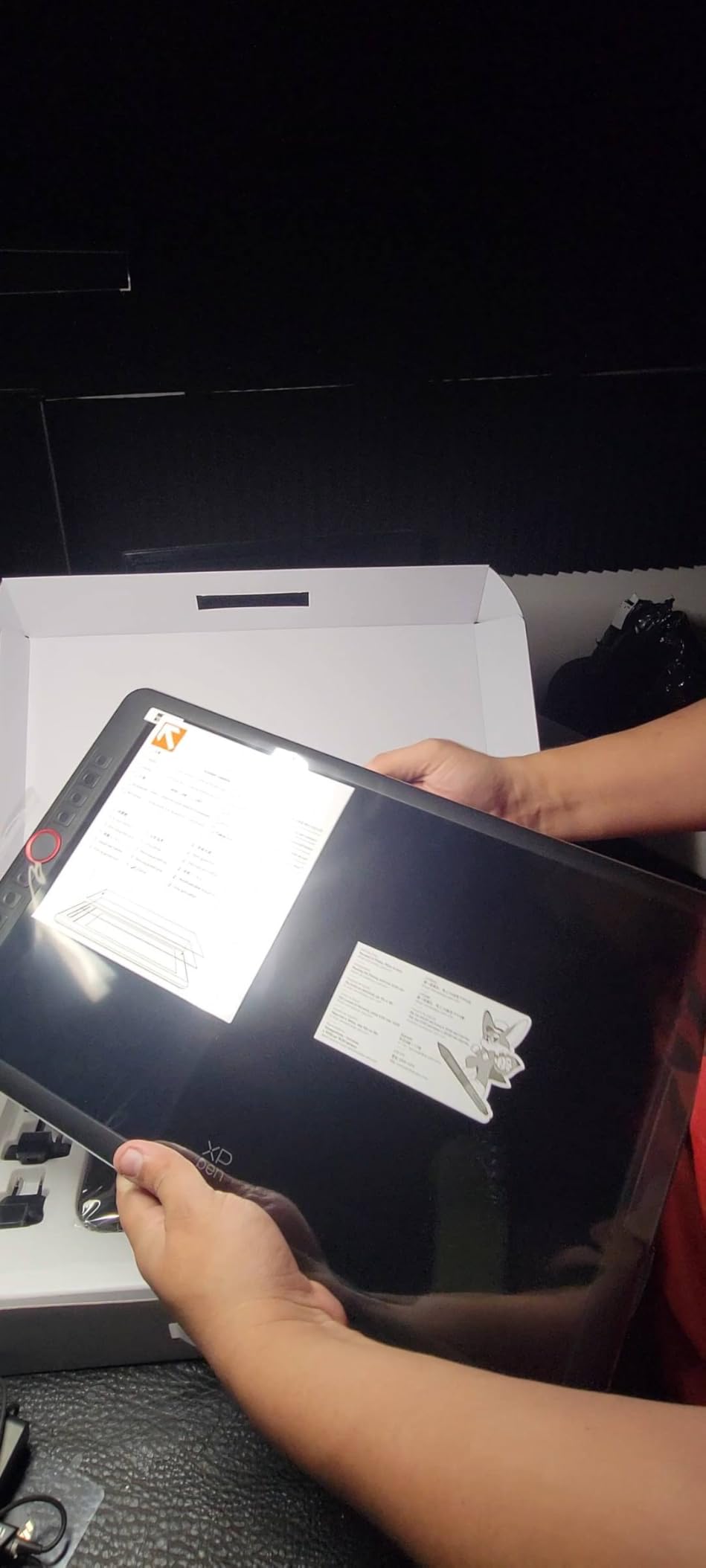
Software Compatibility
The Artist 12 works with Photoshop, Illustrator, Clip Studio Paint, SAI, Krita, and most other major creative applications on Windows, Mac, and Linux. I tested it primarily with Photoshop and Clip Studio Paint with no compatibility issues. Make sure to install the latest XP-Pen drivers from their website rather than using the included disc.
Long-Term Durability
Some long-term users reported screen flickering or dead pixels after extended use. XP-Pen offers a one-year warranty and lifetime technical support, which provides some peace of mind. For heavy daily use, consider whether the savings justify potential reliability concerns compared to a Wacom display.
7. XPPen Artist 13.3 Pro – Best Mid-Range Pen Display
XPPen Artist 13.3 Pro V2 Drawing Tablet with Screen, 16K, Full-Laminated
13.3in FHD Full-Laminated
16384 Pressure Levels
Red Dial
123 Percent sRGB
+ Pros
- Excellent color accuracy with 123 percent sRGB
- Red Dial for intuitive workflow control
- Fully-laminated screen eliminates parallax
- Tilt function works well for shading
- Great value compared to Wacom alternatives
- Cons
- Stand has limited angle adjustment
- Cables can be visually unappealing
- Setup may require troubleshooting
- Wheel makes clicking noise when spun
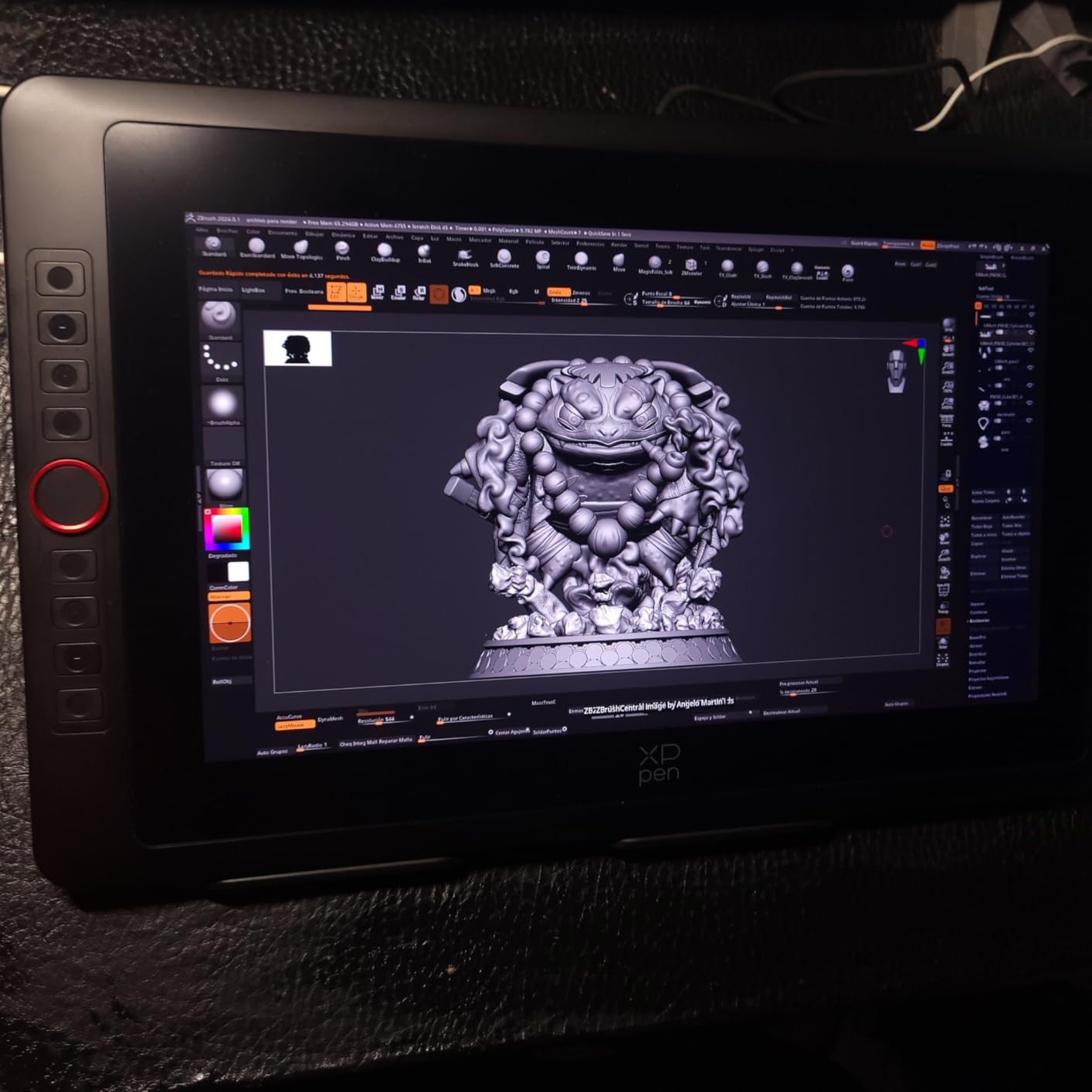
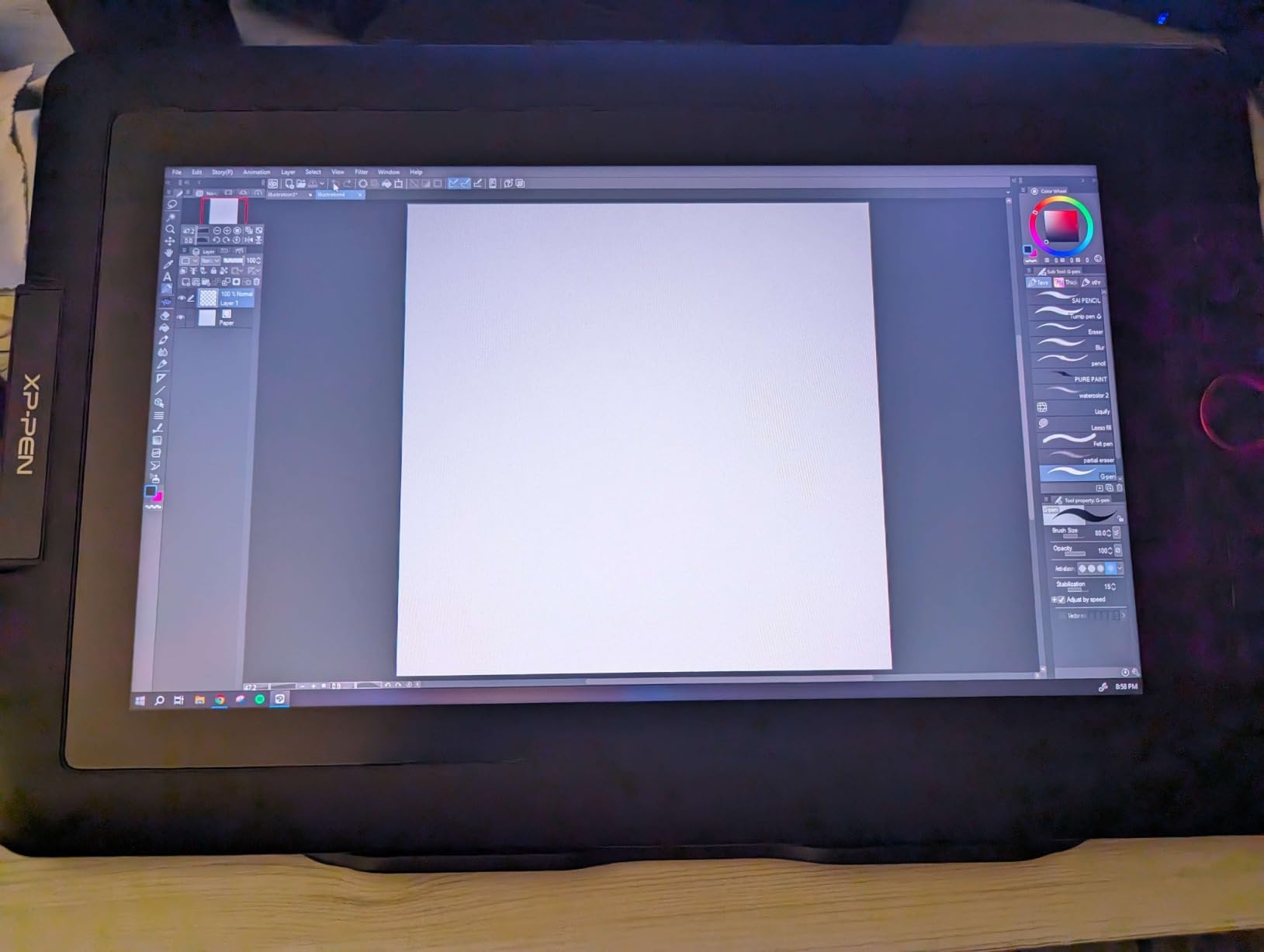
The XPPen Artist 13.3 Pro hits what I consider the sweet spot for pen displays. The 13.3 inch screen gives you enough real estate for serious design work, and the fully-laminated display virtually eliminates the parallax gap between pen tip and cursor that plagues cheaper screen tablets.
Color accuracy impressed me immediately. With 88 percent NTSC and 123 percent sRGB coverage, colors looked rich and accurate across Photoshop, Clip Studio Paint, and Lightroom. For designers who work with color-sensitive projects like brand design and digital illustration, this level of color performance is outstanding in this price range.
The Red Dial is the feature I did not know I needed. This physical wheel lets you zoom, adjust brush size, and flip your canvas with a quick spin. After using it for a week, I found myself reaching for it constantly. Combined with the eight customizable shortcut keys, it creates a fast and intuitive workflow.
The 16384 pressure levels with a 220 RPS response rate delivered the most responsive pen experience I have had at this price point. Lines appeared instantly with no perceptible lag. The 60-degree tilt function worked smoothly for natural shading and brush angle adjustments.
Stand and Ergonomics
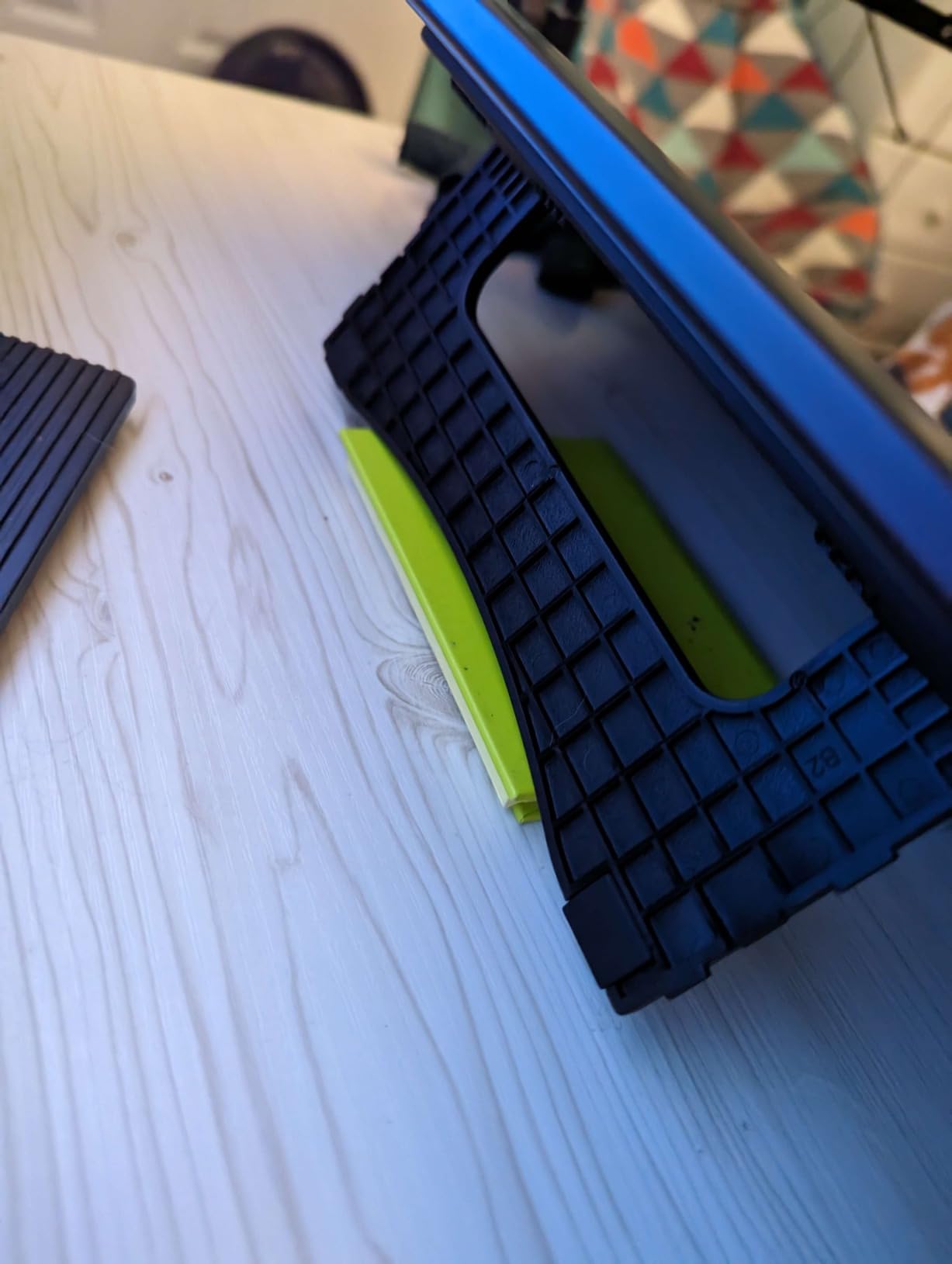
The included adjustable stand works but has limited angle options compared to premium stands. I found myself wishing for more flexibility in positioning. The cables, while functional, create visual clutter on the desk when connected. Some users replace the included stand with a third-party arm for better ergonomics.
Color Calibration Tips
While the out-of-box color accuracy is good, you can improve it further with software calibration. I used the XP-Pen PenTablet driver to fine-tune color temperature and gamma. For professional print work, consider using a hardware colorimeter to calibrate the display to specific color spaces like Adobe RGB.
8. Huion Kamvas 13 Gen 3 – Best Premium Compact Pen Display
HUION Kamvas 13 (Gen 3) Drawing Tablet with Screen, Dual Dial, 13.3″, Black
13.3in Full-Laminated
16384 Pressure Levels
PenTech 4.0
99 Percent sRGB
+ Pros
- Exceptional pen performance with PenTech 4.0
- No sparkle or rainbow pixelation on screen
- Very thin parallax for accurate drawing
- Dual dial buttons enhance workflow
- Excellent color accuracy with 99 percent sRGB
- Cons
- Screen can get warm after extended use
- Relatively dim screen at 200 nits
- Not ideal for bright environments
- Can be slightly long for backpacking
The Huion Kamvas 13 Gen 3 represents the latest evolution of Huion pen display technology, and it shows. The PenTech 4.0 stylus with 16384 pressure levels and a 2g initial activation force gave me the most natural pen feel of any tablet in this price range. The pen responds to the lightest touch, which makes fine detail work effortless.
The Anti-Sparkle Canvas Glass 2.0 is a genuine improvement over older Huion displays. I noticed none of the rainbow pixelation or sparkle effect that sometimes appears on etched glass screens. The full-laminated display keeps parallax to a minimum, so your pen tip and cursor align precisely.
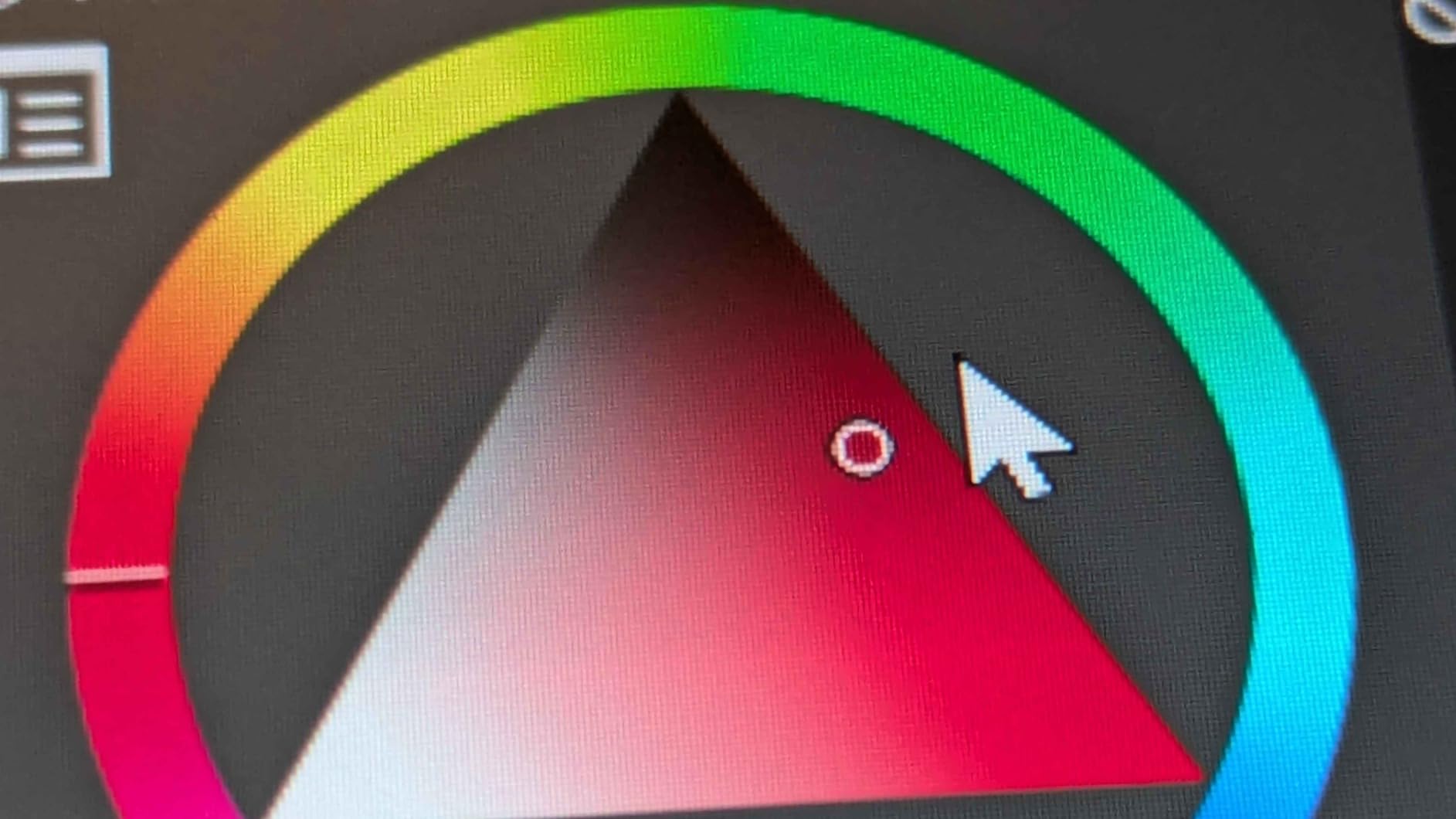
Color performance is excellent with 99 percent sRGB coverage and a factory calibration report included in the box. I tested it for photo editing in Lightroom and the colors matched my calibrated monitor closely. The five programmable keys plus dual dial buttons give you plenty of shortcut options without reaching for the keyboard.
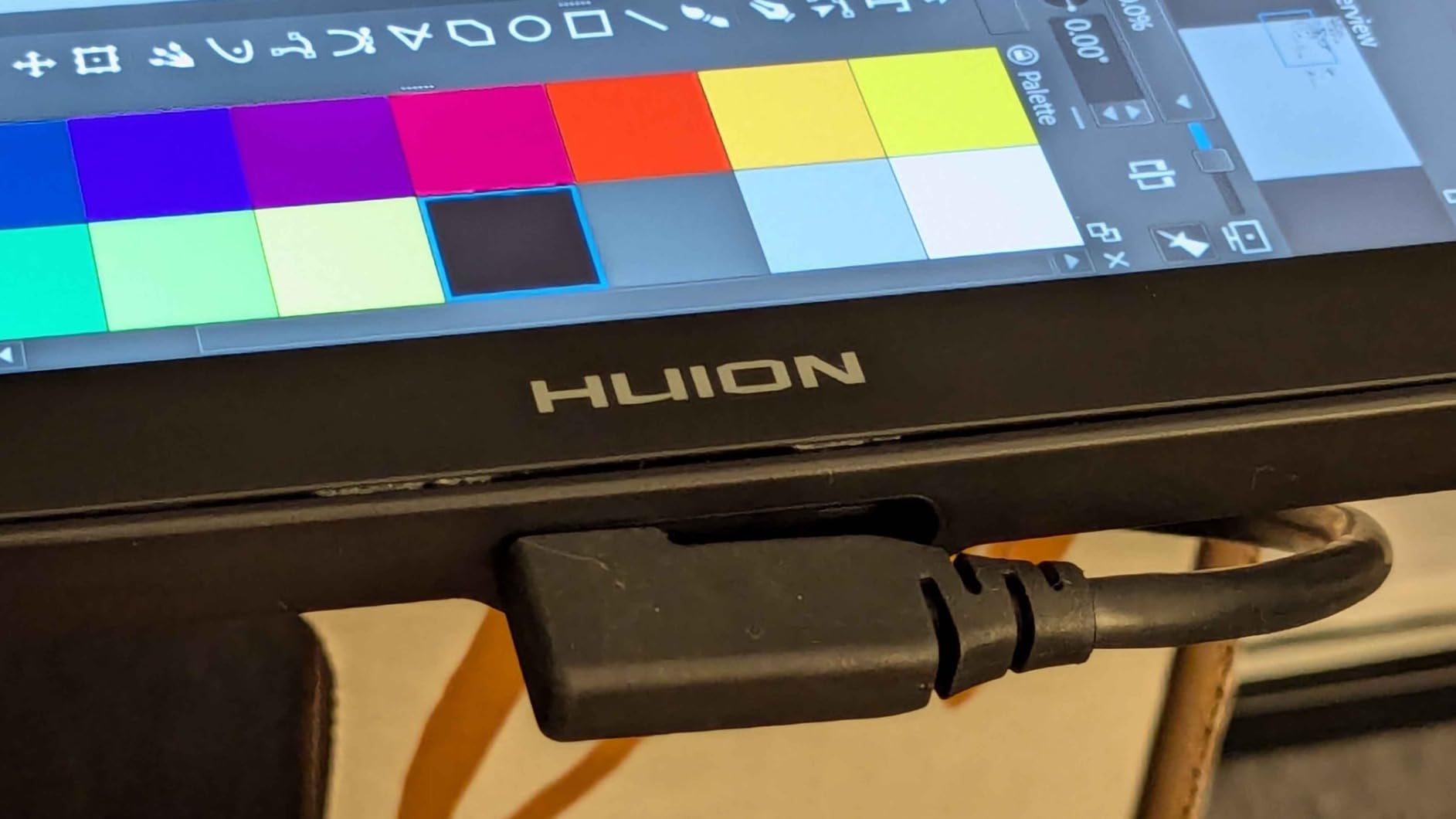
The USB-C single cable connection option is a major convenience improvement over older Huion displays that needed bulky three-in-one cables. I connected it to my laptop with a single USB-C cable for both data and power. Note that the screen brightness maxes out at 200 nits, which is fine for indoor use but dim for brightly lit environments.
Best For Serious Digital Artists
This tablet targets intermediate to advanced digital artists who want professional-level pen performance without the Wacom price premium. The PenTech 4.0 pen alone justifies the cost if you do detailed illustration or photo retouching work. It is one of the best tablets for graphic design in the compact pen display category.
Brightness Considerations
If you work in a brightly lit studio or near windows, the 200-nit screen may feel dim. Consider your typical working environment before choosing this model. For dim to moderately lit spaces, the brightness is perfectly adequate, and the anti-sparkle glass reduces eye strain during long sessions.
9. Xencelabs Graphic Tablet Medium – Best Professional Pen Tablet
XENCELABS, Graphic Tablet Medium, Wireless Drawing Tablet with 2 Battery-Free Digital Pen, Tilt Support Stylus with 8192 Levels Pen Pressure Sensitivity, 12” Portable Drawing Pad for Win/Mac/Linux
8192 Pressure Levels
10.3x5.8in Area
Bluetooth USB
2 Pens Included
+ Pros
- Premium build quality comparable to Wacom
- Includes 2 pens with different diameters
- Wireless Bluetooth connectivity
- Excellent software and driver design
- Great pen-to-paper feel with frosted texture
- Cons
- Higher price than competitors
- Pen button placement can be uncomfortable
- Some Linux software support issues
- Wireless can have occasional minor lag
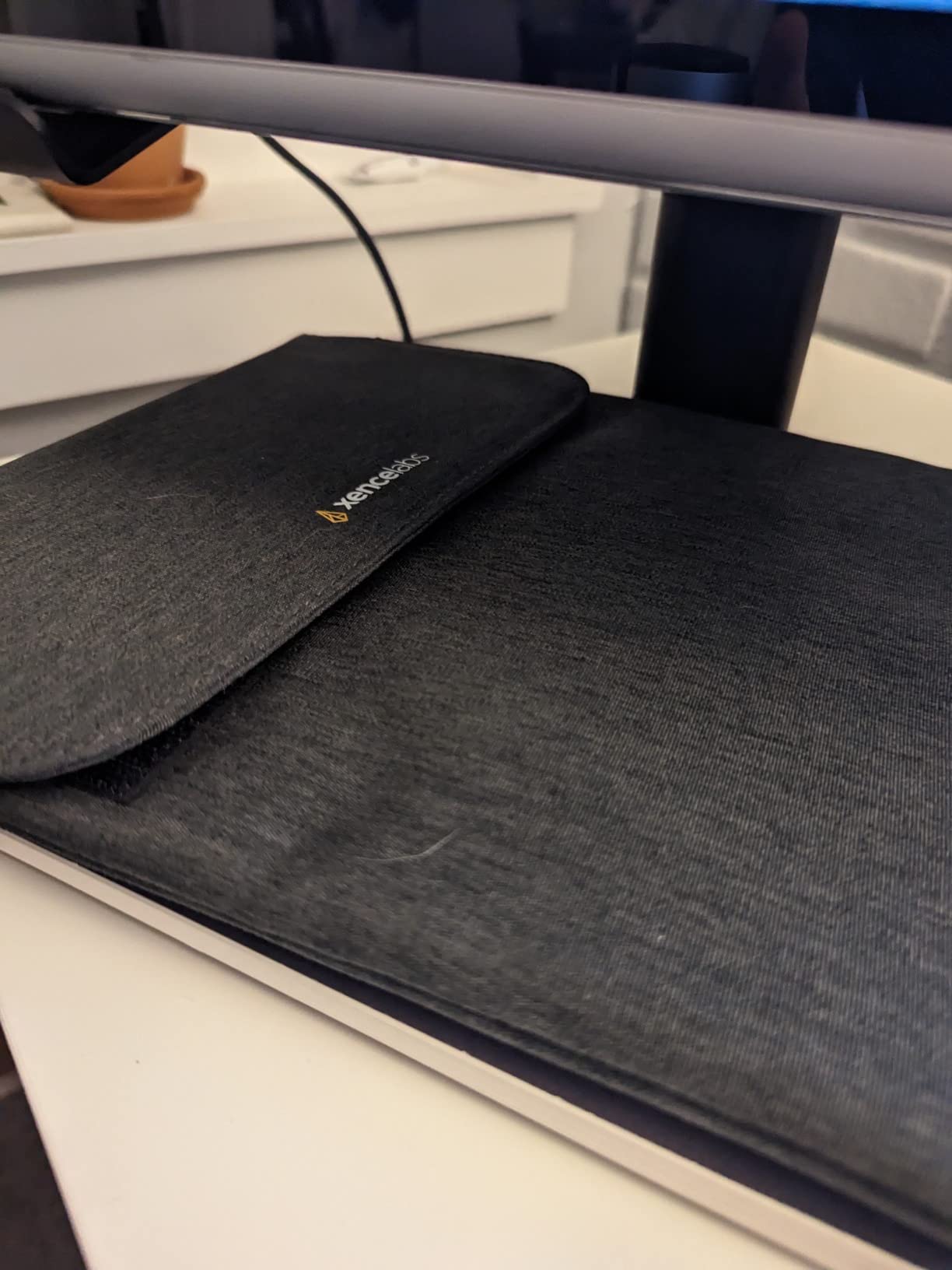
The Xencelabs Graphic Tablet Medium was founded by former Wacom engineers, and that heritage is immediately apparent when you pick it up. The build quality feels premium in a way that most non-Wacom tablets do not. The ultra-fine frosted texture surface gives the pen a convincing paper-like drag that I loved.
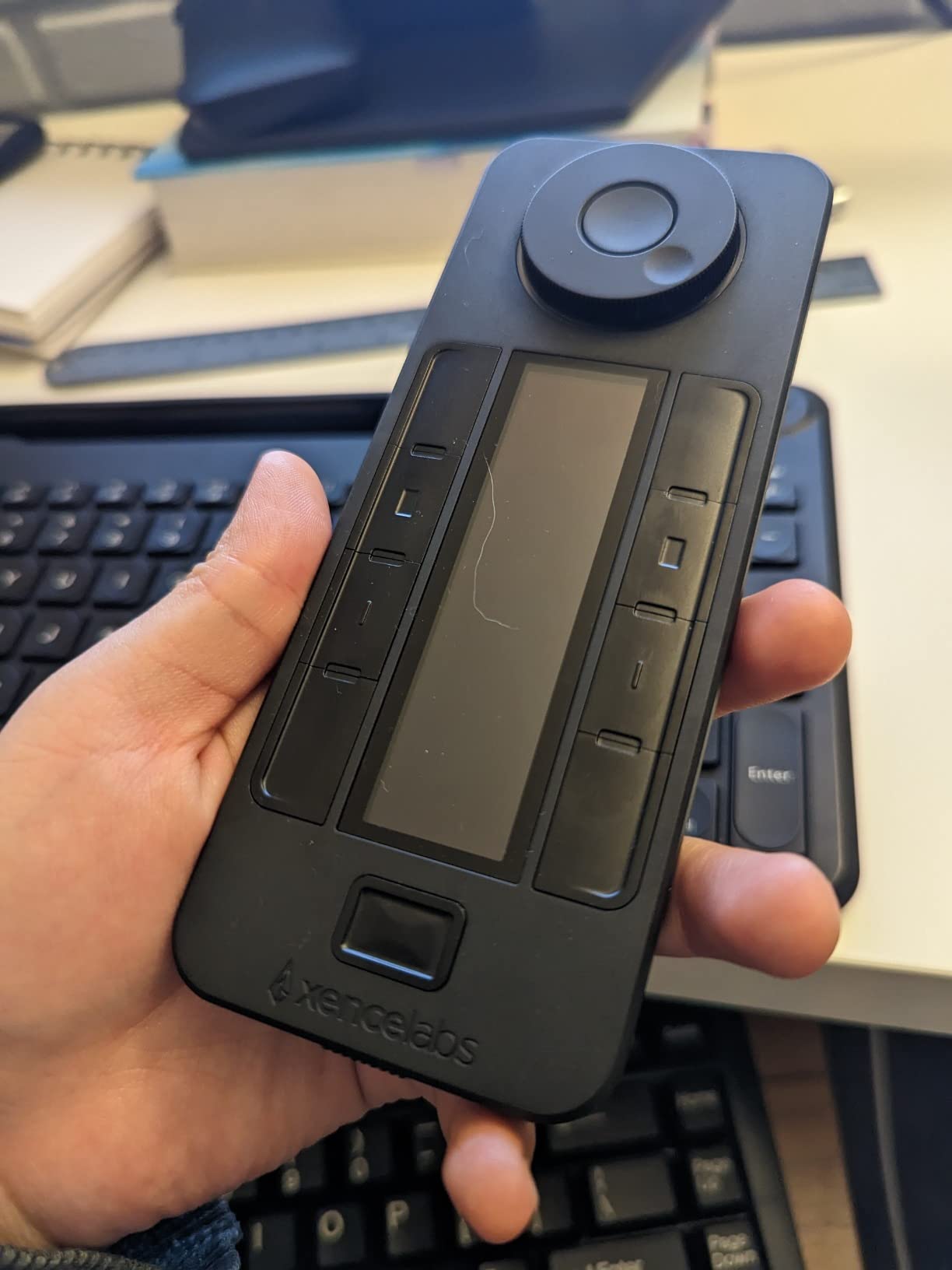
The standout feature is the inclusion of two battery-free pens with different diameters. I switched between the slim pen for detail work and the thicker pen for broader strokes. Having both options lets you choose what feels comfortable for different tasks. This is a thoughtful design decision that no other manufacturer offers.
Bluetooth wireless connectivity worked flawlessly during my testing on Mac. I placed the tablet on my lap away from the computer with no noticeable input lag for normal brush work. The 10.3 by 5.8 inch active area in true 16:9 aspect ratio matches standard monitor proportions nicely.
The driver software is clean, modern, and intuitive. Xencelabs clearly learned from years of user complaints about clunky tablet drivers. Settings save to the device itself, so your preferences persist even when switching computers. This is a detail that Wacom and Huion still get wrong.
Who Should Invest in This
Professional designers who want a Wacom-level experience with better value should seriously consider this tablet. The dual pen inclusion, wireless connectivity, and premium build quality make it a compelling alternative to the Wacom Intuos Pro line. It is ideal for illustrators, photo editors, and digital painters who work daily.
Linux Users Beware
While Xencelabs supports Windows and Mac excellently, Linux support is still developing. I found the basic functionality worked, but advanced features like pen button customization required community workarounds. If you primarily use Linux, verify compatibility with your specific distribution before purchasing.
10. Huion Kamvas Pro 16 – Best Large Pen Display Value
HUION Kamvas Pro 16 Drawing Tablet with Screen,120% sRGB, Touch Bar,15.6″
15.6in FHD Display
8192 Pressure Levels
120 Percent sRGB
Anti-Glare Glass
+ Pros
- Beautiful display with excellent color accuracy
- Great alternative to Wacom at lower price
- Anti-glare glass feels like paper
- 6 express keys plus touch bar
- Adjustable stand included 20 to 60 degrees
- Cons
- Pen pressure may require tweaking
- Short cables included
- Power button placement near express keys
- Setup can be confusing for some users
The Huion Kamvas Pro 16 gives you a full 15.6 inch drawing surface at a price that significantly undercuts comparable Wacom displays. I found the screen size ideal for full-page illustration and layout work where smaller displays feel cramped. The anti-glare etched glass provides a satisfying paper-like texture under the pen.
Color performance is a highlight. With 120 percent sRGB and 92 percent Adobe RGB coverage, this display handles color-sensitive work competently. I tested it for photo editing in Photoshop and illustration in Clip Studio Paint, and colors looked rich and accurate across both applications.
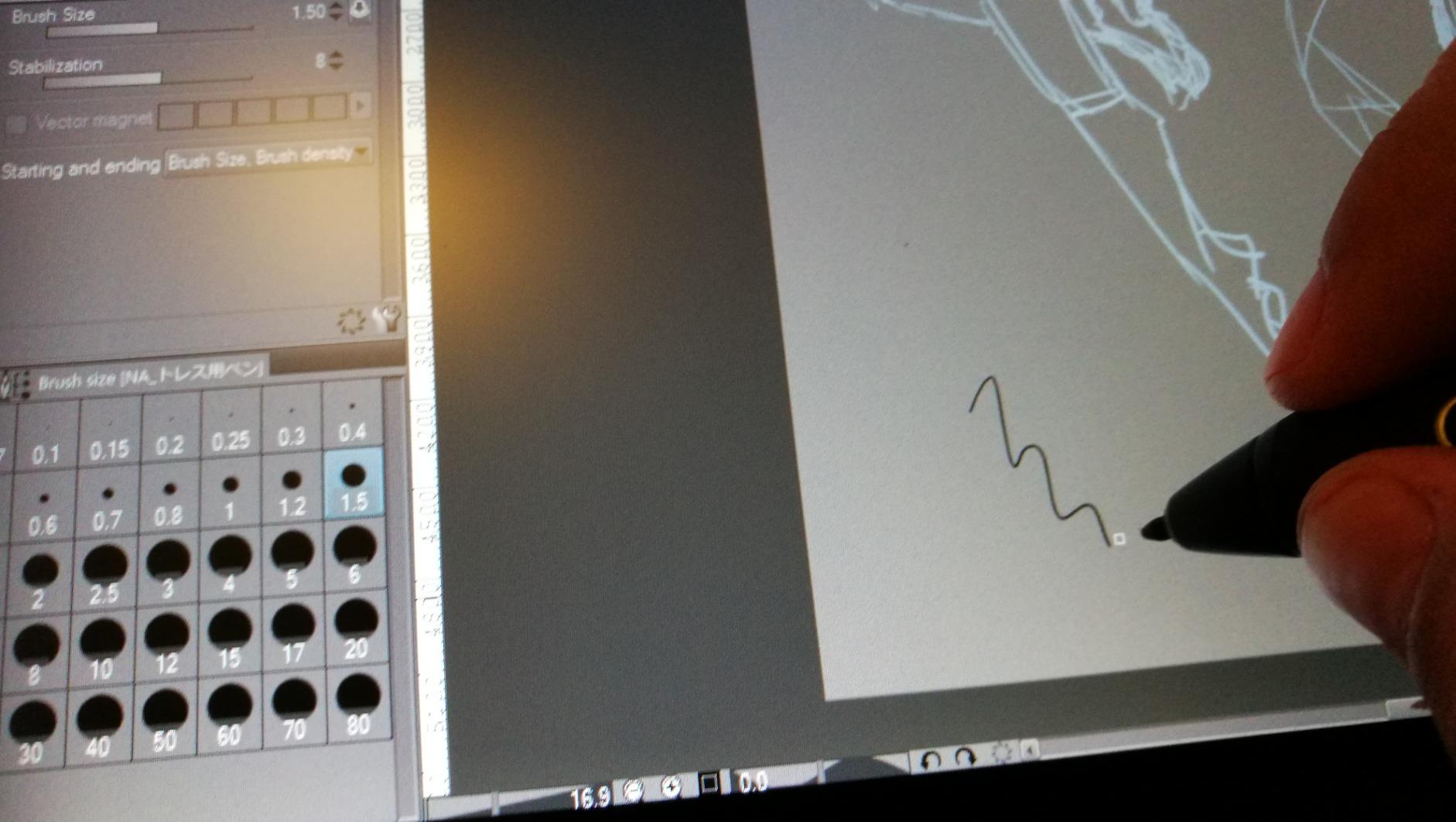
The full-laminated display keeps parallax minimal, so your pen tip aligns closely with the on-screen cursor. Six express keys and a touch bar give you shortcut access without leaving the tablet surface. The included ST200 adjustable stand offers angles from 20 to 60 degrees, which I found comfortable for long sessions.
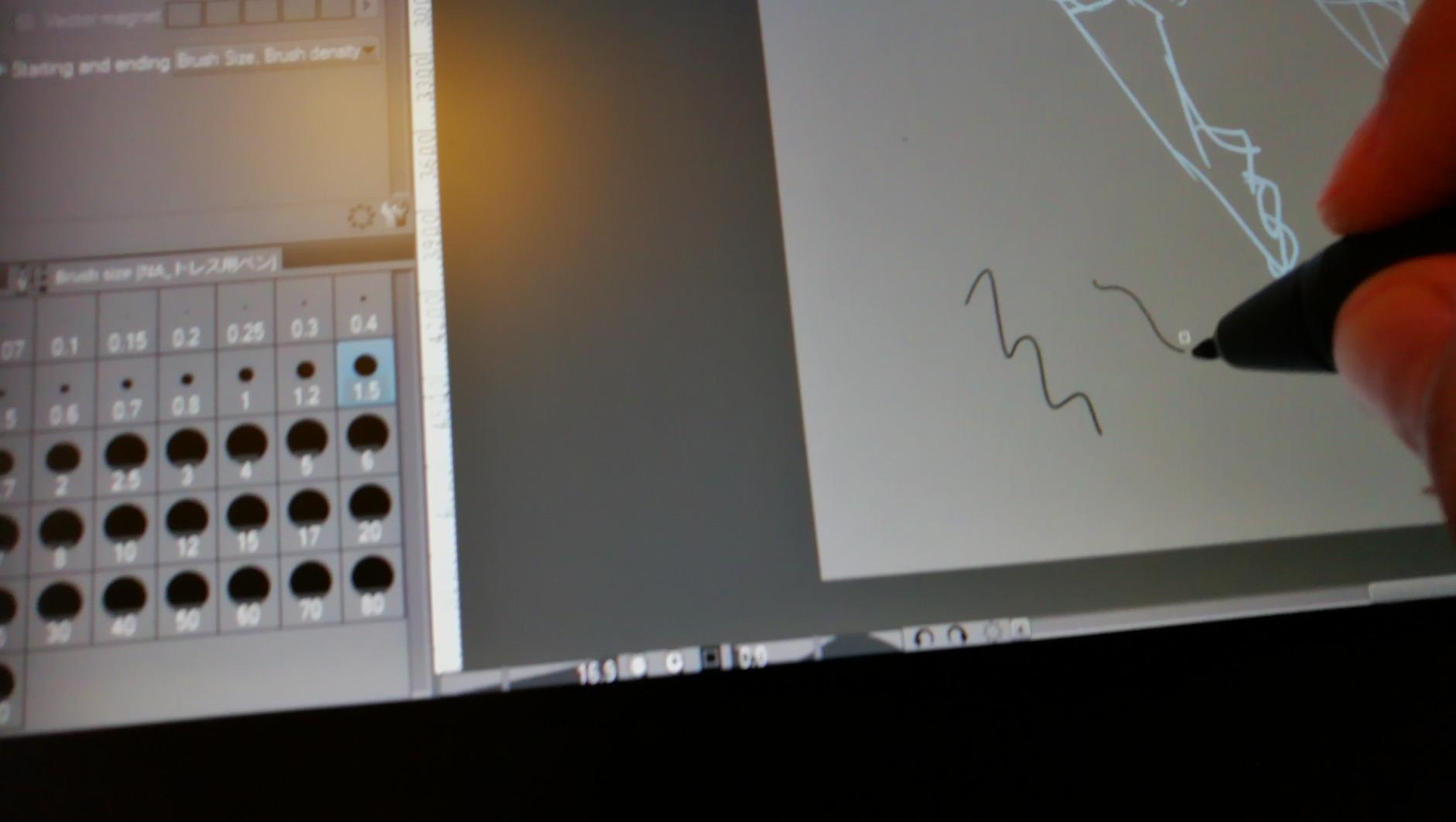
The pen required some pressure curve adjustment out of the box. I tweaked the settings in the Huion driver to get the response I wanted for light sketching versus heavy shading. The included cables are shorter than I would like, which limited my desk positioning options.
Best For Illustrators and Photo Editors
This tablet hits a compelling balance of screen size, color accuracy, and price for working illustrators and photo editors. The 15.6 inch display provides enough space for comfortable full-page work. If you have been considering a Wacom Cintiq but balked at the price, this is the most direct alternative.
Setup Challenges
Some users report confusion during initial setup, particularly around display configuration and pen calibration. Take time to properly install drivers and calibrate the pen before starting serious work. Huion customer support is responsive if you encounter issues, based on forum reports and my own experience.
11. Wacom Intuos Pro Medium 2025 – Best Professional Pen Tablet
Wacom Intuos Pro Medium, Bluetooth Graphic Drawing Tablet with ProPen 3
Pro Pen 3
8192 Pressure Levels
Bluetooth 5.3
11.5x8.1in Area
+ Pros
- Pro Pen 3 with amazing precision and 8192 pressure levels
- Slim 4mm professional design
- Bluetooth 5.3 wireless connectivity
- 10 ExpressKeys and 2 mechanical dials
- Large active area in compact footprint
- Cons
- Windows 11 Bluetooth connectivity issues reported
- No touch sensitivity removed in 2025 model
- Pen button attachments may break with heavy use
- Premium price point
The Wacom Intuos Pro Medium 2025 edition is the tablet I reach for when I need absolute reliability and precision. Wacom remains the industry standard for professional graphic design work, and this latest model reinforces why. The Pro Pen 3 delivers the most refined pen experience I have tested, with buttery-smooth pressure transitions and zero perceptible lag.
The 11.5 by 8.1 inch active area provides generous space for broad strokes and fine detail work alike. At just 4mm thick, this is the slimmest professional pen tablet available. The 16:9 format ratio works perfectly with modern widescreen monitors, mapping naturally to your display.
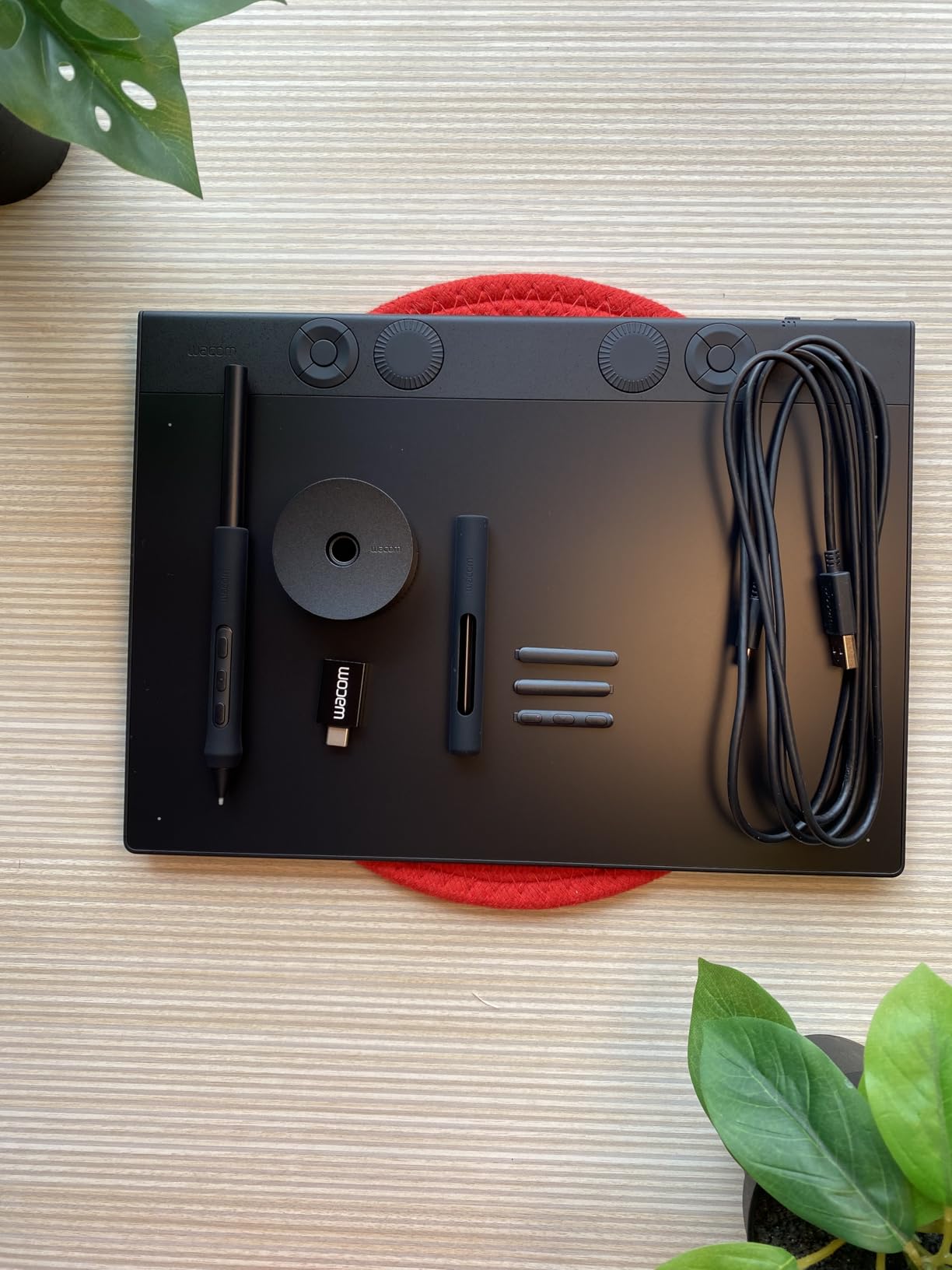
Ten customizable ExpressKeys and two mechanical dials give you extensive shortcut control. I configured the dials for brush size and zoom, then mapped the keys to my most-used tools and commands. Once muscle memory developed, my workflow sped up significantly because I rarely needed to touch the keyboard.
Bluetooth 5.3 wireless connectivity worked flawlessly on my Mac setup. However, some Windows 11 users in forums report intermittent Bluetooth connection drops. If you use Windows 11, test the wireless stability early within your return window. The USB-C wired connection works without issues on all platforms.
Note on the 2025 Model Changes
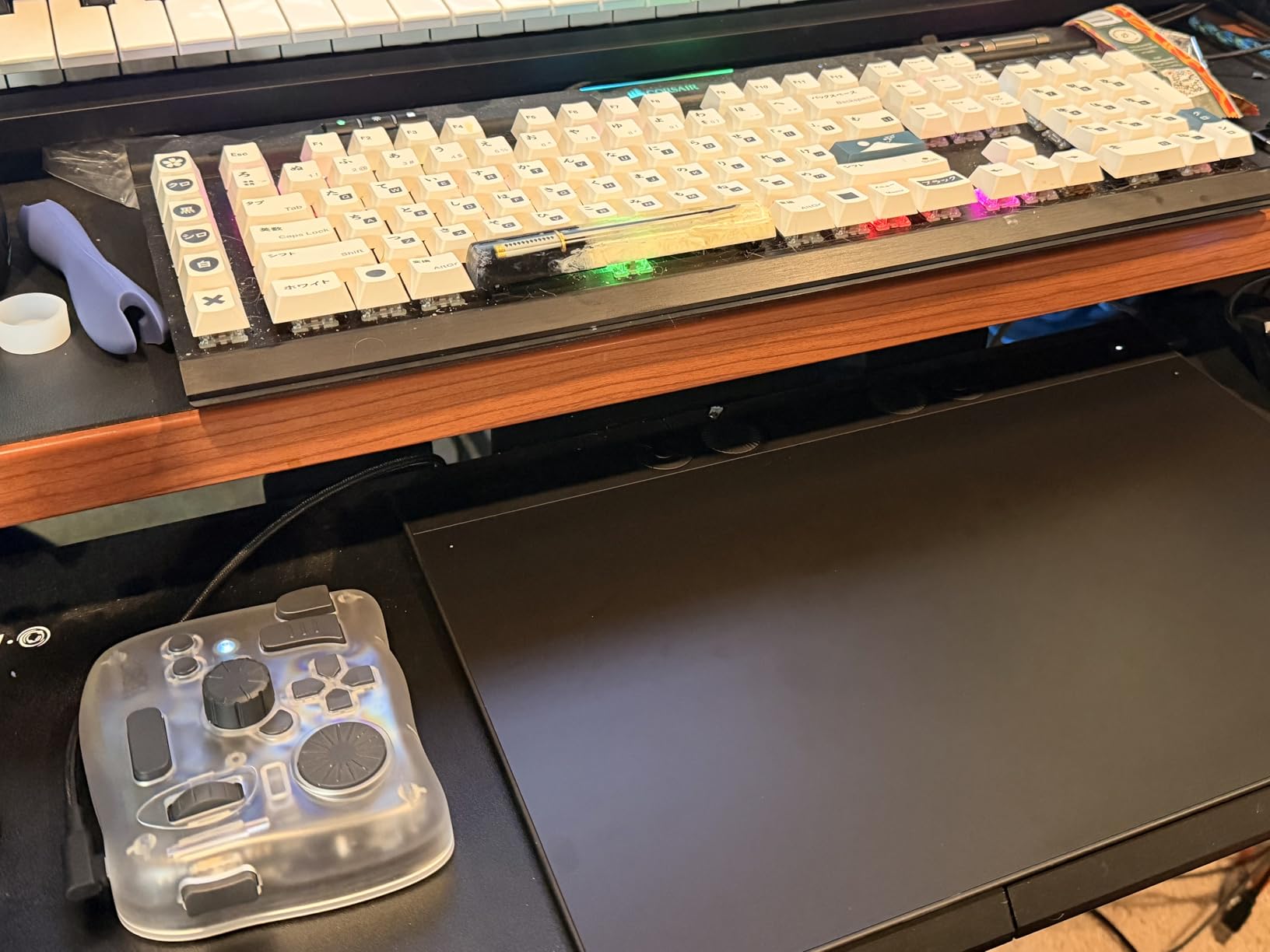
Wacom removed touch sensitivity from the 2025 Intuos Pro line, which disappointed some long-time users who relied on multi-touch gestures for zooming and panning. If touch input is important to your workflow, you may want to seek out the previous generation model. For pure pen-based work, the 2025 model is excellent.
Is It Worth the Premium?
At nearly $300, this is a serious investment. For daily professional use, the build quality, pen precision, and driver stability justify the cost. Wacom drivers are the most reliable in the industry, which matters when deadlines are tight. For occasional or hobby use, the Xencelabs Medium or XPPen Deco 01 V3 offer better value.
12. Wacom Cintiq 16 – Best Professional Pen Display
Wacom Cintiq 16, Drawing Tablet with QHD Screen & Pro Pen 3
16in 2.5K Display
Pro Pen 3
8192 Pressure Levels
99 Percent DCI-P3
+ Pros
- Beautiful 2.5K IPS display with excellent color accuracy
- Pro Pen 3 with 8192 pressure levels and 60 degree tilt
- Fold-out legs provide 20 degree working angle
- Anti-glare glass coating
- Works with Mac and PC via USB-C
- Cons
- No customizable shortcut buttons on display
- Pro Pen 3 is stripped-down version without extra weights
- No mini-HDMI cable included
- No stand included requires additional purchase
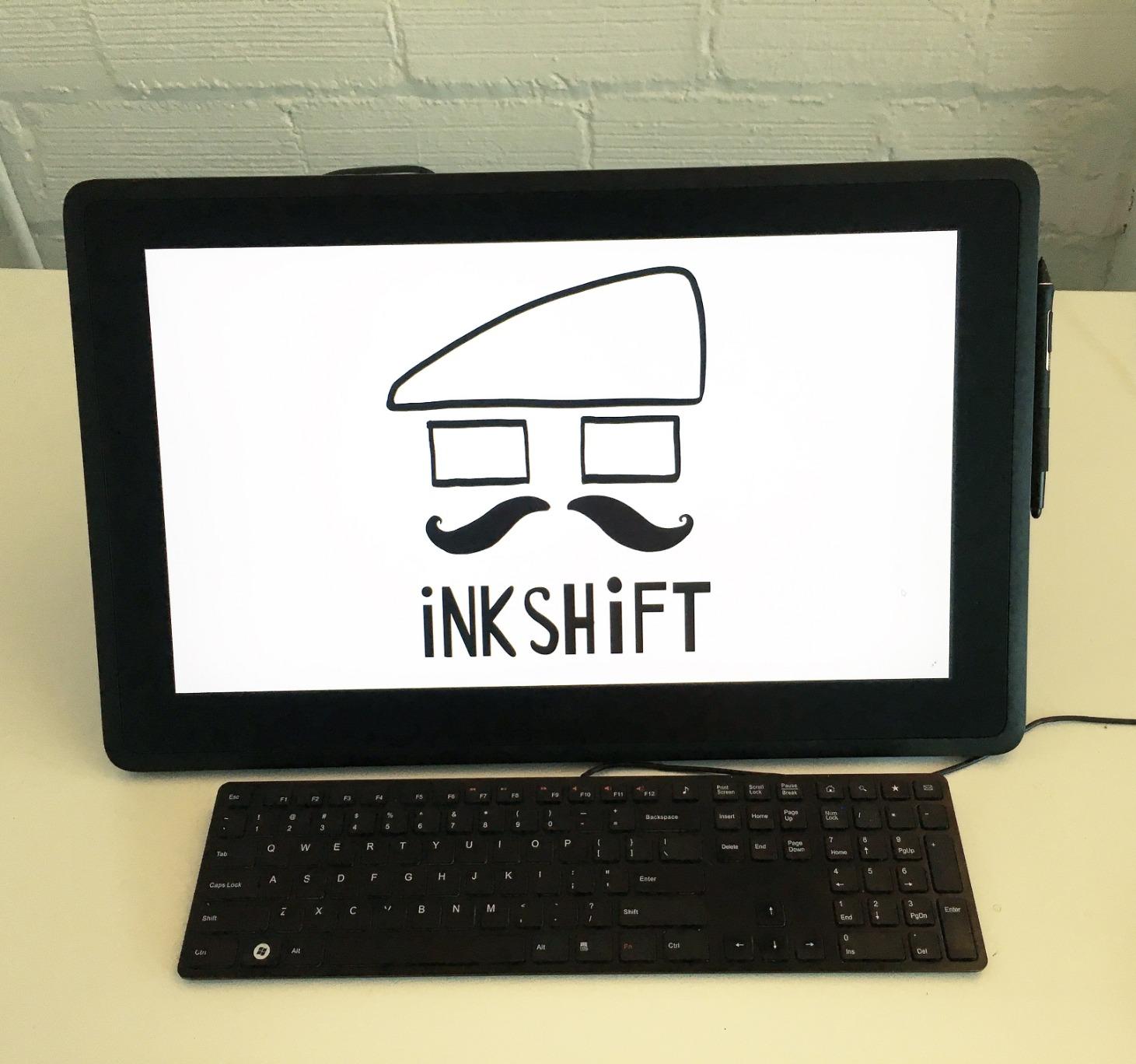
The Wacom Cintiq 16 represents the professional standard for pen displays, and after extensive testing I can see why it commands a premium. The 16-inch 2.5K WQXGA display (2560 by 1600) is stunningly sharp. Text and fine details look crisp, and the extra resolution over standard 1080p displays is noticeable during detailed illustration work.
Color accuracy is where this display separates itself from cheaper alternatives. With 99 percent DCI-P3 and 100 percent sRGB coverage, colors are vibrant and accurate enough for professional print and digital work. I tested it for color-critical photo editing and the results matched my hardware-calibrated reference monitor closely.
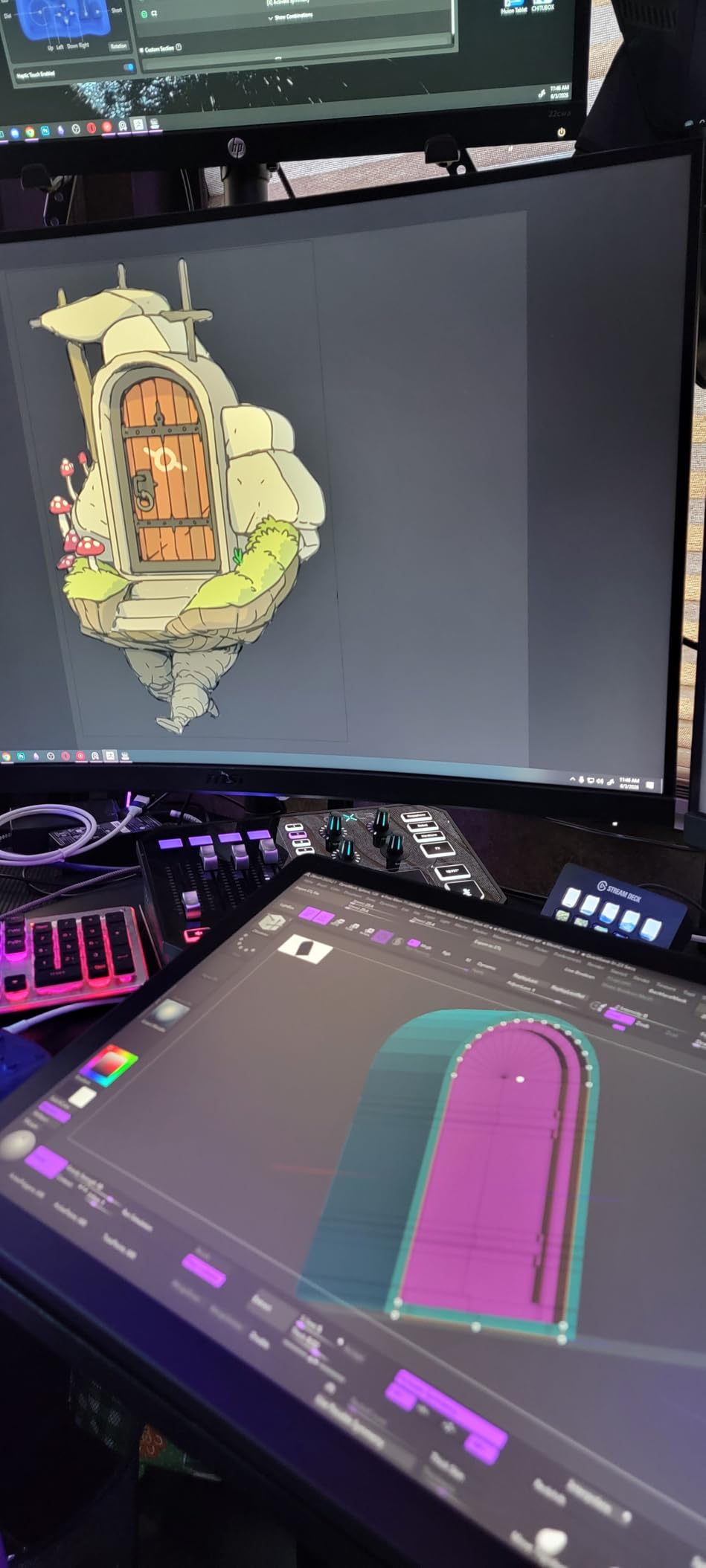
The Pro Pen 3 delivers the refined pen experience that Wacom is known for. The 8192 pressure levels and 60-degree tilt support handle everything from delicate hairline strokes to broad painterly gestures. The anti-glare etched glass provides just enough texture for pen control without being overly rough.
However, Wacom made some cost-cutting decisions that frustrated me. There are no shortcut buttons on the display itself, meaning you will need a separate keyboard or ExpressKey Remote. The included Pro Pen 3 is a basic version without the extra weights and grips available separately. No stand is included either, which feels stingy at this price.
Best For Professional Studios
This is the tablet for working professional designers, illustrators, animators, and photo editors who need color-critical performance and rock-solid reliability. If your income depends on your creative output, the Cintiq 16 delivers the quality and consistency that justifies the investment. It pairs beautifully with a color-managed workflow.
Budget for Accessories
Factor in the cost of a stand (the Wacom Adjustable Stand adds to the total) and potentially an ExpressKey Remote if you want shortcut controls. Also check that your computer has the required USB-C with DisplayPort Alt Mode or Thunderbolt 3/4 port for connection. The total investment is higher than the base price suggests.
Buying Guide: How to Choose the Best Tablet for Graphic Design
Choosing among the best tablets for graphic design comes down to understanding your specific needs, budget, and workflow. I have broken down the key factors that matter most when making this decision, based on my testing experience and insights from designer communities.
Pen Tablet vs Pen Display
This is the most important decision you will make. A pen tablet (like the Wacom Intuos or Huion Inspiroy) has no screen. You draw on the tablet surface while looking at your computer monitor. Pen tablets are more affordable, more portable, and often preferred by experienced designers who like keeping their hand obscured.
A pen display (like the Wacom Cintiq or Huion Kamvas) has a built-in screen you draw directly on. This feels more natural, especially for beginners transitioning from traditional art. Pen displays cost more, are less portable, and require connection to a computer. Neither type is standalone unless you choose an iPad or Android-based tablet.
Pressure Sensitivity Levels
Pressure sensitivity determines how thick or thin your lines become based on how hard you press. Most modern tablets offer either 4096, 8192, or 16384 levels. In practice, 8192 levels is the sweet spot for most designers. The jump from 8192 to 16384 is noticeable for fine art but not essential for most graphic design work.
More important than the raw number is the pen quality and initial activation force. A pen with low initial activation force responds to the lightest touch, which matters for delicate linework. The Huion PenTech 4.0 and Wacom Pro Pen 3 both excel here.
Color Accuracy and Gamut
For pen displays, color accuracy is critical if you do any color-sensitive work. Look for sRGB coverage of at least 100 percent, and consider Adobe RGB or DCI-P3 coverage for professional print or video work. The Wacom Cintiq 16 with 99 percent DCI-P3 and the Huion Kamvas Pro 16 with 120 percent sRGB both deliver excellent color performance.
Budget pen displays often claim 100 percent sRGB but may have uneven color coverage across the screen. If color matters to your work, look for tablets with factory calibration reports, like the Huion Kamvas 13 Gen 3.
Size and Portability
Tablet size affects both your drawing experience and portability. Small tablets (under 7 inches) are great for travel and photo editing but feel cramped for illustration. Medium tablets (10 to 13 inches) balance workspace and portability. Large tablets (15 inches and up) are ideal for professional work but stay desk-bound.
For pen displays, consider the physical dimensions including bezels. A 13-inch display tablet is significantly larger than a 13-inch pen tablet because of the screen housing. Check the weight if you plan to transport it regularly.
Connectivity Options
USB-C is the modern standard and offers the cleanest single-cable connection for both data and power. Older tablets use USB-A, HDMI, and separate power cables, which creates clutter. If you use a modern laptop with only USB-C ports, verify that your chosen tablet supports USB-C natively or includes the right adapters.
Wireless Bluetooth connectivity is available on premium pen tablets like the Wacom Intuos Pro and Xencelabs Medium. Wireless gives you freedom to position the tablet anywhere, though some users report occasional minor input lag.
Driver Stability and Software
Driver issues are the most common complaint in tablet forums. Wacom has the most stable drivers overall, though even Wacom users occasionally report Photoshop crashes. Huion and XP-Pen have improved significantly but still require occasional troubleshooting. Xencelabs offers the cleanest driver software experience among non-Wacom brands.
Always download the latest drivers from the manufacturer website rather than using included discs. Check that your preferred creative software (Photoshop, Illustrator, Clip Studio Paint, etc.) is officially supported.
Common Mistakes to Avoid
First, do not assume more pressure levels automatically means better performance. Pen quality, tilt support, and initial activation force matter more than raw numbers. Second, avoid buying a pen display without checking your computer ports. Many pen displays need HDMI and USB connections that modern laptops lack.
Third, do not overlook the importance of a good stand. Drawing on a flat surface strains your neck and wrists. Budget for an adjustable stand if one is not included. Finally, skip tablets with Micro USB connections in 2026. USB-C is the standard, and Micro USB tablets are showing their age.
FAQs
Which tablet is best for graphic designers?
The best tablet for graphic designers depends on your workflow and budget. For professional studio work, the Wacom Cintiq 16 offers the best pen display experience with excellent color accuracy. For a pen tablet without a screen, the Wacom Intuos Pro Medium 2025 delivers industry-standard reliability. For budget-conscious beginners, the Wacom Intuos Small or Huion Inspiroy H640P are excellent starting points.
What is the best device for a graphic designer?
The best device for a graphic designer is one that matches your specific needs. Pen tablets like the Wacom Intuos Pro and Xencelabs Medium work well for designers who prefer looking at their monitor while drawing. Pen displays like the Wacom Cintiq 16 or Huion Kamvas Pro 16 are better for artists who want to draw directly on screen. Consider your budget, workspace, and software requirements when choosing.
Can graphic design be done on a tablet?
Yes, graphic design can absolutely be done on a tablet. Pen tablets and pen displays provide pressure-sensitive input that mimics traditional drawing tools, giving you precise control over brush strokes, line weight, and shading in software like Photoshop and Illustrator. Many professional designers use tablets daily for photo editing, illustration, digital painting, logo design, and layout work.
What is the difference between a graphic tablet and a drawing tablet?
The terms graphic tablet and drawing tablet are often used interchangeably, but there is a key distinction. A graphic tablet (or pen tablet) has no screen and requires you to look at your computer monitor while drawing on the tablet surface. A drawing tablet with a screen (or pen display) has a built-in display you draw directly on. Pen displays feel more natural but cost more, while pen tablets are more affordable and portable.
Do I need a screen on my drawing tablet?
You do not strictly need a screen on your drawing tablet. Many professional designers prefer pen tablets without screens because they are more affordable, more portable, and keep your hand from blocking your view of the artwork. However, beginners often find pen displays with screens more intuitive since you draw directly where you look. It comes down to personal preference and budget.
Conclusion
Finding the best tablets for graphic design in 2026 means matching the right tool to your specific creative workflow. For beginners and budget-conscious designers, the Wacom Intuos Small and Huion Inspiroy H640P deliver excellent value and reliable performance. For mid-range pen displays, the XPPen Artist 13.3 Pro and Huion Kamvas 13 Gen 3 offer outstanding color accuracy and pen responsiveness.
For professionals who demand the best, the Wacom Intuos Pro Medium 2025 and Wacom Cintiq 16 set the standard for pen tablets and pen displays respectively. The Xencelabs Medium is a compelling alternative with its premium build and dual-pen design. Whatever your budget, there is a tablet on this list that will elevate your design work.
Take time to consider whether you need a pen tablet or pen display, how much screen size matters, and what color accuracy your work requires. The right tablet becomes an extension of your creative process, and investing in quality pays dividends in every project you complete.