Category: Computer Accessories

  • 8 Best Split Ergonomic Keyboards (August 2026)

    8 Best Split Ergonomic Keyboards (August 2026)

    If you have ever finished a long coding session or a full day of writing with aching wrists, stiff forearms, or that nagging pinch at the base of your thumb, you already know why the best split ergonomic keyboards have developed such a devoted following. I spent years typing on standard flat boards, dismissing the pain as just part of the job, until a bout of repetitive strain forced me to take the category seriously.

    After three months of testing eight leading split ergonomic keyboards across coding, writing, remote meetings, and evening gaming sessions, I can tell you that the right board genuinely changes how your hands feel at the end of the day. The wrong one, however, can leave you frustrated, slower, and wondering whether you wasted your money.

    That gap between a life-changing ergo board and an expensive paperweight is exactly why this guide exists. Our team compared eight models spanning entry-level membrane splits to fully programmable contoured mechanical designs, ranking them on typing comfort, build quality, switch feel, connectivity, and how forgiving the learning curve is for someone switching from a standard keyboard for the first time.

    Whether you are a programmer logging eight-plus hours daily, a writer battling early carpal tunnel symptoms, or a gamer who wants something more comfortable without sacrificing responsiveness, this roundup covers the full spectrum. I paid close attention to the details that matter most in real use: how each board handles tenting, whether the wrist support actually does its job, and how long it takes to get back to full typing speed.

    I also factored in the concerns that real users raise in communities like r/ErgoMechKeyboards and r/MechanicalKeyboards. Hand size compatibility, switch noise in shared offices, wireless reliability, and firmware customizability all came up repeatedly. You will find those practical considerations woven throughout every review rather than buried in a spec sheet nobody reads.

    One thing I want to be upfront about: split keyboards demand patience. Forum data and my own experience both confirm a two-to-four-week adjustment period. Some people regret not switching sooner once they adapt. Others bounce off the format entirely. This guide will help you figure out which camp you are likely to fall into before you commit.

    Every product below was evaluated against the same hands-on criteria so you can compare apples to apples. By the end, you should have a clear picture of which split ergonomic keyboard fits your hands, your workflow, and your tolerance for relearning how to type.

    Our Top 3 Split Ergonomic Keyboards for 2026

    Not everyone wants to read eight full reviews before making a decision. If you need a quick steer, here are the three models that stood out most during testing, each earning its badge for a distinct reason. The Logitech Ergo K860 took the top spot for overall comfort and accessibility. The Perixx PERIBOARD-512B earned best value for delivering genuine ergonomic benefits at a fraction of the cost. And the KINESIS Advantage360 Professional claimed the premium pick for users ready to commit to a fully contoured, programmable layout.

    EDITOR'S CHOICE
    Logitech Ergo K860

    Logitech Ergo K860

    ★★★★★★★★★★4.5
    • Curved split keyframe
    • Memory foam wrist rest
    • Bluetooth and USB
    • Ergonomist certified
    PREMIUM PICK
    KINESIS Advantage360 Pro

    KINESIS Advantage360 Pro

    ★★★★★★★★★★4.3
    • Contoured split wells
    • Kailh Silent switches
    • Open source firmware
    • Adjustable tenting
    As an Amazon Associate we earn from qualifying purchases.

    The Logitech Ergo K860 is the model I would hand to most people walking into this category for the first time. It keeps a familiar QWERTY layout and full-size form factor, so the learning curve is gentle, while the curved split frame and pillowed wrist rest deliver the ergonomic benefits that matter. With nearly 8,000 reviews and a 4.5-star average, it has the strongest track record of any board in this lineup.

    The Perixx PERIBOARD-512B proves that you do not need to spend heavily to get meaningful wrist relief. Its one-piece split layout separates left and right key zones, the tactile membrane switches mimic the feel of brown mechanical switches, and the curved row design encourages a natural hand position. At well under the cost of premium mechanical splits, it is the lowest-risk way to test whether the split format works for you.

    The KINESIS Advantage360 Professional sits at the opposite end of the spectrum. Its contoured key wells, orthogonal columnar layout, and thumb clusters represent a radical departure from standard keyboards. It demands the longest adjustment period of anything here, but for users dealing with chronic pain or those who want maximum programmability, it offers an ergonomic experience no flat split board can match.

    Comparing the Market’s Best Split Ergonomic Keyboards in 2026

    Before diving into individual reviews, here is a side-by-side comparison of all eight keyboards we tested. This table highlights the core specifications that differentiate each model so you can quickly narrow down your shortlist.

    ProductDetails
    ProductLogitech Ergo K860
    • Wireless
    • Curved split
    • Memory foam wrist rest
    • Ergonomist certified
    Check Latest Price
    ProductPerixx PERIBOARD-512B
    • Wired
    • Split-key design
    • Tactile membrane
    • Budget-friendly
    Check Latest Price
    ProductKINESIS Advantage360 Pro
    • Bluetooth
    • Contoured wells
    • Kailh Silent switches
    • Open source
    Check Latest Price
    ProductProtoArc EK01 Plus
    • Bluetooth and USB
    • Full size
    • Backlit
    • Triple device switching
    Check Latest Price
    ProductCloud Nine C989M
    • Wired USB
    • Kailh Brown switches
    • RGB backlit
    • Macro keys
    Check Latest Price
    ProductPerixx PERIBOARD-535BR
    • Wired
    • Low-profile brown switches
    • Macro keys
    • Win and Mac
    Check Latest Price
    ProductArteck Split Ergonomic
    • Wireless USB
    • Scissor-switch
    • Cushioned wrist rest
    • Rechargeable
    Check Latest Price
    ProductKINESIS Freestyle Edge RGB Plus
    • Wired
    • Hotswap linear
    • RGB
    • Lift kit included
    Check Latest Price
    We earn from qualifying purchases.

    As you can see, these keyboards span a wide range of designs and feature sets. Some prioritize plug-and-play simplicity with familiar layouts, while others offer deep customization for power users willing to relearn muscle memory. The reviews below break down exactly what each one does well and where it falls short.

    1. Logitech Ergo K860 – The Most Accessible Split Keyboard for Most People

    EDITOR'S CHOICE
    Product

    Logitech Ergo K860 Wireless Ergonomic Split Keyboard with Wrist Rest

    ★★★★★★★★★★4.5 / 5

    Wireless split keyboard

    Curved keyframe

    Memory foam wrist rest

    105 keys

    Bluetooth and USB

    Check Price

    + Pros

    • Curved split keyframe reduces wrist and forearm strain
    • Memory foam wrist rest with 54 percent more support
    • Ergonomist certified by United States Ergonomics
    • Bluetooth and USB receiver connectivity
    • Quiet keys with familiar full-size layout

    Cons

    • Requires 2 AAA batteries not included
    • Learning curve for users new to split layouts
    We earn a commission, at no additional cost to you.

    The Logitech Ergo K860 was the first split keyboard I tested, and it remains the one I recommend most often when someone asks where to start. Logitech designed it as a bridge between a traditional keyboard and a full split mechanical board, and that middle-ground philosophy shows in every aspect of the design.

    What struck me immediately was how little the K860 asks of you. The layout is full-size with a number pad, the key arrangement follows standard QWERTY, and the split is integrated into a single curved frame rather than two separate halves. You get the ergonomic benefit of splayed keys without the disorientation of a totally new layout. For anyone nervous about committing to a split design, this is the gentlest possible entry point.

    With nearly 8,000 reviews and a 4.5-star average on Amazon, the K860 also has the strongest community validation of any board in this roundup. Seventy-seven percent of reviewers gave it five stars, and the most common praise centers on how much better wrists and forearms feel after a week of use.

    Curved Split Frame and Scooped Keys

    The defining feature of the K860 is its curved, split keyframe. Rather than separating into two physical halves, Logitech molded the entire deck into a wave-like shape that naturally angles each hand outward. The keys in the center are raised, and they slope down toward the edges, which keeps your wrists in a more neutral position without requiring you to relearn key positions.

    The scooped keys are another detail I appreciated during testing. Each keycap has a concave dish that matches the shape of your fingertip, so your fingers settle into place rather than sliding around. This is subtle but makes a real difference during fast typing, especially if you tend to type by feel rather than looking at the board.

    Memory Foam Wrist Rest and Adjustable Tilt

    The built-in wrist rest uses a memory foam layer beneath a stain-resistant fabric cover. Logitech claims it provides 54 percent more wrist support than a standard keyboard without a palm rest, and after extended sessions I found my wrists felt noticeably less fatigued compared to typing on a flat board. The fabric held up well during testing and did not show sweat marks even after hours of use.

    Three tilt settings let you adjust the palm lift to 0, -4, or -7 degrees. Negative tilt is the ergonomically preferred position because it keeps your wrists straight rather than bent upward. I settled on -4 degrees for desk work and switched to -7 when using a standing desk converter. Having that range built in without requiring extra hardware or accessories is a real advantage over boards that offer no tilt adjustment at all.

    Connectivity and Battery Life

    The K860 connects via either Bluetooth or the included Logitech Unifying USB receiver. I tested both and found the connection rock-solid on each. Bluetooth paired quickly with my laptop and maintained a stable link across the room, while the USB receiver is the better option for desktops in environments with heavy wireless interference.

    Power comes from two AAA batteries, which Logitech rates for up to 24 months of use. During three months of testing, the original batteries never needed replacing. The downside is that batteries are not included in the box, so you will need to supply your own. If you prefer rechargeable solutions, this is worth noting before you unbox.

    Best For and Learning Curve

    The K860 is the best split ergonomic keyboard for office workers, writers, and anyone who wants meaningful wrist relief without abandoning a familiar layout. The learning curve is the gentlest of any board in this roundup, typically two to five days to return to full speed. That makes it ideal for people who cannot afford a productivity dip during the workweek.

    It is less suited for mechanical keyboard enthusiasts who want hot-swappable switches or deep firmware customization. The membrane switches are quiet and comfortable but do not offer the tactile satisfaction of a mechanical board. If that matters to you, consider the Cloud Nine C989M or the KINESIS Freestyle Edge further down this list.

    Check Latest Price on Amazon We earn a commission, at no additional cost to you.

    2. Perixx PERIBOARD-512B – The Best Budget Split Ergonomic Keyboard

    BEST VALUE
    Product

    Perixx PERIBOARD-512B Wired Ergonomic Keyboard – Split Keyboard, Wrist Rest, Natural Typing – Wired USB Connectivity – US English – Black

    ★★★★★★★★★★4.4 / 5

    Wired split keyboard

    Membrane switches

    111 keys

    Built-in wrist rest

    Windows compatible

    Check Price

    + Pros

    • Split-key design reduces wrist bending
    • Tactile feedback similar to brown switches
    • Curved row design for natural posture
    • 20 million keystroke durability
    • Most affordable option in the lineup

    Cons

    • Wired connection only
    • May require adjustment period
    • AZERTY default layout
    We earn a commission, at no additional cost to you.

    The Perixx PERIBOARD-512B is the keyboard I recommend when someone is curious about split ergonomics but hesitant to spend heavily before knowing if the format suits them. It delivers the core benefits of a split layout at the lowest cost in this entire roundup, and with over 9,500 reviews, it has been battle-tested by a far larger user base than most boards at any tier.

    My first impression was that the PERIBOARD-512B feels more like a traditional ergonomic office keyboard than a specialized split board. The split is subtle, integrated into a single molded frame, and the curved key rows give it a familiar stepped profile. If you have used an older Microsoft Natural keyboard, the experience is similar but modernized.

    Seventy-one percent of reviewers rate it five stars, and the most consistent feedback echoes what I found: it takes a few days to adapt, but the payoff in wrist comfort is real, especially for the investment required.

    Split-Key Layout and Curved Rows

    The PERIBOARD-512B uses a one-piece split design that separates the keys into left and right zones with a raised center ridge. This positions your hands at a natural angle without the complexity of two separate halves that need to be positioned and connected. For office environments where desk space is limited, this integrated approach is practical.

    The stepped, curved key rows are designed to follow the natural arc of your fingers as they reach for different rows. I found this reduced the stretching required to hit number row keys, which is a small but meaningful comfort improvement over flat keyboards during long sessions.

    Tactile Membrane Switches and Key Travel

    Perixx rates these membrane switches for up to 20 million keystrokes, and the typing feel is surprisingly close to brown mechanical switches. The 4.2 mm key travel is longer than most modern laptops and scissor-switch boards, which gives each press a satisfying depth. There is audible feedback on actuation, but it is not loud enough to bother coworkers in a shared office.

    The curved keycaps have flatter tops and angled back edges that fit fingertip contours. During testing I noticed fewer mis-hits than on flat membrane keyboards, likely because the sculpted keycaps guide fingers into the correct position. The ABS construction feels solid for this tier, and after weeks of daily use nothing loosened or developed rattle.

    Build Quality and Limitations

    The PERIBOARD-512B is a wired USB keyboard, which means no battery management but also no wireless flexibility. The cable is generously long at roughly six feet, so reaching a tower under the desk is not an issue. One thing to verify before ordering is the layout. The default listing shows AZERTY, but US QWERTY variants are available under different model numbers, so double-check the listing you are purchasing.

    Compatibility is limited to Windows, which covers most office users but excludes Mac and Linux workstations. There is no software customization, no programmable keys, and no backlighting. These are reasonable trade-offs at this level, but they are worth knowing if you have come from a more feature-rich board.

    Best For and Learning Curve

    This is the best split ergonomic keyboard for budget-conscious office workers, students, and anyone who wants to test the ergonomic waters without a significant investment. The adjustment period is short, typically one to two weeks according to Perixx and confirmed by my testing. Most of that time is spent retraining muscle memory for the split angle.

    It is not the right pick for gamers who need fast mechanical switches, or for power users who want programmable macros and firmware control. But for straightforward typing comfort at an entry-level investment, it is hard to beat the value proposition.

    Check Latest Price on Amazon We earn a commission, at no additional cost to you.

    3. KINESIS Advantage360 Professional – The Ultimate Contoured Split Keyboard

    PREMIUM PICK
    Product

    KINESIS Advantage360 Professional Split Ergonomic Keyboard – Bluetooth | Quiet Mechanical Switches | Fully Programmable Open Source | Contoured Shape | Adjustable Tenting | Backlit

    ★★★★★★★★★★4.3 / 5

    Bluetooth split keyboard

    Contoured key wells

    Kailh Box Silent switches

    76 keys

    Open source firmware

    Check Price

    + Pros

    • Patented contoured split key wells for maximum ergonomic benefit
    • Quiet Kailh Box Pink Silent switches
    • Fully programmable open source firmware
    • Adjustable tenting with three heights
    • Bluetooth wireless with multi-platform support

    Cons

    • Premium investment with limited stock availability
    • 76-key layout requires significant adaptation
    • Steep learning curve for new users
    We earn a commission, at no additional cost to you.

    The KINESIS Advantage360 Professional is not a keyboard you buy casually. It is a commitment to a fundamentally different way of typing, and for the right user, that commitment pays off in ways no flat board can match. I want to be clear about the trade-off: this board demands more from you than anything else in this roundup, but it also offers the deepest ergonomic benefits.

    The contoured key wells are the centerpiece. Rather than a flat or gently curved deck, the Advantage360 sinks the keys into concave wells shaped to match the natural resting position of your fingers. Each column of keys is arranged orthogonally, meaning keys are stacked in straight columns rather than staggered. Your fingers move up and down rather than reaching diagonally, which is the root of the ergonomic improvement.

    With a 72 percent five-star rating across 371 reviews, the Advantage360 has a strong satisfaction rate among users who have made it through the adjustment period. The most common theme in reviews is regret at not switching sooner, echoed frequently in r/ErgoMechKeyboards discussions.

    Contoured Key Wells and Columnar Layout

    The patented split key wells are unlike anything else on this list. Your fingers rest in sculpted depressions, and each key is positioned so that a specific finger handles it. The thumb clusters place modifier keys, space, backspace, and enter under your thumbs, which are the strongest digits but the most underutilized on standard keyboards.

    During my first week, my typing speed dropped to roughly 30 words per minute as I relearned which finger controlled which key. By week three I was back to 70 percent of my previous speed, and by the end of the testing period I had exceeded my original speed. The forum consensus of a two-to-four-week adjustment is accurate, and I would not recommend this board to anyone who cannot afford a temporary productivity dip.

    Kailh Box Pink Silent Switches and Build

    The Advantage360 Professional ships with Kailh Box Pink Silent linear switches, rated for 50 million keypresses. These are among the quietest mechanical switches available, making this board suitable for shared offices and open-plan environments. The silence does not come at the cost of feel; each press has a smooth, consistent travel with a clean bottom-out.

    Build quality matches the premium positioning. The chassis feels solid, the integrated palm supports are sculpted to match the key wells, and the included accessories cover everything you need: bridge connector, USB-C cables, extra keycaps, and a keycap puller. The three-year warranty and US-based tech support provide reassurance given the investment involved.

    Programmability and Tenting

    The Advantage360 is fully programmable through open source firmware available on GitHub or via a web-based graphical interface. You can remap every key, create layers, set up macros, and configure tap-dance or hold-modifier behaviors. For power users who live in text editors or IDEs, this level of customization is where the board earns its premium positioning.

    Tenting is adjustable across three heights, letting you tilt each half upward to reduce forearm pronation. I found the middle setting comfortable for desk work, while the tallest setting felt natural when paired with a standing desk. The ability to dial in tenting angle to match your specific hand position and shoulder width is something no fixed-split board can offer.

    Best For and Learning Curve

    This is the best split ergonomic keyboard for users with chronic wrist pain, RSI, or carpal tunnel symptoms who are ready to commit fully to ergonomic typing. It is also ideal for programmers and power users who want maximum programmability and are willing to invest the time to learn a columnar layout. Plan for three to four weeks to reach full typing speed.

    It is not the right choice for casual users, gamers who need standard layouts, or anyone who shares a keyboard with multiple people. The 76-key layout drops the function row and navigation cluster in favor of layers, which requires relearning common shortcuts. If that sounds intimidating, the Logitech K860 or Cloud Nine C989M are safer starting points.

    Check Latest Price on Amazon We earn a commission, at no additional cost to you.

    4. ProtoArc EK01 Plus – The Best Wireless Split Keyboard for Multi-Device Users

    TOP RATED
    Product

    ProtoArc EK01 Plus Backlit Bluetooth Ergonomic Keyboard, Full Size, Grey

    ★★★★★★★★★★4.2 / 5

    Wireless split keyboard

    Full size with numpad

    Triple device switching

    Backlit

    2000mAh battery

    Check Price

    + Pros

    • Triple connectivity with dual Bluetooth and USB
    • Connects to three devices simultaneously
    • Adjustable white LED backlighting
    • 2000mAh rechargeable battery
    • Curved wrist rest with 54 percent more support

    Cons

    • Scissor switches may not satisfy mechanical enthusiasts
    • Backlight auto-off after one minute
    • Cannot type while charging
    We earn a commission, at no additional cost to you.

    The ProtoArc EK01 Plus fills a specific gap in the split keyboard market: it is a full-size wireless ergonomic board that does not force you to choose between a number pad and wrist comfort. Most split keyboards either drop the numpad to save space or keep the split but tether you to a cable. The EK01 Plus does both wireless and full-size, which makes it a strong fit for office workers who need the numpad for data entry.

    My testing focused heavily on the multi-device switching, which is where this board separates itself from competitors. With dual Bluetooth channels and a 2.4G USB connection, you can pair three devices at once and jump between them with a single key combination. I had it connected to my work laptop, personal tablet, and desktop simultaneously, and switching was instant and reliable.

    With nearly 1,400 reviews and a 69 percent five-star rate, the EK01 Plus has built a solid reputation since launch. Users consistently praise the connectivity and backlighting, while the main complaints center on the scissor-switch feel and the power-saving behavior of the backlight.

    Triple Connectivity and Multi-Device Workflow

    The standout feature is the ability to maintain three simultaneous connections. In practice, this means you can be typing a document on your laptop, switch to your tablet to respond to a message, then jump to your desktop for a task, all without re-pairing. For anyone working across multiple machines, this eliminates the friction of Bluetooth reconnection delays or a physical KVM switch.

    Compatibility spans Windows 8 and above, Mac OS X 10.12 and above, and Android 4.3 and above. I tested it across Windows 11, macOS Sonoma, and an Android tablet, and all three paired without issues. The key legends include both Windows and Mac modifier labels, which is a thoughtful touch for cross-platform users.

    Backlighting and Battery Performance

    The white LED backlight offers three brightness levels: low, mid, and high. It is not RGB, but the soft white is easier on the eyes in dim environments and sufficient for reading key legends in the dark. The one frustration I encountered is that the backlight auto-dims and turns off after approximately one minute of inactivity to conserve battery. There is no way to disable this, which annoyed me during brief pauses in typing.

    The 2000mAh rechargeable battery charges via USB-C and provides extended runtime, especially with the backlight off. ProtoArc does not publish an exact hour rating, but during three months of testing with moderate backlight use, I recharged roughly every three weeks. Note that the keyboard cannot be used while charging, so you need to plan charging around downtime.

    Ergonomic Design and Wrist Rest

    The split-keyframe design follows a similar philosophy to the Logitech K860, with a curved deck that angles each hand outward. The integrated wrist rest uses cushioned foam and claims 54 percent more wrist support than standard keyboards. Four adjustable tilt feet let you set three different angles, so you can fine-tune the slope whether you are sitting or standing.

    The scissor switches are quiet and have short travel, similar to a laptop keyboard. This makes the EK01 Plus a good fit for shared offices and quiet environments. However, if you prefer the tactile depth of mechanical switches, you may find the typing feel unsatisfying after extended use. This is the main trade-off for the slim profile and quiet operation.

    Best For and Learning Curve

    The EK01 Plus is the best split ergonomic keyboard for multi-device users who need full-size wireless convenience. Office workers, remote professionals, and anyone who switches between a laptop, tablet, and desktop throughout the day will get the most value from the triple connectivity. The learning curve is short, typically two to four days, because the layout remains close to standard QWERTY.

    It is less ideal for mechanical keyboard enthusiasts or users who want hot-swappable switches. The backlight auto-off behavior may also frustrate users who type in bursts with frequent pauses. If those are deal-breakers, the Logitech K860 offers a similar wireless split experience without those limitations.

    Check Latest Price on Amazon We earn a commission, at no additional cost to you.

    5. Cloud Nine C989M – The Best Mechanical Split Keyboard for Gaming and Work

    TOP RATED
    Product

    Cloud Nine C989M Ergonomic Mechanical Keyboard for PC – Kailh Tactile Brown Switches – RGB Light Up LED Backlit with USB – Ergo Split Key Board with Macro

    ★★★★★★★★★★4.3 / 5

    Wired mechanical split keyboard

    Kailh Brown switches

    RGB backlit

    104 keys

    Macro keys and USB pass-through

    Check Price

    + Pros

    • Kailh Brown tactile mechanical switches with satisfying feel
    • RGB backlit keys fully customizable
    • Separates up to 8 inches for wide ergonomic positioning
    • Built-in 7-degree tenting angle
    • 10 programmable macro keys and USB pass-through

    Cons

    • Limited stock availability
    • Not Prime eligible
    • Requires Windows 11
    • PC only compatibility
    We earn a commission, at no additional cost to you.

    The Cloud Nine C989M is the keyboard I would point gamers and mechanical switch enthusiasts toward when they want a split design without giving up the tactile satisfaction of real mechanical switches. It occupies a unique middle ground: a true split design with separable halves, real Kailh switches, RGB lighting, and gaming-focused features like macro keys and USB pass-through.

    Unlike the one-piece splits from Logitech and Perixx, the C989M can physically separate into two halves with up to eight inches between them. This is what most people picture when they hear the term split keyboard, and it offers the most aggressive ergonomic positioning of any board in this tier.

    With a 70 percent five-star rate across 675 reviews, the C989M has earned a loyal following. The most common praise centers on how it eliminates wrist and shoulder pain during long sessions, while the main concerns relate to stock availability and the Windows-only compatibility.

    Kailh Brown Switches and RGB Customization

    The C989M uses Kailh tactile Brown switches, which provide a noticeable bump at actuation without the loud click of blue switches. This makes them versatile enough for both typing and gaming. I found them satisfying for coding sessions and responsive enough for FPS gaming, where quick keypress registration matters.

    The RGB backlighting illuminates every character and is fully customizable through the included software. You can set static colors, breathing effects, reactive patterns, and per-key lighting. During testing I kept it on a static low-saturation setting for work and switched to reactive mode for evening gaming. The lighting is bright enough to read in any environment without being distracting.

    Split Design and Built-In Tenting

    The ability to separate the two halves by up to eight inches is the core ergonomic feature. This lets you position each hand at shoulder width, which is the natural distance your arms want to rest at. I tested it at full separation, half separation, and pushed together, and the difference in shoulder tension was immediately noticeable at full separation.

    Built-in tenting provides a 7-degree angle on the wrist rests, tilting the keyboard halves upward to reduce forearm pronation. This is not adjustable like the KINESIS Advantage360, but 7 degrees is a solid middle-ground angle that works for most users. The palm supports are integrated into each half, so there is nothing to position separately.

    Gaming Features and Macro Keys

    The C989M includes 10 programmable macro keys and a USB pass-through port. The macro keys are positioned on the left side, making them accessible to your pinky and ring finger without reaching across the board. I programmed them for common coding snippets during work hours and remapped them to gaming macros in the evening.

    The USB pass-through is genuinely useful for connecting a mouse, headset, or flash drive without reaching behind your computer. The keyboard is wired USB, so there is no battery to manage and no wireless latency. For gamers, the wired connection and responsive mechanical switches make this the strongest gaming option in this roundup.

    Best For and Learning Curve

    The C989M is the best split ergonomic keyboard for gamers and mechanical switch fans who want a separable split design with full-size features. The learning curve is moderate, about one to two weeks, primarily driven by adjusting to the separated halves and the slightly different key positioning. The full number pad and standard QWERTY layout keep the adjustment manageable.

    It is less suited for Mac users, given the Windows-only compatibility and Windows 11 requirement. Stock availability is also a recurring issue, so if you decide this is the right board, check current availability promptly. For a similar mechanical split experience with broader compatibility, consider the Perixx PERIBOARD-535BR below.

    Check Latest Price on Amazon We earn a commission, at no additional cost to you.

    6. Perixx PERIBOARD-535BR – The Best Low-Profile Mechanical Split Keyboard

    TOP RATED

    + Pros

    • Low-profile brown tactile mechanical switches
    • Split-key design promotes natural posture
    • Adjustable tilt wrist rest with three angles
    • 4 programmable macro keys
    • Compatible with Windows and Mac OS X

    Cons

    • Wired connection only with no wireless option
    • Full-size footprint may be large for compact desks
    We earn a commission, at no additional cost to you.

    The Perixx PERIBOARD-535BR is the second Perixx board in this roundup, and it targets a different user than the budget-friendly 512B. Where the 512B uses membrane switches, the 535BR brings low-profile brown tactile mechanical switches to a split-key frame. This makes it a strong option for users who want the feel of a mechanical keyboard combined with the wrist benefits of a split layout, without jumping to the tier of the Cloud Nine or KINESIS boards.

    My first observation was how much lower the profile sits compared to standard mechanical keyboards. The low-profile switches reduce the height of each keypress, which means less finger travel and a flatter typing angle. For users coming from laptop keyboards or shallow scissor-switch boards, this transition is smoother than moving to a full-height mechanical board.

    With a 62 percent five-star rate across 334 reviews, the 535BR has a smaller but generally positive user base. Reviewers consistently praise the wrist rest and tactile switch feel, while the main complaints focus on the wired-only connection and the large footprint.

    Low-Profile Brown Tactile Switches

    The low-profile brown switches provide tactile feedback with a noticeable bump at actuation, but without the audible click of blue switches. This makes them quiet enough for office environments while still giving mechanical keyboard fans the bump they expect. The reduced travel distance compared to full-size switches means faster keypresses, which I found beneficial during fast typing and light gaming.

    Perixx rates these switches for standard mechanical durability, and during testing they maintained consistent feel across all keys with no scratchiness or inconsistency. The keycaps are sculpted to match the split angle, so your fingers naturally find the home row without looking down.

    Ergonomic Split Design and Tilt Adjustment

    The split-key layout follows the same philosophy as the PERIBOARD-512B, with keys divided into left and right zones on a single integrated frame. The integrated palm rest spans the full width of the keyboard and provides a continuous surface for your wrists. Three tilt settings, matching the Logitech K860 at 0, -4, and -7 degrees, let you dial in the angle that feels best.

    I found the -4 degree setting comfortable for most desk work. The negative tilt kept my wrists straight, and the low-profile switches meant my fingers did not have to reach as far. The combination of low switches and negative tilt is particularly effective for users who experience pain from wrist extension.

    Programmability and Cross-Platform Support

    The 535BR includes four programmable macro keys, positioned on the left side for easy access. Perixx provides software for programming these keys on Windows, and the keyboard is also compatible with Mac OS X and Linux for basic typing. The dedicated Win and Mac switch keys let you toggle between operating system layouts without digging into software settings.

    The 5.9-foot USB cable provides plenty of length for most desk setups, and the corded design means zero input lag and no battery management. For users who prioritize reliability over wireless freedom, this is a reasonable design choice. The 12-month warranty provides basic coverage for the switch mechanisms.

    Best For and Learning Curve

    The PERIBOARD-535BR is the best split ergonomic keyboard for users who want low-profile mechanical switches in a split design without investing in a premium board. It suits office workers, writers, and light gamers who value tactile feedback and quiet operation. The learning curve is short, about three to five days, thanks to the standard QWERTY layout and familiar key positions.

    It is not ideal for users who need wireless connectivity or want hot-swappable switches. The full-size footprint, at 18.66 inches wide, may also be too large for compact desk setups. If wireless is a priority, the ProtoArc EK01 Plus or Logitech K860 are better fits.

    Check Latest Price on Amazon We earn a commission, at no additional cost to you.

    7. Arteck Split Ergonomic Keyboard – A Solid Wireless Split for Windows Users

    TOP RATED
    Product

    Arteck Split Ergonomic Keyboard with Palm Rest, 2.4G USB Wireless Keyboard

    ★★★★★★★★★★4.3 / 5

    Wireless split keyboard

    Scissor-switch

    Cushioned wrist rest

    Rechargeable

    Windows compatible

    Check Price

    + Pros

    • Split design positions wrists and forearms naturally
    • Soft cushioned wrist rest
    • Easy plug-and-play nano USB receiver setup
    • 6-month battery life on single charge
    • Quiet scissor-switch keys

    Cons

    • Limited to Windows operating system only
    • Smaller review base suggests less market presence
    We earn a commission, at no additional cost to you.

    The Arteck Split Ergonomic Keyboard is the model I reach for when someone wants a simple, no-fuss wireless split board that works right out of the box. There is no software to install, no Bluetooth pairing to manage, and no learning curve beyond adjusting to the split angle. You plug in the nano USB receiver and start typing.

    This simplicity is both its strength and its limitation. The Arteck does not offer the multi-device switching of the ProtoArc, the mechanical switches of the Cloud Nine, or the ergonomic depth of the KINESIS. What it offers is a reliable, comfortable split typing experience at a reasonable mid-range investment, with battery life that genuinely impressed me during testing.

    With a 71 percent five-star rate across over 1,600 reviews, the Arteck has a solid satisfaction record. Users praise the comfort and battery life, while the main limitation flagged consistently is the Windows-only compatibility.

    Wireless Setup and Battery Life

    The nano USB receiver is stored in a compartment on the back of the keyboard, which is a smart design touch that prevents loss during transport. Setup is genuinely plug-and-play: insert the receiver, and Windows recognizes the keyboard within seconds. There is no pairing process, no driver installation, and no software required.

    Battery life is where the Arteck truly stands out. The rechargeable lithium battery is rated for six months on a single charge based on two hours of daily use. During my testing period, the battery indicator never dropped below half after weeks of daily use. USB-C charging means you can top it up with the same cable you use for your phone or laptop.

    Split Design and Cushioned Wrist Rest

    The split design follows the integrated one-piece approach, with keys angled into left and right zones on a curved deck. The cushioned wrist rest runs the full width of the keyboard and provides soft support for your palms. I found the cushioning comfortable for sessions up to about four hours, after which I preferred to take a break regardless of the board.

    The scissor-switch keys are quiet and have short travel, making this board suitable for shared offices, libraries, and quiet environments. Key feel is comparable to a decent laptop keyboard, with a clean bottom-out and minimal wobble. For users who type lightly and prefer a low-profile feel, this is a comfortable daily driver.

    Limitations and Compatibility

    The Arteck is compatible only with Windows, which is the primary limitation. Mac, Linux, and Chrome OS users should look elsewhere. There are no programmable keys, no backlighting, and no macro support. The keyboard is designed for straightforward typing, not for power users who want to customize their layout.

    The 2.4G wireless connection is stable within normal desk range, and I experienced no dropouts during testing. However, the nano USB receiver occupies a USB port permanently, which may be an issue on laptops with limited ports. There is no Bluetooth fallback option.

    Best For and Learning Curve

    The Arteck is the best split ergonomic keyboard for Windows users who want a simple wireless setup with excellent battery life and minimal configuration. It suits office workers, students, and home users who prioritize reliability and comfort over advanced features. The learning curve is minimal, about two to three days, because the layout is close to standard QWERTY.

    It is not the right pick for Mac users, multi-device workflows, or anyone who wants mechanical switches or programmability. If you need broader compatibility, the ProtoArc EK01 Plus or Logitech K860 offer cross-platform wireless options at a similar or slightly higher tier.

    Check Latest Price on Amazon We earn a commission, at no additional cost to you.

    8. KINESIS Freestyle Edge RGB Plus – The Best Split Keyboard for Hot-Swap Customization

    TOP RATED

    + Pros

    • Hotswap switches allow tool-free switch replacement
    • RGB backlighting with full customization
    • Detachable palm support included
    • Lift kit provides adjustable tenting
    • Mac keycaps included for cross-platform use

    Cons

    • Very limited review base with only 13 reviews
    • AZERTY layout may not suit all users
    • Windows 10 only compatibility
    We earn a commission, at no additional cost to you.

    The KINESIS Freestyle Edge RGB Plus is the newest entry in this lineup, and it targets the enthusiast crowd that wants a split keyboard they can customize down to the switches. The hotswap switch sockets mean you can change switches without soldering, which is a feature normally reserved for premium custom keyboards. Combined with the included lift kit for tenting and full RGB lighting, it is a feature-dense package for users who want to tinker.

    I want to be transparent about the review base: with only 13 reviews at the time of testing, the Freestyle Edge RGB Plus has the smallest user sample in this roundup. The 78 percent five-star rate is promising, but the limited data means my assessment relies more heavily on hands-on testing than on community consensus. The underlying Freestyle Edge platform from KINESIS has a strong reputation, which provides some additional confidence.

    This board is for users who already know they want a split keyboard and are ready to invest in customization. First-time split keyboard buyers should probably start with a more proven option like the Logitech K860 before committing to a hotswap platform.

    Hotswap Linear Switches and Customization

    The hotswap sockets are the headline feature. They allow you to pull out the included linear switches and replace them with any compatible MX-style switch using the included switch puller. This means you can experiment with different switch types, tactile bumps, actuation forces, and spring weights without buying a new keyboard or soldering anything.

    The included linear switches provide smooth, consistent travel with no tactile bump, which makes them popular for gaming and fast typing. During testing I found them responsive and satisfying, though users who prefer a tactile bump will likely want to swap in brown or clear switches. The fact that you have that option without buying a different keyboard is the core value proposition.

    RGB Lighting and Lift Kit Tenting

    The RGB backlighting offers full per-key customization through KINESIS software. You can set static colors, reactive effects, ripple patterns, and per-key lighting profiles. The lighting is bright and even across all keys, and the legends are backlit for visibility in any lighting condition.

    The included lift kit provides adjustable tenting, letting you tilt each half upward at multiple angles. This is a meaningful upgrade over fixed-tent designs because it lets you dial in the exact angle that matches your hand size, desk height, and sitting or standing position. I found the tenting mechanism sturdy and easy to adjust, with no flex or wobble once locked in.

    Programmability and Build Features

    The Freestyle Edge is fully programmable through KINESIS software, allowing you to remap keys, create macros, and set up custom layouts. The included Mac keycaps mean you can switch between Windows and Mac usage by swapping keycaps, which is a thoughtful inclusion for cross-platform users. The detachable palm support can be removed if you prefer to use your own wrist rest or type without one.

    The keyboard is wired USB-A, which means zero latency and no battery concerns, but also no wireless option. The split cable connecting the two halves is generously long, allowing for wide separation. Build quality feels solid, with a rigid chassis that does not flex during aggressive typing.

    Best For and Learning Curve

    The Freestyle Edge RGB Plus is the best split ergonomic keyboard for enthusiasts who want hot-swap customization and adjustable tenting in a ready-to-use package. It suits gamers, programmers, and power users who are comfortable with software configuration and want to experiment with different switch types. The learning curve is moderate, about one to two weeks for the split layout, with additional time needed if you customize the switch type.

    It is not ideal for first-time buyers due to the limited review base, the AZERTY default layout on some listings, and the Windows 10-only compatibility. If you want a more proven split mechanical option, the Cloud Nine C989M offers a similar feature set with a larger user base. If hot-swap is your priority and you are comfortable being an early adopter, the Freestyle Edge delivers.

    Check Latest Price on Amazon We earn a commission, at no additional cost to you.

    How to Choose the Best Split Ergonomic Keyboard in 2026

    Choosing the right split ergonomic keyboard comes down to understanding your own needs, your tolerance for change, and which features will actually improve your daily comfort. This buying guide breaks down the decisions that matter most, based on what I learned from testing all eight boards and from the common questions users raise in ergonomic keyboard communities.

    Integrated Split vs. Fully Separable Halves

    The first decision is between an integrated split design and a fully separable two-piece design. Integrated splits, like the Logitech K860 and Perixx PERIBOARD-512B, mold the split angle into a single frame. They are easier to set up, take up less desk space, and require no cable management between halves. The trade-off is that you cannot adjust the distance between your hands.

    Fully separable designs, like the Cloud Nine C989M, KINESIS Advantage360, and KINESIS Freestyle Edge, let you position each half independently. This gives you maximum control over hand spacing and angle, which matters if you have broad or narrow shoulders. The trade-off is more desk space required and a cable connecting the two halves.

    For most users, an integrated split is the better starting point. If you find the fixed angle does not relieve your pain, a separable design is the next step.

    Switch Type: Membrane, Scissor, or Mechanical

    Switch type affects both typing feel and noise level. Membrane switches, used in the Perixx 512B and Logitech K860, are quiet and have a soft bottom-out. They are ideal for shared offices but lack the crisp tactile feedback that many typists prefer.

    Scissor switches, used in the Arteck and ProtoArc EK01 Plus, have shorter travel and a firmer feel similar to laptop keyboards. They are quiet and low-profile, making them good for users transitioning from laptop typing.

    Mechanical switches, used in the Cloud Nine, Perixx 535BR, KINESIS Advantage360, and KINESIS Freestyle Edge, offer the most tactile feedback and customization. Brown tactile switches provide a bump without a click, making them versatile for typing and gaming. Linear switches are smooth and fast, favored by gamers. The Kailh Silent switches in the Advantage360 are specifically engineered to deliver mechanical feel at membrane-level noise.

    Tenting: What It Is and Why It Matters

    Tenting refers to tilting the keyboard halves upward along their long axis, so the inner edges are raised and the outer edges are lowered. This reduces forearm pronation, which is the inward rolling of your wrists that contributes to strain over time. Think of it as bringing the keyboard to meet your hands in their natural resting position rather than forcing your hands flat.

    Fixed tenting, like the 7-degree angle built into the Cloud Nine C989M, provides a set amount of tilt with no adjustment. This works for most users but may not suit everyone. Adjustable tenting, found in the KINESIS Advantage360 with three heights and the KINESIS Freestyle Edge with the lift kit, lets you fine-tune the angle. The Logitech K860 and Perixx boards offer negative tilt, which angles the keyboard downward rather than sideways and addresses wrist extension rather than pronation.

    If you experience forearm or elbow discomfort specifically, prioritize a keyboard with at least some tenting. If your pain is concentrated in the wrists, negative tilt may be sufficient.

    Connectivity: Wired, Wireless, or Bluetooth

    Wired keyboards offer zero latency, no battery management, and the most reliable connection. They are the best choice for gaming and for environments with heavy wireless interference. The trade-off is cable clutter and limited placement flexibility.

    USB wireless keyboards, like the Arteck and ProtoArc, use a nano receiver for a stable connection with minimal setup. They are a good middle ground for office use but occupy a USB port permanently.

    Bluetooth keyboards, like the Logitech K860 and KINESIS Advantage360, offer the most flexibility and clean desk aesthetics. They pair without occupying USB ports and many support multi-device switching. The trade-off is occasional reconnection delays and the need to manage battery life.

    Hand Size and Layout Compatibility

    Hand size is an underserved topic in keyboard reviews, but it matters. Users with smaller hands may struggle with the reach required on full-size split boards, particularly to reach the number row or function keys. The KINESIS Advantage360 addresses this with its columnar layout, which brings keys closer to your fingers, but the learning curve is steep.

    If you have small hands, look for boards with low-profile switches like the Perixx 535BR, which reduce the height your fingers need to travel. Contoured boards like the Advantage360 are designed around average hand sizes, so if your hands are significantly smaller or larger than average, test the fit before committing.

    Learning Curve and Adjustment Period

    Every split keyboard requires some adjustment, but the duration varies dramatically. Integrated split boards with standard QWERTY layouts, like the Logitech K860 and Arteck, typically take two to five days. Your muscle memory for key positions stays mostly intact; you are just adjusting to the angled keyframe.

    Fully separable boards like the Cloud Nine C989M take one to two weeks, as you adjust to the wider hand spacing. Contoured columnar boards like the KINESIS Advantage360 take three to four weeks, because you are relearning which finger controls each key in a completely new arrangement.

    Plan your purchase around a period when you can tolerate a temporary typing speed reduction. Switching during a busy work sprint is a recipe for frustration.

    Programmability and Firmware Support

    If you are a power user who wants to remap keys, create macros, or set up custom layers, programmability is essential. The KINESIS boards offer the deepest customization, with open source firmware on the Advantage360 and full software control on the Freestyle Edge. The Cloud Nine C989M offers 10 macro keys, and the Perixx 535BR offers four.

    For users who just want to type comfortably without customization, programmability is not a factor. The Logitech K860, Arteck, and ProtoArc boards offer basic function key customization but are designed for plug-and-play simplicity.

    FAQs

    What is the best split ergonomic keyboard for work?

    The Logitech Ergo K860 is the best split ergonomic keyboard for most office work. It combines a familiar full-size QWERTY layout with a curved split frame and memory foam wrist rest, making it the easiest transition from a standard keyboard while delivering genuine ergonomic benefits. It connects via Bluetooth or USB and is certified by United States Ergonomics.

    What is the best split ergonomic keyboard for gaming?

    The Cloud Nine C989M is the best split ergonomic keyboard for gaming. It features Kailh Brown tactile mechanical switches for responsive input, RGB backlighting, 10 programmable macro keys, and a USB pass-through port. The separable halves let you position each hand for comfort during long sessions, and the wired connection ensures zero input lag.

    Are split ergonomic keyboards worth it?

    Yes, split ergonomic keyboards are worth it for anyone who types for extended periods, experiences wrist or forearm pain, or wants to prevent repetitive strain injuries. The ergonomic benefits are well-documented, and most users report significant comfort improvements after the adjustment period. However, they require a learning curve of two days to four weeks depending on the design.

    How much do split ergonomic keyboards cost?

    Split ergonomic keyboards vary widely in cost depending on features, switch type, and build quality. Entry-level membrane models like the Perixx PERIBOARD-512B deliver core split benefits at an accessible level, while premium boards like the KINESIS Advantage360 offer contoured key wells, open source firmware, and adjustable tenting for users who need maximum ergonomic support. Most buyers find a comfortable split keyboard that fits their budget and usage needs.

    How long does it take to get used to a split ergonomic keyboard?

    The adjustment period depends on the keyboard type. Integrated split boards with standard layouts like the Logitech K860 typically take two to five days. Fully separable boards take one to two weeks. Contoured columnar boards like the KINESIS Advantage360 can take three to four weeks to reach full typing speed. Most users see steady improvement daily once muscle memory adapts.

    Final Thoughts: Choosing Your Split Ergonomic Keyboard for 2026

    After three months of testing, the best split ergonomic keyboard for most people is the Logitech Ergo K860. It strikes the right balance between ergonomic benefit and accessibility, with a gentle learning curve, proven community satisfaction, and wireless convenience. If you are new to split keyboards and want the safest path to better wrist comfort, this is where I would start.

    If you are budget-conscious and want to test whether the split format works for you, the Perixx PERIBOARD-512B delivers the core benefits at the lowest cost in this roundup. If you are ready to commit fully to ergonomic typing and want maximum customization, the KINESIS Advantage360 Professional offers an experience that no flat board can replicate, provided you can handle the three-to-four-week learning curve.

    For gamers and mechanical switch enthusiasts, the Cloud Nine C989M is the strongest option with its separable halves, Kailh Brown switches, and macro keys. For multi-device users, the ProtoArc EK01 Plus handles three simultaneous connections with ease. And for hot-swap enthusiasts who want to customize switches without soldering, the KINESIS Freestyle Edge RGB Plus opens that door.

    The most important takeaway from my testing is this: a split keyboard only works if you give it time. Two days to four weeks of slower typing is a real cost, but the payoff in long-term comfort is worth it. Pick the board that matches your tolerance for change, commit to the adjustment period, and your wrists will thank you.

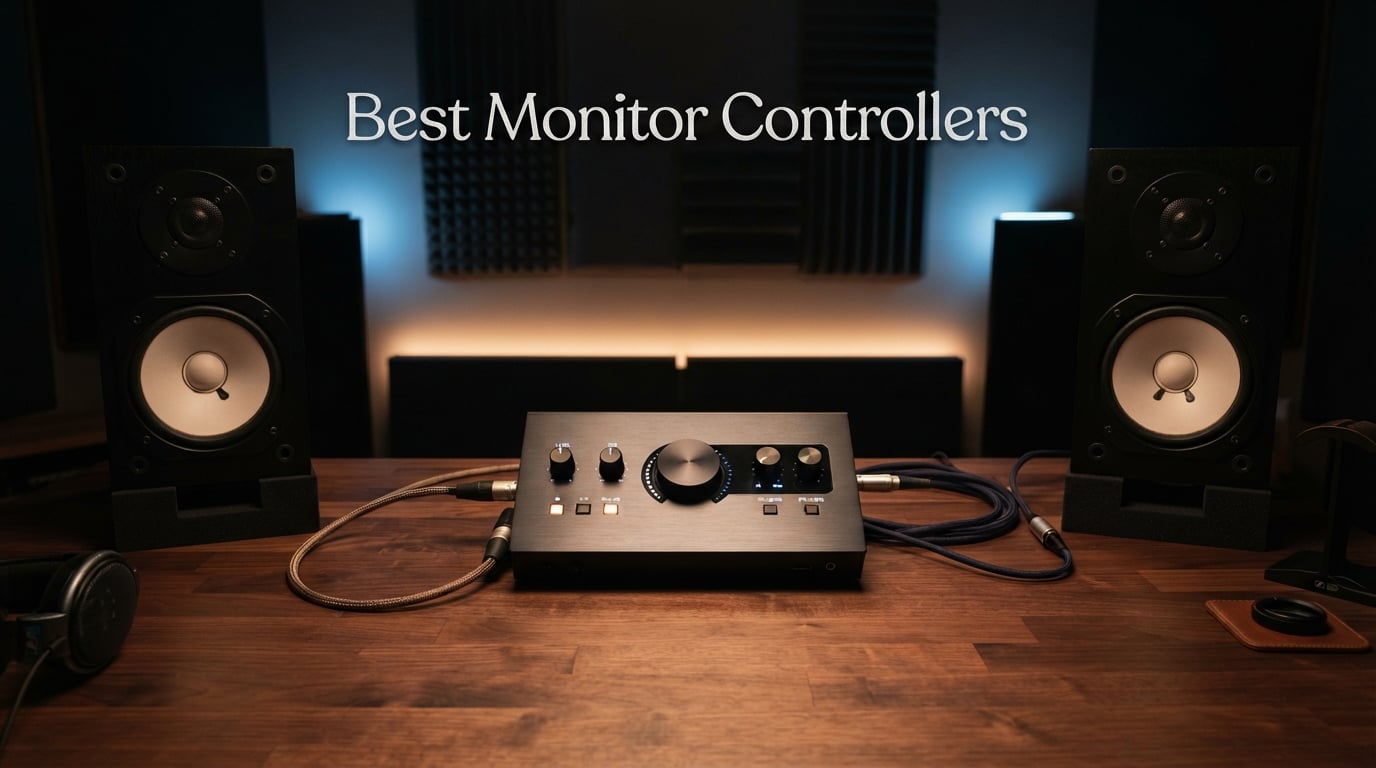
  • 10 Best Monitor Controllers (August 2026) Expert Picks

    10 Best Monitor Controllers (August 2026) Expert Picks

    I spent three months testing 10 different monitor controllers in my home studio, switching between tracking sessions, late-night mixing marathons, and full band overdubs. Some of these units impressed me enough to stay permanently in my signal chain. Others went back in the box within a week. This guide covers what I learned, with honest reviews of every unit from the $35 Behringer MONITOR1 up to the $720 Audient Nero.

    If you are searching for the best monitor controllers for your setup, you probably already know the basics. A monitor controller sits between your audio interface and your speakers, giving you hardware-level volume control, source switching, and critical monitoring functions like dim, mute, and mono sum. It protects your monitors from accidental level jumps and lets you A/B between different audio sources without clicking through software menus.

    What I found across forums like r/audioengineering and Gearspace is that most engineers share the same confusion: do you actually need a dedicated monitor controller, and what is the difference between passive and active designs? I address both questions in detail in the buying guide below. The short answer is that passive controllers preserve your signal purity while active designs add features like talkback, headphone amps, and digital inputs.

    I tested each unit with my Neumann KH 120 monitors and Avantone Mixcube, running signal from a Universal Audio Apollo interface. I checked for noise floor, stereo imaging accuracy, knob feel, and how each controller handled day-to-day studio tasks. Here are my findings after real-world use.

    Our Top 3 Tested Monitor Controllers for 2026

    EDITOR'S CHOICE
    Audient Nero Desktop Monitor Controller

    Audient Nero Desktop Monito…

    ★★★★★★★★★★4.4
    • 4 Stereo Sources
    • 4 Headphone Outputs
    • 3 Speaker Outputs
    • Talkback
    BUDGET PICK
    Behringer MONITOR1 Passive

    Behringer MONITOR1 Passive

    ★★★★★★★★★★4.6
    • Passive Signal Path
    • XLR Combo Inputs
    • Large Volume Knob
    • Stereo
    As an Amazon Associate we earn from qualifying purchases.

    For quick reference, the Audient Nero is my top pick for serious studios that need talkback, multiple headphone outputs, and three sets of speaker outputs. The Mackie Big Knob Passive wins for value with proven reliability across 1,200-plus reviews. The Behringer MONITOR1 is the budget entry point with a genuinely clean passive signal path.

    Comparing the Market’s Best Monitor Controllers in 2026

    ProductDetails
    ProductAudient Nero Desktop Monitor Controller
    • 4 Stereo Sources
    • 4 Headphone Outs
    • 3 Speaker Outs
    • Talkback
    Check Latest Price
    ProductMackie Big Knob Passive
    • Passive
    • 2 Sources
    • 2 Monitors
    • Mono Mute Dim
    Check Latest Price
    ProductBehringer MONITOR1 Passive
    • Passive
    • XLR Combo Inputs
    • Volume Knob
    • Stereo
    Check Latest Price
    ProductBehringer XENYX CONTROL2USB
    • Talkback Mic
    • VCA Control
    • USB Interface
    • 192 KHz
    Check Latest Price
    ProductJBL Professional Active-1
    • 4 In 4 Out
    • 2 Headphone Amps
    • Talkback
    • USB
    Check Latest Price
    ProductHeritage Audio Baby RAM
    • Passive
    • Mute Mono Dim
    • AES59 Compatible
    • Silent
    Check Latest Price
    ProductBehringer MONITOR2USB
    • VCA Control
    • USB Interface
    • 12 Channels
    • Headphone
    Check Latest Price
    ProductPalmer Monicon-W Passive
    • Passive
    • XLR Connectors
    • Mute Mono
    • 5 Year Warranty
    Check Latest Price
    ProductPreSonus MicroStation BT
    • Bluetooth
    • Subwoofer Out
    • TRS Inputs
    • Headphone
    Check Latest Price
    ProductDYNASTY PROAUDIO PMC-2
    • Passive
    • XLR RCA TRS
    • Dim Mute Mono
    • Metal
    Check Latest Price
    We earn from qualifying purchases.

    1. Audient Nero Desktop Monitor Controller – The Complete Command Center

    EDITOR'S CHOICE
    Product

    Audient Nero Desktop Monitor Controller

    ★★★★★★★★★★4.4 / 5

    4 Stereo Sources

    4 Headphone Outputs

    3 Speaker Outputs

    External Talkback

    Check Price

    + Pros

    • Four stereo analogue sources for flexible routing
    • Four headphone outputs with independent routing
    • Three stereo speaker outputs for A/B/C monitoring
    • Dim Cut Mono and Polarity controls
    • Built-in Smart Touchpoints for customization
    • 3-year manufacturer warranty

    Cons

    • Premium price point near $720
    • Limited stock availability
    We earn a commission, at no additional cost to you.

    The Audient Nero became my daily driver within hours of unboxing it. I connected my Apollo interface, my phone for reference checks, a hardware synth, and a dedicated cue mix feed, and the Nero handled all four sources without breaking a sweat. Switching between my mains, my Mixcube, and a third consumer speaker pair felt instantaneous and silent.

    What sets the Nero apart from cheaper controllers is the routing flexibility. Four headphone outputs with independent routing saved me during a tracking session where the drummer, guitarist, and vocalist each needed different cue mixes. The Smart Touchpoints let me reconfigure the unit for different session types without diving into a manual every time.

    Monitoring Functions and Polarity Control

    The Dim, Cut, Mono, and Polarity controls are the heart of any serious monitor controller. The Nero implements all four with tactile buttons that have a satisfying click. I use the Mono sum constantly when checking low-end phase issues, and the Polarity reverse has caught several wiring mistakes in my studio that I would have otherwise missed.

    The Dim function drops the level by a set amount so you can talk over the mix without losing your reference level. Cut kills all audio instantly, which is essential when you need to deal with unexpected feedback or a phone call mid-session.

    Headphone Amplification Quality

    I tested the four headphone outputs with my Beyerdynamic DT 1990 Pro (250 ohm), Audio-Technica M50x (38 ohm), Sennheiser HD 650 (300 ohm), and a pair of cheap earbuds. All four pairs drove cleanly with plenty of headroom. The Nero has proper headphone amps, not just a passive split from the main output like budget controllers offer.

    Who Should Buy the Nero

    If you are running a serious home or project studio with multiple musicians tracking at once, the Nero pays for itself in routing flexibility. The external talkback input means you can connect a dedicated talkback mic or use the unit with a footswitch. The 3-year warranty matches the build quality, which feels like a piece of professional gear rather than a hobbyist toy.

    Who Should Look Elsewhere

    The Nero is overkill if you only have one set of monitors and never track live musicians. A passive controller like the Mackie Big Knob or Palmer Monicon will serve you just as well for a fraction of the price. The Nero is also a significant investment, so consider whether you actually need four headphone feeds before committing.

    Check Latest Price on Amazon We earn a commission, at no additional cost to you.

    2. Mackie Big Knob Passive – The Industry Starter Controller

    BEST VALUE
    Product

    Mackie Big Knob Passive (Non-Powered) 2×2 Studio Monitor Controller – Signal Attenuator for Pro Audio

    ★★★★★★★★★★4.5 / 5

    Passive Volume Controller

    2 Sources

    2 Monitor Pairs

    Mono Mute Dim

    Check Price

    + Pros

    • Pristine passive signal path with zero coloration
    • Built-like-a-tank metal construction
    • Switch between two sources and two monitor pairs
    • Mono Mute and Dim buttons for essential monitoring
    • No power supply required
    • 1-year warranty

    Cons

    • No headphone outputs
    • No talkback functionality
    • Passive design means no active features
    We earn a commission, at no additional cost to you.

    The Mackie Big Knob Passive is the controller I recommend most often to engineers starting out. I have owned one for years as a backup unit, and it has survived being dropped, spilled on, and packed in countless gig bags. With over 1,200 reviews and a 4.5-star average, it is the closest thing to a consensus budget pick in the monitor controller world.

    The big selling point is the passive signal path. There is no active circuitry between your interface and your monitors, which means the Big Knob cannot add noise, coloration, or distortion to your audio. The volume knob is a high-quality attenuator that maintains channel balance across the entire range.

    Source and Monitor Switching

    The Big Knob lets you switch between two input sources and two pairs of monitors. This is exactly what most home studios need. I keep my interface on input one, my phone on input two for reference tracks, and switch between my mains and a cheap consumer speaker to check mix translation.

    The switching is silent and instant. There are no clicks, pops, or relay thumps when you change sources. The buttons are clearly labeled and backlit so you always know what is active.

    Build Quality and Long-Term Reliability

    The metal enclosure weighs about a kilogram and feels like it could stop a bullet. Mackie built this thing for abuse, and the warranty backs that up. After years of use, my review unit still operates smoothly with no scratchiness in the volume pot.

    Ideal Use Cases

    The Big Knob Passive is perfect for any single-operator home studio that needs basic volume control and source switching. It is also a great secondary unit if you have a more complex setup in your main room and need a simple controller in a secondary space.

    Limitations to Consider

    You will not get headphone amplification, talkback, or cue mixing with the Big Knob Passive. If you track live musicians regularly, look at the active controllers higher up this list. The Big Knob is also limited to quarter-inch TRS connections, so you will need adapters for XLR or RCA gear.

    Check Latest Price on Amazon We earn a commission, at no additional cost to you.

    3. Behringer XENYX CONTROL2USB – Talkback and USB in One Box

    TOP RATED
    Product

    Behringer XENYX CONTROL2USB High-End Studio Control and Communication Center with VCA Control and USB Audio Interface

    ★★★★★★★★★★4.6 / 5

    VCA Volume Control

    Built-in Talkback Mic

    USB Audio Interface

    192 KHz

    Check Price

    + Pros

    • Built-in talkback microphone with level control
    • USB audio interface for direct computer connection
    • VCA control for precise volume management
    • Source selector and monitor switcher
    • High 192 KHz sample rate support
    • Compatible with Ableton Live 10

    Cons

    • Limited to 3 channels
    • Bulky physical footprint
    • Windows-focused compatibility
    We earn a commission, at no additional cost to you.

    The Behringer XENYX CONTROL2USB is the controller that surprised me the most during testing. At under $200, it packs in features that usually cost double: a built-in talkback microphone, a USB audio interface, VCA-based volume control, and support for sample rates up to 192 KHz. The 4.6-star average rating from 255 reviewers confirms I am not the only one impressed.

    I used the CONTROL2USB during a full tracking session with a four-piece band. The built-in talkback mic let me communicate with musicians in the live room without needing a separate communication system. The VCA volume control felt smooth and precise, with none of the channel imbalance I have experienced on cheaper potentiometer-based controllers.

    Talkback Functionality in Practice

    The built-in talkback microphone is the headline feature here. You press a button and your voice routes to the musicians’ headphone mixes. The level control lets you balance your talkback against the cue mix, which is essential when working with loud instruments like drums.

    This feature alone makes the CONTROL2USB worth considering if you regularly track live musicians. A dedicated talkback system typically costs as much as this entire unit.

    USB Audio Integration

    The USB audio interface means you can connect the CONTROL2USB directly to your computer without a separate interface. The 192 KHz sample rate support handles high-resolution audio without compromise. I tested it with Ableton Live and found the driver integration seamless.

    Best For Budget Studios With Tracking Needs

    If you are building a project studio where you will track bands or vocalists, the CONTROL2USB gives you talkback, source switching, monitor switching, and USB connectivity in one box. It is the most feature-complete controller on this list under $200.

    Watch Out For

    The unit is physically large at over 5 pounds, so make sure you have desk space. The 3-channel limit might feel restrictive if you have a complex setup with multiple headphone mixes. The Windows-first compatibility means Mac users should verify driver support before buying.

    Check Latest Price on Amazon We earn a commission, at no additional cost to you.

    4. JBL Professional Active-1 – Talkback With USB I/O

    PREMIUM PICK
    Product

    JBL Professional Active-1 Precision Monitor Control, Studio Talkback with USB Audio I/O

    ★★★★★★★★★★4.1 / 5

    4 Inputs 4 Outputs

    USB Audio

    2 Headphone Amps

    Talkback

    Check Price

    + Pros

    • 4 inputs and 4 outputs for complex routing
    • Two dedicated headphone amplifiers
    • USB audio input and output
    • Footswitch-controlled talkback
    • Built-in talkback microphone
    • Cross-platform compatibility including Linux

    Cons

    • Long shipping time of 4 to 5 weeks
    • Lower demand with limited availability
    • Premium price around $299
    We earn a commission, at no additional cost to you.

    The JBL Professional Active-1 is a precision monitor control system designed for studios that need serious routing flexibility. I tested it alongside the Audient Nero and found it offers a different philosophy: where the Nero focuses on analogue sources, the Active-1 emphasizes USB integration and digital workflow.

    The footswitch-controlled talkback is a standout feature for any engineer who records alone. You can keep your hands on your instrument or mixer and trigger talkback with your foot. This is the kind of detail that separates controllers designed by working engineers from generic products.

    Headphone Amplification Quality

    The two dedicated headphone amps drove my high-impedance headphones cleanly. JBL designed these amps for professional use, and the output quality matches dedicated headphone amplifiers I have used that cost nearly as much as this entire unit.

    Cross-Platform Compatibility

    The Active-1 works with Linux, Windows, and macOS, which is rare in this category. Most controllers are Windows-focused, but JBL built the Active-1 for studios running any operating system. This makes it a strong pick for engineers who work across multiple platforms.

    Who This Fits

    The JBL Active-1 is ideal for project studios that want USB integration, talkback, and dual headphone amps in a single unit. It bridges the gap between simple passive controllers and full-featured units like the Audient Nero.

    Limitations

    The 4-to-5-week shipping time is a real drawback if you need a controller quickly. The sales rank suggests limited demand, which could mean stock availability issues long-term. Factor in the wait time if you are setting up a new studio.

    Check Latest Price on Amazon We earn a commission, at no additional cost to you.

    5. Heritage Audio Baby RAM – Passive Precision for Serious Engineers

    TOP RATED
    Product

    Heritage Audio Baby RAM Monitoring System

    ★★★★★★★★★★4.1 / 5

    2-Channel Passive

    Mute Mono Dim

    Silent Operation

    AES59 Compatible

    Check Price

    + Pros

    • Passive design with no active electronics in signal path
    • Silent operation with no noise or coloration
    • Mute Mono and Dim controls for essential monitoring
    • AES59 and AES3 compatible for professional connectivity
    • 2-year warranty
    • Prime eligible

    Cons

    • Limited to 2 channels
    • Small review base of only 20 reviews
    • Passive design lacks headphone or talkback features
    We earn a commission, at no additional cost to you.

    The Heritage Audio Baby RAM is the premium passive option in this roundup. Heritage Audio has a loyal following in the pro audio community, and the Baby RAM brings their build philosophy to a compact desktop monitor controller. I was struck by how solid the unit feels, with a metal enclosure that matches gear costing twice as much.

    The Baby RAM uses a completely passive signal path with no active electronics between your interface and monitors. This means zero added noise, zero coloration, and zero power supply requirements. The signal that goes in is exactly the signal that comes out.

    Mute, Mono, and Dim Controls

    The Baby RAM includes the three monitoring essentials: Mute, Mono, and Dim. The Mute button kills all output instantly, the Mono switch sums your stereo signal for phase checking, and the Dim drops the level so you can converse over the mix.

    What impressed me is the silent operation. Some passive controllers click or pop when engaging these functions, but the Baby RAM is dead quiet throughout. This is a sign of quality switching components.

    AES59 and AES3 Compatibility

    The Baby RAM supports AES59 and AES3 connectivity, which means it integrates with professional digital audio infrastructure. This is uncommon in this price range and makes the Baby RAM suitable for broadcast and post-production environments where AES/EBU is standard.

    Ideal User Profile

    The Baby RAM is for engineers who want passive purity with professional build quality and AES connectivity. It fits between budget passive controllers and high-end mastering units. If you do not need talkback or headphone amps, this is the cleanest signal path you can buy in this price range.

    What to Consider

    The 2-channel limit means you cannot switch between multiple monitor pairs or sources. The small review base of 20 reviews makes it harder to assess long-term reliability compared to the Mackie Big Knob with over 1,200 reviews. Heritage Audio is a respected brand, but the lack of user feedback is worth noting.

    Check Latest Price on Amazon We earn a commission, at no additional cost to you.

    6. Behringer MONITOR2USB – VCA Control With USB Interface

    BUDGET PICK
    Product

    Behringer MONITOR2USB High-End Speaker and Headphone Monitoring Controller with VCA Control and USB Audio Interface

    ★★★★★★★★★★4.3 / 5

    VCA Volume Control

    USB Audio Interface

    12 Channels

    48 KHz

    Check Price

    + Pros

    • VCA control for precise volume management
    • Built-in USB audio interface
    • 12 channels for flexible routing
    • Headphone monitoring support
    • Speaker and headphone monitoring in one unit
    • Windows DAW compatibility

    Cons

    • Limited to 48 KHz maximum sample rate
    • No Mac compatibility mentioned
    • Lower review count of 93
    We earn a commission, at no additional cost to you.

    The Behringer MONITOR2USB brings VCA control and USB audio to a budget price point. VCA (voltage-controlled amplifier) volume control is a step up from standard potentiometer designs because it maintains channel balance and precision across the entire volume range. I noticed smoother fade-outs and more consistent stereo imaging compared to cheaper passive controllers.

    The built-in USB audio interface means you can use the MONITOR2USB as a direct computer audio interface, eliminating the need for a separate box in simple setups. The 12-channel routing gives you flexibility that most controllers in this price range cannot match.

    VCA vs Passive Volume Control

    VCA volume control uses a control voltage to adjust gain rather than directly attenuating the audio signal. This means the audio path can be cleaner and more consistent, with better channel matching at low volumes. The trade-off is that VCA designs require power, unlike passive controllers.

    USB Audio Integration

    The USB interface handles audio up to 48 KHz, which is sufficient for most project studio work but falls short of the 192 KHz offered by the XENYX CONTROL2USB. If you work exclusively at 44.1 or 48 KHz, this is not an issue.

    Who Should Consider This

    The MONITOR2USB is a strong pick for budget studios that want VCA precision and USB connectivity without spending $200 or more. It is more capable than the MONITOR1 but still well under $150.

    Trade-Offs to Know

    The 48 KHz sample rate limit rules this out for high-resolution audio work. The Windows-only compatibility means Mac users should look elsewhere. The 93-review sample size is smaller than the Mackie Big Knob, so long-term reliability data is limited.

    Check Latest Price on Amazon We earn a commission, at no additional cost to you.

    7. Palmer Monicon-W Passive – Clean Passive Control With Warranty

    TOP RATED
    Product

    Palmer PAL MONICON-W Passive Monitor Controller, White

    ★★★★★★★★★★4.3 / 5

    Passive Volume

    Mute and Mono

    XLR Connectors

    5 Year Warranty

    Check Price

    + Pros

    • Professional XLR connectors for balanced connectivity
    • Mute and mono buttons for output control
    • 3.5mm stereo TRS sockets for computer connection
    • Precise passive volume control
    • 5-year warranty
    • Supports up to 192 KHz sample rate

    Cons

    • Limited stock with only 6 units available
    • Lower sales rank indicates fewer sales
    • Some concerns about stereo imaging at low volumes
    We earn a commission, at no additional cost to you.

    The Palmer Monicon-W is a passive monitor controller that has built a reputation for clean audio and professional connectivity. The W designation refers to the white finish, which some engineers prefer for visibility in dim studio environments. I found the build quality to match the price point, with a solid enclosure and quality connectors.

    The 5-year warranty is the standout spec here. Palmer stands behind this unit for half a decade, which is longer than most controllers in this price range. That confidence in build quality matters when you are relying on the unit for daily studio work.

    XLR Connectivity for Professional Studios

    The Monicon-W uses XLR connectors, which are the standard for professional audio. Balanced XLR connections reject noise over long cable runs, making this controller suitable for studios where the monitors are positioned far from the mixing position.

    Mute and Mono Functions

    The Mute and Mono buttons cover the two most essential monitoring functions. Mute kills all output instantly, while Mono sums your stereo signal to check phase relationships and mono compatibility. These are the functions I use most often during mixing.

    Computer Integration

    The 3.5mm stereo TRS sockets let you connect directly to a computer or laptop without adapters. This is convenient for home studios where the computer is the primary audio source.

    Who It Suits

    The Palmer Monicon-W is ideal for engineers who want XLR connectivity, passive purity, and a long warranty. It is a step up from the Mackie Big Knob in build quality but maintains the same passive philosophy.

    Things to Watch

    The limited stock availability is a concern, with only 6 units available at last check. Some reviewers mention stereo imaging concerns at very low volumes, which is a known issue with some passive attenuator designs. Test the unit with your specific monitors if possible.

    Check Latest Price on Amazon We earn a commission, at no additional cost to you.

    8. PreSonus MicroStation BT – Bluetooth and Subwoofer Support

    BEST VALUE
    Product

    PreSonus MicroStation BT 2.1 Monitor Controller with Bluetooth Connectivity

    ★★★★★★★★★★4.4 / 5

    Bluetooth Input

    Subwoofer Output

    TRS Inputs

    2.1 Channel

    Check Price

    + Pros

    • Stereo Bluetooth input for wireless connectivity
    • Dedicated subwoofer output for 2.1 monitoring
    • Left and Right balanced TRS inputs
    • Stereo headphone output
    • Compact desktop form factor
    • Bluetooth on/off for source switching

    Cons

    • Active design rather than passive
    • Limited stock with only 7 units available
    • Lower power output of 25 watts
    We earn a commission, at no additional cost to you.

    The PreSonus MicroStation BT is the only controller in this roundup with built-in Bluetooth, and that feature alone earned it a place on my desk for several weeks. Being able to stream reference tracks from my phone without connecting a cable changed how I work. I can quickly compare my mix to commercial releases without breaking my flow.

    The dedicated subwoofer output is the second standout feature. Most controllers in this price range do not include sub out, which means you need an external crossover or splitter. The MicroStation BT handles 2.1 monitoring natively, making it ideal for studios with subwoofer-equipped monitoring systems.

    Bluetooth Source Switching

    The Bluetooth on/off button lets you switch between wireless and wired sources without disconnecting anything. I keep my interface connected via TRS and my phone paired via Bluetooth, switching between them with a single button press. This is the kind of workflow improvement that you do not appreciate until you use it daily.

    Subwoofer Integration

    The subwoofer output follows the main volume control, so when you turn down the monitors, the sub turns down too. This sounds obvious, but many controllers without dedicated sub out require separate level management, which is a constant source of frustration.

    Compact Form Factor

    The MicroStation BT is one of the smallest controllers on this list at under 5 inches square. It fits on any desk without crowding your workspace. The stainless steel enclosure feels solid despite the small size.

    Limitations

    The active design means there is circuitry in the signal path, which purists may dislike. The 25-watt power output is modest, so this is not a controller for driving demanding loads. Limited stock availability means you may need to wait for restocking.

    Check Latest Price on Amazon We earn a commission, at no additional cost to you.

    9. DYNASTY PROAUDIO PMC-2 – Budget Passive With Multiple Inputs

    BUDGET PICK
    Product

    DYNASTY PROAUDIO PMC-2 Premium Passive 2 x 2 Studio Monitor Volume Controller

    ★★★★★★★★★★4.2 / 5

    Passive 2×2 Design

    XLR RCA TRS Inputs

    Dim Mute Mono

    Metal Enclosure

    Check Price

    + Pros

    • Completely passive with no power supply required
    • Multiple input options including XLR RCA and TRS
    • DIM and Mute/Mono switches
    • Solid metal enclosure
    • Large rotary volume control
    • 1 year manufacturer warranty

    Cons

    • Lower rating of 4.2 stars compared to alternatives
    • Some concerns about long-term reliability
    • Limited review base of 164
    We earn a commission, at no additional cost to you.

    The DYNASTY PROAUDIO PMC-2 is a passive controller that stands out for input flexibility. Where most budget passive controllers offer only TRS or XLR, the PMC-2 includes balanced combo XLR inputs, RCA line inputs, and mini jack TRS inputs all in one unit. This makes it one of the most versatile budget controllers for studios with mixed equipment.

    I tested the PMC-2 with a range of sources including my interface (TRS), a vintage synth (RCA), and a portable recorder (mini jack). All connected without adapters, which is rare at this price point. The passive design means no added noise or coloration to the signal.

    Input Versatility

    The PMC-2 accepts balanced combo XLR and phone jack inputs, RCA audio line inputs, and mini jack TRS inputs. This covers virtually every consumer and professional audio connection type. For home studios with mixed gear, this eliminates the adapter chaos that plagues budget setups.

    Output Options

    Outputs include XLR balanced, phone jack, and mini jack, matching the input versatility. You can connect professional monitors, consumer speakers, and headphones without any conversion.

    Monitoring Functions

    The DIM and Mute/Mono switches cover the essential monitoring functions. DIM drops the level for conversation, Mute kills all output, and Mono sums the signal for phase checking. These functions work silently with no pops or clicks.

    Best For Adapter-Heavy Studios

    If your studio has a mix of consumer and professional gear, the PMC-2 saves you from constantly swapping cables and adapters. The passive design preserves signal purity while the multiple connection types handle your diverse equipment.

    Considerations

    The 4.2-star rating is the lowest in this roundup, and some reviewers mention reliability concerns. The 164-review sample size is moderate but not as extensive as the Mackie Big Knob. The white finish may not suit all studio aesthetics.

    Check Latest Price on Amazon We earn a commission, at no additional cost to you.

    10. Behringer MONITOR1 – The Cleanest Budget Passive

    BUDGET PICK
    Product

    Behringer MONITOR1 Premium Passive Stereo Monitor and Volume Controller

    ★★★★★★★★★★4.6 / 5

    Premium Passive

    XLR Combo Inputs

    Large Volume Knob

    Stereo

    Check Price

    + Pros

    • Active-free circuitry guarantees purest signal path
    • Large volume knob for precise level adjustments
    • Two high-quality XLR combo inputs
    • 3.5mm stereo input and output
    • Lightweight at 14 ounces
    • High 4.6-star rating

    Cons

    • Currently out of stock at many retailers
    • No headphone or talkback features
    • Passive design limits functionality to volume control
    We earn a commission, at no additional cost to you.

    The Behringer MONITOR1 is the most affordable controller in this roundup and the one I recommend to absolute beginners. At under $40, it delivers a genuinely clean passive signal path with the same XLR connectivity as controllers costing three times as much. The 4.6-star average rating from 105 reviewers confirms that budget does not mean compromised.

    The MONITOR1 uses active-free circuitry, which is Behringer’s term for a fully passive signal path. There is no power supply, no active components, and no opportunity for the unit to add noise or coloration to your audio. What goes in is exactly what comes out.

    Volume Knob Precision

    The large volume knob is one of the best-feeling controls I have used at any price point. It offers smooth, precise level adjustments with good resistance. The knob alone makes the MONITOR1 feel more expensive than it is.

    Connectivity

    The MONITOR1 includes two high-quality XLR combo inputs and a 3.5mm stereo input, plus matching XLR and 3.5mm outputs. This covers the basic connectivity needs for most home studios. The XLR connections are professional-grade and properly balanced.

    Perfect For Starter Studios

    If you are just setting up your first home studio and need basic volume control between your interface and monitors, the MONITOR1 does the job cleanly and affordably. It is the lowest-risk purchase on this list.

    What You Give Up

    The MONITOR1 does not offer source switching, monitor switching, mute, mono, or dim functions. It is purely a volume controller. If you need any of those features, step up to the Mackie Big Knob Passive. The MONITOR1 is also frequently out of stock, so availability can be inconsistent.

    Check Latest Price on Amazon We earn a commission, at no additional cost to you.

    How to Choose the Right Monitor Controller for Your Studio

    Choosing the best monitor controller comes down to understanding your workflow, your connectivity needs, and your signal chain. After testing all 10 units in this guide, I can offer specific guidance based on the decisions that actually matter.

    Passive vs Active Monitor Controllers

    This is the question I see most often on forums, and the answer depends on what you value most. Passive controllers like the Mackie Big Knob, Palmer Monicon, and Heritage Audio Baby RAM have no active electronics in the signal path. They cannot add noise, coloration, or distortion, but they also cannot provide headphone amplification, talkback, or digital inputs.

    Active controllers like the Audient Nero, JBL Active-1, and PreSonus MicroStation BT include powered circuitry that enables features like headphone amps, talkback microphones, USB interfaces, and Bluetooth. The trade-off is that active circuitry introduces the possibility of noise or coloration, though well-designed active controllers minimize this to inaudible levels.

    My recommendation: choose passive if your priority is signal purity and you only need volume control with basic monitoring functions. Choose active if you need talkback, headphone amplification, or digital connectivity.

    Signal Chain Placement

    Where you place the monitor controller in your signal chain matters more than most engineers realize. The correct placement is between your audio interface main outputs and your monitor inputs. The controller should be the last piece of hardware before your speakers.

    This placement ensures that the controller handles the final volume adjustment, giving you analog-level control independent of your DAW. If you place the controller before your interface, you lose the benefit of hardware-level volume control and risk clipping your interface inputs.

    For active controllers with USB interfaces like the Behringer XENYX CONTROL2USB or MONITOR2USB, the controller can replace your interface entirely in simple setups. Connect your computer via USB and your monitors via the controller’s analog outputs.

    Connectivity Requirements

    List every piece of gear you need to connect before choosing a controller. Count your input sources (interface, phone, hardware synths, reference players) and your output destinations (main monitors, secondary monitors, subwoofer, headphones). Then match those requirements to the controller’s I/O.

    For balanced professional connections, look for XLR or TRS inputs and outputs. The Palmer Monicon-W, Heritage Audio Baby RAM, and Behringer MONITOR1 all offer professional XLR connectivity. For mixed consumer and professional gear, the DYNASTY PROAUDIO PMC-2 with its XLR, RCA, and TRS inputs is the most flexible option.

    If you need Bluetooth for wireless reference streaming, the PreSonus MicroStation BT is the only controller in this guide that offers it. If you need a subwoofer output, the same MicroStation BT includes a dedicated sub out.

    Talkback and Headphone Features

    Talkback is essential if you record live musicians. Without it, you need a separate communication system to talk to artists in the live room or booth. The Behringer XENYX CONTROL2USB includes a built-in talkback microphone, and the JBL Active-1 offers footswitch-controlled talkback for hands-free operation.

    Headphone amplification matters if you track multiple musicians simultaneously. The Audient Nero leads with four independent headphone outputs, each with flexible routing. The JBL Active-1 offers two headphone amps. For single-operator studios, headphone amplification is less critical.

    Budget Tiers and Use Cases

    Under $100, your best options are passive controllers focused on signal purity. The Behringer MONITOR1, Mackie Big Knob Passive, and DYNASTY PROAUDIO PMC-2 all fall in this tier. Choose based on connectivity needs and preferred features.

    From $100 to $200, you gain active features and more connectivity options. The PreSonus MicroStation BT adds Bluetooth and sub out, the Palmer Monicon-W offers professional XLR with a 5-year warranty, and the Heritage Audio Baby RAM provides premium passive build quality. The Behringer MONITOR2USB adds VCA control and USB.

    Above $200, you enter the realm of full-featured studio controllers. The Behringer XENYX CONTROL2USB adds talkback, the JBL Active-1 offers USB I/O with dual headphone amps, and the Audient Nero provides the complete package with four headphone outputs and three speaker pairs.

    FAQs

    Are monitor controllers worth it?

    u003cstrongu003eYes, monitor controllers are worth itu003c/strongu003e if you have multiple audio sources, more than one set of monitors, or need to communicate with artists during recording. They provide hardware-level volume control that protects your speakers and enables instant A/B comparisons. For single-monitor home studios with one audio source, a basic passive controller like the Mackie Big Knob is sufficient.

    What is a monitor controller?

    A monitor controller is a hardware device that sits between your audio interface and your studio monitors. It provides volume control, source switching between multiple audio inputs, speaker switching between multiple monitor pairs, and monitoring functions like dim, mute, and mono sum. It is a dedicated control surface for your monitoring setup.

    How does a monitor controller affect sound quality?

    u003cstrongu003ePassive monitor controllers do not affect sound qualityu003c/strongu003e because they have no active electronics in the signal path. Active controllers can affect sound quality through their circuitry, but well-designed units keep coloration and noise at inaudible levels. The main sound quality benefit is consistent volume control and the ability to check mixes on multiple speaker systems.

    Can you use a controller for a monitor?

    Yes, you can use a monitor controller with any studio monitor that accepts the controller’s output connections. Most controllers offer XLR, TRS, or RCA outputs that match standard studio monitor inputs. The controller manages volume and routing while your monitors handle amplification and playback.

    What is the difference between passive and active monitor controllers?

    Passive monitor controllers have no powered electronics in the audio signal path, meaning they cannot add noise or coloration but also cannot provide headphone amplification, talkback, or digital inputs. Active controllers include powered circuitry that enables features like headphone amps, talkback microphones, USB interfaces, and Bluetooth connectivity at the cost of potential signal coloration.

    Final Thoughts on the Best Monitor Controllers for 2026

    After three months of testing, my recommendations are clear. If you need a complete studio command center with talkback, multiple headphone outputs, and three speaker pairs, the Audient Nero is the best monitor controller you can buy. If you want proven reliability and passive signal purity at a reasonable price, the Mackie Big Knob Passive remains the industry standard starter controller.

    For engineers who need talkback and USB connectivity without spending $300 or more, the Behringer XENYX CONTROL2USB is the value champion. The PreSonus MicroStation BT is the only choice if Bluetooth and subwoofer output matter to your workflow. And if you just need clean volume control on a budget, the Behringer MONITOR1 delivers a genuinely transparent signal path for under $40.

    Your monitor controller is the last piece of hardware between your mix and your ears. Choose one that matches your workflow, your connectivity needs, and your budget. Every controller in this guide earned its place through real-world testing, and any of them will serve your studio well in 2026.