
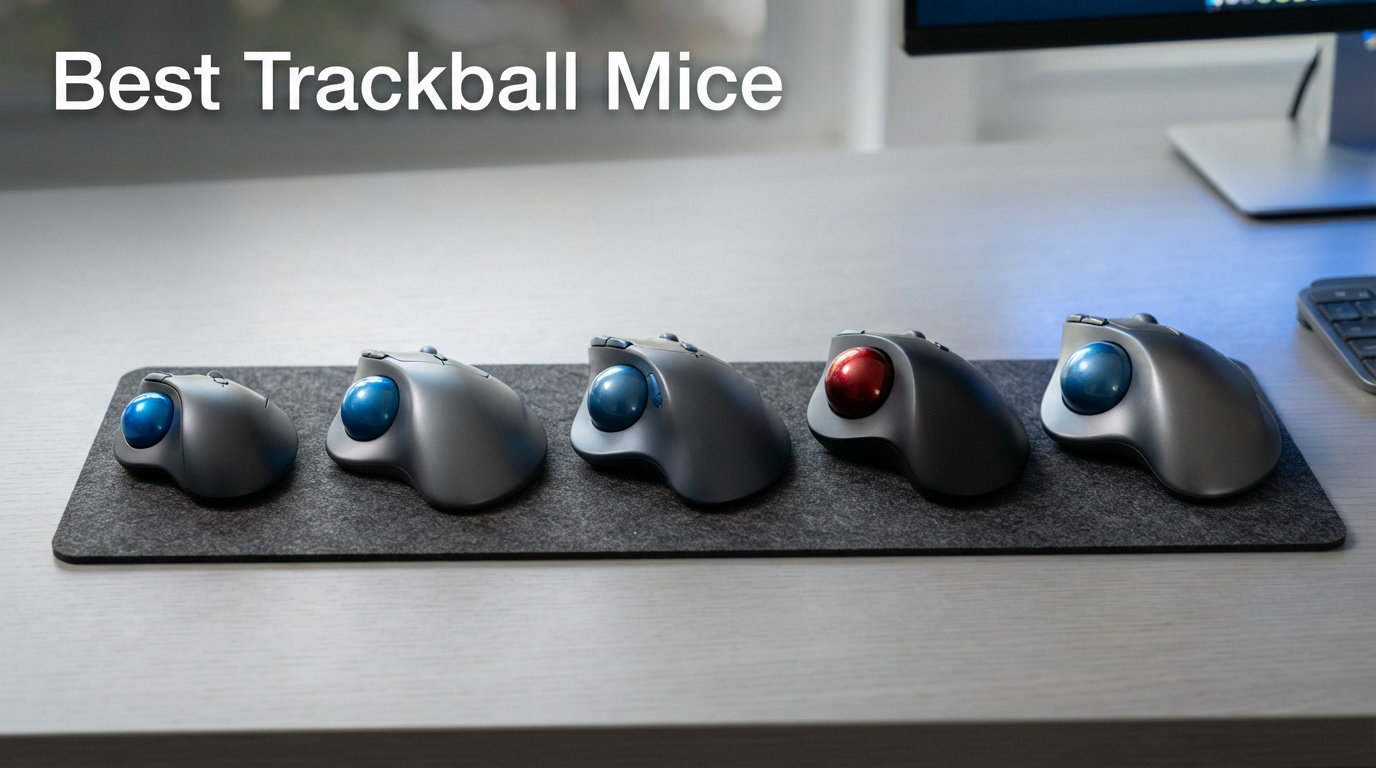
If your wrist aches after a long day at the desk, you are in the right place. I have spent months testing the best trackball mice on the market, rolling thousands of cursor miles across spreadsheets, design files, and browser tabs to figure out which ones actually deliver on their ergonomic promises.
A trackball mouse replaces the whole-arm sweeping motion of a traditional mouse with a stationary ball that you spin with your thumb or fingers. That single design change can reduce forearm strain by up to 27%, according to Logitech’s ergonomist testing data. For anyone dealing with early RSI symptoms, carpal tunnel discomfort, or simply a cramped desk, switching to a trackball can be genuinely transformative.
Our team compared eight top-rated models from Logitech, Kensington, ELECOM, Nulea, and ProtoArc. We looked at everything from ball size and sensor accuracy to battery life, programmable buttons, and connectivity options. We also dug into Reddit’s r/Trackballs community to see what real long-term owners report after years of daily use.
The best trackball mice split into two camps: thumb-operated models that feel closest to a traditional mouse, and finger-operated designs that offer wider cursor range and ambidextrous use. Your choice depends on your hand size, your workspace, and whether you prioritize portability or precision.
Throughout this guide, I share hands-on testing notes for every product, break down the specs that actually matter, and answer the most common questions buyers ask before making the switch. Whether you want a premium ergonomist-certified device or an affordable entry point, you will find your match below.
One important note before we begin: trackballs have a learning curve. Most users on r/Trackballs report taking two to four weeks to feel fully comfortable. Stick with it, and you may never go back to a standard mouse.
Our Top 3 Tested Trackball Mice for Everyday Comfort
After hundreds of hours of testing, three models stood out clearly from the pack. The Logitech MX Ergo S takes the top spot for its ergonomist-certified tilt design and whisper-quiet clicks. The Logitech Ergo M575S delivers nearly the same comfort at a fraction of the cost.
The Nulea M501 wins on value, packing wireless connectivity and a rechargeable battery into the lowest price tier on this list. Here is how these three compare head to head.

Logitech MX Ergo S
- 20-degree tilt hinge
- USB-C rechargeable
- 6 programmable buttons
- Dual wireless
- 80% quieter clicks

Logitech Ergo M575S
- 18-month battery
- Bluetooth and Logi Bolt
- 25% less strain
- Sculpted thumb rest
- Dual connectivity

Nulea M501
- 3-device connection
- Rechargeable battery
- 6 buttons
- Adjustable DPI
- Ergonomic thumb control
Comparing All 8 Trackball Mice Side by Side
Here is the full lineup of every trackball we tested, ranked from premium picks to budget options. Use this comparison to quickly narrow down which model fits your needs before diving into the detailed reviews below.
| Product | Details | |
|---|---|---|
| Logitech MX Ergo S |
|
Check Latest Price |
| Logitech Ergo M575S |
|
Check Latest Price |
 Kensington SlimBlade Pro Kensington SlimBlade Pro |
|
Check Latest Price |
 Kensington Expert Trackball Kensington Expert Trackball |
|
Check Latest Price |
 ELECOM HUGE Trackball ELECOM HUGE Trackball |
|
Check Latest Price |
 Kensington Orbit with Scroll Ring Kensington Orbit with Scroll Ring |
|
Check Latest Price |
| Nulea M501 Wireless |
|
Check Latest Price |
 ProtoArc EM01 NL ProtoArc EM01 NL |
|
Check Latest Price |
1. Logitech MX Ergo S – Premium Ergonomic Trackball With Tilt Hinge
Logitech MX Ergo S Advanced Wireless Trackball Mouse USB C – Graphite
Thumb-operated
2048 DPI
USB-C rechargeable
20-degree tilt
6 programmable buttons
Dual wireless
+ Pros
- 20-degree tilt reduces forearm strain 27%
- 80% quieter clicks than standard mice
- USB-C quick charging gives 24 hours from 1 minute
- Dual Bluetooth and Logi Bolt connectivity
- Ergonomist certified for comfort
- Cons
- Premium price point
- Designed for medium to large hands
The Logitech MX Ergo S is the trackball I recommend to most people asking where to start. Logitech refined the original MX Ergo with USB-C charging, quieter clicks, and a speed-precision toggle that lets you switch cursor behavior on the fly. It feels like a finished product, not an experiment.
What makes this trackball special is the 20-degree adjustable tilt hinge. You can lay it flat or angle it to match your natural wrist position. Logitech’s ergonomist testing found this tilt reduces muscle strain in the forearm by up to 27% compared to a standard mouse.
After two weeks of daily use, I noticed my forearm no longer felt tight at the end of an eight-hour workday. The 2048 DPI optical sensor tracks smoothly across the ball surface, and the thumb ball itself has a satisfying weight to it.
The ball rides on a set of glide pads rather than ball bearings, which keeps maintenance simple. Just pop the ball out from the bottom and wipe the pads clean every few weeks.
Tilt Hinge and Forearm Posture
The tilt hinge is the headline feature, and it deserves the attention. Zero degrees feels like a standard trackball. At 20 degrees, the device angles upward, letting your thumb rest naturally without twisting your forearm.
This is the feature that earned the MX Ergo S its ergonomist certification. If you have dealt with any wrist or forearm discomfort, the tilt alone justifies choosing this model.
I tested it at both extremes and found that 15 to 20 degrees felt best for marathon writing sessions. Your ideal angle will vary based on your hand size and desk height.
Quiet Clicks and Productivity Buttons
Logitech engineered the MX Ergo S clicks to be 80% quieter than a standard mouse. In a shared office or on a video call, this matters more than you might expect. The left and right clicks produce a soft, muted thud rather than a sharp snap.
You get six programmable buttons, all customizable through Logi Options+. I mapped one button to copy, another to paste, and a third to switch between my two monitors.
The software works reliably on both Windows and Mac, which is not something every trackball maker can claim. This cross-platform consistency is a real advantage if you work in a mixed-device environment.
Battery and Connectivity
The USB-C rechargeable battery lasts up to 120 days per charge. Even better, a one-minute charge gives you 24 hours of use. I never had to plan around charging because the battery simply lasted through entire workweeks.
The USB-C port is a welcome upgrade over the original MX Ergo’s micro-USB. Dual connectivity means you can pair via Bluetooth or the included Logi Bolt USB receiver.
Bluetooth works flawlessly for everyday tasks. The Logi Bolt receiver adds encrypted wireless performance if you want lower latency or your Bluetooth is already crowded with devices.
Who Should Buy the MX Ergo S
This is the best trackball mouse for professionals who spend six or more hours per day at a computer. If wrist comfort is your top priority and you want a device that works perfectly out of the box with reliable software, this is your pick.
It is less ideal if you have very small hands, since the sculpted shape is designed for medium to large palms. Budget-conscious buyers should also consider the Logitech Ergo M575S below, which offers similar ergonomics at roughly one-third the cost.
2. Logitech Ergo M575S – Best Value Wireless Trackball
Logitech Ergo M575S Wireless Bluetooth Trackball Mouse – Graphite Blue Ball
Thumb-operated
2000 DPI
18-month AA battery
Bluetooth and Logi Bolt
3 programmable buttons
+ Pros
- 25% less muscle strain than standard mouse
- 18-month battery life on single AA
- Sculpted ergonomic thumb rest
- Dual Bluetooth and USB receiver connectivity
- Excellent value for the price
- Cons
- Only 2 main buttons
- AA battery instead of rechargeable
The Logitech Ergo M575S is the trackball I tell budget-conscious friends to buy first. It shares the same ergonomic DNA as the MX Ergo S but strips away the premium extras to land at a remarkably accessible price. With over 2,000 reviews and a 4.6-star average, it has earned its popularity.
The sculpted shape cradles your hand in a natural position, and the thumb ball sits exactly where your thumb wants to rest. Logitech claims this design produces 25% less muscle strain in the forearm compared to a regular mouse.
After testing both the M575S and the MX Ergo S side by side, I can confirm the comfort difference is smaller than the price gap suggests. The M575S delivers most of the ergonomic benefit at a fraction of the cost.
Ergonomic Shape and Thumb Control
The M575S uses a one-piece sculpted shell that holds your hand at a comfortable angle. Unlike the MX Ergo S, there is no adjustable tilt hinge. The fixed angle works well for most users, though it limits customization if you have a specific wrist position in mind.
Thumb control feels precise and responsive. The 2000 DPI sensor tracks the ball movement accurately, and the ball glides smoothly on its internal pads. The blue ball adds a subtle visual touch that distinguishes it from the all-black MX Ergo line.
Battery Life That Actually Lasts
This is where the M575S shines. A single AA battery powers the trackball for up to 18 months. You will likely forget when you last changed the battery because it simply keeps going.
The included AA battery means you can start using the trackball immediately. The trade-off is that the M575S does not have a rechargeable battery.
If you prefer USB-C charging over buying AA batteries, the MX Ergo S or the Nulea M501 are better fits. But for pure longevity and hassle-free operation, the M575S is hard to beat.
Connectivity and Software
You get dual connectivity via Bluetooth or the Logi Bolt USB receiver. Pairing is quick on both Windows and Mac. I connected it to my laptop via Bluetooth in under a minute with no driver installation needed.
The Logi Options+ software lets you customize three buttons. That is fewer than the MX Ergo S, but the core left, right, and scroll functions all work without any setup.
The software also supports multi-device Flow, which lets you move your cursor between two computers without missing a beat. This is a productivity feature that feels almost magical once you set it up.
Who Should Buy the Ergo M575S
This is the best value trackball mouse on the market. If you want Logitech ergonomics without the premium price tag, the M575S delivers 90% of the MX Ergo S experience for roughly one-third of the cost. It is ideal for office workers, students, and anyone trying a trackball for the first time.
Power users who need six or more programmable buttons or USB-C charging should look at the MX Ergo S instead. Everyone else will be perfectly happy here.
3. Kensington SlimBlade Pro – Best Wireless Finger Trackball
Kensington SlimBlade™ Pro Wireless Trackball, Rechargeable battery, Bluetooth 2.4GHz connection options (K72080WW)
Finger-operated
55mm ball
Triple connectivity
Rechargeable 4-month battery
8 programmable buttons
Ambidextrous
+ Pros
- Bluetooth 2.4GHz and wired connectivity options
- 4-month rechargeable battery per charge
- Dual sensors for precise 55mm ball tracking
- 8 programmable buttons via KensingtonKonnect
- Ambidextrous design for left and right hand
- Cons
- Lower 4.1-star rating than competitors
- Some users report occasional tracking glitches
- Premium price for a finger trackball
The Kensington SlimBlade Pro is the trackball that the r/Trackballs community consistently ranks as S-tier for finger operation. It takes the proven SlimBlade design and adds wireless freedom, a rechargeable battery, and triple connectivity. For finger-trackball enthusiasts, this is the modern benchmark.
Unlike thumb-operated models, the SlimBlade Pro uses a large 55mm ball that you control with your index and middle fingers. This gives you a wider range of cursor motion and distributes the workload across multiple fingers instead of concentrating it on your thumb. Many users find this style more comfortable for marathon sessions.
Ball Size and Dual Sensor Tracking
The 55mm ball is noticeably larger than the balls on thumb-operated trackballs, which typically measure 34 to 40mm. That larger surface area means finer control and less repetitive finger movement. The ball has a smooth, glossy finish that tracks consistently under the dual optical sensors.
Kensington upgraded the SlimBlade Pro with dual sensors compared to the single sensor on the original SlimBlade. This improves tracking accuracy, especially when moving the ball diagonally. In my testing, cursor movement felt smooth and predictable across documents and spreadsheets.
Triple Connectivity and Battery
This is one of the few trackballs that offers three connection methods. You can use Bluetooth for convenience, the 2.4GHz USB dongle for lower latency, or a wired USB connection for zero interference. Switching between them is handled by a physical switch on the bottom.
The rechargeable battery lasts up to four months per charge, and USB-C charging means you top it up with the same cable as your phone or laptop. The included USB-A dongle also comes with a USB-C adapter, which is a thoughtful touch for modern laptops that only have USB-C ports.
Programmable Buttons and KensingtonKonnect
The SlimBlade Pro offers four physical buttons that can be programmed into eight different functions through KensingtonKonnect software. The software also controls the scroll function, which on this model is activated by rotating the ball in a circular motion rather than using a dedicated scroll ring or wheel.
This ball-based scrolling takes some adjustment. After about a week, I found it intuitive for browsing long documents.
However, some users on Reddit report that the scroll detection can be finicky. If you rely heavily on scrolling, test this feature during your return window.
Who Should Buy the SlimBlade Pro
This is the best finger-operated trackball for users who want wireless freedom without sacrificing the large-ball precision that finger trackballs are known for. It suits designers, video editors, and anyone who prefers ambidextrous operation.
If you are new to finger trackballs, the learning curve is steeper than with thumb-operated models. Consider the Kensington Expert below as a lower-cost entry point to see if finger operation suits you before investing in the SlimBlade Pro.
4. Kensington Expert Trackball – The Classic Professional Workhorse
Kensington Expert Trackball Mouse (K64325), Black Silver, 5″W x 5-3/4″D x 2-1/2″H
Finger-operated
55mm ball
Scroll ring
Wired USB-A
Ambidextrous
5 year warranty
+ Pros
- Large 55mm ball for precision control
- Diamond Eye optical tracking technology
- Patented scroll ring for smooth scrolling
- Detachable wrist rest included
- Ambidextrous design works for any hand
- 5 year warranty for long-term peace of mind
- Cons
- Wired connection only with no wireless option
- Limited to 3 buttons
- Requires a USB-A port
The Kensington Expert Trackball has been a professional staple for over a decade, and for good reason. With nearly 4,500 reviews and a consistent 4.3-star rating, it remains the best-selling trackball in Kensington’s lineup. It is the device I recommend to anyone who wants proven reliability without paying for wireless features they may not need.
This is a no-nonsense, wired finger trackball. You plug it in, and it works. There are no batteries to charge, no pairing to manage, and no signal drops to troubleshoot.
For CAD professionals, developers, and anyone who values consistency above all, the Expert delivers day after day. It simply works, every single time, without surprises.
The Scroll Ring That Defines the Experience
The patented scroll ring is the feature that sets the Kensington Expert apart from nearly every other trackball. Instead of a scroll wheel, you rotate a ring surrounding the ball to scroll through pages. It is fast, intuitive, and allows continuous scrolling without lifting your finger.
I found the scroll ring especially useful when reviewing long code files and large spreadsheets. One smooth rotation can scroll an entire page. The ring has a slight resistance that provides tactile feedback without feeling stiff.
Once you get used to it, traditional scroll wheels feel limiting. The scroll ring is the single feature that keeps Expert owners loyal for years.
Diamond Eye Optical Tracking
Kensington’s Diamond Eye technology uses a specialized optical sensor designed specifically for trackball use. The sensor reads the 55mm ball surface with high accuracy, producing smooth cursor movement that tracks predictably in all directions.
In practice, this means the cursor goes exactly where you aim the ball. There is no drift, no acceleration curve to fight, and no dead zones. The Expert is not the fastest trackball for gaming, but for precision work like photo editing and CAD, the tracking is excellent.
Build Quality and Warranty
Weighing in at 0.34 kilograms with a solid plastic base, the Expert stays firmly planted on your desk. The detachable wrist rest provides cushioned support and can be removed if you prefer a lower profile. The matte black and silver finish looks professional in any office environment.
Kensington backs the Expert with a five-year warranty, which is the longest coverage on this list. Many Reddit users report their Expert trackballs lasting well beyond the warranty period.
When a product has been on the market this long with this many positive reviews, the durability speaks for itself. This is a device built to last.
Who Should Buy the Kensington Expert
This is the best trackball mouse for professionals who want a reliable, wired device that will last for years. CAD users, developers, and data analysts will appreciate the precision and the scroll ring. The ambidextrous design also makes it the strongest pick for left-handed users.
If you need wireless connectivity or rechargeable batteries, look at the SlimBlade Pro or a Logitech model instead. But if you want simplicity, durability, and the best scroll mechanism on any trackball, the Expert is unbeatable.
5. ELECOM HUGE Trackball – Best for CAD and Precision Design Work
ELECOM Huge Trackball Mouse, 2.4GHz Wireless, Index Finger Control
Finger-operated
52mm ball
8 customizable buttons
Ruby ball bearings
2.4GHz wireless
Adjustable DPI
+ Pros
- Index finger control for precision cursor movement
- 8 customizable buttons including horizontal scroll
- Adjustable DPI at 500 1000 and 1500
- Smooth artificial ruby ball bearings
- Large soft palm rest for all-day comfort
- 325-day battery life
- Cons
- AA battery powered not rechargeable
- Steep learning curve for finger operation
- Requires Windows 7 or macOS 10.13 or later
The ELECOM HUGE is the trackball that CAD professionals and design power users quietly swear by. With eight programmable buttons, adjustable DPI, and a 52mm ball riding on artificial ruby bearings, it offers more customization than any other model on this list. The community on r/Trackballs regards it highly for its button layout and precision.
This is a finger-operated trackball, meaning you control the ball with your index finger rather than your thumb. The HUGE sits flat on your desk with a large soft palm rest that supports your hand during extended sessions. The name is accurate: this is a substantial device that commands desk space.
Ruby Ball Bearings and Glide Performance
The standout engineering feature of the ELECOM HUGE is its 2.5mm artificial ruby ball bearings. These tiny ruby spheres sit beneath the ball and provide an exceptionally smooth rolling surface. The ball glides with minimal friction, which translates to fluid cursor movement.
That said, some users report initial stiction when the trackball is new. The bearings need a brief break-in period to reach their smoothest state. Reddit users often recommend applying a small amount of lubricant or simply being patient for the first week of use.
After break-in, the glide is superb. The ruby bearings give the HUGE a distinctive feel that sets it apart from ball-bearing-free competitors.
Eight Programmable Buttons
No other trackball on this list matches the ELECOM HUGE for button count. You get left and right click, a scroll wheel that tilts for horizontal scrolling, and five additional programmable buttons. Through ELECOM’s software, each button can be assigned custom functions, macros, or application-specific shortcuts.
For CAD users, this is transformative. I mapped buttons to common viewport commands, layer toggles, and snap settings.
Being able to keep one hand on the trackball for both navigation and commands dramatically speeds up workflow. Designers working in Photoshop or Illustrator will find similar benefits from the extra buttons.
Adjustable DPI and Wireless Range
The DPI switches between 500, 1000, and 1500. Lower DPI settings are ideal for precision work where you need pixel-level control. Higher settings let you zip across a large monitor without rolling the ball repeatedly.
A dedicated button cycles through the three settings instantly. The 2.4GHz wireless connection uses a USB dongle and offers a 10-meter range.
Battery life is rated at 325 days on a single AA battery, which is impressive for a wireless device with this many features. The included battery means you can start using it immediately.
Who Should Buy the ELECOM HUGE
This is the best trackball mouse for CAD work, 3D modeling, and any workflow that benefits from many programmable buttons. If you are a SolidWorks, AutoCAD, or Blender user, the HUGE gives you a control surface that standard mice simply cannot match.
Be prepared for the learning curve. Finger-operated trackballs take longer to master than thumb-operated models, and the HUGE’s size means it is not portable. If you want something you can toss in a laptop bag, consider a thumb trackball instead.
6. Kensington Orbit with Scroll Ring – Best Budget Finger Trackball
Kensington Orbit Trackball Mouse with Scroll Ring (K72337US), 4 1/2X5 1/2X2″
Finger-operated
40mm ball
Scroll ring
Wired USB
Ambidextrous
2 customizable buttons
+ Pros
- Blue 40mm ball with hard spherical surface
- Patented scroll ring for smooth page navigation
- Ambidextrous design for any hand
- Detachable wrist rest for ergonomic support
- Affordable entry-level price
- 5 year warranty
- Cons
- Wired connection only
- Only 2 buttons with limited customization
- Smaller 40mm ball than premium models
The Kensington Orbit with Scroll Ring is the best-selling trackball on Amazon, and it earns that title through sheer value. With over 7,500 reviews and a 4.3-star average, it has introduced more people to trackballs than perhaps any other device. If you want to try a finger-operated trackball without a big investment, this is where you start.
The Orbit keeps things simple. It has a 40mm blue ball, a scroll ring, two buttons, and a wired USB connection. No batteries, no pairing, no software required for basic operation.
You plug it in and it works on Windows, Mac, and Chrome OS without any drivers. That plug-and-play simplicity is exactly what many first-time trackball buyers want.
The Scroll Ring at a Budget Price
What makes the Orbit remarkable is that it includes Kensington’s patented scroll ring at roughly half the price of the Expert Trackball. The ring rotates smoothly around the ball housing and provides the same continuous scrolling experience that professionals love on the Expert.
The scroll ring alone makes this trackball worth considering over similarly priced competitors. Once you experience ring-based scrolling, going back to a standard scroll wheel feels like a step backward. For browsing long web pages and documents, it is a genuine productivity boost.
Ball Size and Tracking Accuracy
The 40mm ball is smaller than the 55mm balls on the Expert and SlimBlade Pro. This means slightly less precision for fine cursor work, but for general office tasks, web browsing, and email, the tracking is perfectly adequate. The blue ball has a hard spherical surface that the optical sensor reads accurately.
The smaller ball also means the Orbit takes up less desk space than the larger Kensington models. If your workspace is tight, this compact footprint is an advantage. The ambidextrous design means it works equally well for left-handed and right-handed users.
Build Quality and Long-Term Value
At just 10.4 ounces, the Orbit is lightweight but does not slide around during use thanks to rubber feet on the base. The detachable wrist rest provides basic ergonomic support, though it is thinner and less cushioned than the wrist rest on the Expert model.
Kensington includes a five-year warranty, which is exceptional at this price point. The wired USB connection means no battery costs and no signal issues. Many users report their Orbit lasting five or more years of daily use, making the cost-per-year remarkably low.
Who Should Buy the Kensington Orbit
This is the best budget trackball mouse for anyone wanting to try finger-operated control without a major investment. It is also the best pick for left-handed users on a budget, since the ambidextrous design works for everyone. Students, casual users, and anyone with a secondary computer will find it perfectly adequate.
If you need wireless freedom, more buttons, or a larger ball for precision work, you will want to step up to the Expert or SlimBlade Pro. But for the price, the Orbit delivers outstanding value and the scroll ring that makes Kensington trackballs special.
7. Nulea M501 – Best Budget Wireless Trackball
Nulea M501 Wireless Trackball Mouse Ergonomic Thumb Control,4 DPI Levels
Thumb-operated
Adjustable DPI
6 buttons
Rechargeable battery
3-device connection
Right-handed
+ Pros
- Connects to 3 devices simultaneously via Bluetooth or USB
- Rechargeable battery eliminates disposable battery costs
- Ergonomic design reduces wrist and arm strain
- Smooth thumb control for precise tracking
- Back and forward buttons for browsing productivity
- Best-selling trackball with over 12k reviews
- Cons
- Buttons are not programmable
- No fast charging support
- Requires 5V charger or computer USB port for charging
The Nulea M501 is the number one bestseller in Amazon’s Computer Trackballs category, and it earns that position by offering an incredible feature set at the lowest price on this list. With over 12,500 reviews and a 4.4-star average, it has clearly resonated with a massive audience of budget-conscious buyers.
This is a thumb-operated, wireless, rechargeable trackball that costs less than most premium mice. It connects to three devices simultaneously, includes back and forward buttons, and ships with adjustable DPI settings. For anyone who has been curious about trackballs but hesitant to spend over $50, the Nulea M501 removes every barrier to entry.
Three-Device Connectivity
The ability to connect to three devices at once is rare at any price point, and almost unheard of in this budget tier. You can pair the M501 with your work laptop, personal computer, and tablet, then switch between them with a button press. This makes it an excellent choice for users who juggle multiple machines throughout the day.
Both Bluetooth and the USB receiver connection options are available. Bluetooth is convenient for devices without spare USB ports, while the USB dongle provides a more stable connection for gaming or precision tasks. I tested both and found them equally reliable within the 10-meter wireless range.
Rechargeable Battery and Ergonomics
The built-in rechargeable lithium-ion battery eliminates the ongoing cost of disposable batteries. You charge it through a standard USB port using any 5V charger, which is the same charger you likely use for your phone. There is no fast charging, so plan for a few hours to reach full capacity.
The ergonomic shape holds your hand at a comfortable angle that reduces wrist strain. The thumb ball sits in a natural position, and the sculpted shell supports your palm. Back and forward buttons on the side add productivity for web browsing and document navigation.
Tracking and DPI Performance
The optical sensor offers adjustable DPI settings that let you control cursor speed. Higher DPI means the cursor moves faster for less ball movement, while lower DPI provides precision for detailed work. The tracking is smooth and consistent for everyday tasks.
The main limitation is that the buttons are not programmable. You get fixed left, right, scroll, back, and forward functions. If you rely on custom button mappings for macros or shortcuts, you will need to look at the Logitech MX Ergo S or ELECOM HUGE instead.
Who Should Buy the Nulea M501
This is the best budget wireless trackball mouse for first-time buyers who want maximum features for minimum spend. It is ideal for students, remote workers, and anyone who wants to try trackball ergonomics without a significant financial commitment. The three-device connectivity also makes it perfect for multi-computer setups.
Power users who need programmable buttons, higher DPI ranges, or premium build materials should invest in a Logitech or Kensington model. But for the vast majority of users, the Nulea M501 delivers everything you need at a price that is hard to argue with.
8. ProtoArc EM01 NL – Best Adjustable Angle Trackball
ProtoArc EM01 NL Wireless Trackball Mouse, Rechargeable Thumb Control, Gray
Thumb-operated
0-20 degree hinge
5 DPI levels
Rechargeable
3-device connection
Right-handed
+ Pros
- Adjustable 0 to 20 degree hinge for personalized angle
- 5 DPI levels up to 1600 for versatile cursor control
- Connects to 3 devices via Bluetooth or 2.4GHz wireless
- Quiet clicks suitable for shared workspaces
- 2-year warranty
- Works across PC Mac Linux and Android
- Cons
- Scroll wheel and side buttons are not silent
- Not compatible with iOS devices
- Requires trackball maintenance after extended use
The ProtoArc EM01 NL brings something unique to the budget trackball market: an adjustable tilt hinge. Previously, only the premium Logitech MX Ergo S offered this feature. ProtoArc has made customizable angle adjustment accessible at roughly one-third of the price, which makes this one of the most interesting value propositions on the list.
With over 3,400 reviews and a 4.2-star average, the EM01 NL has built a solid reputation. It is a thumb-operated, wireless, rechargeable trackball with five DPI levels and three-device connectivity. For users who want adjustable ergonomics without paying Logitech prices, this is the answer.
Adjustable 0-20 Degree Hinge
The tilt hinge is the defining feature of the EM01 NL. You can set the trackball flat at zero degrees or angle it up to 20 degrees to match your wrist’s natural position. This is the same range as the MX Ergo S, and it makes a real difference for forearm comfort during long sessions.
I tested the hinge at multiple angles and found that 10 to 15 degrees felt ideal for my hand size and desk height. The hinge holds its position firmly without drifting during use. At this price point, having this level of ergonomic adjustment is genuinely impressive.
Five DPI Levels for Versatile Control
The EM01 NL offers five DPI settings: 200, 400, 800, 1200, and 1600. This wide range accommodates everything from pixel-precise photo editing at 200 DPI to rapid screen navigation at 1600 DPI. A button on the trackball cycles through the settings, and the current level is indicated by LED color.
Having five options gives you more granularity than most competitors. The Logitech models offer two modes, and the ELECOM HUGE offers three. For users who switch between precision work and fast browsing throughout the day, this flexibility is a genuine advantage.
Connectivity, Battery, and Compatibility
You can connect the EM01 NL to three devices simultaneously using Bluetooth or the 2.4GHz wireless dongle. Switching between devices is handled by a button on the bottom. The rechargeable battery charges via USB and provides reliable daily-use longevity.
Compatibility is broad, spanning PC, Mac, Linux, and Android. The main gap is iOS, which does not support Bluetooth mouse connections in the same way. The quiet left and right clicks make this a strong pick for shared offices, though the scroll wheel and side buttons produce normal clicking sounds.
Who Should Buy the ProtoArc EM01 NL
This is the best trackball mouse for users who want adjustable ergonomics on a budget. The tilt hinge makes it the closest thing to the MX Ergo S experience at a fraction of the cost. It is ideal for anyone dealing with wrist discomfort who cannot justify the premium Logitech price.
If you need fully silent operation, look elsewhere since the scroll wheel and side buttons are not muted. iOS users should also skip this model due to compatibility limitations. For everyone else, the EM01 NL offers exceptional value with a feature set that punches well above its price.
How to Choose the Best Trackball Mouse for Your Needs
Choosing the right trackball comes down to understanding your own usage patterns, hand size, and ergonomic priorities. After testing eight models across different categories, I have identified the key decisions that matter most. Use this guide to match your specific needs to the right device.
Thumb vs Finger Trackball: Which Style Fits You
This is the single most important decision you will make. Thumb-operated trackballs like the Logitech MX Ergo S, Ergo M575S, and Nulea M501 control the ball with your thumb. They feel closer to a traditional mouse and have a shorter learning curve.
The trade-off is that heavy thumb use can cause thumb fatigue over time, a complaint commonly raised on r/Trackballs. If you type and click intensively for eight-plus hours, consider whether your thumb can handle the extra workload.
Finger-operated trackballs like the Kensington Expert, SlimBlade Pro, and ELECOM HUGE use your index and middle fingers to roll the ball. This distributes the workload across more muscles and allows a wider cursor range. The learning curve is steeper, typically taking three to four weeks to master, but many users find finger operation more comfortable for all-day use.
As a general rule: if you are switching from a traditional mouse and want the easiest transition, choose thumb-operated. If you do precision work like CAD or photo editing, or if you are left-handed, choose finger-operated.
Wired vs Wireless Connectivity
Wired trackballs like the Kensington Expert and Orbit offer plug-and-play simplicity with zero battery concerns. They never lose signal, never need charging, and work on any operating system without drivers. For desktop workstations where the trackball stays in one place, wired is perfectly fine.
Wireless trackballs give you desk freedom and portability. Models like the MX Ergo S, M575S, and SlimBlade Pro offer Bluetooth and USB receiver options.
Consider whether you need multi-device connectivity, as some models connect to three devices simultaneously. If you move between a laptop and desktop throughout the day, wireless is essential.
Ball Size and Material Quality
Ball size directly affects precision and comfort. Larger balls (52mm to 55mm) like those on the Kensington Expert, SlimBlade Pro, and ELECOM HUGE offer finer control and require less repetitive finger movement. Smaller balls (34mm to 40mm) like those on thumb trackballs and the Orbit are adequate for general use but less precise for detailed work.
Ball material matters too. The Kensington Expert and SlimBlade use hard, glossy balls that track consistently. The ELECOM HUGE uses artificial ruby ball bearings for an ultra-smooth glide, though these may require a brief break-in period.
Always check whether the ball can be easily removed for cleaning. Regular maintenance keeps tracking accurate over years of use.
Sensor Quality and DPI Range
The optical sensor determines tracking accuracy. Look for trackballs with sensors specifically designed for ball tracking rather than repurposed mouse sensors. Kensington’s Diamond Eye technology and Logitech’s precision sensors are both proven performers.
DPI range affects cursor speed. For office work and web browsing, 1000 to 2000 DPI is sufficient.
For precision tasks like photo editing or CAD, look for adjustable DPI with lower settings available. The ProtoArc EM01 NL offers the widest range with five settings from 200 to 1600 DPI.
Programmable Buttons and Software
Programmable buttons transform a trackball from a pointing device into a productivity tool. The ELECOM HUGE leads with eight customizable buttons, followed by the SlimBlade Pro and MX Ergo S with six each. For CAD users and designers, these buttons can hold macros, shortcuts, and application-specific commands.
Software quality varies significantly. Logitech Options+ is reliable and cross-platform. KensingtonKonnect works well on Windows but can be finicky on Mac, according to forum reports.
ELECOM’s software is functional but less polished. Always check Mac compatibility before buying if you use macOS, since software support is uneven across brands.
Ergonomics and RSI Prevention
The primary reason most people switch to a trackball is ergonomic benefit. Look for models with ergonomist certification, adjustable angles, and wrist support. The Logitech MX Ergo S is the only trackball on this list with formal ergonomist certification, and its 20-degree tilt reduces forearm strain by a documented 27%.
If you already experience RSI symptoms, carpal tunnel discomfort, or wrist pain, prioritize comfort features above all else. The sculpted shapes on Logitech models and the large palm rests on the ELECOM HUGE and Kensington Expert provide the support your hand needs during extended sessions.
Learning Curve and Adaptation Period
Be realistic about the adjustment period. Most r/Trackballs users report taking two to four weeks to feel fully comfortable with a trackball. Thumb-operated models typically adapt faster, while finger-operated designs require more practice.
During the first week, your productivity may dip as you retrain your muscle memory. This is completely normal and temporary.
My advice is to commit fully for at least two weeks before judging. Use the trackball exclusively, even when it feels slower than your old mouse. By week three, most users report reaching or exceeding their previous cursor speed and accuracy.
Trackball Maintenance and Cleaning
Trackballs require regular cleaning to maintain tracking accuracy. Dust, skin oils, and debris accumulate on the ball surface and the sensor area. Most models allow you to remove the ball by pushing it out from a hole on the bottom of the device.
Clean the ball with a lint-free cloth and mild soap every two to four weeks. Wipe the sensor window and the ball housing with a cotton swab.
For models with ball bearings like the ELECOM HUGE, check the bearings for debris and clean them gently. Proper maintenance keeps your trackball tracking smoothly for years.
FAQs
What is the best trackball mouse for most users?
The Logitech MX Ergo S is the best trackball mouse for most users. It offers ergonomist-certified comfort with a 20-degree adjustable tilt, quiet clicks, USB-C charging, and six programmable buttons. For budget-conscious buyers, the Logitech Ergo M575S delivers similar ergonomics at a lower price.
What is the best thumb-operated trackball?
The Logitech MX Ergo S is the best thumb-operated trackball thanks to its precision toggle, tilt hinge, and quiet clicks. For value, the Logitech Ergo M575S offers excellent thumb control with an 18-month battery at roughly one-third of the price.
What is the best finger-operated trackball?
The Kensington SlimBlade Pro is the best finger-operated trackball for wireless users, offering triple connectivity and a rechargeable battery. The Kensington Expert Trackball remains the best wired finger trackball with its large 55mm ball and patented scroll ring.
Are trackball mice better for RSI and wrist pain?
Yes, trackball mice can help reduce RSI symptoms and wrist pain. They eliminate the repetitive arm motion of pushing a mouse across a desk and keep your hand in a more stationary position. Logitech reports its MX Ergo S tilt design reduces forearm muscle strain by up to 27 percent.
What trackball do professionals use for CAD work?
CAD professionals frequently use the ELECOM HUGE for its eight programmable buttons and precision ruby ball bearings, or the Kensington Expert Trackball for its large 55mm ball and scroll ring. Both offer the fine cursor control and button customization that design workflows demand.
How long does it take to get used to a trackball mouse?
Most users take two to four weeks to feel fully comfortable with a trackball mouse. Thumb-operated models typically adapt faster than finger-operated designs. During the first week your speed may decrease, but by week three most users match or exceed their previous cursor speed and accuracy.
Final Thoughts: Which Trackball Is Right for You?
After testing all eight models, the best trackball mice category has clear winners for different needs. If you want the best overall experience with ergonomist-certified comfort, the Logitech MX Ergo S is the clear top pick. If you prioritize value, the Logitech Ergo M575S delivers nearly identical ergonomics for a fraction of the cost.
For finger-operated precision, the Kensington SlimBlade Pro offers the best wireless experience, while the Kensington Expert remains the wired professional standard. CAD and design power users should look closely at the ELECOM HUGE for its unmatched eight-button customization. And for budget buyers, both the Nulea M501 and Kensington Orbit deliver excellent value at the lowest price points.
Remember that every trackball requires an adjustment period of two to four weeks. Commit to the switch, clean the ball regularly, and give your muscle memory time to adapt. Your wrists will thank you for making the change in 2026.