
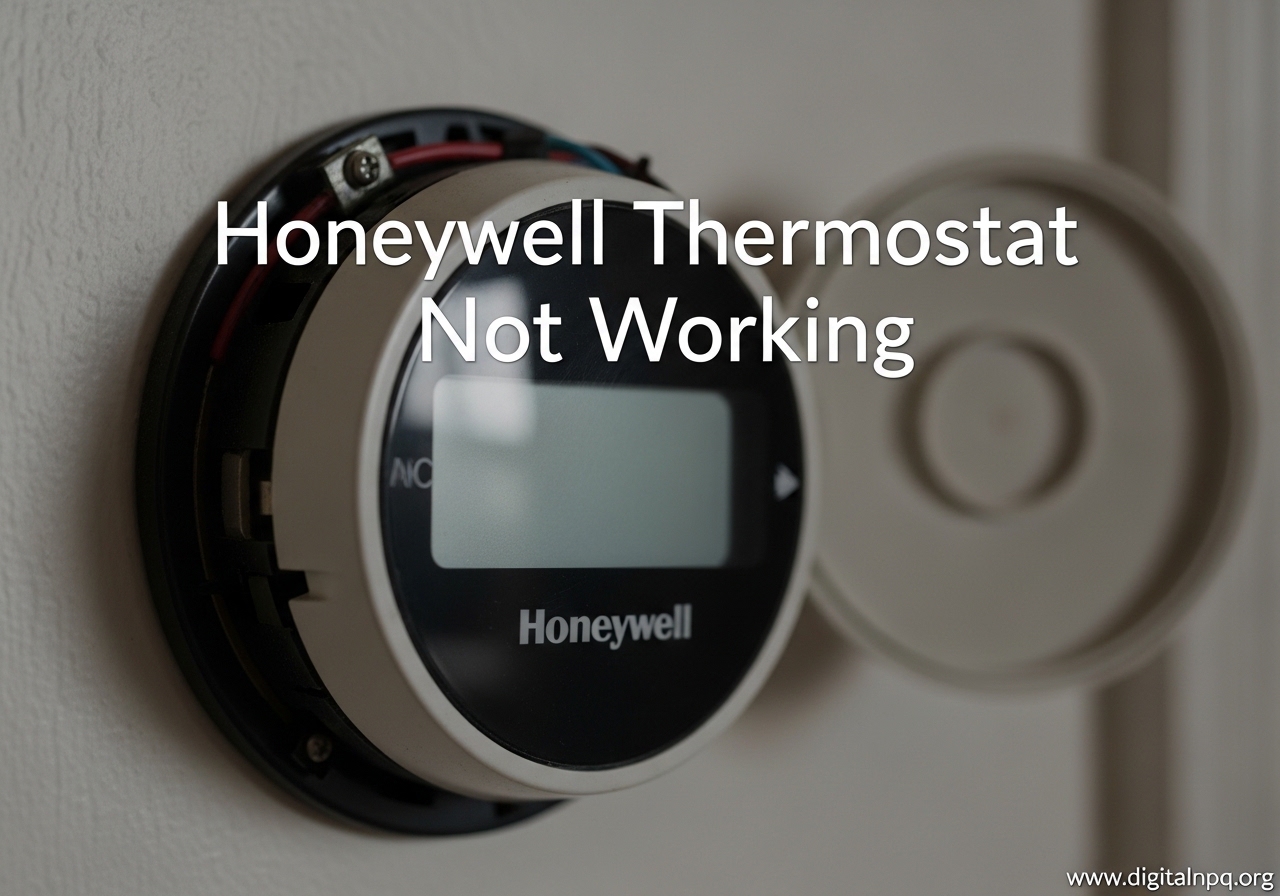
When your Honeywell thermostat stops working, it can feel like your entire comfort system just quit on you. I have dealt with this exact situation more times than I can count, both in my own home and helping friends and family troubleshoot their HVAC systems. The good news is that most Honeywell thermostat problems have simple fixes that take under 10 minutes.
A Honeywell thermostat not working can show up in several ways: a completely blank screen, the display is on but your heat or AC will not start, temperature adjustments that seem to do nothing, or buttons that refuse to respond. This guide covers every one of those scenarios with specific, step-by-step instructions.
Whether you have a basic programmable model like the FocusPRO TH6210U2001, a smart thermostat like the T5 or T6, or even an older analog round thermostat, the troubleshooting process follows the same logic. I will walk you through each fix starting with the simplest and most common solutions, then move into more advanced diagnostics. Most people find their answer in the first three steps.
Honeywell Thermostat Not Working: Quick Fixes to Try First
Before diving into detailed troubleshooting, run through this checklist. These six fixes solve about 80% of all Honeywell thermostat problems, and you can knock them out in under five minutes.
1. Replace the batteries. Even if the display looks dim or partially lit, fresh AA or AAA batteries often solve the problem immediately. Most Honeywell programmable thermostats use 2 AA batteries.
2. Check your circuit breaker. Open your electrical panel and look for any tripped breakers labeled for your furnace, air handler, or HVAC system. Flip it fully off, then back on.
3. Find the furnace power switch. There is usually a light switch mounted on the side of your furnace or on a nearby wall. Make sure it is in the ON position. This gets accidentally bumped off more often than you would think.
4. Make sure the furnace door is fully closed. Furnaces have a safety switch that cuts power when the door is ajar. Push the front panel firmly until it clicks into place.
5. Wait 5 minutes. Honeywell thermostats have a built-in compressor delay that prevents damage to your HVAC system. If you just changed a setting, give it up to 5 minutes before assuming something is wrong.
6. Verify the system mode. Press the System button and make sure it is set to Heat, Cool, or Auto, not Off. Also check that your temperature setpoint is actually above (for heating) or below (for cooling) the current room temperature.
If none of these quick fixes worked, do not worry. The sections below go deeper into each specific symptom and its solution.
Honeywell Thermostat Blank Display: Step-by-Step Diagnosis
A blank screen is the single most common complaint with Honeywell thermostats. When your thermostat display is not working, the cause is almost always a power supply issue somewhere along the chain from your electrical panel to the thermostat itself. Here is how to track it down.
Replace the Batteries First
This sounds obvious, but dead batteries cause more blank displays than anything else. Pop off the cover and swap in fresh batteries. For most Honeywell programmable thermostats, you need 2 AA alkaline batteries. Even if the low battery icon has not appeared yet, weak batteries can cause the screen to go blank intermittently before failing completely.
One important note from my own experience: after replacing batteries on some models, you may need to press the center or OK button to wake the display. Give it 30 seconds after inserting fresh batteries before panicking.
Check the C Wire Connection
If you have a Honeywell smart thermostat like the T5, T6, T9, or T10 Pro, it likely runs on continuous power from your HVAC system through the C wire (common wire) instead of batteries. A disconnected or loose C wire at either the thermostat or the furnace control board will cause a blank display.
Remove the thermostat from its wall plate and check that the C wire is securely inserted into the C terminal. Then check the same wire at your furnace control board. If you recently had any HVAC work done, this wire is a prime suspect for getting knocked loose.
Inspect the Circuit Breaker
Your furnace or air handler has a dedicated breaker in your main electrical panel. A tripped breaker cuts power to the entire system, including the 24V transformer that powers your thermostat. Go to your panel, find the breaker for your HVAC system, and check if it has moved to the middle position. If it has, flip it completely off and then back on.
If the breaker trips again immediately after resetting it, stop here. That indicates a short circuit or overloaded component, and you should call an HVAC professional rather than keep flipping the breaker.
Check the Furnace Door Safety Switch
This is one of the most overlooked causes of a blank Honeywell thermostat display. Your furnace has a safety switch behind the front access panel. If the door is even slightly ajar, this switch cuts power to the entire system, which also kills power to your thermostat.
Many Reddit users in r/hvacadvice and r/DIY report discovering this was their problem after hours of troubleshooting. Push the furnace door firmly until you hear or feel it click. If your furnace door has screws, make sure they are tightened down.
Test the Furnace Control Board Fuse
Most furnace control boards have a small automotive-style fuse, typically 3 amp or 5 amp, that protects the 24V circuit. If this fuse is blown, your thermostat loses power even though everything else looks fine. Forum users consistently report this as the hidden culprit behind blank thermostat displays.
Locate the fuse on your furnace control board (it usually looks like a small colored plastic blade). If the wire inside is broken or the fuse looks scorched, replace it with the exact same amperage rating. Never use a higher amp fuse, as this removes the safety protection and can damage your control board.
Check the Safety Float Switch
If you have a condensate drain line from your air handler or furnace, it likely has a safety float switch. When the drain line gets clogged, water backs up and lifts the float, which cuts power to the system as a flood prevention measure. This switch tripping will shut off power to your thermostat.
Check the drain pan under your indoor unit. If you see standing water, the float switch may be activated. Clear the clog and the power should restore. You can temporarily press the float switch down to test if this is your issue.
Honeywell Thermostat Not Responding to Settings
Sometimes the display works fine but your heating or cooling system ignores whatever you tell the thermostat to do. This is frustrating because everything looks like it should be working. Here are the most common reasons and their fixes.
Verify System Mode and Setpoint
Double-check two things: the system mode and the temperature setpoint. The system mode needs to match what you want. Set it to Heat if you want heating, Cool for air conditioning, or Auto for automatic switching. If it is set to Off or Em Heat (emergency heat), your system will not respond normally.
For the setpoint, make sure your target temperature is actually different from the current room temperature. If you want heating, set the thermostat at least 2 degrees above the current reading. For cooling, set it at least 2 degrees below. A setpoint that matches the room temperature tells the system it is already comfortable, so nothing happens.
Override Any Active Schedules
Programmable Honeywell thermostats follow a weekly schedule that can override your manual adjustments. If you change the temperature but the thermostat snaps back to a different setting after a moment, the schedule is overriding your input.
Press and hold the Hold button (or Hold Until on some models) to lock in your desired temperature. This temporarily cancels the programmed schedule. You can also navigate to the schedule menu and clear it if you want permanent manual control.
Clear Keypad Lockout
Honeywell thermostats have a keypad lockout feature that prevents accidental or unauthorized changes. If your buttons are unresponsive, check for a small padlock icon on the display. To unlock, press and hold the center button or the Menu and Up/Down buttons simultaneously (the combination varies by model).
For the T5 and T6 models, press and hold the Menu button for about 5 seconds until the lock icon disappears. For the FocusPRO series, press the Up and Down arrow buttons at the same time for 3 seconds.
Inspect the Wiring Connections
Loose wiring is one of the top causes reported by real users on forums. Even if the wires look connected, a loose wire at the thermostat terminals can cause intermittent failures where the thermostat works sometimes but not others.
Remove the thermostat from its wall plate and gently tug each wire. If any wire pulls free, reinsert it into the proper terminal and tighten the screw. Pay special attention to the R wire (power), W wire (heat), Y wire (cooling), and G wire (fan). Also check that no bare wire is touching another terminal, as this causes short circuits.
Why Your Honeywell Thermostat Won’t Turn On Heat or AC
When your thermostat display looks normal but your furnace or air conditioner refuses to kick on, the problem is usually in the communication between the thermostat and your HVAC equipment. Here is how to narrow it down.
Flashing Heat On or Cool On Icons
If you see the Heat On or Cool On indicator flashing on your display, your thermostat is actually working correctly. The flashing means the system has been called into action, but a built-in compressor delay (also called a minimum off timer) is preventing immediate startup. This 5-minute delay protects your compressor from short-cycling damage.
Wait the full 5 minutes. If the icon stops flashing and stays solid, your system is running. If it continues flashing beyond 5 minutes, there may be an issue with your HVAC equipment itself rather than the thermostat.
Temperature Range Limits
Honeywell thermostats have built-in temperature limits. For heating, the setpoint range is typically 40 to 90 degrees Fahrenheit. For cooling, it is usually 50 to 99 degrees Fahrenheit. If you try to set a temperature outside these ranges, the thermostat will not send the signal to your system.
Make sure your desired temperature falls within the valid range for the mode you selected. This is especially relevant if you are trying to use your AC in very cool weather or your heat during an extreme cold snap.
Test With Fan-Only Mode
A quick diagnostic trick: set your thermostat to the Fan mode (not Auto) and turn the fan to On. If the fan starts blowing, you know the thermostat is communicating with your HVAC system and the basic wiring is intact. If the fan does not come on either, the issue is with power delivery or the wiring, not your heating or cooling equipment specifically.
This simple test has saved me from unnecessary service calls more than once. If the fan works but heat or AC does not, the problem is specific to that function (like a broken furnace igniter or an AC compressor issue), and you will likely need professional help.
Honeywell Thermostat Temperature Won’t Change
There is a specific category of problems where your thermostat seems stuck. You press the up or down arrows, maybe the numbers on screen change, but the actual room temperature never reaches your target. Or worse, the buttons themselves do not seem to register your presses.
Touchscreen Calibration Issues
Smart thermostat models with touchscreens like the T6 Pro and T10 can develop calibration drift over time. The screen registers your taps slightly off from where you actually touch. Try tapping slightly above or below the button you want. If that works, a factory reset (covered in the next section) usually fixes the calibration.
Demand Response Mode
If your Honeywell smart thermostat is enrolled in a utility company demand response program, your energy provider can remotely override your temperature settings during peak demand periods. You will usually see an icon or message on screen indicating this mode is active. Contact your utility provider if you suspect this is happening, or check your thermostat app to opt out.
Temperature Sensor Problems
If the temperature reading on your thermostat seems wrong, the internal temperature sensor may be faulty or affected by external factors. Make sure your thermostat is not in direct sunlight, near a heating vent, or right next to a window. These environmental factors can throw off the sensor reading, causing the thermostat to think the room is already at your desired temperature when it is not.
If the reading is off by more than a few degrees and the thermostat is in a good location, the sensor itself may need replacement. Contact Honeywell support at 1-800-633-3991 for warranty options.
How to Reset a Honeywell Thermostat (By Model Type)
A reset can clear software glitches, stuck schedules, and communication errors. The reset method varies significantly between Honeywell thermostat families, so I have broken down the exact procedure for each major model line. No competitor covers all of these in one place.
Basic Programmable Thermostats (FocusPRO TH5110D, TH5220D, TH6210U)
For the FocusPRO series and similar basic programmable models:
Step 1: Press and hold the Set button until the display flashes.
Step 2: Use the arrow keys to navigate to the Reset option in the menu.
Step 3: Press the Set button again to confirm.
Step 4: The thermostat will power-cycle and return to default settings. You will need to reprogram your schedule.
For a simpler soft reset, remove the thermostat from its wall plate for 30 seconds, then reattach it. This resets the communication without erasing your schedule.
T5 and T6 Smart Thermostats
For the T5 (RCHT8610WF) and T6 (TH6220WF) series:
Step 1: Swipe down from the top of the touchscreen to open the menu.
Step 2: Tap the gear icon for Settings.
Step 3: Scroll down and tap Reset.
Step 4: Choose between Network Reset (resets WiFi only) or Factory Reset (erases all settings and schedules).
Step 5: Confirm your choice and wait for the thermostat to restart.
After a factory reset on a T5 or T6, you will need to reconnect to WiFi through the Honeywell Home app and set up your preferences again.
T9 and T10 Pro Smart Thermostats
For the T9 (RCHT9510WF) and T10 Pro (THX321WFS):
Step 1: Tap the menu icon on the home screen.
Step 2: Select Preferences, then scroll to Device Settings.
Step 3: Tap Reset and choose your reset type.
Step 4: For a full factory reset, select Restore All Settings.
Step 5: The thermostat will restart with a progress bar. Do not remove power during this process.
The T9 and T10 also support a hardware reset: press and hold the side button for 10 seconds until the screen goes dark, then release. The thermostat will reboot automatically.
VisionPRO IAQ
For the VisionPRO IAQ series:
Step 1: Press the Menu button on the touchscreen.
Step 2: Navigate to Preferences and select Reset.
Step 3: Enter the security code if prompted (default is usually 1234).
Step 4: Select whether to reset schedule, WiFi, or all settings.
Step 5: Confirm and wait for the reboot.
Older Round or Analog Thermostats
Older mechanical Honeywell thermostats with a dial or slider do not have a digital reset. To recalibrate, remove the cover and locate the small anticipator adjustment lever or the mercury bulb mounting. For mercury bulb models, make sure the thermostat is perfectly level using a small bubble level. Even a slight tilt can cause heating or cooling to run too long or not long enough.
For bimetallic strip models, gently clean the contacts inside with a piece of paper or a soft brush. Dust buildup between the contacts is the primary cause of these older thermostats failing to make proper contact and send the signal to your HVAC system.
WiFi Reconnection After Reset
After any factory reset on a smart thermostat, you will need to reconnect to your home WiFi network. Open the Honeywell Home app, add your thermostat as a new device, and follow the on-screen pairing instructions. Make sure your phone is connected to the same 2.4 GHz WiFi network you want the thermostat to use, since most Honeywell smart thermostats do not support 5 GHz networks.
How to Check Honeywell Thermostat Wiring
Wiring problems are behind a large number of Honeywell thermostat not working issues. Forum users on Reddit consistently report loose wires as the number one hidden culprit. Here is a safe approach to inspecting your wiring.
Warning: Always turn off power to your furnace or air handler at the circuit breaker before touching any wires. The 24V system used by thermostats is generally safe, but your furnace has high-voltage components nearby that can cause serious injury.
Identify Your Wires
Standard Honeywell thermostat wiring uses color-coded wires, each serving a specific function:
R wire (Red) – 24V power from the transformer. This is the main power supply. Without a solid R wire connection, nothing works.
C wire (Blue or Black) – Common wire that completes the circuit and provides continuous power. Required by most smart thermostats.
W wire (White) – Controls your heating system. If your heat is not working, check this wire first.
Y wire (Yellow) – Controls your air conditioning compressor. If AC will not start, inspect this wire.
G wire (Green) – Controls the fan. If the fan will not run independently, this wire may be loose or disconnected.
Check for Common Wiring Problems
Look for wires that are barely inserted into terminals, corroded wire ends, or wires that have been nicked by the terminal screws and are hanging by a few strands. Re-strip any damaged wire ends and reinsert them firmly. Each wire should have about 1/4 inch of bare copper inserted into the terminal, with the screw tightened snugly.
Also check for wires that were pushed back into the wall and are now putting tension on the terminal connections. If the thermostat was recently installed or moved, the wires behind the wall plate may have pulled loose from their terminals. Leave a small service loop of extra wire behind the thermostat to prevent this.
When to Call an HVAC Professional
I am a big fan of DIY troubleshooting, but there are limits. Here is when you should stop troubleshooting on your own and bring in a professional.
Call an HVAC technician if your circuit breaker trips repeatedly after resetting it, you smell burning plastic or see scorch marks near your furnace control board, your thermostat and HVAC system are both relatively new but nothing you try works, or you suspect a problem with the high-voltage components inside your furnace.
The average lifespan of a Honeywell thermostat is 10 to 20 years depending on the model. If yours is approaching or past that range and has started acting up, replacement is usually more cost-effective than repair. New Honeywell thermostats offer better energy efficiency, WiFi connectivity, and more precise temperature control than units from even five years ago.
You can reach Honeywell Home technical support directly at 1-800-633-3991 for model-specific guidance. They can help determine if your unit is still under warranty and walk you through diagnostics specific to your exact model number.
Prevent Your Honeywell Thermostat From Breaking Down
Most thermostat problems are preventable with a little routine maintenance. Here are the practices I follow to keep my own Honeywell thermostats running reliably year after year.
Replace Batteries Annually
Even if your thermostat is connected to a C wire, replace the backup batteries once a year. I do mine every fall before heating season starts. Mark it on your calendar. Weak batteries cause intermittent glitches that are hard to diagnose because the symptoms come and go.
Keep the Thermostat Clean
Dust buildup inside the thermostat can affect the temperature sensor and even interfere with electrical contacts on older mechanical models. Gently dust around the thermostat with a soft brush attachment on your vacuum every few months. Never spray cleaning products directly on or near the thermostat.
Update Smart Thermostat Firmware
If you have a WiFi-enabled Honeywell thermostat, keep the firmware updated through the Honeywell Home app. Firmware updates often fix bugs that cause connectivity drops, touchscreen issues, and scheduling glitches. Check for updates every few months in the app settings.
Replace HVAC Filters Regularly
Clogged air filters force your HVAC system to work harder, which can cause short cycling, frozen coils, and other issues that look like thermostat problems but are actually airflow problems. Replace your filter every 1 to 3 months depending on the type and your household conditions (pets, allergies, etc.).
Protect Thermostat From Direct Sunlight and Drafts
If your thermostat is mounted in direct sunlight or near a drafty window, the temperature sensor will give false readings. This causes your system to run when it should not or fail to run when it should. If you notice your system short cycling or the temperature reading seems wrong, check the thermostat location first.
FAQ
How do I fix an unresponsive Honeywell thermostat?
Start by replacing the batteries and checking that the circuit breaker for your HVAC system has not tripped. Then verify the furnace power switch is on and the furnace door is fully closed. If the display is on but buttons do not respond, check for a keypad lockout icon and unlock by pressing and holding the center or menu button. For touchscreen models, try a factory reset through the settings menu.
Is there a reset button on a Honeywell thermostat?
Most Honeywell thermostats do not have a physical reset button. Instead, the reset function is accessed through the menu. On touchscreen models like the T5, T6, T9, and T10, go to Settings then Reset. On basic programmable models like the FocusPRO series, press and hold the Set button and navigate to the reset option. For a quick soft reset on any model, remove the thermostat from its wall plate for 30 seconds and reattach it.
Why is my thermostat not kicking on at set temperature?
The most common reasons are incorrect system mode (set to Off instead of Heat or Cool), an active schedule overriding your manual setting, or the setpoint being too close to the current room temperature. Make sure the system mode matches what you want, press the Hold button to override any schedule, and set the target temperature at least 2 degrees above (heating) or below (cooling) the current room reading. Also allow up to 5 minutes for the compressor delay to clear.
Why is my Honeywell thermostat not kicking on heat?
First verify the system mode is set to Heat and the temperature setpoint is above the current room temperature. Then check that the furnace power switch is on, the furnace door is closed, and the circuit breaker has not tripped. Inspect the W wire (white wire) connection at both the thermostat and furnace. If the display shows Heat On but the furnace does not run, the problem is likely with the furnace itself (igniter, flame sensor, or control board) rather than the thermostat.
What are common Honeywell thermostat problems?
The most common problems are blank displays from dead batteries or power supply issues, unresponsive buttons caused by keypad lockout, heat or AC not activating due to incorrect mode settings or tripped breakers, temperature not changing because of schedule overrides, WiFi connectivity drops on smart models, and inaccurate temperature readings from poor thermostat placement. Most of these have simple DIY fixes involving battery replacement, breaker checks, or menu settings adjustments.
What is the average life of a Honeywell thermostat?
Honeywell thermostats typically last 10 to 20 years. Basic programmable models tend to last longer since they have fewer electronic components that can fail. Smart thermostats with touchscreens and WiFi modules may have a shorter functional lifespan of 8 to 12 years as connectivity standards change. If your thermostat is over 15 years old and having recurring issues, replacement is usually more practical than continued repairs.
What is the most common cause of thermostat malfunctions?
Dead or weak batteries are the single most common cause of thermostat malfunctions, responsible for more service calls than any other issue. After batteries, the most frequent causes are tripped circuit breakers, loose wiring connections (especially at the thermostat terminals), and tripped furnace safety switches from an open access panel. These four causes account for the majority of all thermostat problems and all have straightforward fixes.
Conclusion
A Honeywell thermostat not working is almost always caused by one of a handful of common issues: dead batteries, a tripped breaker, a loose wire, or a setting that got changed by accident. Working through the quick fixes checklist at the top of this guide resolves most problems in minutes. For tougher cases, the detailed diagnosis sections and model-specific reset instructions should get you sorted.
The key takeaway from my own troubleshooting experience is to always start with the simplest explanations first. Before you start tearing into wiring or calling a technician, check the batteries, the breaker, the furnace switch, and the furnace door. Those four things solve the vast majority of problems.
If you have worked through every step in this guide and your thermostat is still not working, it is time to contact a professional. Reach Honeywell Home support at 1-800-633-3991 or schedule a visit with a local HVAC technician. Sometimes the thermostat itself has simply reached the end of its useful life, and a replacement is the most reliable path forward.